
What you are about to do
Hivra gives each supported agent a computer of its own: a private machine with its own files, its own working environment and its own address. You pick the agent, decide how it reaches an AI model and where its computer runs, and Hivra creates the computer and installs the agent on it. Afterwards you open the agent from your browser. Closing the tab does not close the computer.
This page walks through the whole first run in order. It is written for developers and AI power users, so it names every setting and says what each one does. The steps are:
- Make an account and open Launch.
- Choose an agent or a computer on the Choose step.
- On the Review step, check the name, Where it runs, Size, Browser and Model access.
- Press the launch button and wait while the computer is created.
- Open the agent from the ready screen or from your Home page.
Nothing starts until you press the launch button on the Review step, and you can press Back or leave at any point before that.
Before you start
A Hivra account costs nothing. What costs money is the computer your agent runs on, and you have two ways to provide one.
Every computer that Hivra Cloud runs for you needs a paid plan, from $9.99 a month for 2 vCPU and 4 GB of RAM. A free account works with a computer or server you connect yourself.
| Hivra Cloud | Your own server | |
|---|---|---|
| Who runs the computer | Hivra | You |
| What you need | A paid plan | A server you connect, and a free Hivra account |
| Billing for the computer | Your Hivra plan | Whatever you already pay for the server |
| Which agents | All supported agents, with a few conditions per agent (Hermes and DeepSeek Harness run here only) | Most agents, on a server that meets the requirements |
Plan prices, sizes and the money-back terms are in Plans and billing. Connecting a server is covered in Run agents on your own server, and you can start that from inside Launch.
You also need a way for the agent to reach an AI model. You have three options, explained in step 3 below and in Choose how your agent gets its model: sign in with an account you already have, paste your own API key, or use Hivra credits. You do not need to decide this before you start, because Launch asks.
Hivra is not affiliated with the makers of Claude Code, Codex, Hermes, OpenClaw, Agent Zero, Aeon, DeepSeek Harness or the other agents Launch offers. They are their makers' projects, and Hivra provides the computer they run on.
1. Make an account
Open the sign-up page. The page is titled Create your Hivra account. Besides the sign-in form it has one optional question, How did you hear about Hivra?, with a Choose one menu. If you pick Other, a Where? (optional) box appears. You can skip all of it.
Finish the form. Creating an account means you agree to the Terms of Service and acknowledge the Privacy Policy, both linked under the form. After you sign up you land on Launch. If you are already signed in, the sign-up page sends you straight on to Launch.
What the account is: your sign-in, your billing record, and the list of agents and computers you have launched. It is not a computer. Hivra runs no free computer, so a new account on its own does not hold an agent. The account is what you use to buy a plan, connect your own server, keep API keys in your Vault and open your agents from any browser.
Older links to the welcome page (/dashboard/welcome) still work. They forward to Launch, to Billing if the link named a plan, or to Launch with an agent already selected if the link named one.
2. Choose what to launch
Launch lives at Launch in the dashboard (/dashboard/launch). A small progress strip at the top shows two steps, Choose and Review. The first screen is titled What do you want to launch? and says Hivra suggests where it runs and how big it is, and that you review everything before anything starts.
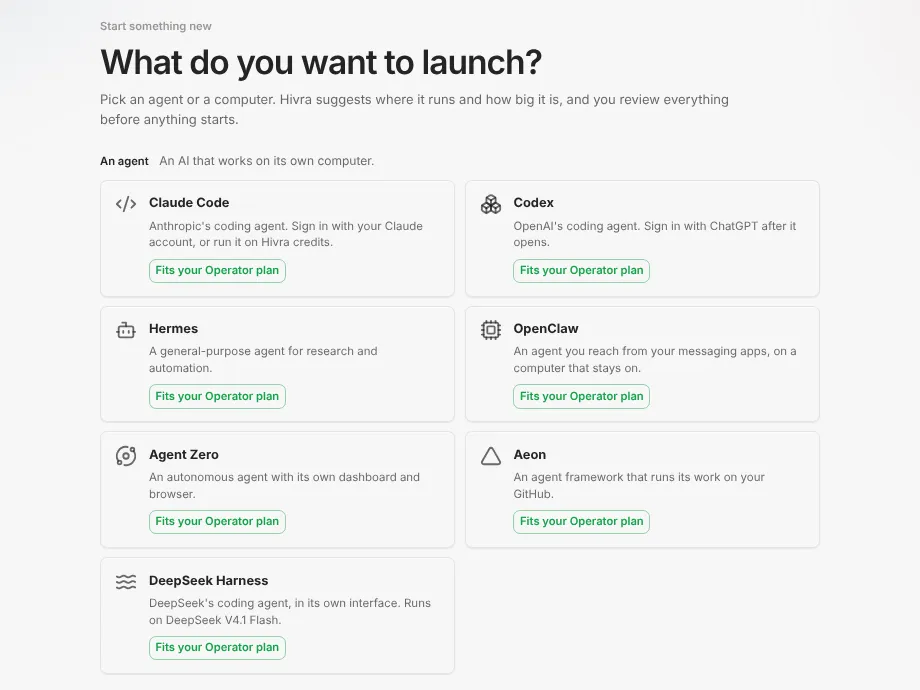
The screen has two sections.
- An agent, described as "An AI that works on its own computer." Each tile is one supported agent.
- A computer, described as "A machine you use yourself. It runs on its own, without an agent." These are computers you open yourself, such as Ubuntu Desktop or Linux computer.
Each agent tile carries a one-line description and a badge saying whether the launch fits your plan or your connected capacity. The agents are:
| Tile | What it is | How you will use it |
|---|---|---|
| Claude Code | Anthropic's coding agent | Chat, terminal and files in Hivra |
| Codex | OpenAI's coding agent | Chat, terminal and files in Hivra |
| Hermes | A general-purpose agent for research and automation | Its own web interface |
| OpenClaw | An agent you reach from your messaging apps, on a computer that stays on | Its own Control UI |
| Agent Zero | An autonomous agent with its own dashboard and browser | Its own dashboard |
| Aeon | An agent framework that runs its work on your GitHub | A dashboard on its computer |
| DeepSeek Harness | DeepSeek's coding agent in its own interface, on DeepSeek V4.1 Flash. It is in alpha | Its own interface |
The exact tiles you see depend on what is switched on for your account and where you are. Hermes shows one tile, for whichever way Hermes is launched where you are. Some agents are in preview and appear only when they are turned on. Hermes, Claude Code, Codex, OpenClaw, Agent Zero, Aeon and DeepSeek Harness each have a page with the details.
Not sure which to pick? Claude Code and Codex are coding agents you work with in a chat, with a terminal and files beside it. Hermes is a general agent for research and automation. OpenClaw suits an agent you talk to from your messaging apps. Pick one and you can always launch another later, each on its own computer.
If your account has no paid plan, a notice under the heading says that Hivra Cloud is part of a paid plan and offers See plans and Connect my own server. You can still pick a tile and review it. If you saved an agent as a template, Start from a template at the bottom of the screen opens it. Cancel takes you back to Home.
Hermes and DeepSeek Harness run on Hivra Cloud only. The other agents can also run on a Proxmox VE server you connect.
Pick a tile to move to Review.
3. Review, connect its AI and choose where it runs
The Review step is titled Review and launch followed by the agent's name. It says Hivra picked sensible settings, and that nothing starts until you launch. Everything you need is on one screen.
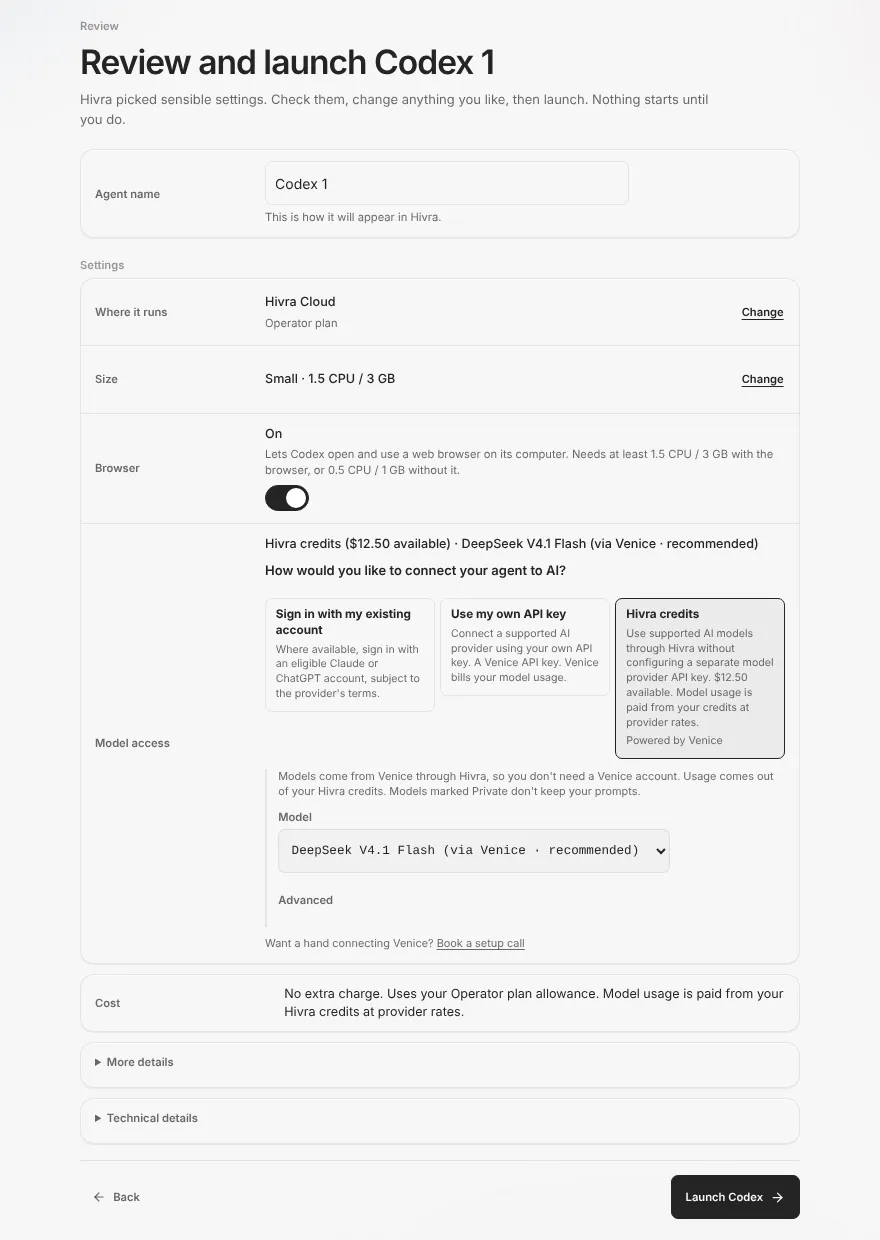
The name
The Agent name field (Computer name for a computer) is filled in for you, numbered when you already have one of that kind, such as Codex 1 and then Codex 2. The hint under it says it is how the agent will appear in Hivra. Rename it to something you will recognise on Home. If the name is not allowed, the hint turns into the reason and the launch button stays off.
Where it runs
The Where it runs row shows the current choice with a Change button. Opening it shows a panel with two options:
- Hivra Cloud: Hivra operates the computer and it uses your plan's compute pool.
- My infrastructure (shown as Connected host on a self-hosted install): a compatible host you connected, using its measured capacity instead of your Hivra plan.
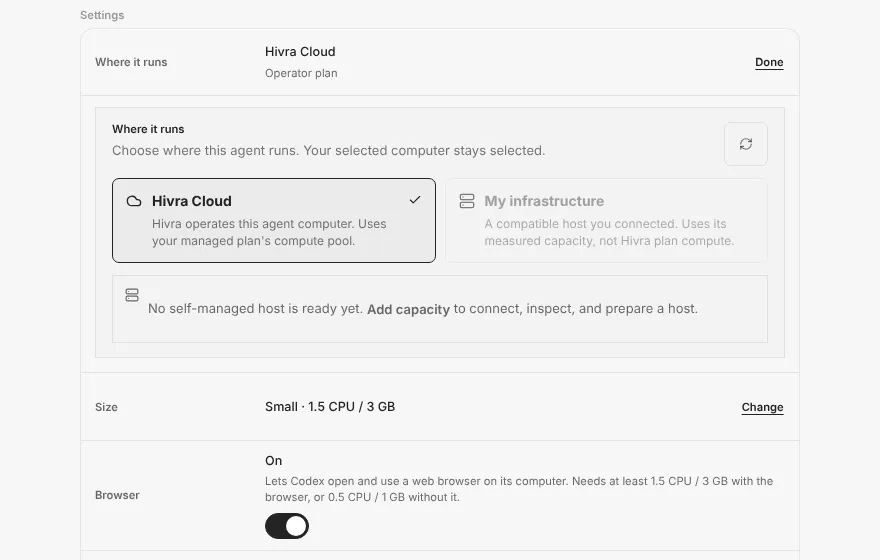
If you have not connected a server, My infrastructure is greyed out and the panel says "No self-managed host is ready yet." with an Add capacity button that opens a sheet for connecting one. With a ready host, a Choose a host menu lists your hosts and shows their measured CPU, memory and last inspection time.
Some agents run on Hivra Cloud only, and My infrastructure is then unavailable for them. Your own server needs to be a Proxmox VE server connected with SSH details to run the agents. The one-command Ubuntu connection runs Linux Sandbox only. Run agents on your own server has the requirements.
Size
The Size row shows a preset such as "Small" with its CPU and memory. Change opens the presets. A preset that is bigger than your plan or the chosen server is marked Over your plan or Too big for this server and cannot be picked. Customize opens four controls: Reserved CPU, Maximum CPU, Reserved memory and Maximum memory. Reserved amounts are always kept for the computer and count against your plan's pool or your server's capacity. It can use more, up to the maximum, only while the host has spare room. Some agents have a fixed size and show "fixed size" instead. Cores are shared, so speed is not guaranteed.
Each agent has a minimum. For example, Hermes on a Hivra computer needs at least 1 CPU and 2 GB. The controls only offer sizes the chosen agent can run on.
Browser
Claude Code, Codex and OpenClaw show a Browser row with an on and off switch on Review. Other agents do not. On gives the agent a browser on its computer that you can watch from the Browser tab. The row states the smallest size with the browser and without it. On Hivra Cloud the browser needs a paid plan. Leave it off if the agent does not need one: a smaller size is enough.
Model access: connect its AI
The Model access row asks How would you like to connect your agent to AI? and lists three choices: sign in or set up inside the agent, your own API key, and Hivra credits. A choice the agent cannot use through Hivra is shown greyed out with the reason, not hidden. The one exception is DeepSeek Harness, which has no sign-in option at all, and a self-hosted Hivra installation, which does not list credits. Which choices work depends on the agent:
| Agent | Sign in or set up inside the agent | Your own API key | Hivra credits |
|---|---|---|---|
| Claude Code | Sign in with my existing account | Not available. Use credits, or sign in with an Anthropic Console account | Yes |
| Codex | Sign in with my existing account | Yes, a Venice API key | Yes |
| Hermes | Set up inside Hermes after it opens | Yes, a Venice API key | Yes |
| OpenClaw | Set up inside OpenClaw after it opens | Not available | Yes |
| Agent Zero | Set up inside Agent Zero after it opens | Not available | Yes |
| Aeon | Use the key on your GitHub fork | Not available | Yes |
| DeepSeek Harness | No sign-in option | Yes, a Venice API key | Yes, the default |
Credits are a Hivra Cloud option. On your own server, some choices can show as unavailable with a reason, for example Codex until the server reports it can take a model key. Credits for Claude Code need a host on provisioner release 2026.11.10.2 or later, and credits are unavailable on a computer in your own cloud for every agent except Codex. Choose how your agent gets its model has the detail.
What each choice does:
- Sign in with my existing account (or Set up inside ... after it opens). Nothing is sent now. You sign in, or pick a model provider, inside the agent once it is open. Where available, you can sign in with an eligible Claude or ChatGPT account, subject to the provider's terms. Your provider bills that usage under your own account.
- Use my own API key. Paste a key from a supported provider. Launch checks it and says Key works., or that Venice does not accept it, or that it could not reach Venice to check, in which case you can still launch. Save it in my Vault for next time keeps it for later launches, and a saved key shows as Use my saved key with its last characters. A saved key is sent to the agent's computer only if you tick Send this key to ... computer, and only for this launch. Your provider bills the usage.
- Hivra credits. Use supported AI models through Hivra without a separate provider key. Models come from Venice through Hivra, so you do not need a Venice account, and usage is paid from your credit balance at provider rates. A model menu lets you choose, with a recommended default, and an Advanced area takes a custom model ID. Models marked Private do not keep your prompts. If your balance is empty, the option says to add credit, and Add credit opens the top-up window.
The credits balance in the screenshots is sample data. Choose how your agent gets its model covers each path in more depth, including what Claude Code does on credits.
Cost and details
The Cost row states in words what the launch uses: your plan's allowance on Hivra Cloud, or "No charge from Hivra. It uses your server's own capacity." on your own server, plus how model usage is paid. More details lists what the agent can use and which tabs you will see its work in. Technical details shows the isolation type, the runtime and a launch request ID. On Hivra Cloud the isolation line reads "Private virtual machine on Hivra Cloud (Proxmox KVM)".
4. Launch and wait while the computer is created
Press the button at the bottom right, labelled Launch followed by the agent's name. Back returns to Choose. If something blocks the launch, a notice above the button says what, and the button stays off until you fix it. See "When something goes wrong" below.
Launch then shows Launch in progress and Confirming your launch... with a line describing what Hivra has seen so far:
- "Sent to Hivra. Waiting for Hivra to record the request."
- "Hivra has recorded the request and is creating the computer."
- "The computer exists. Hivra is finishing the launch record."
- "Hivra is checking the computer's state with its server."
Once Hivra accepts the launch, the screen changes to Setting up with the headline "<name> is setting up." and Waiting for it to answer. You can wait on this screen, or press Open <name> now to watch it start from the agent's page. Creating a computer takes as long as it takes: Hivra shows what it observes and does not promise a time.
When the agent answers, the screen turns to Ready: "Your agent's computer is ready." with an Open my agent button. If the agent has not answered after a while, Hivra stops checking and says so, with a Check again link. Launch something else starts a new launch without touching this one.
Your unfinished launch is kept in this browser. If you close the tab before pressing launch, or leave during Stripe checkout for a plan, Launch offers Continue your ... launch or Start a new ... launch next time. A pasted API key is never kept in the browser.
5. Open your agent for the first time
Open the agent from the ready screen, or from Home. Home is titled Where will you work?, lists your agents and computers with their status, where they run and their size, and has a Launch an agent or computer link at the bottom. A running agent shows Open agent. A stopped one shows View details.
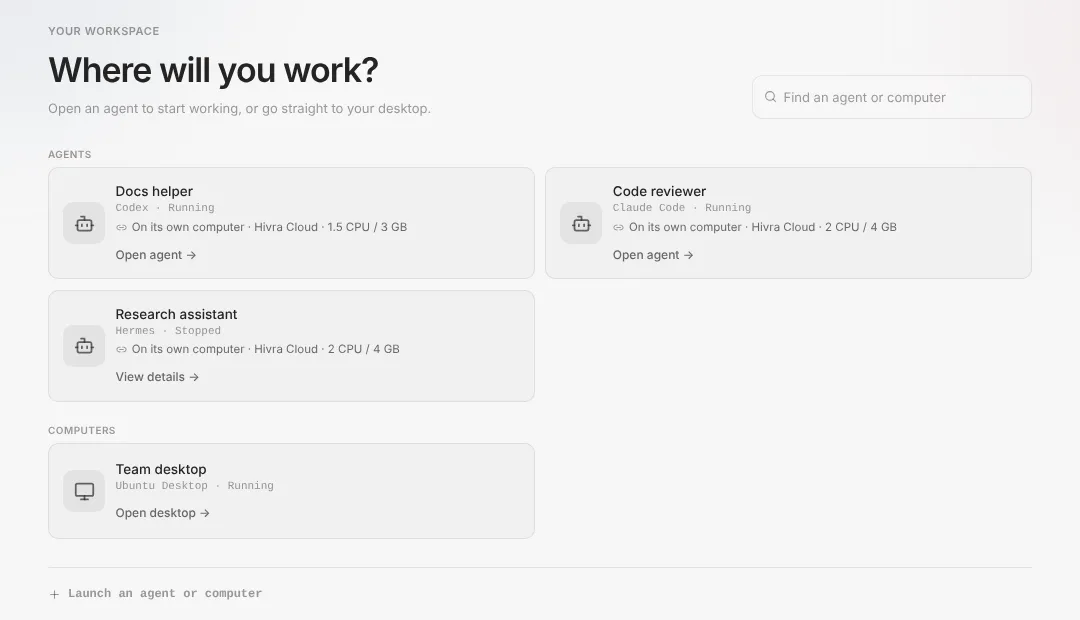
What you land on depends on the agent. Claude Code and Codex open with a sidebar of Chat, Browser, Computer and Settings, plus a list of your chats and a New chat button. Computer groups the Files and Terminal views, and Settings is the agent's Manage page. Hermes, OpenClaw, Agent Zero, Aeon and DeepSeek Harness open into the agent's own web app, shown as Dashboard where it is not a chat, reached through Hivra's authenticated gateway. Open your agent describes each view.
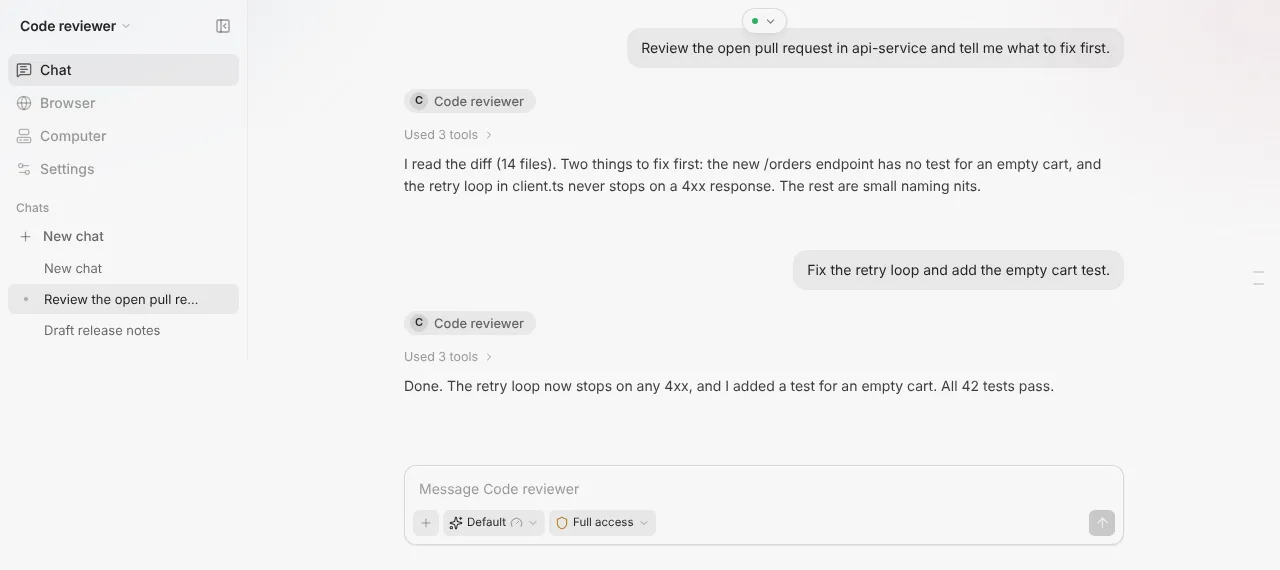
What to do first:
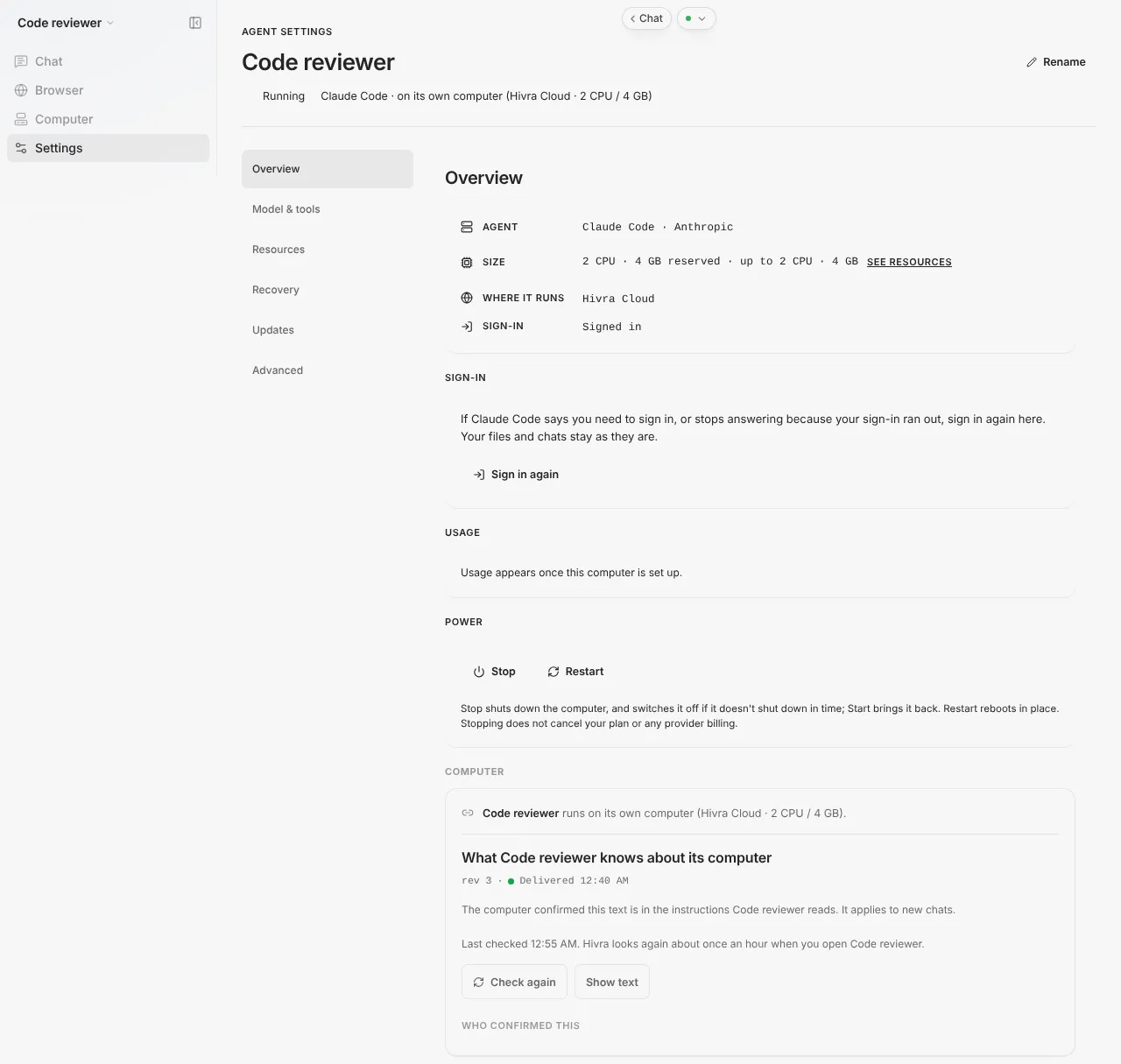
- Sign in or finish model setup, if you chose to sign in or to set up inside the agent. Codex asks you to sign in with ChatGPT after it opens. On the agent's Settings page, the Overview section shows the sign-in summary and a Sign in again button if you need to redo it.
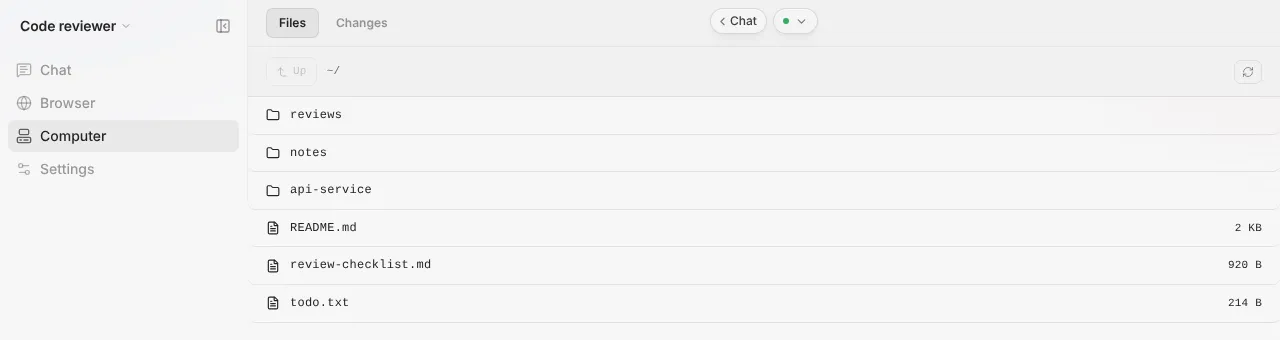
- Give it a small task so you see how it works: ask it to read a repository, summarise a folder or run a command. Open Computer, then Files or Terminal, to see what it did on its own machine.
- Check Settings. The Overview section shows the agent, its size, where it runs and the power controls for stopping and restarting it.
What keeps running when you leave
On a paid Hivra plan the computer stays on and keeps your files, sessions and login. A Claude Code or Codex run you start inside tmux in the computer's Terminal tab keeps going after you close the laptop. On Claude Code, work you send through Telegram, connected in the agent's Telegram tab, runs on the computer, not in your browser.
Hermes, OpenClaw and Agent Zero run on the computer itself, and Aeon's scheduled tasks run on your own GitHub Actions while the computer hosts its dashboard. None of them needs an open browser.
Your files and the agent's environment stay on its computer when you close the tab or the laptop. If you stop a computer from Settings, it shows as stopped on Home until you start it again.
When something goes wrong
| What you see | What it means | What to do |
|---|---|---|
| "... on Hivra Cloud needs a paid plan. Your free account works with your own server..." | Every Hivra Cloud computer needs a paid plan, and your account does not have one | Choose a plan in Billing, or connect a server and choose My infrastructure under Where it runs |
| "... runs on Hivra Cloud only, and that needs a paid plan." | The agent cannot run on your own server | Choose a plan, or pick an agent that can run on your server |
| "Hivra Cloud is part of a paid plan" notice on Choose | Your account has no paid plan yet | See plans, or Connect my own server |
| "No self-managed host is ready yet." | You have not connected a server, or none is ready for this launch | Add capacity, or open Infrastructure and finish the connection |
| A size marked Over your plan or Too big for this server | The preset does not fit | Pick a smaller preset, or choose another host |
| "The selected host does not have enough measured capacity for this size." | The host is too small for the size you picked | Choose a smaller size or another host |
| Browser says it needs a paid plan | Browser automation is part of a paid plan on Hivra Cloud | Turn Browser off, or choose a plan |
| "Venice doesn't accept this key." | The pasted key is wrong or not a Venice key | Check it, or choose another way to connect AI |
| Hivra credits shown as unavailable with "Add credit to start chatting." | Your credit balance is empty | Add credit, or choose a different way to connect AI |
| "We couldn't confirm the launch yet." or "Launch could not be confirmed." | Hivra did not hear back in time | Press Check again or Resume same launch. It reuses the same request and will not start a second computer |
| "This launch didn't go through." | Hivra rejected the launch | Read the reason, then Review launch to change it and try again |
| "<name> couldn't start." | Something failed while setting up the computer | Open <name> to see what happened and remove it, then launch again |
| "Part of this launch was created and can be removed." | The launch got part of the way | Open it to delete from the agent's Settings page, then start again |
| "We couldn't check your plan, so we can't show what fits it yet." | Hivra could not read your plan | Check again |
If the agent shows as running but you cannot reach its interface, see Troubleshooting. Starting a new launch never deletes what an earlier attempt created, so check Home for leftovers.
What Hivra does and does not do
- Does: create a private computer for each agent, install the agent on it, open it behind your Hivra sign-in, show you what the launch is doing as it happens, and keep its files and environment on that computer.
- Does: show the cost in words on the Review step before you launch, and start nothing until you press the button.
- Does not: run a free computer. A free account works with a server you connect yourself.
- Does not: make the agent safe by itself. A separate computer is a boundary, not a guarantee that the agent is safe. Read Security and access before you give an agent credentials or access to private code.
- Does not: choose the model for you without telling you. Model access is a setting you review, and the agent's own sign-in or provider billing applies when you use your own account or key.
- Does not: promise a launch time. The screens show observed progress, not an estimate.
What to do next
- Take the dashboard tour to learn Home, Computers, Settings and billing.
- Read Open your agent for the views of each agent.
- Read Choose how your agent gets its model before you move heavy work onto credits or your own key.
- Connect your own server with Run agents on your own server if you want agents on hardware you already run.
- Check Plans and billing for what a plan includes and how to change or cancel it.
- Keep an agent current with Update an agent.
Common questions
Do I need to pay to make a Hivra account?
No. A Hivra account costs nothing. Every computer that Hivra Cloud runs for you needs a paid plan, and a free account works with a computer or server you connect yourself.
Can I launch an agent without a paid plan?
Yes, if you connect a server of your own. Under Where it runs, choose My infrastructure. The server needs to meet the agent's requirements, and some agents run on Hivra Cloud only, so they need a paid plan.
Does anything start before I press the launch button?
No. The Choose and Review steps only collect your choices. The computer is created after you press Launch on the Review step.
Which model does my agent use, and who pays for it?
That is your choice on the Review step. You can sign in with an account you already have, paste your own API key, or use Hivra credits. With your own account or key your provider bills the usage. With Hivra credits, usage is paid from your credit balance at provider rates. Not every agent offers all three choices.
What if the launch screen says it could not confirm the launch?
The request may already have reached Hivra. Press Check again, or Resume same launch. Both reuse the same request, so a second computer is not started.
Can I close the tab while the computer is being created?
Yes. The launch is kept in your browser, and the agent will show on your Home page once it exists. If you come back to an unfinished launch, Launch offers to continue it or start a new one.
Can I launch more than one agent?
Yes. Run Launch again and pick another tile. Each agent gets a computer of its own. What you can run at once depends on your plan's allowance on Hivra Cloud, or on your server's capacity.
Where do I find my agent after I launch it?
On your Home page, under Agents, with an Open agent link once it is running. You can also use the Open my agent button on the ready screen.