
What this is and who it is for
Hivra Cloud runs a computer for each agent on a paid plan. If you would rather use hardware you already control, you can connect a server and launch onto it instead. Connecting a server costs nothing, and a Hivra account is free: the paid plan applies to computers Hivra Cloud runs, not to a server you connect yourself.
This page is for developers and AI power users who have a Linux server, a rented machine or a Proxmox VE host, and who are comfortable with a terminal and SSH. You get the same Launch flow, but the computer is created on your host and counts against that host's capacity, not a Hivra plan.
Hivra is not a replacement for knowing your server. You own it, you pay your provider for it, and you decide who has access to it. Hivra inspects it, prepares it when you approve, and launches onto it when you ask.
Pick how to connect
There are two main routes, and they run different things. The route decides what you can launch, so choose before you start.
| How you connect | Server | What it can run |
|---|---|---|
| SSH details | Proxmox VE | Claude Code, Codex, OpenClaw, Agent Zero, Aeon and Ubuntu Desktop, plus Windows from your own licensed image |
| One command | Ubuntu 22.04 or 24.04 on x86 | Linux Sandbox only |
Hermes and DeepSeek Harness run on Hivra Cloud only, so a connected server cannot run them. Everything else in the first row needs the Proxmox route: an Ubuntu server connected with the one command gives you Linux Sandbox and nothing more.
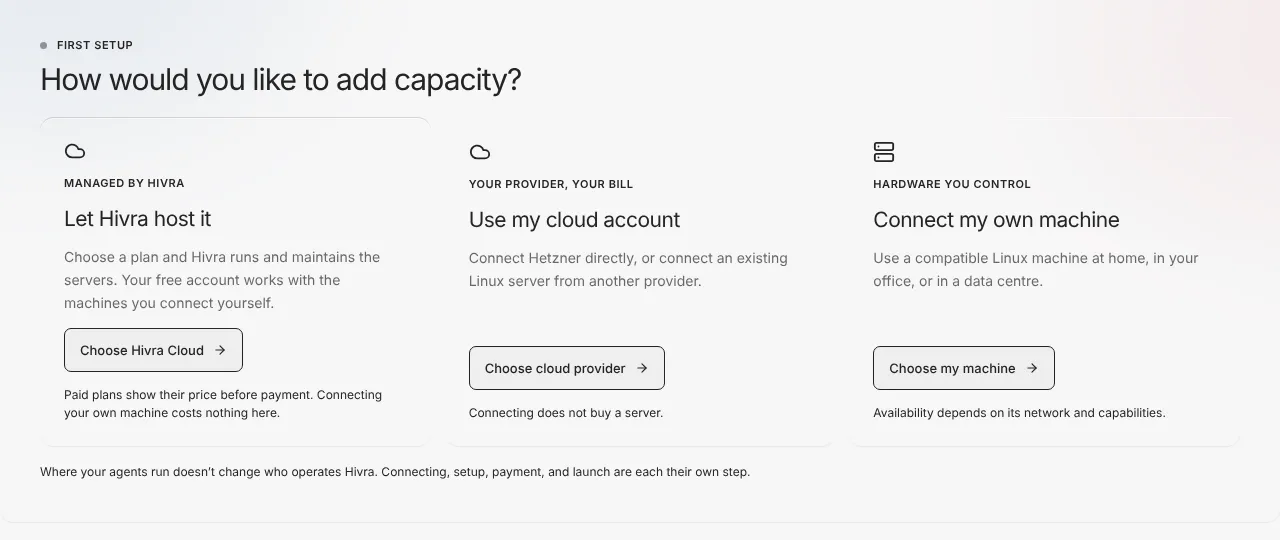
There are also direct connections to two cloud accounts, covered further down. They do not need a server to exist first.
Before you start
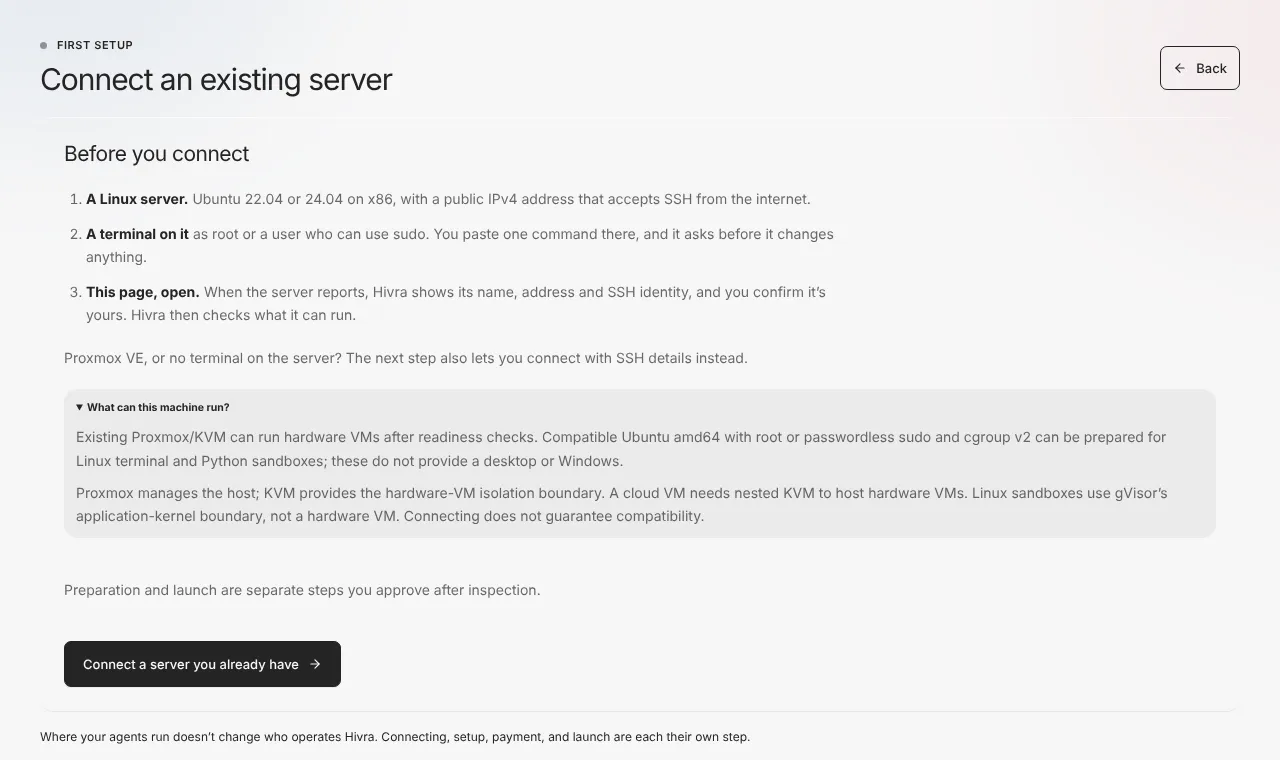
For the one-command Ubuntu route you need:
- A Linux server running Ubuntu 22.04 or 24.04 on x86, with a public IPv4 address that accepts SSH from the internet.
- A terminal on it, as root or as a user who can use sudo.
- The Hivra page open while you run the command, because the server reports back to it.
- For Linux Sandbox, root or passwordless sudo and cgroup v2 on the server. Hivra checks this and tells you if the host does not qualify.
For the Proxmox VE route you need:
- The server's address (hostname or IP, not a URL) and the SSH port.
- A private key file that already lets you sign in. Proxmox VE connects with a root login for now.
- A way to confirm the server's SSH fingerprint independently, such as the provider's console or a trusted terminal on the machine.
- Proxmox VE 8 or 9. Setup stops with an upgrade message on an older version.
- KVM available on the host. A cloud VM needs nested KVM to host the hardware VMs agents run in, and connecting does not guarantee a server is compatible.
A machine at home or in an office usually cannot be reached from hosted Hivra. A home IP such as 192.168.x.x or localhost is not reachable from it. A self-hosted Hivra installation can reach private addresses only when its operator explicitly turns on private networking for it. Otherwise use a reachable remote server.
Connect an Ubuntu server with one command
This route gives you Linux Sandbox. It is the quickest way to try your own hardware because it needs no key handling on your side.
- Open Servers in the dashboard. On your first setup the chooser is already open. Later, press Add a server.
- Choose Connect my own machine, then A remote server. (The other option, At home or in my office, needs a machine Hivra can reach, so it only helps with a self-hosted Hivra.)
- Read the Before you connect list (shown below), then press Connect a server you already have.
- Hivra makes a setup command. Press Copy the setup command and paste it into a terminal on the server. Signed in as root? Leave out
sudo. - When the command asks for a one-time code, paste the code the panel shows (Copy the one-time code). Your terminal also asks you to check your account code, which the panel displays.
- The command asks before it changes anything. Answer at the terminal. The panel shows a waiting line until the server reports.
- When the server reports, the panel changes to Is this your server? It shows where Hivra saw the connection come from, what the server reported, the three words your terminal printed, and the server identity. Only choose Yes, this is my server if your terminal shows those three words.
- Hivra then inspects the server. Continue with the steps under "Inspect, prepare and launch".
The code is single use and expires 15 minutes after it is issued. The panel counts down. If it runs out, press Get a new command. Closing the panel does not cancel the command. Until it is used or expires, the Servers page lists it under Setup commands, where you can cancel it. You can have 3 unused setup commands at a time and make 30 a day, so cancel old ones there.
Read the script first
If you would rather read it than paste it, choose View the script first in the panel. It shows the script version and hashes, a link to read the script, a dry-run command that changes nothing and needs no sudo, and a download command with checks you can run before you execute it. The same file is in Hivra's public repository at dashboard/bootstrap/server-enroll.sh, and Hivra refuses to serve it if it does not match its pinned checksum.
The downloaded file contains your one-time code, so delete it when you are done. Downloading does not use the code up.
Use a coding agent
The panel also offers Copy prompt for Claude Code, Codex or another agent that can reach the server. The prompt previews first and leaves the step that gives Hivra access to you.
Connect Proxmox VE with SSH details
Use this route for Proxmox VE, or when you cannot run a command on the server. It is the route for Claude Code, Codex, OpenClaw, Agent Zero, Aeon and Ubuntu Desktop on your own host.
- Open Servers and reach the Connect a server you already have panel as above. In the setup-command panel, choose Connect with SSH details instead (advanced). You can also choose Connect it with SSH details instead next to the Proxmox question.
- Under Connection details, fill in Connection name, SSH host (a hostname or IP address, no URL) and open SSH settings for the SSH user and Port. Proxmox VE connects as root for now.
- In Pinned SSH fingerprint, enter the server's fingerprint. To get it, run
ssh-keygen -lf /etc/ssh/ssh_host_ed25519_key.pub -E sha256on the server, or use the provider's console. Hivra never trusts a first connection automatically. - Alternatively press Read it from the server. Hivra shows the identity the server presented. Compare it with your provider's console. Only if it matches, press It matches: use this fingerprint. If someone were intercepting the connection, what you see could be their key, so do not skip the comparison.
- Under Credential, paste the SSH private key or press Choose key file. If your key has a passphrase, enter it under Key passphrase (only if your key has one).
- Press Connect and inspect.
Hivra stores the key encrypted and never returns it to the browser. If the key has a passphrase, Hivra unlocks it once, stores only the unlocked key (encrypted) and does not store the passphrase.
A non-root user can be used on a generic Linux host if it has passwordless sudo. The wizard shows a checkbox for it and the rule it needs, <user> ALL=(ALL:ALL) NOPASSWD: ALL in /etc/sudoers.d. Proxmox launches need a root login for now, and Proxmox setup stops with a message asking you to set the SSH user to root if you connected as someone else.
The wizard's progress row reads Connect, Inspect, Recommend, Prepare, Ready.
Inspect, prepare and launch
After you connect, Hivra inspects the host over SSH without changing it. It looks at the operating system, capacity, environment, KVM access and installed isolation engines, then recommends the next step. Preparation and launch are separate steps and you approve each one.
| What it found | What the button says | What it does |
|---|---|---|
| Proxmox VE | Check Proxmox readiness | Runs a strict readiness check on the host |
| Compatible Ubuntu | Review setup | Shows exactly what will be installed for Linux Sandbox |
| Setup already done | Check readiness | Confirms the sandbox runtime still works |
| Non-root user without sudo | Use sudo for setup, Use the setup command or Change SSH user | Fixes how Hivra signs in |
Nothing is installed until you press the confirm button on the review dialog: Set up <your server name> for Proxmox, Set up Linux Sandbox for Linux Sandbox. The dialog lists every step first. Keep the window open while setup runs.
What Hivra installs on a Proxmox host
The dialog is titled Set up <your server name> for agents? and says it does not create an agent or buy anything. The steps are:
- Check root access, Proxmox, KVM, storage and the network.
- Install Hivra's host tools.
- Download and verify the Ubuntu base image.
- Set up the private network agent computers use.
- Check the server is ready and save the result.
What Hivra installs for Linux Sandbox
The dialog is titled Set up Linux Sandbox on <your server name>? and says it does not create a computer or buy anything. The steps are:
- Check the server still meets the requirements.
- Install Docker and the tools setup needs.
- Download Hivra's pinned gVisor release and verify it.
- Install gVisor and connect it to Docker.
- Download the Linux Sandbox image and run a test sandbox.
- Check the server is ready and save the result.
If the server already has gVisor installed another way, or a sandbox setup Hivra does not recognise, Hivra leaves it in place and does not replace it.
For Linux Sandbox, a passing check is good for 15 minutes. After that, check readiness again from the server's card before you launch. A ready Proxmox host stays ready, and Launch checks it again before anything starts. When the host is ready the card offers Launch on this server (Continue launch if you already have a launch waiting). Choose it and Hivra takes you back to Launch with this server selected.
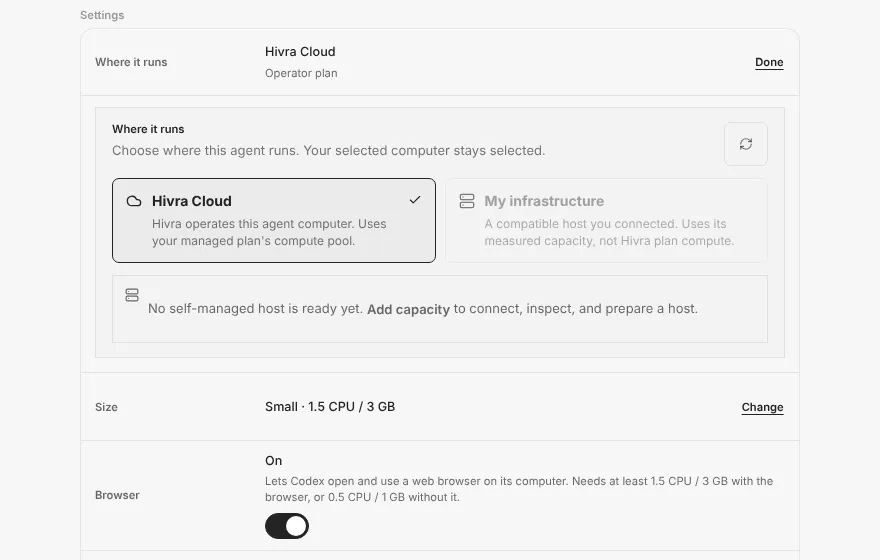
In Launch, Where it runs has two choices: Hivra Cloud and My infrastructure, described as a compatible host you connected that uses its measured capacity, not Hivra plan compute. Once a host is ready you can choose it.
What a free account can do with it
A free account works with a server you connect yourself. You can connect it, inspect it, prepare it and launch supported agents onto it without a paid plan. The paid plan only applies to computers Hivra Cloud runs. The chooser says the same thing: connecting your own machine costs nothing here. See what you pay for.
What you still pay for is the server itself, to whoever hosts it, and the AI usage your agent consumes, to whoever provides the model. If you launch an agent on Hivra credits, those are separate from the server. See Models and credits.
| Thing | Who pays |
|---|---|
| Connecting and inspecting the server | Nothing |
| The server or cloud machine | You, to your provider |
| Agent model usage on your own key or sign-in | You, to the model provider |
| A computer run by Hivra Cloud | A paid plan |
Cloud accounts you can connect directly
Under Use my cloud account, the chooser lists up to three routes. DigitalOcean Managed Agents appears only when it is available in your dashboard, so you may see just the other two:
- Hetzner Cloud. You connect a project token (a Read & Write token), see your servers and review live prices before creating capacity. Purchases need a separate confirmation. The disconnect dialog says disconnecting does not delete the provider server, Primary IPs or the Hivra-created public key in Hetzner, so billing there continues until you remove them in Hetzner.
- DigitalOcean Managed Agents. Runs Claude Code, Codex or Hermes in DigitalOcean's managed sandboxes, so there is no server to set up. It needs a write-scope API token and a team in the Managed Agents preview. Launches are separate, confirmed steps. The disconnect dialog tells you to delete every agent on the connection first, and says the connection cannot be removed while the DigitalOcean session it holds is still in use.
- Another provider or existing server. Create a Linux server at any provider, then connect it over SSH. This uses SSH inspection, not a provider API, so Hivra checks what the server can actually run, and the two routes above apply.
Connecting a provider account does not buy a server. Those provider connections are separate from the server routes above, and their limits are set by that provider.
Security and what the host owner controls
A connected server is yours. A separate computer is a boundary, not a guarantee the agent is safe. Read Security and access for the wider picture. These are the points that matter for a server you connect.
- The one-command route gives Hivra administrator access. It creates a user named
hivrathat signs in only with Hivra's key and can use sudo. Nothing else is installed by the command. Treat the server as one Hivra can administer. - Proxmox VE uses a root login. Anything running on that host is within Hivra's reach while the connection exists. Use a host you are happy to give that to, not one holding unrelated work.
- You confirm the server's identity. Hivra pins the SSH fingerprint and never trusts a first connection automatically. You confirm the three words and the identity before it connects.
- Your key is stored encrypted and is never returned to the browser.
- You control the host. You can remove the
hivrauser, revoke the key, shut the host down or delete a computer on it at any time. Hivra is not the host operator for a server you run. Whoever controls the host can access what runs on it. - Agent computers are isolated differently. Proxmox hardware VMs use KVM as the isolation boundary. Linux Sandbox uses gVisor's application-kernel boundary, not a hardware VM, and it does not provide a desktop.
Where your agents run does not change who operates Hivra. Connecting, setup, payment and launch are each their own step.
Disconnect a server
- Open Servers and find the server under Connected servers.
- Press Disconnect host on its card.
- In the Disconnect <your server name>? dialog, press Remove connection. (Keep connection cancels.) The same dialog opens from the Disconnect item in a card's menu.
Disconnecting removes Hivra's saved connection and encrypted credential. It does not delete the server or change anything already running on it. Hivra can no longer sign in to the server, but the hivra user and its key stay on the machine until you remove them.
To remove the user from a server connected with the one command, run the uninstall command on the server. The disconnect dialog shows it with a copy button for connections made that way:
Use the exact command Hivra displays rather than this template. The uninstall script deletes the hivra user and removes Hivra's sudo rule, and if the command replaced an earlier key, restores it. Hivra only notices the change the next time it tries to sign in, so press Disconnect host as well so Hivra deletes its key. If it reports that the user could not be deleted, check that none of its processes are running and run it again. Manual removal is userdel -r hivra.
Delete or stop any agent computers you do not need before you disconnect, because a disconnected host is no longer managed from Hivra.
When something goes wrong
| What you see | What it means and what to do |
|---|---|
| Waiting for your server, no contact yet | The command has not run. Check your terminal. Make sure you pasted the whole command and that the server can reach Hivra over HTTPS. |
| it arrived over IPv6 only. Hosted Hivra reaches servers over IPv4 for now | The server contacted Hivra over IPv6. Give it a public IPv4 address. |
| it came from a private network, which hosted Hivra can't reach | The server is behind NAT or on a LAN. Use a server with a public IPv4 address. |
| it didn't match what this command expects | The report was refused. Get a new command and run it again. After 10 refused reports the command is cancelled. |
| Your command reached its download limit | The script was fetched 20 times. Press Get a new command. |
| This command expired | Commands last 15 minutes. Get a new command. |
| This server's SSH settings read keys from a place Hivra doesn't set up (AuthorizedKeysFile) | Include .ssh/authorized_keys in AuthorizedKeysFile, then run the command again. |
| Proxmox VE, which needs a root login for now | Proxmox does not use the hivra user. Use Connect with SSH details instead. |
| Hosted Hivra cannot connect to your local network | A home IP such as 192.168.x.x is not reachable. Use a reachable remote server. |
| Fingerprint mismatch (pinned versus presented) | The server's key is not the one you pinned. Verify it independently before you pin the new one. |
| Proxmox setup stops at the first step | Common causes: Proxmox VE older than 8 (upgrade to 8 or 9), a non-root SSH user (set the SSH user to root), KVM unavailable, storage unavailable, the Ubuntu image download failing, or the private network setup failing. The dialog names the step. |
| Linux Sandbox needs root or passwordless sudo on this server | Sign in as root, or give the user passwordless sudo and choose Use sudo for setup. |
If Linux Sandbox setup stops, the dialog names the step. Common causes and fixes:
- Docker could not be installed: check that apt can reach Ubuntu's package archive.
- gVisor could not be downloaded: check that the server can reach github.com over HTTPS.
- The checksum did not match the pinned release: nothing was installed from it. Try again, and check for a proxy that changes downloads.
- gVisor is already on the server: Hivra leaves it in place. Remove it if nothing uses it, or use another server.
- Docker did not pick up gVisor: restart Docker on the server and try again.
- The image could not be downloaded from Docker Hub: check the server's network.
If a DigitalOcean disconnect is refused, delete the agents on that connection first. If a Hetzner request is still creating or pending, wait for it. If an operation is ambiguous, Hivra offers an explicit Forget Hivra access flow that accepts that provider resources and billing may remain.
More general fixes are in Troubleshooting.
What Hivra does and does not do
- Hivra connects over SSH and inspects first. It does not change the host until you approve a setup step.
- Hivra does not create an agent or buy anything during setup. Launch is its own step.
- Hivra does not guarantee that a server is compatible. Connecting does not mean it can run everything.
- Hivra does not run Hermes or DeepSeek Harness on a connected server.
- Hivra does not run the one-command route's agents beyond Linux Sandbox. For Claude Code, Codex, OpenClaw, Agent Zero, Aeon or Ubuntu Desktop on your own host, connect Proxmox VE.
- Hivra does not remove the
hivrauser when you disconnect. Run the uninstall command for that. - Hivra does not become the operator of your server.
Common questions
Do I need a paid plan to use my own server?
No. A Hivra account costs nothing and works with a server you connect yourself. The paid plan applies to computers Hivra Cloud runs. You still pay your own provider for the server and the model provider for AI usage.
Why can my Ubuntu server only run Linux Sandbox?
The one-command connect prepares Ubuntu for Linux Sandbox, which uses gVisor. To run Claude Code, Codex, OpenClaw, Agent Zero, Aeon or Ubuntu Desktop on your own host, connect a Proxmox VE server with SSH details.
Can I connect a machine at home?
Hosted Hivra cannot reach a private network address such as 192.168.x.x or localhost. Use a server with a public IPv4 address that accepts SSH from the internet, or run a self-hosted Hivra whose operator has explicitly turned on private networking.
What does the one-command setup change on my server?
It creates a user named hivra that signs in only with Hivra's key and can use sudo. It asks before it changes anything, and nothing else is installed by the command. You can read the script first or try it with a dry run that changes nothing.
How long is the setup command valid?
It works once and expires after 15 minutes. Closing the panel does not cancel it. If it expires or is used, press Get a new command.
How do I disconnect, and does it delete my server?
Press Disconnect host on the server's card and confirm. This removes Hivra's saved connection and encrypted credential. It does not delete the server or stop what is running on it. Run the uninstall command on the server to remove the hivra user.
Can Hermes run on my own server?
No. Hermes and DeepSeek Harness run on Hivra Cloud only, so a connected server cannot run them.