
What it is and who it is for
Ubuntu Desktop is an isolated virtual machine running Ubuntu 22.04 LTS with a graphical desktop. You open the desktop in a browser tab behind your Hivra sign-in. Next to it you get a Terminal and a Files view on the same computer, and a Manage page for its settings. It is a computer of its own: what you install, sign in to and save there stays there, and none of it touches your laptop.
It is built for developers and AI power users who want a clean Linux desktop they can reach from any machine. Typical uses are a place to run a graphical tool, a browser you want kept apart from your own, a long-lived workspace that keeps its open windows and logins, or a desktop to give an agent a screen to work on.
You can launch it with no agent at all. It is a computer, not an agent, so there is no chat tab and no AI model to connect. If you want a headless computer with only a terminal and files, see Linux computer. The differences are in the comparison table further down.
Hivra is not affiliated with Canonical or Ubuntu. Ubuntu Desktop is Hivra's name for a computer built from the public Ubuntu 22.04 LTS cloud image.
Where it runs and what it needs
There are two places an Ubuntu Desktop can run.
- Hivra Cloud. Hivra runs the computer for you. Every computer that Hivra Cloud runs for you needs a paid plan, from $9.99 a month for 2 vCPU and 4 GB of RAM. A free account works with a computer or server you connect yourself.
- A Proxmox VE server you connected. You connect it with SSH details, then launch onto it with a free Hivra account. The computer uses your server's capacity, not a Hivra plan. See Run agents on your own server.
The one-command Ubuntu connect is a different route. It gives you Linux Sandbox only and cannot run Ubuntu Desktop.
The computer itself has these requirements, checked before it launches:
| Requirement | Value |
|---|---|
| Operating system | Ubuntu 22.04 LTS |
| Minimum CPU | 2 |
| Minimum memory | 4 GB |
| Minimum disk | 40 GB |
| Host architecture | x86 (amd64) |
| Host virtualization | Proxmox with KVM (hardware virtualization) |
| Machine type | q35 with UEFI firmware and a virtio display |
The floor is the whole of the entry plan. Paid Hivra Cloud plans start at $9.99 a month for 2 vCPU and 4 GB of RAM, so a desktop at its floor uses all of that compute. A larger plan leaves room to run something beside it.
Hivra refuses to launch when the target cannot meet the list above. To check hardware virtualization on your own host, confirm VT-x or AMD-V is enabled in the BIOS and that /dev/kvm exists on the Proxmox host. The messages you can see include "Hardware virtualization is not available on this target.", "2 vCPU are required.", "4 GB RAM are required." and "40 GB storage is required."
Launch an Ubuntu Desktop
- Sign in and open Computers from the dashboard. Press Launch computer. This opens Launch with computers selected. You can also reach the same place from Launch on Home.
- On the Choose step, pick Ubuntu Desktop. Its tile reads "A desktop, terminal and files you open in your browser." Other computer tiles may also appear, such as Linux computer, Linux Sandbox and Omarchy, depending on your account and where you launch.
- On the Review step, give the computer a name. The summary line reads "A desktop, terminal and files on this computer."
- Under Where it runs, choose Hivra Cloud or the server you connected. If no server is ready, the panel says so and offers to add capacity first.
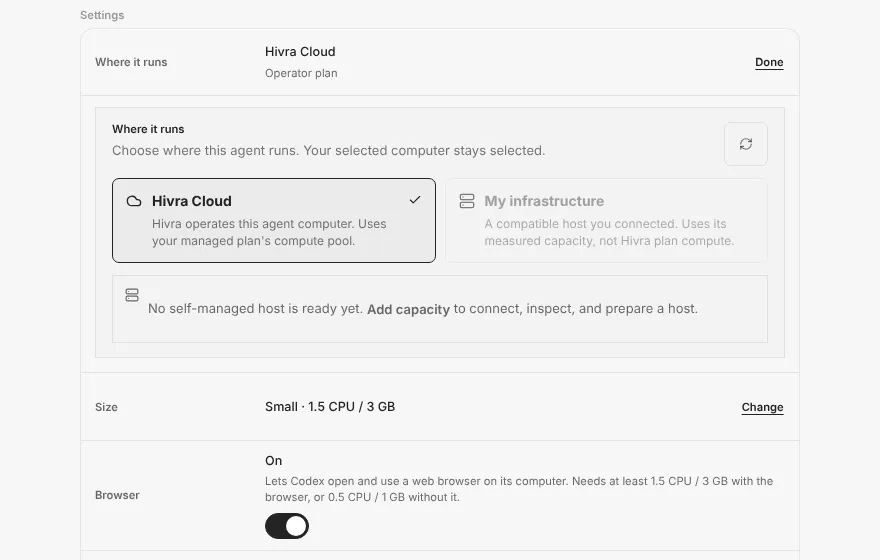
The Where it runs panel, shown here during an agent launch with sample data. A computer's Review step has no model choices, so your screen will differ below this panel - Check Size. Hivra suggests a size for the place you chose, and you can change it. The next block lists the options.
- Read the Cost line, then press Launch Ubuntu Desktop. Until you press it nothing starts, and Back returns you to Choose.
A computer has no AI model to connect, so the Review step for it has no model-access choices and no Browser toggle. Those belong to agents.
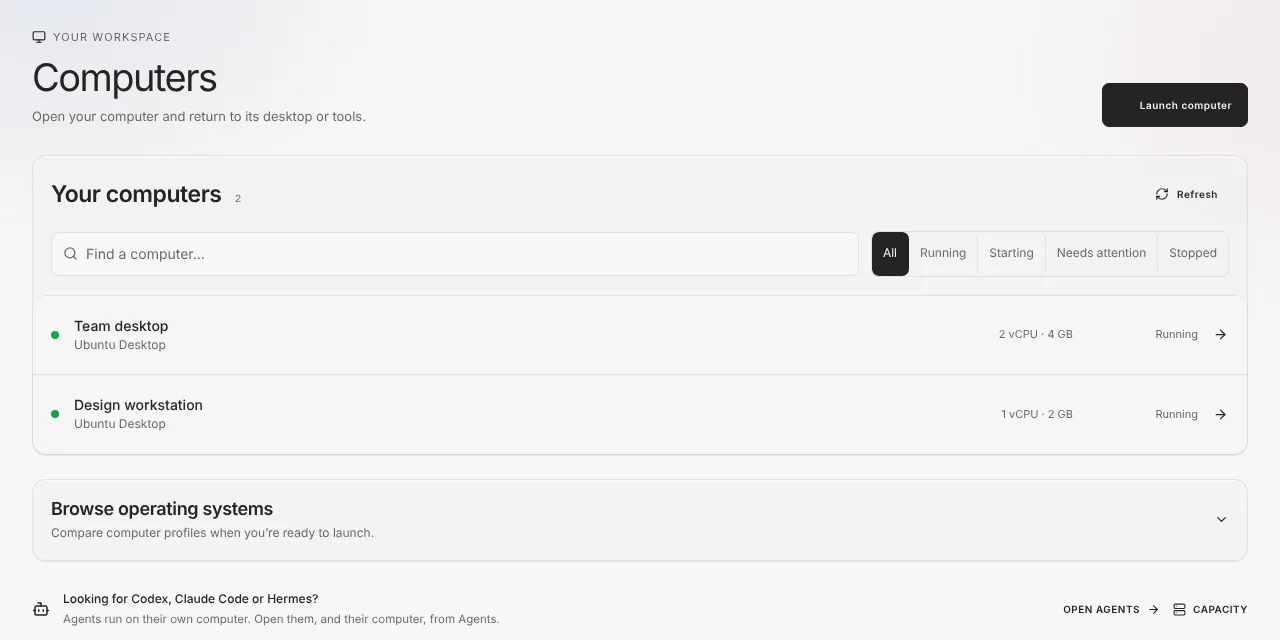
While the computer is created its status reads Starting. When it is ready it reads Running. If you would rather compare operating systems first, expand Browse operating systems on the same page.
Sizes and floors
Ubuntu Desktop is sized with a reservation and a maximum. The reservation is what the computer is guaranteed. The maximum is how far it may burst past that when the rest of the host has room to spare.
| Launch choice | Reserved | Can burst to |
|---|---|---|
| Small (recommended) | 2 CPU, 4 GB | 4 CPU, 8 GB |
| Medium | 4 CPU, 8 GB | 8 CPU, 16 GB |
| Large | 8 CPU, 16 GB | 8 CPU, 16 GB |
Small is the recommended size: it reserves 2 CPU and 4 GB and bursts to 4 CPU and 8 GB. Launch offers CPU in steps of 2, 4 and 8, and memory in steps of 4, 8 and 16 GB. The floor is 2 CPU and 4 GB, and nothing below it can be chosen. What you can pick is also limited by the size your plan or your host has left.
On Hivra Cloud the size you choose is drawn from your plan's compute, so a larger desktop leaves less for anything else you run. On your own server it uses your host's capacity.
Paid plans start at $9.99 a month for 2 vCPU and 4 GB of RAM, stay on without being paused for inactivity, and come with a 7-day money-back guarantee on card payments.
Open the desktop, Terminal and Files
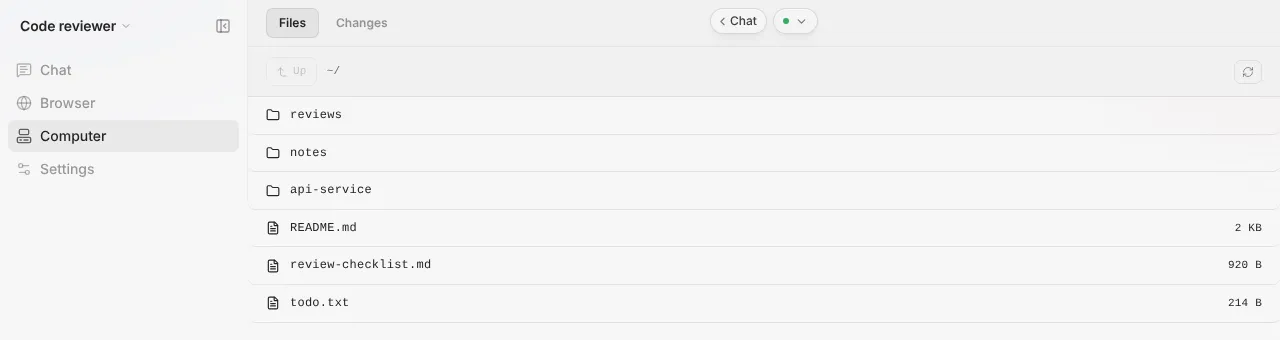
Once the computer is Running, open it from Computers (or from your Home page). A computer shows a short flat list of views rather than the grouped sidebar an agent has:
| View | What it is |
|---|---|
| Desktop | The Ubuntu desktop, streamed to your browser |
| Terminal | A shell on the computer |
| Files | Your files, with a Files and Changes switch |
| Manage | Power, size, recovery, updates and removal |
Terminal and Files appear once the computer is running and its connection is up. While it is still starting, or when it is stopped, you will see Desktop and Manage first.
The desktop is delivered over Hivra's authenticated gateway, so you do not set up a remote desktop service yourself. It uses a WebSocket video stream that needs a browser able to decode video in the page. If your browser cannot, the desktop says "This browser does not expose the video decoding surface required by the desktop preview." Use a current version of a mainstream desktop browser.
A few things to know while it is open:
- Input from you is kept separate from any agent that shares the computer. The desktop says "Human input is isolated from the agent while this desktop is open."
- If the stream drops, the desktop says "Stream disconnected. Your desktop and its apps are still running." Reconnect and carry on where you were.
- Terminal and Files use the same signed-in connection, so there is nothing separate to log in to.
Your shared folder is called Hivra. On the desktop it is /home/ubuntu/Hivra. In Terminal and Files the same folder is /home/bux/Hivra. Keep anything you want to be able to move or recover inside it.
Only the browser desktop is offered. A native desktop client is not available.
Start, stop, restart and resize
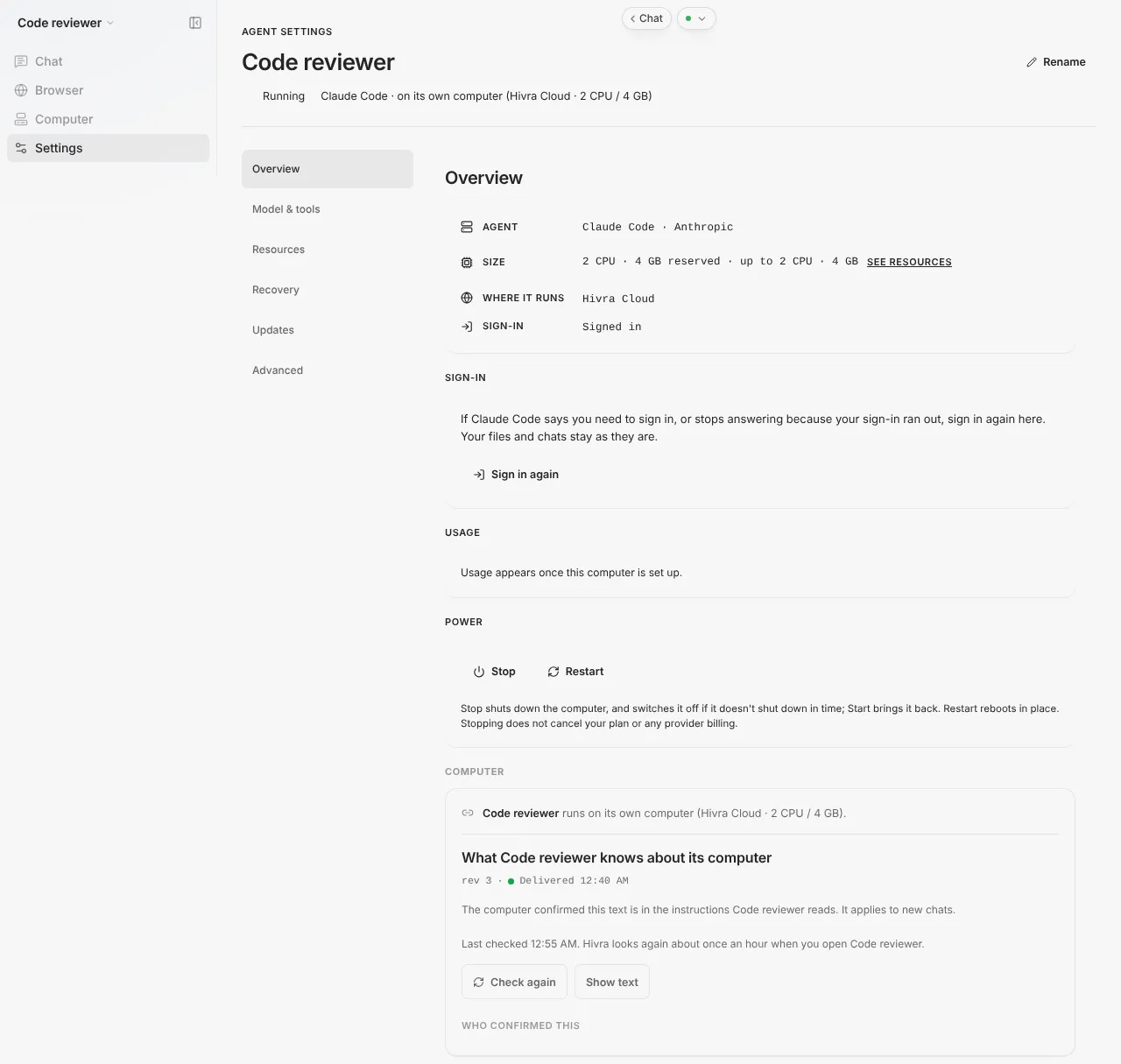
Open the computer and choose Manage. The left list has Overview, Agents, Resources, Recovery, Private network, Updates and Advanced. Which ones appear depends on the computer and its state. Agents appears only when attaching agents to this computer is turned on for your account, and it is where the agents on the computer are listed.
Power. Start, Stop and Restart are in the power controls on Overview. Each is blocked when it cannot apply, and says why. For example, Start on a computer that is already on says "This computer is already on." and Restart on a stopped one says "Start this computer first." While something else is in progress the controls say "Wait for the current operation to finish."
If Stop does not finish in time, Hivra switches the computer off. Force off and Force restart under Advanced switch it off at once, like pulling the plug. Use them only when the computer is frozen, because anything not saved in open apps is lost.
Resize. Resources has four pickers: Reserved CPU, Maximum CPU, Reserved memory and Maximum memory. Options below the floor of 2 CPU and 4 GB, or above your plan or host limit, are disabled. Changing a value turns the button into Apply with the new numbers on it. Resizing restarts the computer, so save your work first. If an agent is writing a reply on the computer, Manage asks you to confirm with a Resize anyway button.
Rename. A computer can be renamed at any time. That changes the name only.
Destroy. The danger zone at the bottom of Manage is titled Destroy this computer. It permanently deletes the computer and everything on it, including files and local logins. This cannot be undone, and it also removes the computer's restore points.
On a paid plan the computer stays on and is not paused for inactivity. Stopping it yourself is a deliberate action, and while a computer is stopped, Desktop, Terminal and Files are unavailable and Restart is blocked until you press Start.
Recovery: restore points and moving your folder
Hivra does not promise backups. Treat anything you cannot recreate as something to copy off the computer yourself. What the Recovery section gives you is two narrower tools.
Restore points. Press Create restore point to capture the computer where it is. Up to 5 restore points are kept per computer, listed as Restore point 1, 2 and so on, each with a Restore button. Restoring stops the computer first. A restore is blocked while an agent is attached ("Remove the agent from this computer first.") and while another operation is running. Restore points stay on the same host as the computer. They are not an off-host backup, and destroying the computer removes them too.
Restore points are not offered for every computer. They apply to computers on Proxmox with recorded ownership checks, so do not assume them elsewhere. A computer created before ownership checks were recorded says "Restore points aren't available for this computer. It was created before Hivra recorded ownership checks."
Folder recovery. To move your Hivra folder to a different, freshly launched Ubuntu computer, open the recovery page at /dashboard/computers/recovery, titled Move your Ubuntu Hivra folder. It works through an encrypted file:
- Pick the Original Ubuntu computer, which must be running. Close apps that write to the Hivra folder first.
- Enter a Recovery passphrase of at least 12 characters. It is used for that one request and never saved, so keep it somewhere safe.
- Press Download encrypted folder and save the
.hivra-folderfile and its passphrase separately. Nothing is removed from the original. - Launch a new Ubuntu computer and leave its Hivra folder empty. Close any terminal sessions on it.
- On the recovery page choose the encrypted file and the Fresh destination Ubuntu computer, tick the confirmation that existing desktop sessions on the original computer will end after a verified transfer (the button stays disabled until you do), then press Restore without overwriting. The original keeps its files and can be opened again with a new session. Hivra checks the archive and verifies every file hash.
- Restart the destination's desktop, terminals and files service to load the restored folder.
The limits are strict, and the page says so. Only the Hivra folder is included: 2 MiB total, 512 files and folders at most, and the encrypted file must be no larger than 3 MiB. It is not a whole-computer copy, so other folders, installed apps, browser profiles and machine credentials are left behind. Folders that contain links or special files are rejected. Existing files on the destination are never overwritten. Folder recovery supports enrolled Ubuntu desktops on Proxmox.
Updates and a private network
Updates. Under Updates, Update connection service brings Hivra's connection service on the computer up to date without restarting the computer. It needs the computer to be running. Files and local logins stay as they are, terminals on the page reconnect, and the desktop stream disconnects and can be reopened. Apps, files and local logins stay as they are, and the desktop stream disconnects briefly.
The Ubuntu system itself is yours to keep current. Use the package manager from Terminal or the desktop, as you would on any Ubuntu 22.04 machine.
Private network. Under Private network, Connect private network joins the computer to a private network you own, which gives it a private address. It does not publish services, open ports, turn on Tailscale SSH, or replace Hivra's signed-in desktop connection. The computer must be running. Where it is not offered, the page says "A private network is available on Ubuntu computers on Hivra Cloud and My server."
What is installed, and how it compares
You get a stock Ubuntu 22.04 LTS desktop built from the public Ubuntu cloud image, plus Hivra's connection service that provides the Desktop, Terminal and Files views. You have the Hivra folder described above. Hivra does not publish a list of preinstalled desktop apps, so install what you need with the package manager.
Ubuntu Desktop is one of several computers. The table compares the ones that are not agents.
| Ubuntu Desktop | Linux computer | Linux Sandbox | Omarchy | |
|---|---|---|---|---|
| Desktop in the browser | Yes | No | No | Yes |
| Terminal and Files | Yes | Yes | A Run a command section in Manage | Not confirmed |
| Minimum size | 2 CPU, 4 GB | 0.5 CPU, 1 GB | 0.5 CPU, 1 GB | 4 CPU, 8 GB |
| Where it runs | Hivra Cloud or a connected Proxmox server | Hivra Cloud | A server you connected | A prepared computer on Hivra Cloud |
| Resize in Manage | Yes | Yes | Within sandbox limits | No, fixed size |
| Restore points | Yes, up to 5, when the computer is on Proxmox with recorded ownership checks | Not confirmed | No | No |
More on each: Linux computer, Linux Sandbox and Omarchy.
Agents such as Claude Code or Codex run on a computer of their own. An agent does not get an Ubuntu Desktop by default. Whether an agent can be placed on an Ubuntu Desktop you already have depends on whether that option is switched on for your account. Home and Computers will show it when it is.
Who can reach it
The desktop sits behind Hivra's authenticated gateway, and you reach it by signing in. A separate computer is a boundary, not a guarantee that what runs on it is safe. Credentials you type into the computer may be stored on it.
On Hivra Cloud, Hivra administrators retain infrastructure access to the host. On your own server, whoever controls the host can reach the computer. Use accounts limited to what the work needs. See security and access.
When something goes wrong
| What you see | What it means and what to do |
|---|---|
| "Desktop is still opening" or "This computer's desktop is taking longer than usual to answer. Still opening..." | The computer answered but the desktop has not finished. Wait a little, then retry. If it never opens, check the computer's status in Manage first. |
| "Desktop couldn't open" with a Retry | The desktop runtime did not start. Retry. A retry may repair the runtime, which can close open apps. Files in the Hivra folder are kept. |
| "Remote desktop isn't ready on this computer" | The computer has not proved a working desktop yet. Wait for it to finish starting, or open Manage and check it. Terminal and Files are separate and may still work. |
| "This computer needs a current launch" | The computer predates the current desktop setup. Launch a new Ubuntu Desktop and move your folder with folder recovery. |
| "This desktop needs an update" | Run Update connection service under Manage, then Updates. Nothing was installed by the check itself. |
| "Wait before opening this desktop again." | A previous session is still releasing control. It retries on its own. An active desktop elsewhere is not interrupted. |
| "Stream disconnected. Your desktop and its apps are still running." | Only the stream dropped. Reconnect. |
| Terminal and Files tabs are missing | The computer is not running yet, or its connection is not up. Start it and wait for Running. |
| "This computer never finished setting up, so there is nothing to start. Delete it, then launch it again." | A launch failed before the computer existed in a usable form. Destroy it and launch again. |
| "This computer no longer exists on its host. Remove it from Hivra." | The host reports it gone. On your own server, check Proxmox. Then remove it from Manage. |
| Launch refused on your own server | The host failed an admission check: KVM, x86, CPU, RAM or 40 GB disk. See the requirements above. |
If the desktop opens but feels slow, check that your own connection is steady and that the computer is not near its maximum CPU or memory in Manage, then raise the size under Resources.
For problems that are not specific to this computer, see Troubleshooting.
What Hivra does and does not do
- Hivra creates the computer from an Ubuntu 22.04 LTS image, streams its desktop to your browser behind your sign-in, and gives you Terminal, Files and Manage.
- Hivra does not promise backups. Restore points are capped at 5 and live on the same host.
- Hivra does not guarantee that what you run on the computer is safe. Isolation limits what reaches your own machine, not what you install on it.
- Hivra does not run a free computer. A free account works with a server you connect.
- Hivra does not offer a native desktop client for this computer, and it cannot run on a server connected with the one-command Ubuntu setup.
Common questions
Which Ubuntu version does it run?
Ubuntu 22.04 LTS, built from the public Ubuntu cloud image, with a graphical desktop. You keep it current with the normal package manager from Terminal.
Do I need a paid plan?
On Hivra Cloud, yes. Every computer Hivra Cloud runs for you needs a paid plan. A free Hivra account works with a Proxmox server you connect yourself, where the computer uses your own capacity.
What is the smallest size?
2 CPU and 4 GB of memory, with a 40 GB disk. Launch offers 2, 4 and 8 CPU and 4, 8 and 16 GB of memory. The recommended Small size reserves 2 CPU and 4 GB and can burst to 4 CPU and 8 GB.
Can I use it without an agent?
Yes. It is a computer, not an agent, so there is no chat and no AI model to connect. You open the desktop, Terminal and Files yourself.
Will I lose my files if I resize or restart it?
Resizing and restarting restart the computer, which closes open apps and ends anything unsaved, but the files on its disk are kept. Destroying the computer deletes everything on it, and Hivra does not promise backups, so copy anything you cannot recreate.
Can I run it on my own server?
Yes, on a Proxmox VE server you connected with SSH details, if the host is x86 with KVM. A server connected with the one-command Ubuntu setup gets Linux Sandbox only.
How is it different from the Linux computer?
The Linux computer is headless, with a terminal and files and no desktop, and it can be as small as 0.5 CPU and 1 GB. Ubuntu Desktop adds the full desktop and starts at 2 CPU and 4 GB.