
What it is and who it is for
Linux Sandbox is a deliberately small computer: one Linux shell, Python 3.13 and a private, persistent folder called /workspace. It has no desktop, no public ports, no administrator access and no access to the folders of the server it runs on. It runs inside gVisor, which puts an application-kernel boundary between what runs in the sandbox and the host.
It suits developers and AI power users who already have an Ubuntu server and want a safe place to run scripts, try code they do not fully trust, or keep a small Python workspace that stays on between visits. Linux Sandbox is available today, with one condition: it needs a gVisor-ready server that you connected.
It is not an agent and it has no chat or agent sign-in. Today you work in it by running commands from its Settings page (see "Run commands in the sandbox"). If you want a desktop, use Ubuntu Desktop. If you want a light headless computer that Hivra runs for you, read Linux computer.
Where it runs and what it costs
Linux Sandbox runs only on a server you connected. Hivra Cloud does not run it. Because the server is yours, a Hivra account costs nothing and no Hivra plan is involved. You pay your own provider for the server. See what you pay for.
| Linux Sandbox | Linux computer | Ubuntu Desktop | |
|---|---|---|---|
| Runs on | A server you connected with the one command | Hivra Cloud | Hivra Cloud, or a Proxmox VE server you connected |
| Needs a paid Hivra plan | No | Yes | Only on Hivra Cloud |
| Interface | Run a command, with output | Terminal and Files | Desktop |
The one-command Ubuntu connect gives you Linux Sandbox and nothing more. Claude Code, Codex, OpenClaw, Agent Zero, Aeon and Ubuntu Desktop on your own hardware need a Proxmox VE server connected with SSH details. Run agents on your own server covers both routes.
Before you start
You need a server that meets all of these. Hivra checks each one and tells you which is missing.
- Ubuntu 22.04 or 24.04 on x86. Other systems, and ARM machines, are not supported.
- The apt package manager, which Ubuntu already has.
- Root, or a user with passwordless sudo. Signed in as root, leave
sudoout of the command. - cgroup v2. Ubuntu 22.04 and 24.04 use it unless it was turned off. If the server reports cgroup v1, turn v2 back on and restart the server.
- A public IPv4 address that accepts SSH from the internet. A home or office machine on a private network cannot be reached by hosted Hivra.
- Outbound access to Ubuntu's package archive, to GitHub (for the pinned gVisor release) and to Docker Hub (for the sandbox image).
You also need a terminal on the server for the connect command, and the Hivra page open while you run it, because the server reports back to the page. Nothing needs installing on your own laptop.
Be clear about one trade-off before you connect. The one-command route creates a user named hivra that signs in only with Hivra's key and can use sudo. That gives Hivra administrator access to the server. Use a server you are comfortable giving that to. The "Security model" section below goes through it.
Connect the server
- Open Servers in the dashboard. On a first setup the chooser titled How would you like to add capacity? is already open. Later, press Add a server.
- Choose Connect my own machine, then press Remote server on the A remote server card.
- Read the Before you connect list, then press Connect a server you already have.
- Press Copy the setup command and paste it into a terminal on the server. The panel also shows a one-time code (Copy the one-time code) for the command to ask for, and your terminal asks you to check your account code, which the panel displays.
- The command asks before it changes anything. Answer at the terminal. The panel shows a waiting line until the server reports.
- When it reports, the panel asks Is this your server? and shows where Hivra saw the connection come from, the server identity and three words. Only choose Yes, this is my server if your terminal printed the same three words.
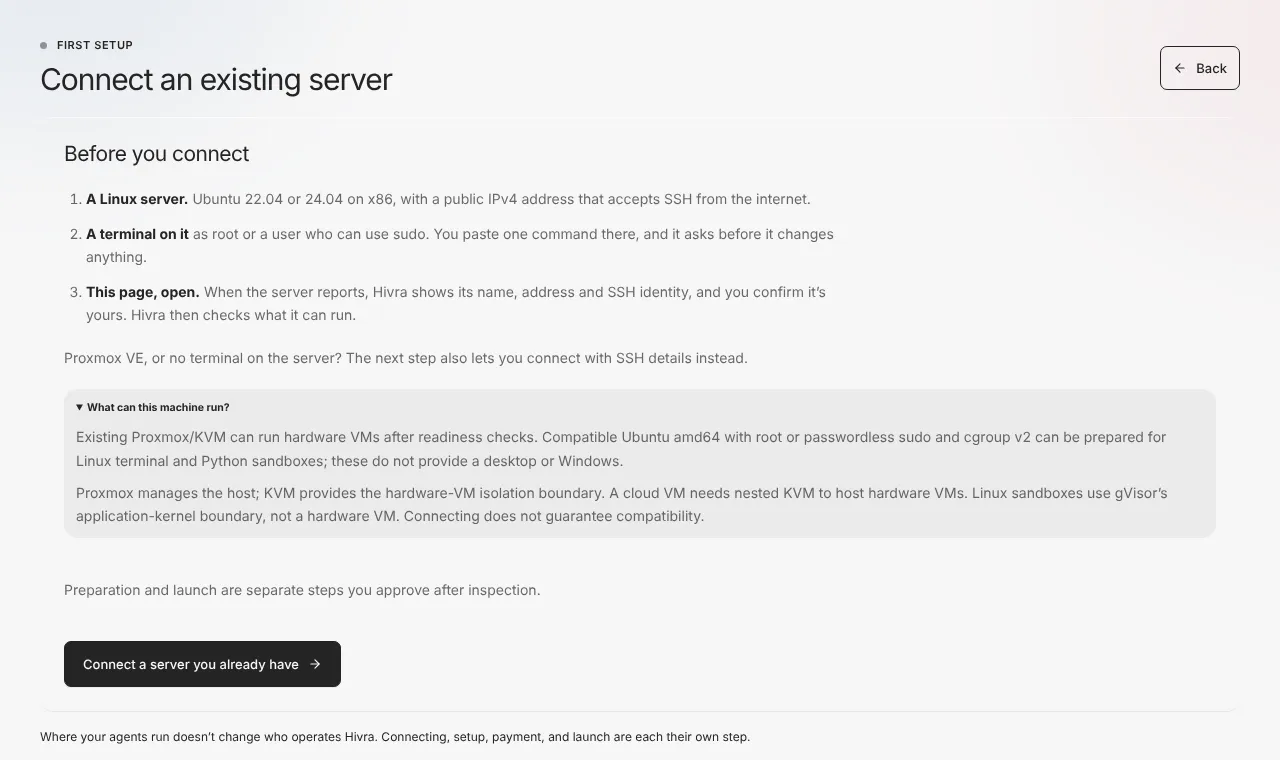
The command is single use and expires, and the panel counts down. If it runs out, press Get a new command. Closing the panel does not cancel the command: until it is used or expires, the Servers page lists it under Setup commands, where you can cancel it. If you would rather read the script first, choose View the script first, which shows a dry run that changes nothing. Copy prompt gives you a prompt for a coding agent that can reach the server; it previews first and leaves the step that gives Hivra access to you. All of this is covered in Run agents on your own server.
Inspect, set up and check the server
After you confirm the server, Hivra inspects it over SSH without changing anything. It looks at the operating system, architecture, capacity, cgroup version and whether gVisor is already installed, then tells you what to do next.
| What Hivra finds | What you see | Next step |
|---|---|---|
| A compatible server without gVisor | "can run Linux Sandbox after a short setup" | Review setup |
| gVisor already installed | "already has gVisor, which Linux Sandbox runs on" | Check readiness |
| cgroup v1 | "uses cgroup v1. Linux Sandbox needs cgroup v2." | Turn v2 on, restart, check again |
| An unsupported system or an ARM server | "Linux Sandbox needs Ubuntu 22.04 or 24.04 on x86." | Rebuild it with a supported image |
| Signed in as a user without passwordless sudo | "Signed in as ... without passwordless sudo." | Run the setup command with sudo, or connect as a user who has it |
Setup changes the server, so it is always its own step. The review dialog is titled Set up Linux Sandbox on this server? and says it does not create a computer or buy anything. It lists these steps in order:
- Check the server still meets the requirements.
- Install Docker and the tools setup needs.
- Download Hivra's pinned gVisor release and verify it.
- Install gVisor and connect it to Docker.
- Download the Linux Sandbox image and run a test sandbox.
- Check the server is ready and save the result.
Press Set up Linux Sandbox and keep the window open while it runs. It shows how long it has been running and marks each step as it reports back. A successful run ends with a receipt: the pinned gVisor release was installed, no computer was created, and the readiness check passed.
A passing check is good for 15 minutes. After that the server's card says Needs a check, and you press Check readiness again before you launch. When the check is current, the card reads Ready for Linux Sandbox and offers a launch action that takes you straight to Launch with this server selected.
If the server already has gVisor installed another way, or a sandbox setup Hivra does not recognise, Hivra leaves it in place and does not replace it.
Launch a sandbox
- Open Computers and press Launch computer. You can also open Browse operating systems, find Linux Sandbox and press Launch Linux Sandbox.
- On the Choose step, pick the Linux Sandbox tile. It is only for a connected server, and Launch says so if none is ready: "Linux Sandbox needs an Ubuntu server connected with the one-command setup."
- On the Review step, open Where it runs and choose My infrastructure, then your server. The panel is described as "a compatible host you connected" that uses its measured capacity, not Hivra plan compute.
- Press Change beside Size and pick a size (the table below), or Customize for your own reserved CPU and memory.
- Press Launch.
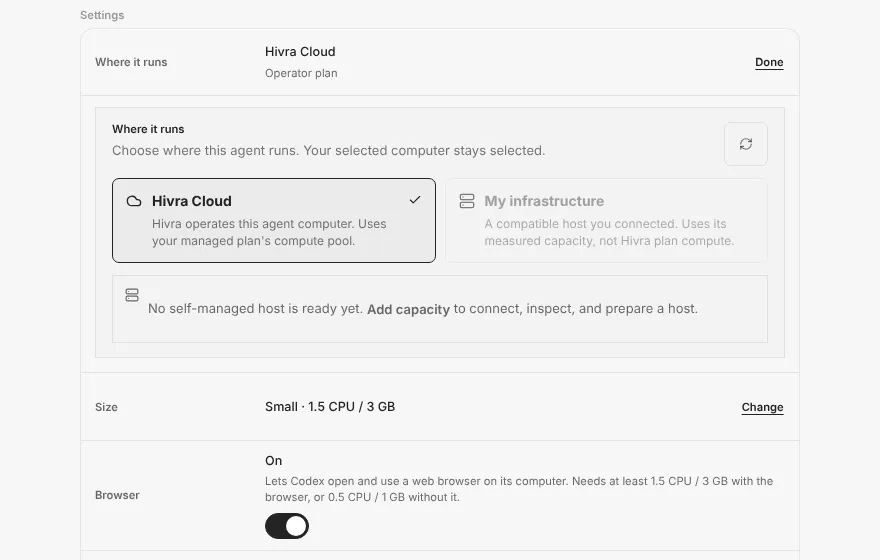
If no server is ready, Launch blocks with "Linux Sandbox needs a server you've connected, and none is ready for it yet." Use Add capacity to connect and prepare one without losing your place.
| Size | CPU | Memory |
|---|---|---|
| Small | 1 | 1 GB |
| Medium | 2 | 2 GB |
| Large | 4 | 4 GB |
A size your server cannot hold shows Too big for this server and cannot be chosen. Unlike most computers, a sandbox's reserved CPU and memory are also its maximum: it always keeps its full allowance and never uses more. The floor is 0.5 CPU and 1 GB, which you can reach under Customize. Reserved CPU and memory count against the server's capacity, and cores are shared, so speed is not guaranteed.
Run commands in the sandbox
Open the sandbox from Computers, then its Settings page. For a Linux Sandbox that page is titled Computer settings, with the subtitle "Linux Sandbox" and where it runs. Its sections are Overview, Resources, Updates (when Hivra has update information for the sandbox), Run a command and Advanced.
In Run a command, type a command into the Command box and press Run in /workspace. The box starts with python --version && id && pwd && ls -la, which is a good first run: it shows Python, the unprivileged user, the working folder and what is in it. Hivra runs your text through /bin/sh -lc, so pipes, && and redirects work.
After the command finishes you see Exit and its code, then standard output followed by standard error. The button is disabled unless the sandbox is running.
| Behaviour | What to expect |
|---|---|
| Language and shell | Python 3.13 and a POSIX shell |
| User | An unprivileged user (uid 65534) with no sudo and no system changes |
| Working folder | The private /workspace, which persists between commands, restarts and updates |
| Time limit | 60 seconds per command. A command that runs longer is stopped and shows Exit 124 with the output it had produced. |
| Output | Up to 64 KiB each for standard output and standard error. Anything past that is dropped, and the command keeps running. |
| Command length | Up to 4,096 characters |
| Scratch space | A 128 MB in-memory folder at /tmp that cannot run programs |
| Processes | Up to 256 at once, so a runaway loop of processes cannot take over the host |
Each command is a fresh, one-shot run. A background process does not survive past its command, and environment variables or cd do not carry from one run to the next. Write what you want to keep into /workspace.
The system image is read-only and only /workspace changes, so installing packages system-wide will not work. Keep what you need as files under /workspace, and test a particular tool before you rely on it.
Manage it: start, stop, resize, update, destroy
Overview. Shows the state, CPU and memory, with Stop (or Start when it is stopped) and Refresh. The name beside it can be renamed in place. An Agent card says that adding an agent to a computer you already have is not available yet, and links to Launch an agent. Live usage and restore points are not available for Linux Sandboxes yet.
Resources. CPU limit offers 0.5, 1, 2, 4 and 8 CPU, and Memory limit offers 1, 2, 4, 8 and 16 GB. Press Apply limits to apply them. Because reserved and maximum are the same for gVisor, there is one control each, enforced as cgroup limits. A change the host refuses shows its reason right under the button.
Updates. This section appears when Hivra has update information for the sandbox. If no update can be applied, Update sandbox is disabled and a short reason is shown beneath it. A sandbox runs a fixed, read-only system image. Update sandbox recreates it on Hivra's current image and keeps your workspace. Anything running in it stops, and Hivra asks you to confirm first. If the sandbox release on your server is older than the one Hivra now uses, Hivra says: "Set up Linux Sandbox on this server again to use Hivra's current sandbox release. Your sandboxes keep running meanwhile." Reinstall the setup from the server's card, then launch or update.
Advanced. Shows details and history, a list of what is not available, and Destroy this sandbox. Destroying removes the sandbox and its private workspace volume, and does not alter the connected server or your other computers. It asks you to tick the checkbox that begins "I understand this is irreversible", type the sandbox's name and press Permanently destroy. The name check is case sensitive and the button waits a moment before it accepts a press, so a stray tap does nothing.
To remove the server itself, use Disconnect host on its card under Connected servers, after you destroy or stop the sandboxes on it. Run agents on your own server covers disconnecting and the uninstall command that removes the hivra user.
Security model
A separate computer is a boundary, not a guarantee that what runs in it is safe. Read Security and access for the wider picture. For Linux Sandbox specifically:
- gVisor is an application-kernel boundary, not a hardware virtual machine. The sandbox's system calls are handled by gVisor instead of going straight to the host kernel, which narrows what a misbehaving program can reach. Your server operator still controls the host kernel. Since you connected the server, that is you or whoever runs it.
- The sandbox has no administrator access. It runs as an unprivileged user with every Linux capability dropped, a read-only system image and no way to gain new privileges. The privileged mode, host namespaces, devices and Docker socket are all absent.
- No public ports and no host folders. Nothing on the server's address reaches into it, and none of the server's folders are mounted into it. Its only storage is its own
/workspacevolume. - Outbound network. The sandbox sits on its own Docker bridge network and Hivra does not restrict outbound traffic. Treat it as able to make outgoing connections, and do not rely on it to keep a program from sending data out.
- It is capped. CPU and memory are hard limits, swap is off, and the number of processes is capped.
- Hivra has administrator access to the server. The one-command connect creates the
hivrauser with sudo and signs in with Hivra's key. That is how setup and sandboxes are managed. Remove the user, revoke the key or shut the server down whenever you like. - Setup is pinned and checked. Hivra installs one pinned gVisor release, checks its checksum, and refuses to replace a gVisor or sandbox setup it does not recognise.
Treat code you run in a sandbox as something that is contained, not proven harmless. Do not put secrets in /workspace that you would not want a program in the sandbox to read.
When something goes wrong
| What you see | What it means and what to do |
|---|---|
| "Hivra checked ... a moment ago." | The readiness check is rate limited. The message tells you how long to wait, or to wait a minute. Then press Check readiness again. |
| "Hivra's last look at ... has expired. Inspect it again, then check readiness." | The inspection is stale. Inspect the server again, then check. |
| "... no longer meets Linux Sandbox's requirements." | Something changed on the server, such as its OS or cgroup version. Inspect again to see what. |
| "Linux Sandbox setup on ... didn't pass its check. Reinstall the setup to repair it." | Press Reinstall Linux Sandbox setup. |
| Needs a check on the card | The last check is more than 15 minutes old. Press Check readiness. |
| "Linux Sandbox here was set up by an older Hivra release." | Check readiness, and if it asks, reinstall the setup before you launch. |
| Launch says Linux Sandbox needs a server you've connected | No ready server. Use Add capacity, or check readiness on the one you have. |
| Too big for this server on a size | The server cannot hold it alongside what already runs there. Pick a smaller size or free capacity. |
| Run in /workspace is disabled | The sandbox is not running. Press Start in Overview. |
| A command stops early | Exit 124 means it hit the 60 second limit. Output ending early means it passed 64 KiB. Split the work or write results to a file under /workspace. |
| Applying limits fails | The reason from the host is shown under the button. Check the server has the room. |
If setup stops, the dialog names the step. These are the messages behind each one:
- The host no longer meets the supported gVisor preparation requirements.
- The required Docker and installation tools could not be prepared on this host. Check that apt can reach Ubuntu's package archive.
- The pinned gVisor bundle could not be downloaded. Check that the server can reach GitHub over HTTPS.
- The downloaded gVisor bundle did not match its pinned checksum. Nothing was installed from it. Look for a proxy that alters downloads.
- The host has a Linux Sandbox adapter, or a gVisor runtime identity, that Hivra does not recognize. Existing runtime files were not replaced. Remove the conflicting setup if nothing uses it, or use another server.
- Docker did not confirm the exact runsc runtime path within 30 seconds of its configuration reload. Restart Docker on the server and try again.
- The pinned Linux application image could not be downloaded. Check the server can reach Docker Hub.
- The prepared gVisor runtime did not pass its isolated sandbox test.
Connection problems before setup, such as a command that expired or a server that arrived over IPv6 only, are in Run agents on your own server. General fixes are in Troubleshooting.
What Hivra does and does not do
- Hivra inspects first and changes the server only after you approve setup.
- Hivra does not create a computer or buy anything while it sets up the server. Launch is its own step.
- Hivra does not run Linux Sandbox on Hivra Cloud.
- Hivra does not filter the sandbox's outbound network traffic.
- Hivra does not give a sandbox a desktop, public ports, host folders or administrator access.
- Hivra does not put an agent in a Linux Sandbox yet. Adding one to an existing computer is not available.
- Hivra does not guarantee that a server is compatible just because you connected it.
- Hivra does not provide live usage or restore points for Linux Sandboxes yet.
- Hivra does not become the operator of your server, and the host kernel stays under your control.
Common questions
Do I need a paid plan for Linux Sandbox?
No. Linux Sandbox runs on a server you connected, so a Hivra account that costs nothing is enough. You pay your own provider for the server.
Can I use it on Hivra Cloud?
No. Linux Sandbox runs only on a server you connected. If you want a light computer that Hivra runs for you, use a Linux computer on a paid plan.
Is gVisor the same as a virtual machine?
No. gVisor is an application-kernel boundary. It handles the sandbox's system calls itself instead of passing them straight to the host kernel, but it is not a hardware virtual machine, and whoever runs the server still controls the host kernel.
Can I install packages or run a long-lived service in it?
Not in the usual way. The system image is read-only, commands run as a non-root user, each command is cut off at 60 seconds and background processes do not outlive their command. Files you keep under the workspace folder do persist.
Can I run Claude Code or Codex in a Linux Sandbox?
Not today. Adding an agent to an existing computer is not available, and an Ubuntu server connected with the one command runs Linux Sandbox only. Claude Code and Codex on your own hardware need a Proxmox VE server connected with SSH details.
What happens to my files when I update or stop the sandbox?
Files in the workspace folder stay through a stop, a restart and an update, although anything running at the time stops. Destroying the sandbox removes the workspace volume, and that cannot be undone.
Why does Hivra need sudo on my server?
The one-command connect creates a user named hivra that signs in only with Hivra's key and can use sudo. Hivra uses it to install Docker and gVisor and to manage sandboxes. You can remove the user or revoke the key at any time.
Why does my server say it needs a check before I launch?
A passing readiness check is good for 15 minutes. After that you check again so Hivra launches onto a server it has just confirmed is ready.