
What it is and who it is for
A Linux computer is a headless Ubuntu computer. It is built from the same Ubuntu cloud image and guest base as Ubuntu Desktop, without the desktop, so it is small. You work in it through two views on its page: Terminal and Files.
It is a computer of its own. What you install, save and sign in to there stays on that computer, separate from your laptop and from your other computers.
It suits developers and power users who want a plain shell and a filesystem that stays on: scripts, builds, small services, a place to clone a repository and run commands. If you want a screen you can click around in, launch Ubuntu Desktop instead.
The Linux computer is listed as available in Hivra's own status page. It is a computer, not an agent, so it has no chat and no agent login. Launch lists it as Linux computer with the line "A light Linux computer with a terminal and files. No desktop."
Before you start
Every computer that Hivra Cloud runs for you needs a paid plan, from $9.99 a month for 2 vCPU and 4 GB of RAM. A Hivra account costs nothing, but the Linux computer runs only on Hivra Cloud today and needs a paid plan. For a free terminal workspace on a server you connect yourself, see Linux Sandbox. See what you pay for.
You need:
- A Hivra account and a paid plan with room left in its CPU and memory pool. A Linux computer's reserved CPU and memory count against that pool.
- A browser. There is nothing to install on your own machine.
- Nothing else. No model key and no AI sign-in is asked for, because the computer has no agent on it.
This page describes the Hivra Cloud lane, which is the one Hivra's status page lists for the Linux computer. If you want a terminal workspace on a server of your own, see Linux Sandbox and Run agents on your own server.
Launch one
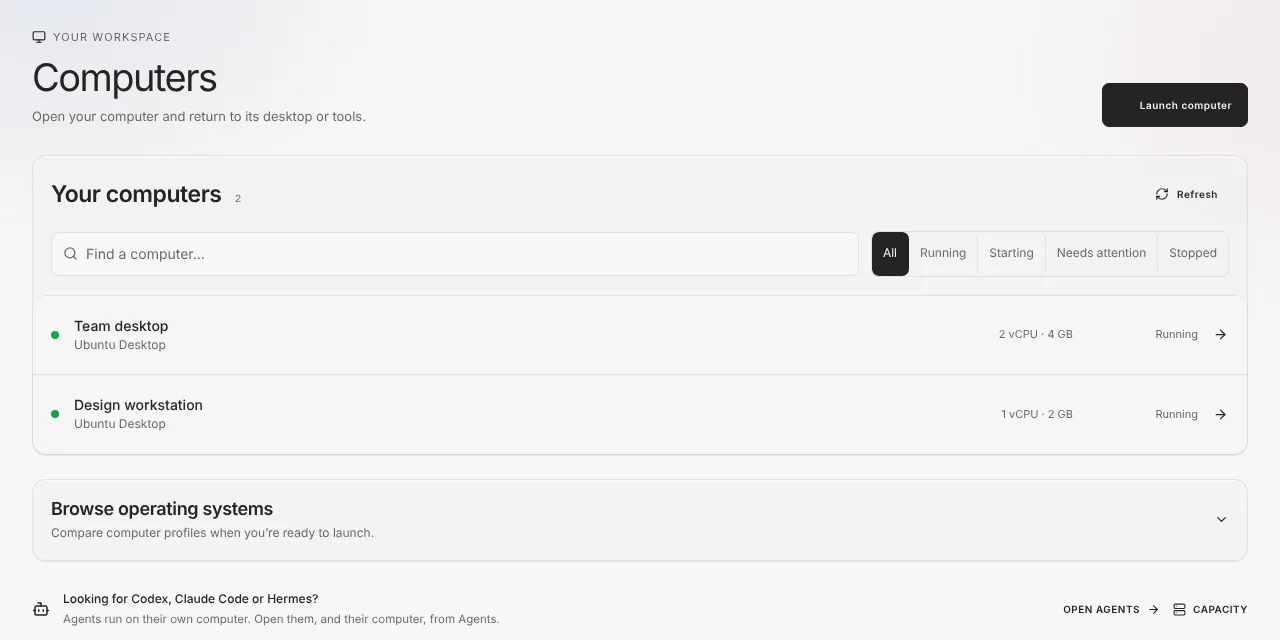
- Open the Computers page from the dashboard. It lists your computers, with filters for All, Running, Starting, Needs attention and Stopped, a search box, and a collapsed Browse operating systems section.
- Press Launch computer, which opens the Choose step with computers only. If you have no computers yet, the page offers Launch a Linux computer directly, with the note that "A light Linux computer is one tap away."
- On the Choose step, pick the Linux computer tile. If you used the Launch a Linux computer shortcut, Hivra skips this step and opens Review.
- On the Review step, check the name, where it runs and its size. Hivra Cloud is the destination for a computer Hivra runs for you. Use Change beside the size if you want something other than the default, which follows your plan.
- Press Launch. Hivra provisions the computer and waits for its connection service to answer before it marks the computer ready.
When the launch finishes, Hivra opens the new computer on its Files view, because there is no desktop to land on.
Sizes
The Linux computer is light on purpose. The smallest it can be is 0.5 CPU and 1 GB of memory, which is its floor. Launch offers CPU sizes of 0.5, 1, 2 and 4, and memory of 1, 2, 4 and 8 GB.
The Size control on Review has three presets. Each one has a reserved size and a maximum it can burst to:
| Preset | Reserved | Maximum |
|---|---|---|
| Small | 0.5 CPU, 1 GB | 1 CPU, 2 GB |
| Medium | 1 CPU, 2 GB | 2 CPU, 4 GB |
| Large | 2 CPU, 4 GB | 4 CPU, 8 GB |
Customize opens separate controls for Reserved CPU, Reserved memory, Maximum CPU and Maximum memory. Know the difference:
- Reserved memory is always kept for this computer. Reserved CPU and memory count against your plan's pool.
- The maximum is a ceiling it can use only while the host has spare room. Cores are shared, so speed is not guaranteed.
- A preset that does not fit your plan shows Over your plan and cannot be chosen.
You can change the size later from the computer's Manage tab, under Resources. Resizing restarts the computer, and Hivra asks you to confirm because a restart ends anything running in its terminal.
Use the Terminal and Files
A Linux computer lists only the views it can actually show: Terminal, Files, and Manage for its settings. The Desktop view never appears, because there is no desktop. Terminal and Files appear only while the computer is running. When it is stopped or still starting you see only Manage.
Terminal. This is a shell on the computer. Each terminal tab is one persistent session: it keeps running if you close the browser tab, refresh the page or lose your connection, and you can reopen it. Closing a session with the X on its tab ends that session's process. One terminal holds up to 8 sessions, which is a cap that keeps a small computer from being overloaded. Press New (the + button) to open another session. Once you have two or more, they show as tabs named Terminal 1, Terminal 2 and so on. The button is disabled at 8.
Files. A file browser starting at the home folder, with a Files and Changes switch. Files lists folders and files with their sizes and has an Up button and a refresh button. Changes shows what has changed in a Git working folder on the computer.
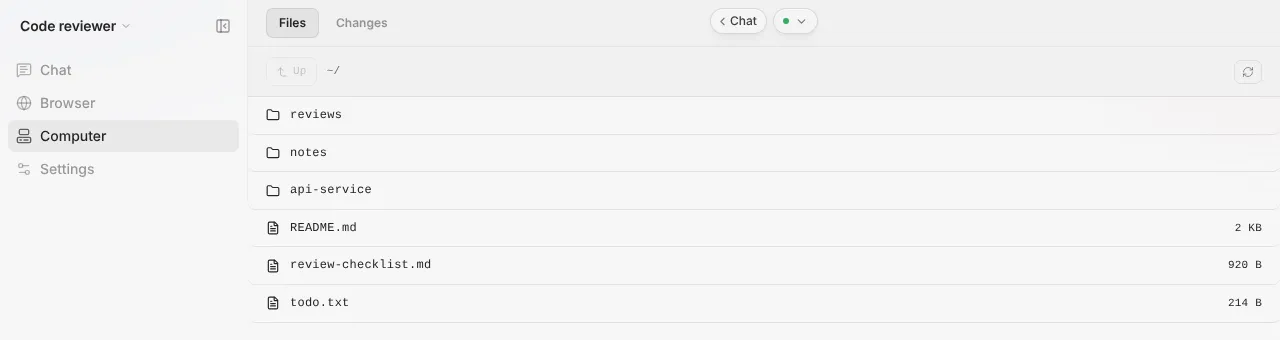
A good first session is to open Terminal, make sure git is there, update packages and clone a repository, then check Files, where the cloned folder should appear in the home folder. Use a public repository, or a token you create for a private one, and remember credentials you type there may be stored on the computer:
The exact tools preinstalled on the image, and its Ubuntu release, are not stated here. Install what you need with the package manager, and expect that a 0.5 CPU, 1 GB computer is tight for large builds.
Starting, stopping and updating
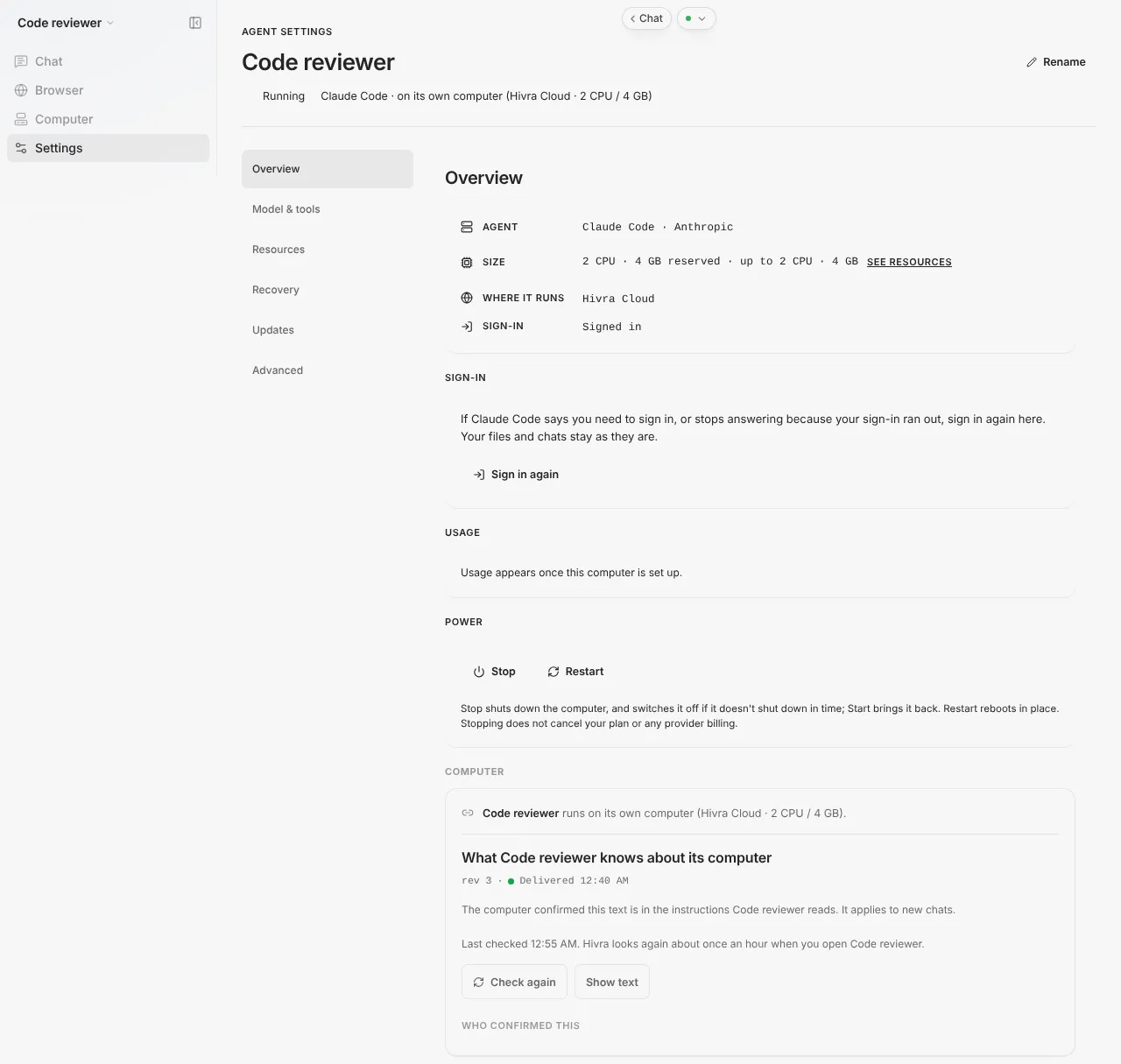
The computer's Manage tab has a side nav with sections such as Overview, Resources, Recovery, Updates and Advanced. Which ones show depends on what the host supports for that computer.
| Action | What it does |
|---|---|
| Start | Powers the computer on. |
| Stop | Asks the computer to shut down. If it does not shut down in time on a host that supports it, Hivra switches it off. |
| Restart | Reboots it. The terminal and files disconnect briefly while Hivra confirms the reboot. |
| Force off / Force restart (Advanced) | Switches it off at once, like pulling the plug. Anything not saved is lost. Use it when the computer is frozen. |
| Update connection service | Brings Hivra's connection service up to date without restarting the computer, so files and local logins stay as they are. Terminals open on the page reconnect when it finishes. |
| Create restore point | Captures the computer in place. |
| Restore | Rolls the computer back to a restore point and restarts it, so work done since then is lost and open terminals end. Hivra confirms first. |
| Destroy this computer | Permanently deletes the computer and everything on it. It cannot be undone. |
Stop, Restart, Resize and Restore each power the computer off, which ends anything running in its terminal. Hivra confirms first when something is running.
Restore points. You can keep up to 5 restore points per computer. They stay on the same host until you destroy the computer, so they are not a copy kept somewhere else, and destroying the computer removes them too. Do not treat them as protection against losing the host.
What the Linux computer does and does not do
Attaching an agent is not supported yet. A Linux computer has no agent on it, and you cannot attach one to it today. An agent launched today gets a computer of its own, on the Agents side of Launch.
| It does | It does not |
|---|---|
| Give you a persistent Ubuntu shell | Show a desktop or a browser desktop |
| Keep files between sessions | Have native desktop access |
| Let you resize and restart it from Manage | Take an attached agent |
| Run on Hivra Cloud on a paid plan | Run for free on Hivra Cloud |
| Offer a Files view with a Changes switch | Include Chat, Browser or Git as separate views |
Who can reach it. The terminal and files sit behind Hivra's authenticated gateway, with your Hivra sign-in. Credentials you type into the computer may be stored on it. Hivra administrators retain infrastructure access to Hivra-managed hosts. See security and access. Treat it as a separate machine, not as a guarantee that whatever you run on it is safe.
When something goes wrong
| What you see | What to do |
|---|---|
| Launch says a preset is Over your plan | Pick a smaller size, or free up pool by resizing or destroying another computer. Reserved CPU and memory count against your plan's pool. |
| The computer stays on its starting state | The connection service has not answered yet. Wait, then use Refresh on the Computers page. |
| "This computer's connection service reported the wrong kind of computer, so Hivra did not mark it ready. Delete it and launch again." | Destroy that computer from its Manage tab and launch a new one. Waiting will not change this answer. |
| The Terminal tab is missing or will not open | Check the computer is Running on the Computers page, since Terminal and Files show only while it runs. If it is stopped, use Start in the Manage tab. If it is running, try Update connection service, then Restart. |
| The terminal or Files freezes and Stop does nothing | Use Force restart under Advanced. Unsaved work is lost. |
| A command is killed or the computer is very slow | You may have hit the memory or CPU maximum. Open Resources in the Manage tab and choose a larger size. |
| Resize is greyed out | The server says it cannot resize right now, often because the computer is starting or an operation is running. Wait for it to finish. A size below the floor of 0.5 CPU and 1 GB, or above your plan, is not allowed. |
If nothing here fixes it, see Troubleshooting.
Common questions
Does the Linux computer have a desktop?
No. It is headless. You get a Terminal and a Files view. If you want a desktop in your browser, launch Ubuntu Desktop instead.
Can I put an agent on it?
Not yet. Attaching an agent to a Linux computer is not supported today. An agent you launch gets a computer of its own.
Is it free?
A Hivra account costs nothing, but the Linux computer runs only on Hivra Cloud today and needs a paid plan. For a free terminal workspace on a server you connect yourself, see Linux Sandbox.
How small can it be?
The floor is 0.5 CPU and 1 GB of memory. Launch offers CPU sizes of 0.5, 1, 2 and 4, and memory of 1, 2, 4 and 8 GB, in Small, Medium and Large presets.
Do my terminal sessions survive closing the browser tab?
Yes. Each terminal tab is a persistent session on the computer, so it keeps running when you close the browser tab, refresh the page or lose your connection. Closing a session with the X on its tab ends it. One terminal holds up to 8 sessions. A stop, restart, resize or restore ends them.
Are restore points a backup?
No. They capture the computer in place on the same host, up to 5 per computer, and destroying the computer removes them. Keep anything important in a repository or somewhere else you control.
What happens if I destroy the computer?
It is permanently deleted along with everything on it, including files and local logins. This cannot be undone.