
How to use this page
This page is for developers and AI power users who have launched, or tried to launch, an agent on Hivra and hit something unexpected. It is organised by what you see. Find the message or behaviour that matches, read why it happens, then follow the fix. Quoted messages match the dashboard wording. A gap (…) stands for a name or number that varies, so search for the part before or after it.
Every supported agent gets a computer of its own, and most problems come down to one of four things: the launch was blocked before it started, the computer is not running or not reachable, the agent is not signed in or has no model access, or something on the computer needs an update. Start with the quick triage below.
| What you notice | Go to |
|---|---|
| Launch button is blocked, or the launch never finishes | Launch is blocked, stuck or failed |
| Agent page shows a status panel instead of Chat | The agent will not open |
| Chat asks you to sign in, again | Sign-in prompts |
| Replies fail, or stop partway through the day | Model errors and credits |
| A view you expected is not there | A view is missing |
| Computer shows stopped or switched off | The computer is stopped |
| Disk, memory or size limits | Disk, memory and size |
| Telegram bot does not answer | Telegram does not respond |
| An update did not finish | An update failed |
| A server you connected misbehaves | Connected server problems |
Hivra is an independent hosting service. It is not affiliated with Anthropic, OpenAI, Nous Research or the makers of the other supported agents. When a problem is inside the agent's own interface or its own model, that agent's maker is the right place for questions. Hivra's part is the computer, the sign-in in front of it, and the Chat, Files, Terminal and Settings views.
Two checks that solve many problems
1. Look at the state of the computer in Settings. Open the agent from Home, then choose Settings in the sidebar. The Overview section shows the agent, its size, where it runs, whether it is signed in, a Usage card and the Power controls. If the computer has a problem the page says so at the top, in a card titled This computer isn’t ready (after it had been set up) or Setup didn’t finish (a launch that never completed), with the reason underneath.
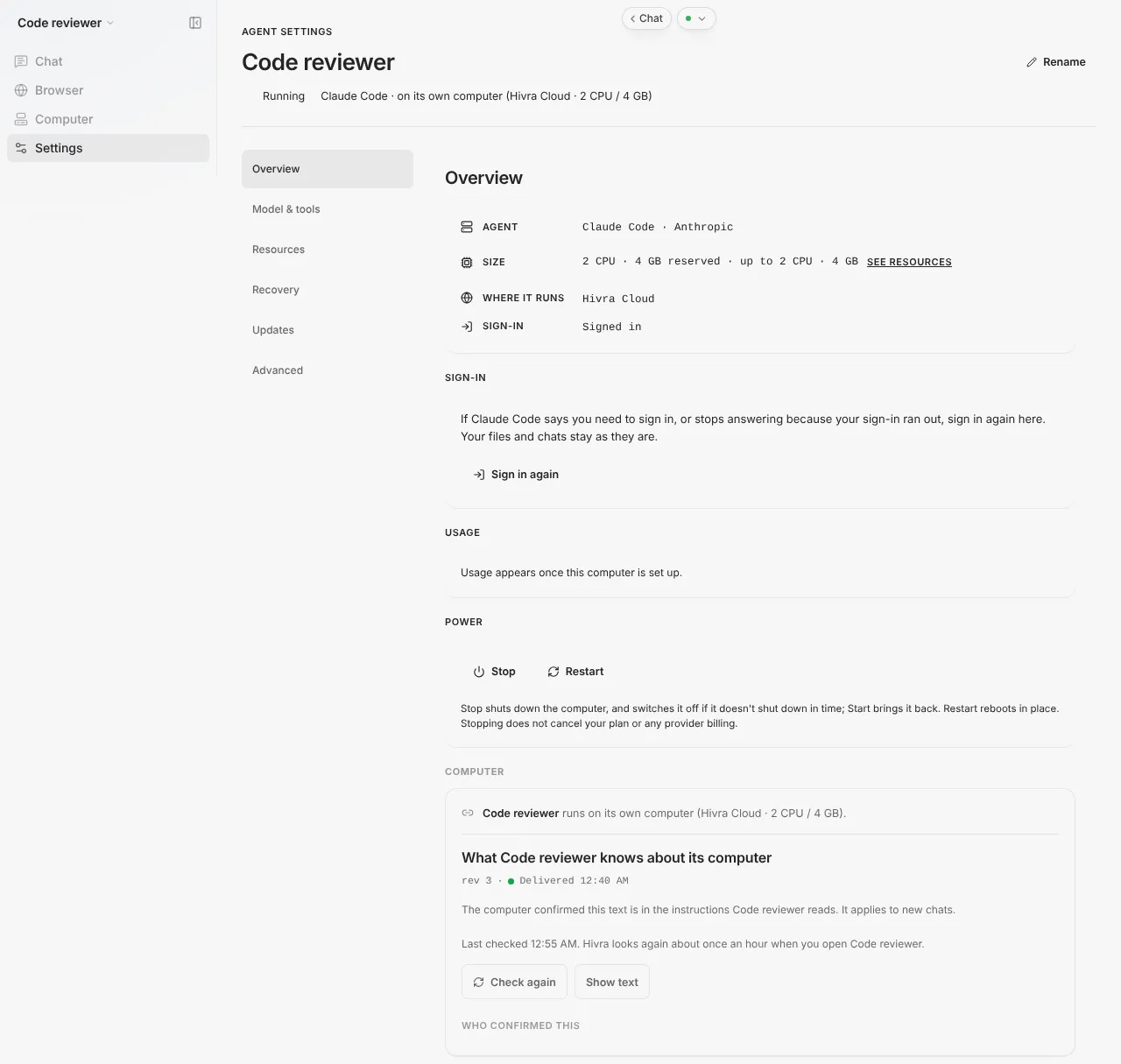
2. Read the single banner at the top of Settings. When several cards cannot read the computer, Settings shows one banner, Hivra can't reach this computer, instead of repeating an error on each card. The cards underneath say only Unavailable while the computer can't be reached. The banner explains the two usual causes: the computer is restarting or its network is down, in which case restarting usually brings it back, or it no longer exists on its host, in which case there is nothing left to start or stop and you remove it from Hivra to clear it from your list.
Many panels refresh by themselves while the page is open. If one looks frozen, use the refresh button inside that view, then reload the page.
Launch is blocked, stuck or failed
The launch Review step blocks the Launch button with a plain-language reason and, usually, a button that fixes it. Nothing starts until you press Launch, so a blocked Review costs you nothing.
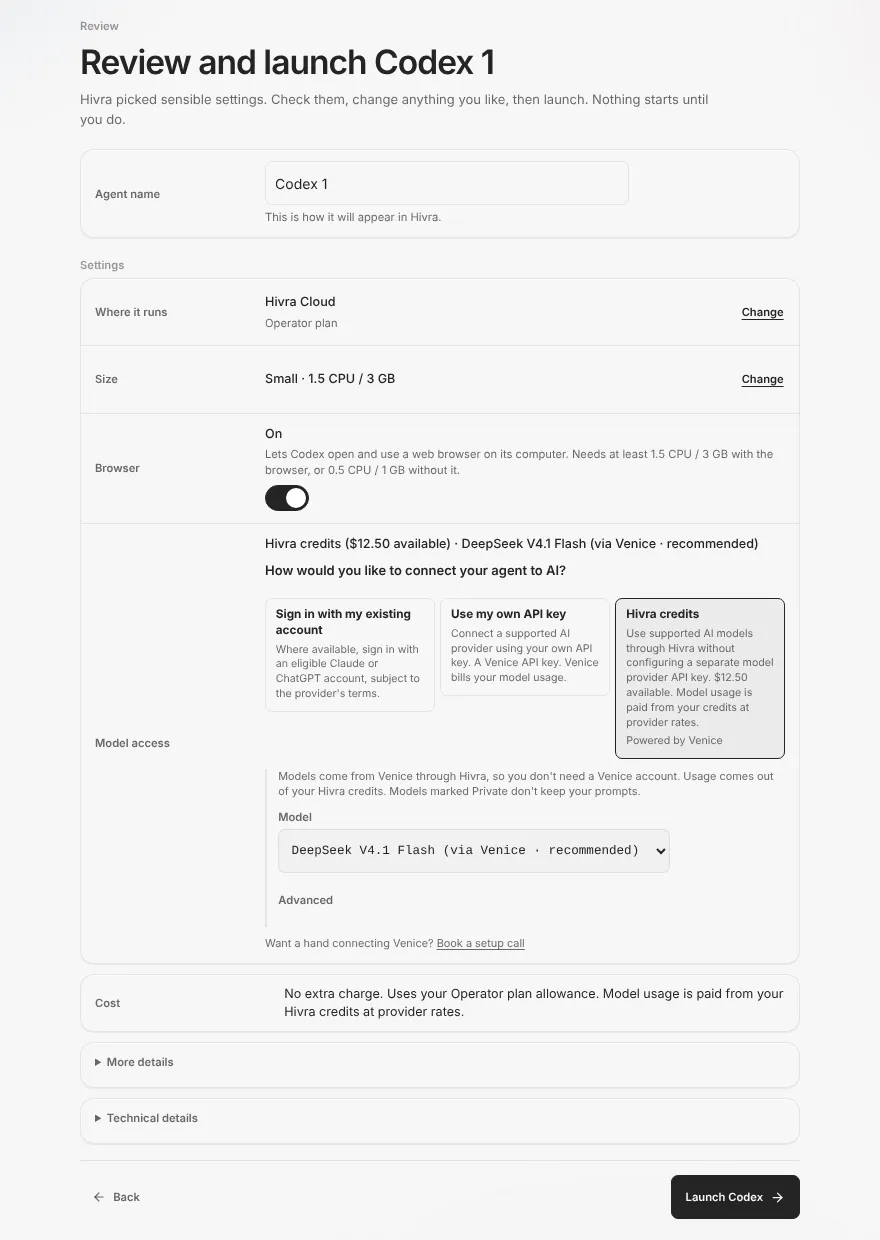
| What you see on Review | Why | What to do |
|---|---|---|
| "…on Hivra Cloud needs a paid plan. Your free account works with your own server" | Every Hivra Cloud computer needs a paid plan. A Hivra account costs nothing, and it works with a server you connect. | Choose Review plans or Upgrade to the offered size, or Set up your own capacity (the button's label varies) |
| "Your plan is on hold because a payment didn't go through, so your Hivra Cloud computers are stopped." | A payment failed | Choose Update payment and settle it in billing, then start the computers you need |
| "Managed capacity could not be verified." | Hivra could not read your plan | Press Check again |
| "Checking your managed plan…" stays on screen | The plan is still loading | Wait, then reload. After checkout, "Your new plan isn't showing yet. It can take a moment after checkout." |
| "…needs 2 CPU / 4 GB. Your plan has … free" | The size you chose does not fit what is left of your plan | Use the offered smaller size, Turn off the browser (the browser reserves extra CPU and memory), or shrink another computer |
| "The selected host does not have enough measured capacity for this size." | A server you connected is too small for this size | Choose a smaller size or another server |
| "None of your connected servers can run …" | No connected server supports this agent | See Connected server problems below |
| "Linux Sandbox needs a server you've connected, and none is ready for it yet." | That computer runs only on a server you connected | Press Set up capacity (the button's label varies) |
| "Omarchy runs on Hivra Cloud only." | It cannot be placed on your own server | Change where it runs to Hivra Cloud |
The agent tiles on the Choose step also tell you whether a tile fits your plan or server, so a tile marked as needing a server is a hint to connect one before you reach Review.
Your model choice can block Review too. See the next sections: "Add credit to start chatting, or choose another option.", "Paste your Venice API key." and the other messages in Model errors and credits.
After you press Launch. Review hands the request to Hivra and shows its phase in plain words: "Hivra has recorded the request and is creating the computer.", then "The computer exists. Hivra is finishing the launch record." Setting up takes as long as it takes. The page says you can wait, or open the agent now and watch it start. It also says first-time installations can take longer, and that status checks continue automatically while the page is open.
"We couldn't confirm the launch yet." or "Launch could not be confirmed." The answer was lost on the way back. The request may already have reached Hivra. Press Check again, or Resume same launch, which reuses the same request, so it cannot start a second computer. If it still cannot find your agent, the page says "Hivra can't see … yet. If you launched it a while ago and it still isn't here, start a new launch." Check Home first, because the agent may already be listed. If you launched with your own API key, the page asks you to paste the key again to check the same launch. It is not kept in your browser.
"This launch didn't go through." The launch was rejected before it was accepted, and the panel shows the reason. Press Review launch, change what the reason names, and launch again. Nothing new is started from the old request.
Provisioning failed. If the agent page shows Provisioning failed (or Computer isn’t ready for a computer that had been set up), setup stopped and the panel shows the reason. If the reason names something you can change, such as capacity, fix it. Otherwise open Settings, choose Advanced, and use the destroy control for that computer, then launch again.
On a computer in your own cloud account, the page also names the original launch's state, for example "The original launch did not complete. Inspect or remove this computer in Manage; provider billing may continue." Hivra does not start a replacement computer for you in that state, so check your provider account as well.
The agent will not open
When you open an agent, the page chooses what to show from the computer's state. If the computer is not ready for the working views, you get a status panel. These are the ones you will meet.
| What you see | Why | What to do |
|---|---|---|
| Setting up (or Starting, Stopping, Restarting, Resizing, Deleting, Cancelling, Updating) followed by the agent's name | The computer is being changed. The panel says what is happening, for example that a restart does not reinstall the agent or erase your files | Wait. The page updates automatically. Open Manage takes you to Settings meanwhile |
| "Couldn’t get the latest status. Showing the last response and checking again automatically. This does not mean setup failed." | A status check failed, not the setup | Wait. It checks again by itself |
| Waking up your agent | Only where Sleep when idle is available on your computer: the computer was resting and comes back when you use the page | Wait for it to finish |
| Your agent is napping, with Wake it up | Only where Sleep when idle is available on your computer (Settings, Overview) and turned on. The agent rested | Press Wake it up |
| Your agent could not wake up, with Try again | The wake request failed. The follow-up message reads "Your agent could not wake up just now. Try again in a moment." | Press Try again. If it repeats, check the computer in Settings |
| Runtime not reachable: "The computer is up but its chat isn't connected yet. Give it a moment." | Chat's service has not connected | Give it a moment, then reload |
| Dashboard not reachable | The same, for an agent that opens its own web app | The same |
| Not ready: "The computer isn't reachable yet." | Files, Terminal, Skills or Telegram cannot reach the computer | Wait a minute, then open Settings, Overview, and check the power state |
| Can’t reach this computer | Hivra is not getting answers. It may be restarting or may have been removed | Press Check connection, then Open Manage, which shows its power state |
| Couldn’t check the model connection | The computer has not confirmed its connection yet | Check Inference under Model & tools in Settings, or press Check connection |
| This computer needs a Chat update: "Its saved model connection needs a newer Hivra Chat runtime. Your key and files are unchanged." | The computer's connection service is older than the saved settings need | In Settings, choose Update connection service (the computer keeps running) |
| Connection update needed | The computer uses an older connection service, so this view cannot open securely. Its data is unchanged | Update it in Settings, then press Check again |
| Couldn’t verify secure access | The connection service is not reachable yet | Check status in Settings, then press Try again |
| "Starting the agent…" for a long time, then The agent hasn’t started | It did not finish starting on this computer | Check its status in Settings, then try again |
| Agent not found. | It was deleted from another tab, or the link is stale | Back to Home |
For DeepSeek Harness the panel names DeepSeek instead of "the agent", and it launches with no browser. A computer that only holds an agent may show No agent here yet: "Add an agent to this computer in Manage."
Things to try before anything else. Reload the page. Open Settings and read the Overview. If the computer says it is switched off, use Start in the Power card. If Start says "Wait for the current operation to finish." or "Another action is running", an operation is still in progress. Let it finish. Chat, Files and Terminal reconnect by themselves after a restart or a connection service update.
When a computer in your own cloud account is mid-check, its panels use careful wording, such as "No replacement computer is being launched." or "No retry or forced power-off was sent." This is deliberate. It means Hivra is waiting for the provider to confirm the original state before it does anything else, so avoid creating a duplicate.
Sign-in prompts
Claude Code and Codex can sign in with your own account (a Claude account for Claude Code, a ChatGPT account for Codex), subject to the provider's terms. The sign-in is stored on the agent's computer. Administrators of its host may have infrastructure access, so use an account you are comfortable with.
First sign-in. Chat shows Sign in with Claude (or Sign in with ChatGPT). The steps on screen are: open the sign-in page, authorize it with your account, then finish.
- Claude Code: copy the code the page gives you and paste it into the box labelled Authorization code (placeholder "Paste the authorization code"), then press Connect.
- Codex: the page shows a one-time device code. Enter it on the sign-in page. Hivra detects the result by itself. If it has not seen it yet it says "Hivra hasn't seen the sign-in yet." and offers Check again.
| What you see | Why | What to do |
|---|---|---|
| The sign-in page did not open | A pop-up blocker stopped it | Press Open sign-in page, which is always shown |
| "This sign-in address isn't an OpenAI or ChatGPT page, so Hivra won't open it. Don't enter your password there." | The link did not point at a trusted sign-in host | Do not enter your password. Start again from the agent's own page |
| Code copy failed: "Select code to copy" | The browser blocked clipboard access | Select the code with the mouse and copy it |
| An error under the sign-in box after pressing Connect | The code was wrong, expired or already used | Press the sign-in button to get a fresh code and try again |
| Chat is signed in but the agent says you need to sign in again | Your sign-in expired | Settings, Overview, Sign in again. Your files and chats stay |
| Codex re-sign-in: I've entered the code | Hivra cannot watch a second Codex sign-in finish | Press it after you authorize, then send the agent a message to check |
| The Overview says "Not signed in yet: open Chat to sign in" | The sign-in was never completed | Open Chat and complete it |
| "Signed in" on Overview but replies fail | A model error, not a sign-in problem | See Model errors and credits |
Signing in does not delete anything. Sign in again replaces the stored sign-in on the computer, and your files, conversations and settings are untouched.
Aeon is the exception: it connects to GitHub instead, and its page shows a GitHub connect step. If your GitHub token expired or was deleted and Aeon can no longer save changes to your fork, Settings offers Change GitHub token where you paste a new one.
Model errors and credits
Every agent reaches a model one of three ways: your existing account sign-in where the agent allows it, your own API key, or Hivra credits, which reach models through Venice. How your agent gets its model explains the three. Problems show up either on Review, before launch, or in the chat.
| What you see | Why | What to do |
|---|---|---|
| "Add credit to start chatting." or "Add credit to start chatting, or choose another option." | Your Hivra credits are empty | Press Add credit, or choose your own key or sign-in where the agent allows it |
| "Couldn't check your balance. Model usage is paid from your credits." | The balance did not load | Reload. You can still choose another option |
| "Not available for Claude Code. Use Hivra credits, or its own sign-in with an Anthropic Console account." | Claude Code takes no pasted key at launch | Use credits or sign-in |
| "Not available for … yet. Add your key inside … after it opens instead." | That agent takes its key in its own settings | Launch it, then add the key in its own settings |
| "Paste your Venice API key." | The key box is empty | Paste it. "No key yet?" links to Venice settings |
| "Venice doesn't accept this key. Check it and try again." | The key failed the check | Copy it again from Venice |
| "Couldn't reach Venice to check this key. You can still launch." | The check did not complete | Launch anyway, or retry |
| "Check the key: it should be one line of 8 to 256 characters." | Shown for Codex, DeepSeek Harness and Hermes computers, not for the Venice key above. The key you pasted has spaces, line breaks or the wrong length | Copy it as one line |
| "Choose a model from the list, or enter a valid model ID." | The model field is empty or malformed | Pick from the list |
| "Confirm that your saved key can be sent to … computer." | A saved key needs your confirmation | Tick the confirmation under the key |
| "Hivra credits can't be set up for … on a computer in your own cloud yet." | Credits are not offered there | Use the agent's own sign-in or run it on Hivra Cloud |
| "This server hasn't said it can take a model key safely yet." | A server you connected needs updating | Update it in Capacity, or choose another option |
In the chat. Under the reply you may see Could not complete response, or the agent shows an error message from the provider. The two statuses that matter most: Stopped (you pressed Stop response) and "Connection lost. Your agent keeps working; this reply fills in when it reconnects." Your browser lost its connection, the agent did not stop. "The run was interrupted before it finished because the agent's computer restarted." means a restart ended that run, so send the request again.
Replies stop partway through the day on credits. Two things can pause requests. Settings, Model & tools shows a Daily spend limit for managed credits: "Limit reached today. New requests are paused until …". The limit is counted per day in UTC, you can raise it or press Remove, and Hivra shows a default until you set your own. Separately, "Requests pause when funds run out; we do not switch wallets automatically." So check the limit first, then your balance.
A model change fails. Switch back to Default or pick another model. The model that gives poor answers is the provider's, so before you suspect the computer, try another model from the list. Settings, Model & tools also reports "Couldn't change the model" with the reason, and a Resume change button if a change was left half confirmed.
Claude or ChatGPT subscription limits. If you signed in with your own account, usage limits come from that provider and its terms, not from Hivra. A message about a usage limit in the transcript is the provider's own message.
A view is missing
Hivra shows only the views an agent actually has. A missing view is almost always on purpose. The sidebar groups views into rows, and a row with several views shows them as tabs along the top.
| You expected | Why it is missing | What to do |
|---|---|---|
| Browser | Only Claude Code, Codex and OpenClaw have one. Hermes, Aeon, Agent Zero, DeepSeek Harness and the other agents launch without a browser | None. For agents that have it, see the next row |
| Browser says Browser automation is off | The browser is switched off for this computer | Press the turn-on button, or in Settings, Model & tools, choose Enable browser automation. On Hivra Cloud it needs a paid plan: "The live browser needs a paid plan." |
| Terminal or Files | The computer is not running yet, or has no address. The workspace views appear once it is running | Start the computer, then reload |
| Desktop | Agents do not run on a desktop. Only a desktop computer has one. A Linux computer has no desktop at all | Launch Ubuntu Desktop from Computers, or open the Desktop entry on an agent's page to connect a desktop computer you already have or launch a new one |
| Skills or Telegram | These sit under Settings for Claude Code and Codex. Hivra shows none for the dashboard agents. A Telegram tab can appear for Codex, but Hivra has verified Telegram on Claude Code only | Use the agent's own interface |
| Tasks | Hivra does not show Tasks for any agent today | None |
| Dashboard | It is the row for agents that open their own web app, not for Claude Code or Codex | Open the agent from Home |
| Everything except Settings | A Linux Sandbox computer shows only Settings, and a computer being set up shows only the setup panel | Wait, or use Settings |
| An old link opens a different view | An address for a view the agent does not have lands on the view it does | None. Pick the view from the sidebar |
The row that holds controls is called Settings in the sidebar. Some buttons say Open Manage. They lead to the same place. For a map of every view, see Open your agent.
The Browser view is view-only. You watch the browser the agent drives. For OpenClaw the live browser is a real Chrome. To sign the agent in to your sites, use Import cookies in Settings (Manage), and the agent acts in that signed-in session.
The computer is stopped
A computer stops for one of three reasons: you stopped it, its plan is on hold after a failed payment, or a restart or resize is underway. The Power card in Settings, Overview tells you which controls apply.
- Start brings a stopped computer back. After a failed launch, the same button is labelled Try again. Starting says Hivra is powering it on and waiting for its connection.
- Stop shuts the computer down, and on computers that support it, switches it off if it does not shut down in time. Files remain on the disk. Stopping does not cancel your plan or any provider billing.
- Restart reboots it in place. It does not reinstall the agent or erase your files. Terminal and Files disconnect briefly.
- Force off and Force restart, under Advanced, switch the computer off at once, like pulling the plug. Anything not saved in open apps is lost. Use them only when the computer is frozen and Stop or Restart did not work. They appear only on computers that support them, such as ones on a Proxmox server you connected. On your own cloud account, DigitalOcean or a Linux Sandbox you will not see them. There, use Stop and Start, or contact support.
| What you see | Why | What to do |
|---|---|---|
| "Hivra's record says this computer is on, but its host says it's switched off. Use Stop and then Start to bring them back in line." | The records disagree | Press Stop, then Start |
| "Hivra's record says this computer is off, but its host says it's running. Refresh in a minute. If it stays like this, contact support." | The same, in the other direction | Press Refresh on Usage, wait, then contact support if it persists |
| "This computer is already on." / "This computer is already stopped." | You pressed a button that does not apply | Refresh the page |
| "Start this computer first." | The action needs a running computer | Press Start |
| "Wait for the current operation to finish." | Another power or update action is running | Wait |
| Your plan is on hold | A payment failed, so your Hivra Cloud computers are stopped and their files are kept | Settle the payment in billing, then press Start on each computer. Stopping on a lapsed plan is not deleting |
| "This computer no longer exists." | The host has no record of it | Remove it from Hivra to clear the list |
| "Hivra couldn't find this computer on its host. Contact support." | The record says it is on, but the host cannot find it | Contact support |
| "The power request may have reached Hetzner, but its receipt could not be confirmed. No retry or forced power-off was sent." | A computer in your own cloud account has an unconfirmed power action | Inspect it in your Hetzner project before any recovery |
| "Hetzner confirms this computer is off. Its storage and provider charges may remain until you explicitly remove it." | It is off, and your provider still bills | Start it, or remove it if you are finished |
Stop and Restart first check whether a reply is still being written and tell you what ending the run would cost. Stopping or restarting ends the run, and so does resizing, restoring or a forced restart. Read the confirmation before you proceed.
On a paid Hivra plan the computer stays on and keeps your files, sessions and login. A Claude Code or Codex run you start inside tmux in the computer's Terminal tab keeps going after you close the laptop. On Claude Code, work you send through Telegram, connected in the agent's Telegram tab, runs on the computer, not in your browser.
Disk, memory and size limits
Where to look. Settings, Overview, Usage shows Power, CPU, Memory and Disk, with an Updated … ago time and a Refresh button. Memory "includes the computer's file cache, so it can read high." That is normal. A high number alone does not mean the agent is out of memory.
| What you see | Why | What to do |
|---|---|---|
| "Disk use isn't available: the computer's guest agent didn't answer." | The computer did not report its disk | Press Refresh. If the computer is stopped, start it |
| "CPU, memory and power state aren't available right now." | The host did not answer | Press Refresh |
| "Hivra couldn't read this computer's usage." | The read failed | Press Refresh. A rate limit says how many seconds to wait |
| "No usage read yet. Use Refresh to read it." | Nothing has been read | Press Refresh |
| "Updated … · out of date" | The reading is stale | Press Refresh |
| Update message: "There isn't enough free disk space on this agent's computer" | The disk is nearly full | Free space from the Computer row, using Files or Terminal, then try again. Nothing was changed |
Freeing space. Open Computer, then Files to find large folders, or Terminal to inspect them. Deleting is permanent, so check what you remove. Restore points under Recovery stay on the same host until you destroy the computer. They are not off-host copies of your files, so keep anything you cannot lose somewhere else as well, for example in a Git remote.
Making the computer bigger or smaller. Settings, Resources shows a reserved size and a maximum, and an Apply button. Resizing reboots the computer, with a brief reconnect, and it ends a running task. Messages you may see:
- "Couldn’t verify your available Hivra Cloud capacity. Refresh before resizing." Press Refresh capacity.
- "Your … pool is fully used by your other agents. Shrink another computer to grow this one." Your plan's CPU and memory are shared by your computers, so free some from another one.
- Min and max lines tell you how far the size can move on your plan.
- On a server you connected, host capacity is checked before applying, and your Hivra Cloud plan does not limit that computer.
The browser costs size. Turning the browser on reserves extra CPU and memory. Turning it off does not shrink a computer by itself, and on a cloud computer it does not reduce provider billing. A browser-off agent can resize down to the minimum.
Cores are shared, so the dashboard states that speed is not guaranteed. If an agent is slow, check Usage first, then consider a larger size.
Telegram does not respond
Telegram is verified for Claude Code only. Hivra does not claim it for Codex or for the dashboard agents. The full flow is in Connect Telegram to your agent, and its own table lists the setup messages. If the bot is connected but your messages get no reply, check these in order.
- Is the computer running? Telegram work runs on the computer, so it must be up. Check Home.
- Are you messaging your own bot, from the account that tapped Start? The first account to redeem the setup link and tap Start becomes the only owner. Anyone else is silently ignored.
- Does Settings, Telegram say Bot is running? Right after connecting it can read Connected (starting...) while the service starts.
- Is Claude Code still signed in? If it needs you to sign in again, the work cannot proceed. Use Sign in again.
- Is the model working? A paused daily limit or empty credits stops replies on Telegram as it does in Chat. See Model errors and credits.
Messages worth knowing: "This box doesn't support the pairing link yet. Use the advanced manual id option below." means the computer's Telegram service is old. Use the advanced option or update the agent. "Couldn't disconnect Telegram (...). Your bot is still connected. Try again." means the computer could not be reached, so the bot is still active.
If you suspect your bot token leaked, revoke it in BotFather, then disconnect and reconnect with a new token.
An update failed
Updates live in Settings, Updates, with a shortcut in the quick settings. Update your agent covers the whole flow and a longer table of messages. The most useful ones are here.
| What you see | Why | What to do |
|---|---|---|
| Update didn't finish or "The last update didn't finish" | The update stopped | Open Updates and press Try again |
| "The update didn't start." | The request was refused | Read the reason that follows, then try again |
| "Hivra hasn't finished preparing this update yet. Nothing was changed. Try again later." | Hivra has not prepared it yet | Try again later |
| "Prepare My server with Hivra's current setup, then try again. Nothing was changed." | A server you connected is behind | Prepare the server, then try again |
| "Another action is running on this agent." | Something else is in progress | Wait, then try again |
| "Start this agent first." | The computer is stopped | Press Start |
| "Hivra couldn't confirm the update finished. Check again in a minute." | The result was not confirmed | Wait, then check again |
| "Not updated: it has changes of your own" | The install has your own changes | Nothing was changed. Use the agent's own updater in Terminal if you want it |
| "Try again first. If that doesn't work, restore this agent from a restore point made before the update" | The update failed and the previous version could not be put back | Press Try again. If that fails, Open Recovery, or use Force restart in Advanced where it is offered |
Where Hivra could put the previous version back, the agent works as before and automatic updates pause for that version. Updating the connection service does not restart the computer. Replies being written keep going, and terminals reconnect.
Connected server problems
A free Hivra account works with a server you connect. These problems belong to that path. Connect your own server has the full setup and the longer table of errors, including how to read a fingerprint mismatch.
| What you see | Why | What to do |
|---|---|---|
| "None of your connected servers can run …" | No server supports the agent. Agents and Ubuntu Desktop need a Proxmox VE server connected with SSH details. The one-command Ubuntu connect gives Linux Sandbox only | Connect a Proxmox server, or choose Hivra Cloud |
| Setup incomplete on the server's card | Hivra inspected it, but it is not ready | Inspect again to see what it needs |
| "The readiness check did not pass." | The Linux Sandbox check failed | Inspect the server again and fix what it names |
| "The last check is more than 15 minutes old. Check again before you launch." | A readiness check is good for 15 minutes | Press the check button again, then launch |
| "Linux Sandbox here was set up by an older Hivra release. Check readiness; if the check asks, reinstall the setup before you launch." | The setup is out of date | Check readiness, then reinstall if asked |
| "Hivra could not inspect this host." | The server did not answer the inspection | Check it is on, reachable over the network and that the SSH details are right |
| "The selected host does not have enough measured capacity for this size." | The server is full or small | Choose a smaller size or another server |
| "Hivra couldn't connect this server." | The setup did not connect | Check the address is a public IPv4 address or hostname, without a URL or port |
| "Hivra could not load your infrastructure connections." | The page could not load the list | Reload, then use the retry button shown |
The fix for most connected-server problems is to inspect again after you change something on the server, because Hivra only knows what the last inspection saw. If you delete a connection, Hivra warns when provider resources and billing may remain, which is yours to clean up at the provider.
What Hivra does and does not do when things go wrong
- Hivra does not retry a launch for you behind your back. A lost answer is shown as not confirmed, and checking again reuses the same request, so it cannot start a second computer.
- Hivra does not replace a computer in your own cloud account on its own while it is unsure of its state.
- Stopping a computer does not stop billing from Hivra's plan or from a provider you connected.
- A failed update is rolled back where Hivra can do so, and the page says plainly when it could not.
- Restore points are made in place on the same host. They are not an off-host copy of your files.
- Hivra does not promise how fast a launch finishes, and cores are shared, so it does not promise speed.
- Hivra does not control a model's answers. A bad answer is a reason to try another model first.
If nothing here helps. Where a message says to contact support, do that. Include the exact message, the agent name, the agent type and where it runs (Hivra Cloud or a server you connected). If Advanced shows a VM ID (for support), include that too. It appears only on some computers.
Common questions
My launch says it could not be confirmed. Did it start?
Possibly. The request may already have reached Hivra and the answer was lost. Press Check again or Resume same launch, which reuses the same request and cannot start a second computer. Check Home first, since the agent may already be listed.
The agent page shows a status panel instead of Chat. What do I do?
Read the panel. Setting up, Starting and Restarting are waits, and the page updates by itself. Can't reach this computer, Runtime not reachable and Not ready mean the computer or its connection service is not answering yet. Open Settings to see its power state, press Start if it is off, and update the connection service if the page asks for it.
Chat keeps asking me to sign in. Will I lose my work?
No. Sign in again, found in Settings under Overview, replaces the stored sign-in on the computer. Your files, chats and settings stay as they are.
Replies stopped partway through the day on Hivra credits. Why?
Two likely causes. A daily spend limit in Settings under Model and tools can pause new requests until it resets, counted per day in UTC. Or your credit balance ran out, and requests pause without switching wallets. Check the limit first, then add credit.
A view I expected is not on the agent page. Is something broken?
Usually not. Hivra shows only the views an agent has. Browser exists for Claude Code, Codex and OpenClaw, Skills and Telegram sit under Settings for Claude Code and Codex, and Desktop belongs to desktop computers. Terminal and Files appear once the computer is running.
I stopped my computer. Am I still being billed?
Yes. Stopping shuts the computer down and keeps its files, but it does not cancel your plan or any billing from a provider you connected. Use the plan controls to change a plan, and remove a computer you are finished with.
How do I free up disk space on an agent's computer?
Open the agent, then Computer, then Files or Terminal, find large folders and delete what you no longer need. Deleting is permanent. Settings, Overview, Usage shows disk use, and a Refresh button reads it again.
An update failed and the agent does not answer. What now?
Press Try again first. If the previous version could not be put back, the update card offers Open Recovery to restore from a restore point made before the update, or Open Advanced for Force restart. Contact support only if those do not help.