
Three separate things you can pay for
Hivra bills three different things, and they are easy to mix up. Knowing which is which makes the Plan & billing page much easier to read.
| What | What it pays for | Where you manage it |
|---|---|---|
| Your account | Signing in and using Launch. A Hivra account costs nothing. | Settings |
| A plan | The computer itself when Hivra Cloud runs it: processor, memory and storage. | Plan & billing, Plans view |
| Model usage | The AI model your agent thinks with, when you use Hivra credits. | Plan & billing, Credits view |
A plan does not pay for model usage, and credits do not pay for a computer. If you bring your own model key, the provider bills you directly and Hivra credits are not involved at all.
Every computer that Hivra Cloud runs for you needs a paid plan, from $9.99 a month for 2 vCPU and 4 GB of RAM. A free account works with a computer or server you connect yourself. This page is for developers and AI power users who want to know exactly what a launch will cost before they press the button.
Before you start
You need a Hivra account to see any of this. Open Billing in the dashboard sidebar (or Plan and billing in Settings). The page it opens is titled "Plan & billing" and the line under it reads "Your plan, how you pay, and what you've used." A self-hosted installation of Hivra hides Billing.
- A card, if you want Hivra Cloud to run a computer or you want to top up model credits. Plan and credit payments go through a hosted checkout, so you never type card details into Hivra itself.
- Nothing at all if you only plan to connect a computer or server of your own. Run agents on your own server covers that route.
- A decision about the model: Hivra credits, your own key, or an account you already have. Choose how your agent gets its model lists what each agent supports.
By default the page opens on Overview if you have a plan (or a plan on hold) and on Plans if you do not. Links from Launch or from a paywall open Plans.
The Plan & billing page at a glance
The page has up to five tabs. The row of tabs is labelled "Billing sections".
| Tab | What you do there |
|---|---|
| Overview | See your current plan, how much of it your computers use, and your credit balances. Change plan, manage your payment method, refresh usage or cancel. |
| Plans | Compare the sizes and subscribe, upgrade or switch. |
| Payment methods | See how your plan is paid. A card plan says Stripe keeps your card on file and has an Open billing portal button to update the card, download invoices or cancel. App Store plans show Manage in the App Store. A free account sees that no card is on file until checkout. Optional token payment sections appear only where enabled. |
| Credits | Top up and watch your account credits and model credits. |
| History | Recent account movement: ledger, payments, compute, LLM and managed Venice usage. |
Which credit tabs appear depends on the deployment. The Credits tab shows when billing v2 or crypto billing is on, and History and the Model credits panel need billing v2. The card top-up buttons need a separate top-ups setting, so a deployment can show Credits with no top-up buttons, which means it does not offer card top-ups. If you do not see a tab, that deployment does not offer it.
Choose and start a plan
Every computer that Hivra Cloud runs for you needs a paid plan, whichever agent or computer you pick. There are two sizes on sale: $9.99 a month for 2 vCPU and 4 GB of RAM, and $19.99 a month for 4 vCPU and 8 GB of RAM. Both stay on without being paused for inactivity, so your agent's files and logins are there when you come back.
- Open Billing and go to the Plans view. With no plan yet, the heading reads "Choose a plan".
- Read the cards. Each one shows vCPU, memory, how many agents and computers it covers, and its idle behaviour. The card for your current plan is marked "Current plan".
- If a Billing control with Monthly and Yearly is shown, pick one. A saving chip such as "Save up to N% yearly" appears beside it when yearly is cheaper than twelve monthly payments. The control only appears when your choice will go through checkout.
- Press Subscribe on the card with 2 vCPU and 4 GB (the $9.99 a month one) or the card with 4 vCPU and 8 GB ($19.99 a month). The button reads "Subscribe" followed by the price. The Free card's button reads "Use the free account".
- Complete the hosted checkout. When you return, the page shows "Activating your subscription..." while Hivra confirms the payment. You then land back where you started, or on Launch if you came to Plan & billing directly. Open Billing again to see Overview.
If you arrived from Launch, a Back to your launch link at the top returns you to where you were, with your choices kept. After checkout the redirect back happens automatically.
The Free card is not a hosted computer. It reads "Computer: Your own" and "Run by Hivra: No", and it means a Hivra account that works with a computer or server you connect yourself.
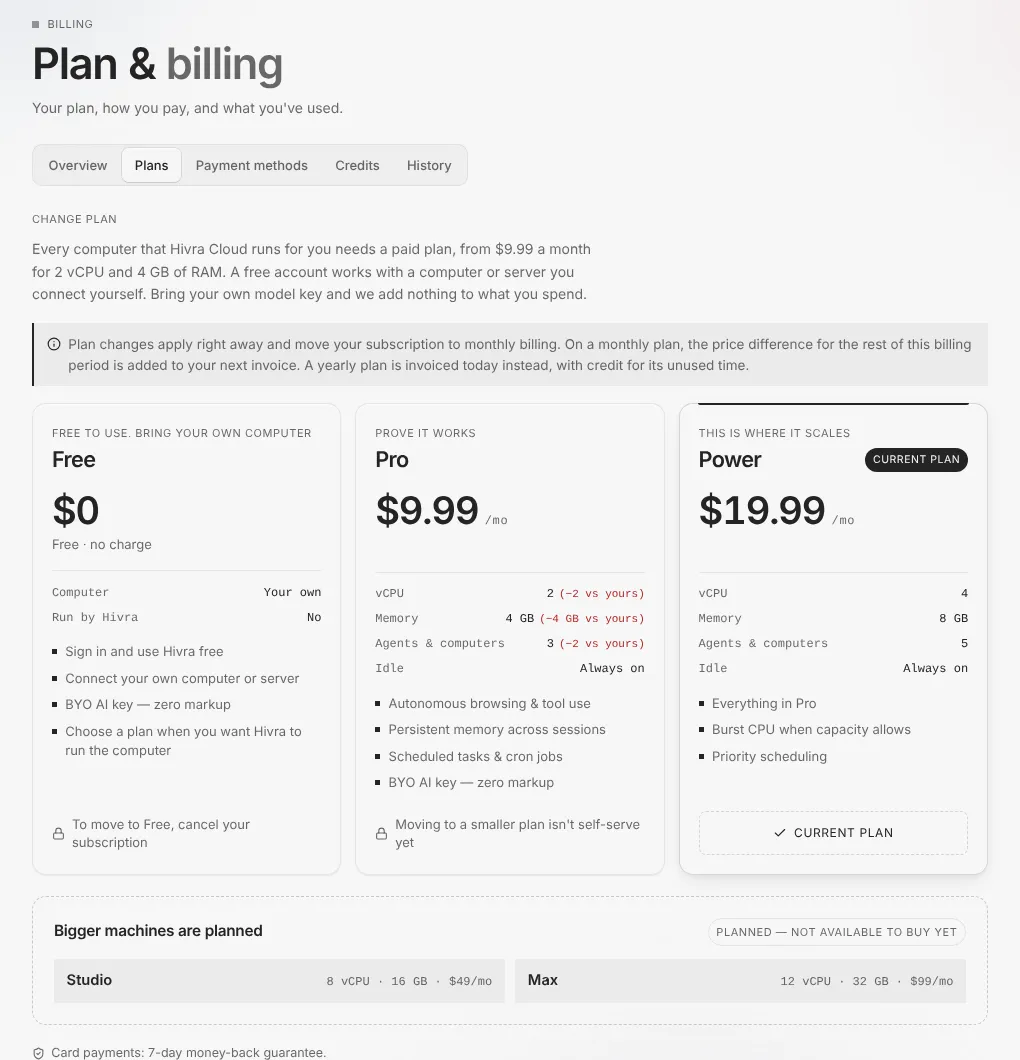
Under the cards, a strip titled "Bigger machines are planned" is tagged "Planned, not available to buy yet". Treat those as a roadmap, not an option.
Read your usage on Overview
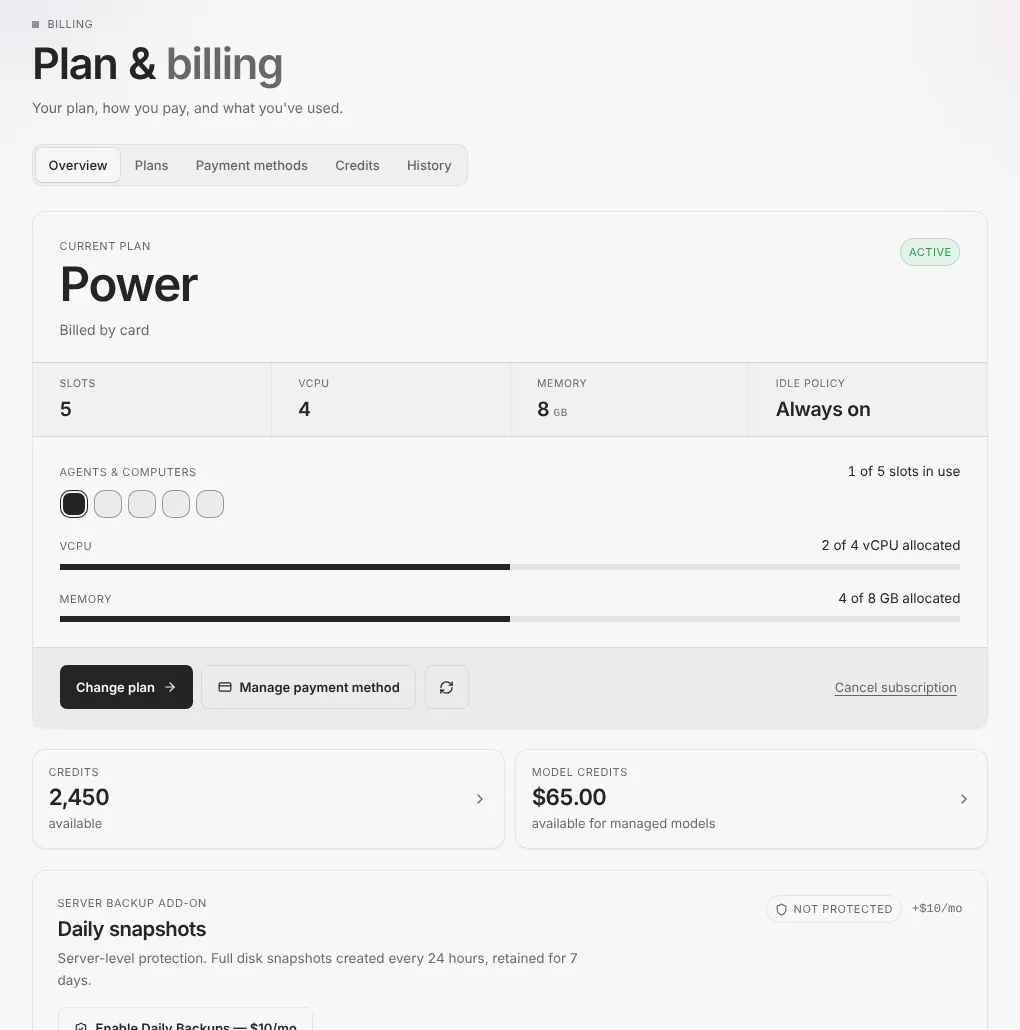
The top panel of Overview is headed "Current plan" and shows how the plan is billed (for example "Billed by card" with the date the current billing period ends) and an Active tag.
- Slots, vCPU and Memory are what your plan allows in total. Idle policy reads "Always on" for a paid plan.
- Agents & computers shows how many of your allowed places are in use.
- The vCPU and Memory bars show how much of the plan's processor and memory your computers have been given, for example "2 of 4 vCPU allocated". This is what you have allocated, not live load.
- The round refresh button next to the plan buttons ("Refresh usage") reads the numbers again.
For how busy one particular computer is right now, open that agent, go to Settings, and look at the Usage card on the Overview section. It reads the computer's own CPU, memory and disk, and it says plainly when its host cannot be reached.
Below the plan panel, up to two tiles show your balances. Credits is the account credit count, and Model credits is a dollar amount "available for managed models". Press either tile to jump to the Credits view. The tiles depend on deployment settings: Credits needs billing v2, and Model credits also needs the managed Venice summary to load, so either can be missing.
Change, switch or cancel a plan
Move to a larger size. On Overview press Change plan, or go straight to Plans, and press Upgrade to the larger size. A dialog asks you to confirm. Depending on how your subscription is set up it is titled either "Confirm Upgrade" or "Open Secure Checkout":
- Confirm Upgrade changes the subscription in place. The new limits apply right away, and the price difference for the rest of the billing period is added to your next invoice. Plan changes made this way move your subscription to monthly billing. A yearly plan is invoiced today instead, with credit for its unused time.
- Open Secure Checkout is used when the change has to go through the payment provider's checkout. Your current access stays active while checkout is pending, and the new plan access starts once checkout completes.
Move to a smaller size. Going down is not self-serve everywhere. Where it is not turned on, the card says "Moving to a smaller plan isn't self-serve yet". Where it is, the button reads Switch to the smaller size and the dialog offers Keep your current plan or confirm. The dialog is titled "Switch to" the smaller size and lists what you give up. If you have more agents and computers than the smaller size holds, it warns you, and you should remove some before you launch another. It also has a proration credit note: Stripe credits unused time to your account for later invoices, not back to your card. Nothing is stopped or removed for you.
Cancel. On Overview press Cancel subscription (card plans only). A dialog asks "What's making you cancel?" with choices such as "It's too expensive" and "I'm not using it". Pick a reason or skip it. Some reasons show one suggestion that opens an email to support, and choosing "Something else" adds an optional text box. Press "Never mind, keep my plan" or close the dialog to keep your plan. Cancel anyway opens the billing portal, where the cancellation is completed. Your chosen reason is recorded when you press Cancel anyway or use a suggestion. App Store plans are cancelled in the App Store.
When a plan ends, Hivra stops running your Hivra Cloud computers. Their files are kept, and Hivra emails you before anything is deleted. To carry on later, choose a plan again and press Start on the computer. To go back to the Free account, cancel; the Free card says "To move to Free, cancel your subscription".
Payment method. The Manage payment method button opens the billing portal, where you update your card or pick up an invoice. Card buttons appear only for card plans. If your plan is billed through the App Store, plan changes and cancellation happen there and the page shows Manage in the App Store instead.
You may see a backup add-on on Overview. Backups are not guaranteed, so keep your own copies.
If you change your mind
Paid plans come with a 7-day money-back guarantee on card payments. A footnote at the bottom of the Plans view repeats it.
The limit matters: it covers card payments only. It applies to the plan, not to model credits you have already spent. To ask for a refund, open Help in the sidebar and press Email support. Say which payment you mean and include what you were trying to do. Do not include passwords or API keys. There is no self-serve refund button.
Model usage and Hivra credits
Launch asks "How would you like to connect your agent to AI?" and shows only the choices that agent supports. Only one of them involves Hivra credits.
| Choice at Launch | Who bills the model |
|---|---|
| Hivra credits | You pay from your credit balance at provider rates. Credits reach models through Venice. |
| Use my own API key | The provider bills you directly. Hivra credits are not used. For some agents the own-key choice takes a Venice API key only, and Venice bills the usage. |
| Sign in with my existing account | The account you sign in with, under its own terms. |
Hivra credits are the default wherever an agent supports them. If your balance is empty, the credits choice reads "Add credit to start chatting" and an Add credit button appears beside it. If your balance cannot be read, the choice says "Couldn't check your balance", which is not the same as zero. A self-hosted installation of Hivra does not offer credits at all.
On the Review step the Cost line shows how the launch is paid. On Hivra Cloud it reads "No extra charge. Uses your Hivra Cloud plan allowance.", where the plan name replaces Hivra Cloud if it differs, followed by a note about how model usage is paid. While the plan is on hold, the line says the allowance applies once the plan is active again. On a server you connected it reads "No charge from Hivra. It uses your server's own capacity."
Two kinds of credit
The Credits view shows two balances, and they are different.
- Credits. An account credit count with top-up buttons: $5 adds 500, $10 adds 1,000, $25 adds 2,500 and $50 adds 5,000. The page notes that these pay for usage and do not set your plan. This page gives no rate between credits and dollars.
- Model credits. A prepaid balance for models you run through Hivra's managed Venice access. It is split into "Card credits" with an "available" and a "reserved" amount. The two balances are separate and the Credits count does not convert to Model credits.
Top up model credits by card
- Open Billing, then Credits, and find the Model credits panel.
- Press Top up by card. A dialog opens.
- Set the Top-up amount with the box or the slider. The minimum is $10 and the slider runs to $500. The dialog shows how much model credit your payment adds, under a callout headed "Card terms".
- Press Start card checkout and finish in the hosted checkout.
- Come back to the Credits view. The balance updates once the payment is confirmed.
Below the balances, the heading API access, under the label "Keys your agents use for model credits", lists the keys Hivra created for your agents. A new key is shown once, with a Copy key button, so store it before leaving the page. Revoked keys are hidden behind a "Show N revoked keys" button, where N is the count.
If you would rather use your own Venice key, the Switch off managed Venice panel lets you paste it for an agent and press Switch to my key. The agent then restarts on your key on its next request. Using another provider such as OpenAI or Anthropic is done inside the agent's own settings where it allows that.
Some tabs and panels also mention optional token payments. They appear only where that is enabled and are not needed to use Hivra, so this page does not cover them.
Review what you spent
The History view lists recent account movement in five groups: Ledger, Payments, Compute, LLM and Managed Venice (model credit usage, which links to the full list). Each shows its own empty message until there is something to list, such as "No payments yet." or "No managed Venice usage yet.". History appears only with billing v2. View all activity opens the full list.
A practical routine for a power user: check Credits before a long run, glance at Model credits on Overview after one, and use History when a number surprises you.
When something goes wrong
| What you see | What it means and what to do |
|---|---|
| "Payment due" on the plan panel | A card payment failed. Computers keep running for up to 48 hours. Pay the open invoice or update your card with Manage payment method before then. |
| "Hivra Cloud plan on hold" on Overview | The 48 hours passed without payment. The plan is on hold and your Hivra Cloud computers are stopped, with files kept. Pay the open invoice or update your card with Open billing portal, then press Start on each computer. |
| "Plan change didn't go through" | The change was refused and the reason is in the message. Fix it, such as removing agents or computers the new size cannot hold, or settle an open invoice, and try again. Press Dismiss to clear it. |
| "Checkout not confirmed" | Hivra could not confirm the payment after you returned. Use the report link in the alert and include the message. Refresh the page first, since confirmation can lag. |
| "Activating your subscription..." stays on screen | Confirmation is still running. Wait, then refresh. If it never finishes, report it. |
| The credits choice says "Add credit to start chatting" | Your balance is empty. Press Add credit, or pick your own key or sign-in where the agent allows it. |
| "Switch failed. Confirm your Venice API key and try again." | Venice rejected the key you pasted. Copy it again from your Venice settings. |
| A card says "Moving to a smaller plan isn't self-serve yet" | Going down is not available for your account right now. Cancel and choose again, or open Help and press Email support. |
| No Credits or History view | That deployment does not have those tabs turned on. |
If a computer still looks stopped after you settled a plan, open it and press Start. Stopping on a lapsed plan is not the same as deleting it.
What Hivra does and does not do
- A paid plan covers the computer. It does not cover model usage.
- Hivra does not run a free computer. A free account works with a server you connect.
- Hivra does not guarantee backups of what is on a computer. Keep your own copies of anything you cannot lose.
- Bigger machines are shown as planned, and you cannot buy them yet.
- Your own server is your hardware and your bill. The paid plan is for computers Hivra Cloud runs.
For the raw price comparison against self-hosting, see the pricing page.
Common questions
Is a Hivra account free?
Yes, a Hivra account costs nothing, and it works with a computer or server you connect yourself. Every computer that Hivra Cloud runs for you needs a paid plan.
Does the plan include the AI model?
No. A plan pays for the computer. Model usage is paid from Hivra credits, by your own key with the provider, or by an account you already have, depending on the agent.
Can I get my money back?
Paid plans come with a 7-day money-back guarantee on card payments. It covers card payments only. To ask, open Help in the sidebar, press Email support and say which payment you mean. Do not include passwords or API keys.
What happens to my computer if I cancel?
Hivra stops running your Hivra Cloud computers when the plan ends. Their files are kept and Hivra emails you before anything is deleted. Choose a plan again and press Start to carry on. Hivra does not guarantee backups, so keep your own copies of anything important.
Can I move to a smaller size?
Not always. Where self-serve downgrades are not turned on, the card says moving to a smaller plan is not self-serve yet. Moving to the Free account is done by cancelling.
What is the difference between Credits and Model credits?
Credits are an account credit count with top-up buttons. Model credits are a prepaid dollar balance for models you run through Hivra's managed Venice access, topped up by card with a minimum of 10 dollars.
Why can I not see a Credits view?
The Credits and History tabs depend on deployment settings and can be missing. If they are missing, use your own key or an account you already have for the model.