
What this page covers and who it is for
Every agent on Hivra gets a computer of its own, but a computer does not think. The agent needs a model behind it, and somebody has to pay for that model. This page explains every way Hivra lets an agent reach one, which supported agents take which option, how to top up and watch credits, and how to change the model after launch.
It is written for developers and AI power users who want to know, before pressing Launch, where each prompt goes and who bills it. Three things are billed separately and are easy to mix up.
A Hivra account costs nothing. A plan pays for the computer when Hivra Cloud runs it. Model usage is paid separately, from Hivra credits, so a plan never pays for the model and credits never pay for a computer. If you bring your own key or sign in with your own account, the provider bills you and Hivra credits are not involved. What you pay for covers plans in full.
Hivra is an independent hosting service. It is not affiliated with Anthropic, OpenAI, Venice or the makers of the other supported agents, and the provider terms for any account you bring are between you and that provider.
The four ways an agent gets its model
Launch asks one question on its Review step: "How would you like to connect your agent to AI?" Each agent shows only the choices it supports, and a choice it cannot use says why instead of letting you press it.
- Hivra credits. Use supported models through Hivra without configuring a separate provider key. The screen marks it "Powered by Venice": Hivra credits reach models through Venice, so you do not need a Venice account. Usage is paid from your credits at provider rates. Where an agent supports credits, this is the default.
- Use my own API key. Connect a supported provider with your own key. For most agents this means a Venice API key, and Venice bills your model usage. Hermes older than the Hivra computer version also lists other providers.
- Sign in with my existing account. Where available, you sign in with an eligible Claude or ChatGPT account inside the agent after it opens, subject to the provider's terms. The account you sign in with is billed under its own plan.
- Set up inside the agent. Some agents let you pick a provider in their own interface after they open. On the Review step this appears as "Set up inside Hermes after it opens", "Set up inside OpenClaw after it opens", and so on.
Only the first option involves Hivra credits. With the others, nothing is taken from your Hivra balance for model usage.
The Cost line on the Review step says how the launch is paid. With credits it reads along the lines of "Model usage is paid from your Hivra credits at provider rates." With your own key it says the provider bills your model usage.
Which agent takes which option
This table follows the rules Launch itself uses, so it matches what you will see on screen.
| Agent | Hivra credits | Your own key | Sign in with your account | Inside the agent |
|---|---|---|---|---|
| Claude Code | Yes. Venice's Claude models only | Not offered at launch | Yes, with a Claude account | Not offered |
| Codex | Yes | Yes, a Venice key | Yes, with ChatGPT | Not offered |
| Hermes | Yes | Yes, a Venice key | Not offered | Yes, in Hermes's own settings |
| OpenClaw | Yes | Not offered at launch | Not offered | Yes, in its Control UI |
| Agent Zero | Yes | Not offered at launch | Not offered | Yes, in its Settings |
| Aeon | Yes, set up when you connect GitHub | Not offered here | Not offered | Uses the key on your GitHub fork |
| DeepSeek Harness (alpha) | Yes, the default | Yes, a Venice key | Not offered | Not offered |
Where the table says "Not offered at launch", the Review step explains it. For Claude Code it reads "Not available for Claude Code. Use Hivra credits, or its own sign-in with an Anthropic Console account." For OpenClaw and Agent Zero it tells you to add your key inside the agent after it opens. For Aeon it says to set your key on your GitHub fork.
Notes on each agent
- Claude Code. Credits run through Venice's Claude models and the default is Claude Sonnet 4.6. Hivra translates the agent's requests for Venice and bills your credits. On a server you connected, credits for Claude Code need a server on provisioner release 2026.11.10.2 or later, so update the server in Capacity if the choice does not work. Signing in with a Claude account is the other route, and you do it inside Claude Code after it opens.
- Codex. All three routes are offered. On credits or your Venice key it starts on DeepSeek V4.1 Flash unless you pick another model. Signing in with ChatGPT happens inside Codex.
- Hermes. A Hermes agent on a Hivra computer starts on DeepSeek V4.1 Flash through Venice on credits or your own Venice key, and you can choose another provider in Hermes's own settings. Hermes agents launched earlier keep their original provider setup and can list other providers. New launches on a Hivra computer go live on Canary first and reach hivra.cloud with the next owner-approved production promotion, so until then the Review step on hivra.cloud can still show the older options.
- OpenClaw and Agent Zero. They pick their own model. On credits, Hivra connects them to Venice, and you change the provider later in OpenClaw's Control UI or Agent Zero's Settings.
- Aeon. Its scheduled tasks run on your own GitHub Actions, so the model key lives on your fork. With credits chosen, Aeon adds them to its model settings when you connect GitHub, and you can change that choice there.
- DeepSeek Harness. It runs on Hivra Cloud only, on a host on provisioner release 2026.11.10.5 or later. It is given its model at launch because its own settings refuse a key from a remote browser. It runs DeepSeek V4.1 Flash by default, and the list offers other DeepSeek models.
- OpenBot and Nuphos. These are previews that are off by default. OpenBot runs on Venice credits by default and lets you change provider in its settings. Hivra provides no models or credits for Nuphos: you chat with your own Nuphos account and your own Claude subscription.
For each agent's full launch steps, see its own page: Claude Code, Codex, Hermes, OpenClaw, Agent Zero, Aeon and DeepSeek Harness.
Where it runs changes what is offered
The table above is for a computer on Hivra Cloud. Launch narrows the choices when the destination cannot use one of them.
| Where the agent runs | What changes |
|---|---|
| Hivra Cloud | The full table above applies. |
| A Proxmox server you connected | Claude Code, Codex, OpenClaw, Agent Zero and Aeon can run there. Hermes, DeepSeek Harness, OpenBot and Nuphos are Hivra Cloud only. Credits work, and credits for Claude Code need a server on provisioner release 2026.11.10.2 or later. Codex needs the server to report that it can take a model key safely. If it has not, the choice reads "This server hasn't said it can take a model key safely yet. Update it in Capacity, or choose another option." |
| A computer in your own cloud account | Not listed as an available place to run in Hivra's current status, so do not plan around it. If your Launch does show it, credits are not offered for any agent except Codex and the choice reads "Hivra credits can't be set up for this agent on a computer in your own cloud yet." The agent's own sign-in becomes the default. |
| A self-hosted installation of Hivra | There are no Hivra credits to offer. The agent's own sign-in is the default, and DeepSeek Harness defaults to your own key. |
When credits are not an option, Hivra picks the agent's own sign-in as the default for you, except for DeepSeek Harness, which always needs a model at launch.
Run agents on your own server covers connecting a server. A Hivra account costs nothing and works with a server you connect, but every computer that Hivra Cloud runs needs a paid plan.
Choose the model on the Review step
- Open Launch and choose your agent. The Review step opens with sensible settings and nothing starts until you press the launch button.
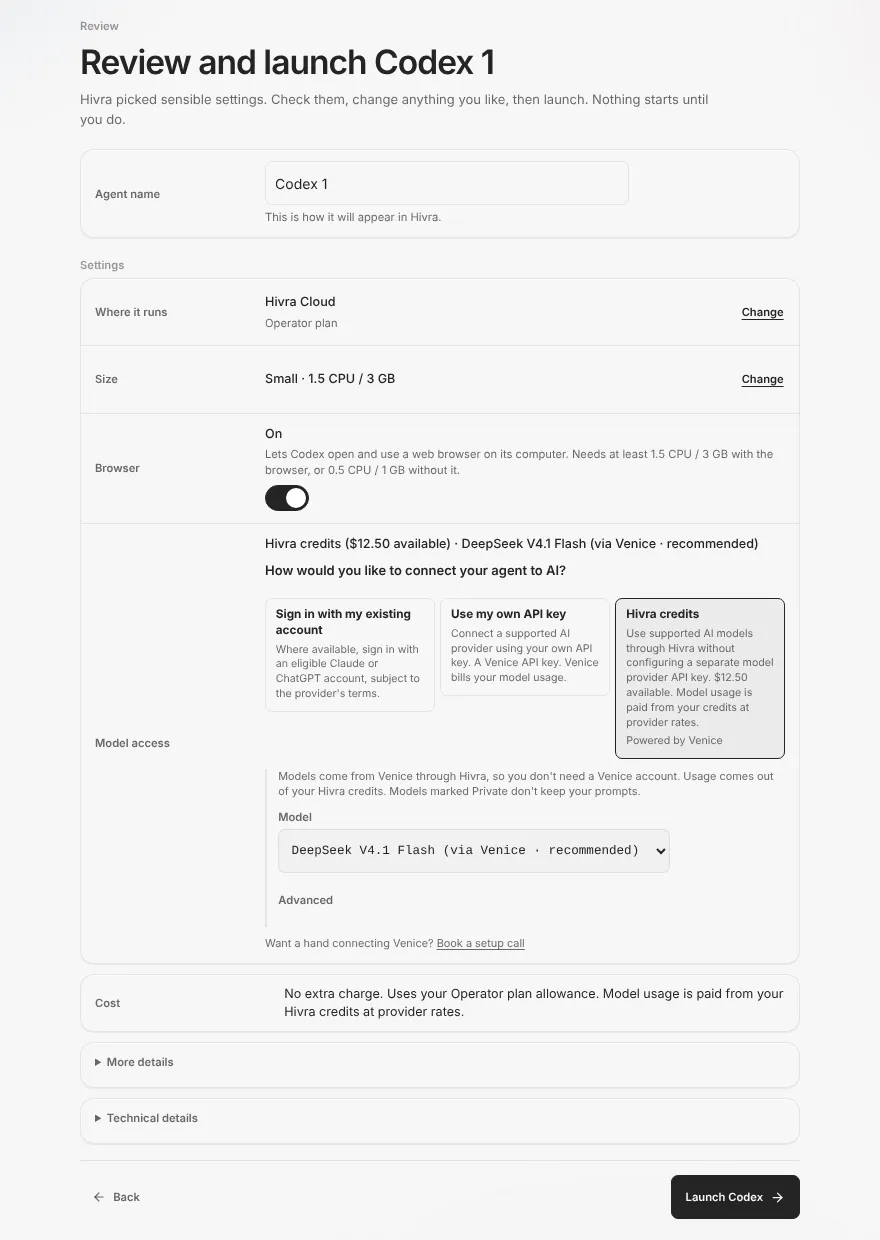
- Find the Model access row. It shows a one-line summary that depends on the agent and your choice. With credits it names your balance and the model, for example "Hivra credits ($12.50 available) · DeepSeek V4.1 Flash (via Venice · recommended)". It also shows the question "How would you like to connect your agent to AI?".
- Press the option you want. For Claude Code and Codex the first choice is Sign in with my existing account. For the other agents it is the Set up inside option, or Use the key on your GitHub fork for Aeon. The other choices are Use my own API key and Hivra credits, and which ones appear depends on the agent.
- For credits or your own key, open the Model list and pick a model. Models marked Private are ones Venice labels as private, and the screen says they don't keep your prompts. That is Venice's label, not a Hivra guarantee.
- Under Advanced you can type a Model ID instead. Leave it empty to use the model chosen in the list. A custom ID must look like a model ID, and Launch tells you if it does not: "Choose a model from the list, or enter a valid model ID."
- Check the Cost row, then press the launch button.
Choices you do not pick are never carried over. A key typed for one option is cleared if you switch to another, so a key cannot end up sent to the wrong place.
Hivra credits: balance, top-up and wallets
On the Review step the credits choice shows your balance, for example "$12.50 available". Hivra rounds the balance down, so it is never overstated. Three states are worth knowing.
| What the credits choice says | What it means |
|---|---|
| "Checking your Hivra credits..." | The balance is still loading. |
| "Couldn't check your balance. Model usage is paid from your credits." | The balance could not be read. That is not the same as zero. |
| "Add credit to start chatting." with an Add credit button | Your balance is empty. |
Top up from Launch
- Press Add credit beside the credits choice. A dialog titled "Top up before launch" opens.
- Move the slider or type an amount. It starts at $50, the minimum is $10 and the slider runs to $500. The dialog says Venice runs at provider rates with no Hivra markup. Where token payments are enabled the dialog also offers a token wallet choice, which is not covered here.
- Press Start card checkout and finish in the hosted checkout. Card credits add exactly what you pay.
- Back in the dialog, press Refresh wallet if the balance has not changed. A "Wallet refreshed" note confirms it, and "Refresh failed. Try again." means try again.
Top up and watch credits from Plan & billing
Open Plan & billing and go to the Credits view. The Model credits panel is described as a prepaid balance for models you run through Hivra's managed Venice access. Card credits shows an amount available and an amount reserved, which is money set aside for work in progress. Press Top up by card to add more. The History view lists model usage in its LLM group.
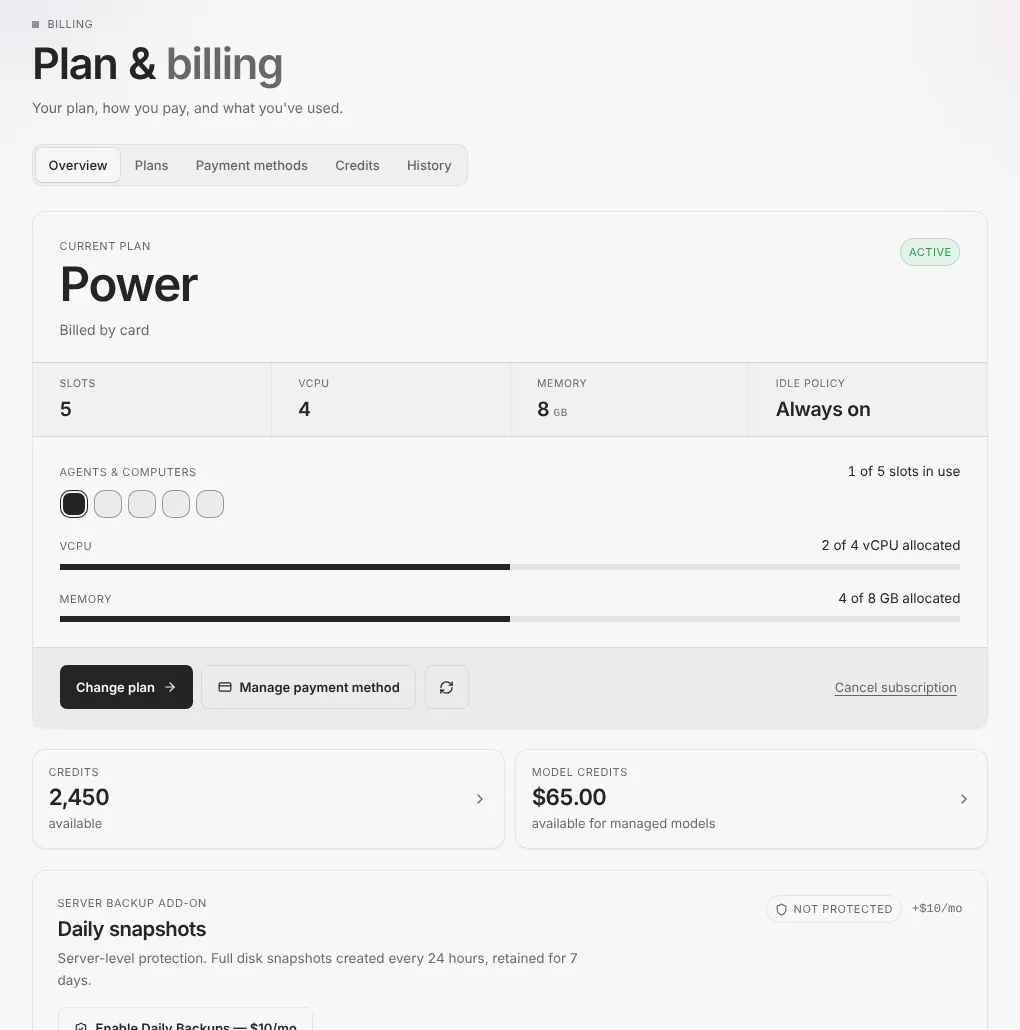
The Credits view appears where card or token credits are turned on, and the History view where card billing activity is turned on. If you cannot see them, that deployment does not offer credits, so use your own key or an account you already have. Some panels also mention optional token top-ups. They appear only where enabled, are not needed to use Hivra, and are not covered here.
Two wallets
If more than one wallet holds credit, a Pay from list appears under the credits choice with Card credits and Token credits. If the wallet you chose is empty and only the other one has credit, Launch uses the other one. When funds run out, requests pause: Hivra does not switch wallets on its own once an agent is running.
Use your own Venice key
Choose Use my own API key when you already have a Venice account, or when you want Venice to bill you directly. For Codex, DeepSeek Harness and Hermes on a Hivra computer, the key is a Venice key.
- Choose Use my own API key.
- Paste the key into the Venice API key box. No key yet? The screen links to your Venice settings, where you can create one.
- Wait for the check. Shortly after you paste, Hivra's server checks the key with Venice, and checks again if you change it. The screen says "Checking your key..." and then "Key works." The check also lists the models your key can use, so the Model list changes to match.
- Optionally tick Save it in my Vault for next time. If you already have a saved key, the box reads "Save it in my Vault for next time, replacing your saved key" followed by the last characters of the old one.
- Pick a model and launch.
What happens to the key matters. It is sent only to the agent's computer, and the screen says it is not kept in this browser. If you saved it, it sits in your Vault. The next time you choose your own key, you can press Use my saved key or Paste a new key, and a saved key is sent only after you tick "Send this key to this agent's computer" for that launch.
A key must be one line of 8 to 256 characters. Messages you may see:
| Message | What to do |
|---|---|
| "Venice doesn't accept this key. Check it and try again." | Copy the key again from your Venice settings. |
| "Couldn't reach Venice to check this key. You can still launch." | The check failed, not necessarily the key. You may launch, and check the agent after it opens. |
| "Paste your Venice API key." | The box is empty. |
| "Check the key: it should be one line of 8 to 256 characters." | Remove spaces and line breaks. |
| "Choose your saved key, or paste a new one." | You picked the saved-key route but no saved key is selected. |
Keys for other providers, such as an OpenAI or Anthropic API key, are entered inside the agent where it allows that, for example Codex with your OpenAI API key, or OpenClaw and Agent Zero in their own settings. Launch does not take those keys for you.
Sign in with Claude or ChatGPT
Some agents can use a model account you already pay for. Claude Code signs in with a Claude account, and Codex signs in with ChatGPT. You choose Sign in with my existing account at launch, and the sign-in itself happens inside the agent after it opens.
- The Review row reads "Sign in with your Anthropic account inside Claude Code after it opens" or "Sign in to ChatGPT inside Codex after it opens".
- Hivra describes this as available where eligible, subject to the provider's terms. Whether your plan may be used from a remote computer is the provider's rule, so read it before relying on it.
- Your model usage is billed under that account's own plan and limits, not from Hivra credits.
- A sign-in can run out. Open the agent, go to Settings and the Overview section, and press Sign in again. Your files and chats stay as they are.
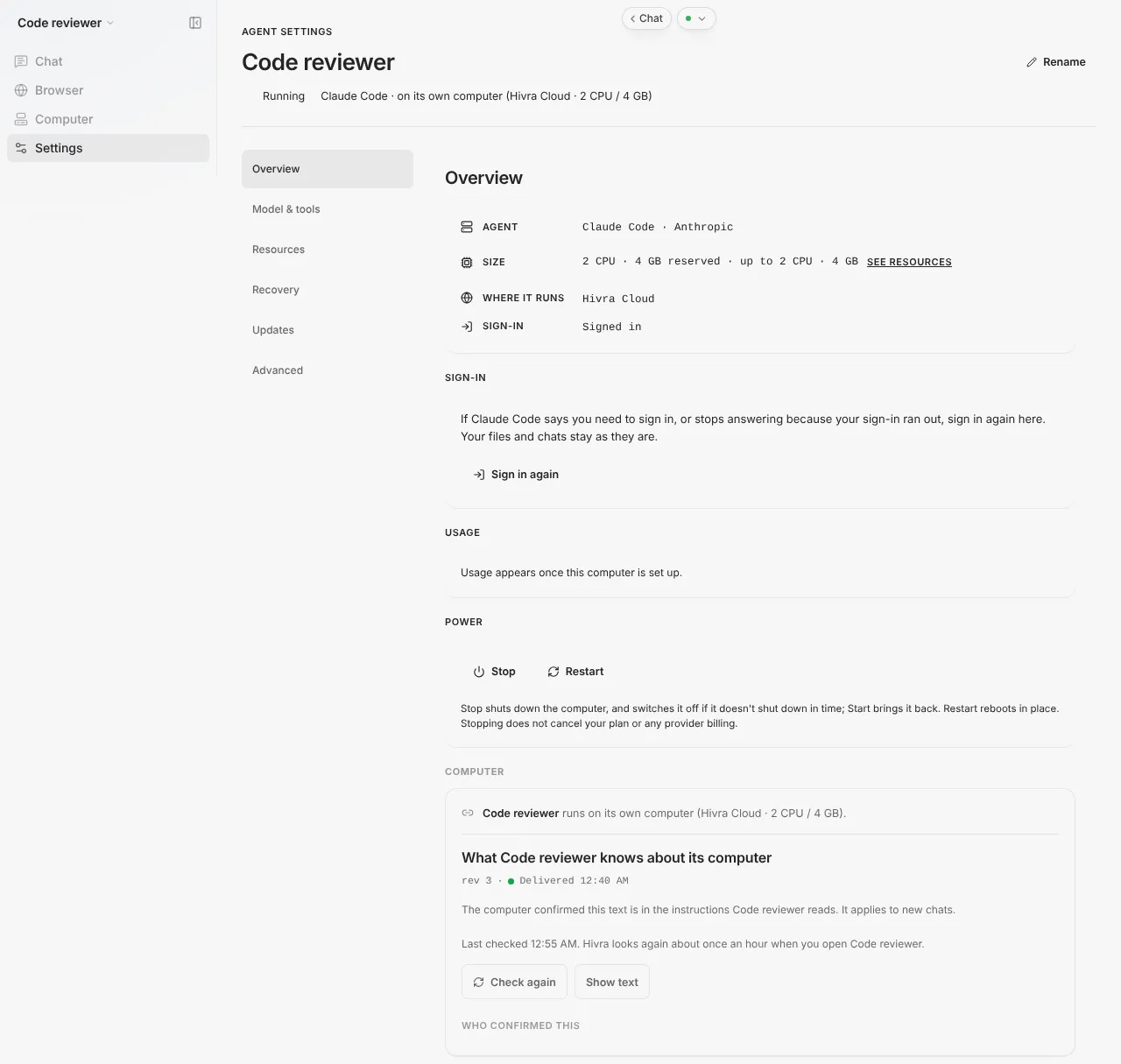
The model on a signed-in account is chosen from the account's own plan. If you ask for a model your account cannot use, the next message fails with a clear error in chat, and you switch back in Settings.
Hivra runs these agents on their own computer. On a paid Hivra plan the computer stays on and keeps your files, sessions and login. A Claude Code or Codex run you start inside tmux in the computer's Terminal tab keeps going after you close the laptop. On Claude Code, work you send through Telegram, connected in the agent's Telegram tab, runs on the computer, not in your browser.
Change the model later
You are not locked in at launch. Open the agent, go to Settings, then Model & tools. What you see depends on how the agent reaches its model. The computer must be running, and any current operation should finish first.
| Your agent | Where and how to change it |
|---|---|
| Claude Code or Codex on your own sign-in | Model section with a row of model buttons. Claude Code offers Default, Fable, Opus, Sonnet and Haiku. Codex offers Default, GPT-5.5, Codex Max, Codex and Codex (5). Type another ID in the field with the placeholder "Custom model id" and press Enter. It applies from the next message and running turns are not interrupted. The section needs a computer on a recent enough runtime. If it is absent, the computer needs updating. |
| An agent on credits or a Venice key (not Hermes or DeepSeek Harness) | Inference card. See below. |
| Hermes | Hermes's own settings, or the Model card with its model list and the button that reads "Use" followed by the model name. The card also says when the model is chosen elsewhere: "Start this computer to choose which model <agent name> uses." when the computer is stopped, and "<agent name> uses a provider you set up in <agent name> itself, so its model is chosen there." for a provider you set inside Hermes. |
| OpenClaw and Agent Zero | Their own Control UI and Settings. |
| Aeon | The model settings on your GitHub fork. |
| DeepSeek Harness | No Manage section for the model, because it has no post-launch model path. Launch a new one with the model you want. |
The Inference card
Agents connected through Venice show an Inference card with the Saved setting, for example "Venice · managed gateway · deepseek-v4-1-flash". That text is Hivra's saved record, not a live check. To change it:
- Under Replace your connection (or Connect a provider if nothing is saved), choose My Venice key or Managed gateway.
- For My Venice key, paste the Venice API key. For Managed gateway, choose the wallet in Pay from: Card balance or Token wallet.
- Pick a model, which is optional, then press Save connection.
- Wait for "Setting confirmed on this computer. It applies to new messages."
Use native sign-in on the same card removes the Venice connection and goes back to the agent's own sign-in. If a change is not fully confirmed, a Pending change note appears with a Resume change button, which reuses the saved request. If you chose a connection at launch and the computer was not ready, Continue setup applies it, and Use native sign-in instead drops it without deleting the computer.
The Inference card configures Hivra Chat. The agent's own native interface keeps its own sign-in and configuration. When you choose Managed gateway, requests pause when funds run out.
Set a daily spend limit
Where it is switched on, an agent running on Hivra credits has a Daily spend limit inside its Inference card. It only ever blocks spend above a ceiling you set. It never charges or moves money.
- Open the agent, then Settings, Model & tools, and find Daily spend limit in the Inference card.
- Read the line "$X spent today of $Y", or "no limit".
- Enter an amount in Limit per day (USD). It must be above zero and at most 10,000.
- Press Save limit. It applies to the next request. Remove clears your own limit.
The limit counts this agent's managed inference for the day in UTC, and it resets at 00:00 UTC. The card lists the last seven days of spend once there is any. When the limit is reached, the card says "Limit reached today. New requests are paused until" followed by the reset time. That time is shown in your own local time, while the day itself is counted in UTC. The agent reports "This agent reached its daily inference limit" with the amount. Raise or remove the limit to resume.
If Hivra has set a platform default, the card says so and it applies until you set your own. If the card is not there, this control is off for your agent, or the agent is not on Hivra's managed gateway. A pasted Venice key is outside it, so set limits at Venice instead.
There can also be a monthly managed spend cap. Where one is on and reached, the message reads "Monthly managed Venice spend cap reached" with a link to manage the limit.
When something goes wrong
| What you see | What to do |
|---|---|
| The credits choice says "Add credit to start chatting" | Press Add credit, or switch to your own key or sign-in where the agent allows it. |
| Launch says "Add credit to start chatting, or choose another option." | Same fix. The launch button waits until the model access is valid. |
| "Not available for Claude Code. Use Hivra credits, or its own sign-in with an Anthropic Console account." | Claude Code does not take a pasted key at launch. Use credits or sign in. |
| "Not available for OpenClaw yet. Add your key inside OpenClaw after it opens instead." | Launch it on credits or set up inside the agent, then add the key in its own settings. |
| "Hivra credits can't be set up for this agent on a computer in your own cloud yet." Only if your Launch offers that destination. | Pick the agent's own sign-in, or run the agent on Hivra Cloud. |
| "This server hasn't said it can take a model key safely yet." | Update the server in Capacity, or choose another option. |
| "Confirm that your saved key can be sent to this agent's computer." | Tick the confirmation under your saved key. |
| "Start this computer and let its current operation finish before changing model settings." | Start the computer from Settings, wait, then change the model. |
| "Update <agent name> to choose its model here. Until then, pick a model in <agent name>'s own settings." The Hivra computer's Hermes is too old for this control. | Choose the model in the agent's own settings until it is updated. |
| "Hivra couldn't reach <agent name> to read its model." | Refresh the page to try again, or pick a model in the agent's own settings. |
| "Start this computer to choose which model <agent name> uses." | Start the computer from Settings, then choose the model. |
| A model change fails with an error in chat | Your account cannot use that model. Switch back to Default or another model. |
| Requests stop partway through the day on credits | Check the daily spend limit, then your credit balance. |
If you see a model-settings update message for a guest, your current settings and native sign-in have been kept, and updating the dashboard alone does not update an existing computer.
A model that gives bad answers is not a Hivra fault, so first try another model from the list. For other problems, see Troubleshooting.
What Hivra does and does not do
- Hivra credits reach models through Venice at provider rates. See What you pay for for plans.
- A key you paste is sent to the agent's computer. Hivra's server also sees it for the Venice check, and a saved key is stored in your Vault. Credentials may be stored on the agent computer, and Hivra administrators retain infrastructure access on Hivra-managed hosts. Do not paste a key you would not trust that setup with.
- Hivra does not promise that a provider's terms allow a signed-in account on a remote computer. That is the provider's rule.
- Hivra does not offer a pasted-key route for every agent, and it says so on the Review step instead of hiding the choice.
- Hermes, OpenClaw and Agent Zero run on the computer itself, and Aeon's scheduled tasks run on your own GitHub Actions while the computer hosts its dashboard. None of them needs an open browser.
- Hivra does not guarantee that a model will be available forever. The list comes from Venice and can change.
Common questions
Do I need a Venice account to use Hivra credits?
No. You only need a Venice account if you use your own Venice API key.
Does my Hivra plan pay for the model?
No. A plan pays for the computer only. Model usage is paid from Hivra credits, by your own key, or by the account you sign in with.
Can I use my Claude or ChatGPT subscription?
Claude Code can sign in with a Claude account and Codex can sign in with ChatGPT, inside the agent after it opens. This is subject to the provider's terms, and the usage is billed by that provider, not from Hivra credits.
What is the smallest top-up?
The minimum card top-up is 10 dollars, and card credits add exactly what you pay.
Can I change the model after the agent is running?
Yes. Open the agent, go to Settings, then Model & tools. Claude Code and Codex on a sign-in have a Model card, agents on Venice have an Inference card, and the other agents change it in their own settings. DeepSeek Harness has no model section after launch.
Can I stop an agent spending too much in a day?
Where it is switched on, agents on Hivra credits have a Daily spend limit in the Inference card. It pauses new requests for the rest of the UTC day once the limit is reached. It does not apply to a Venice key you pasted, so set limits with Venice for that.
Why does Launch say my choice is not available?
Each agent supports only some options, and the destination matters too. A self-hosted installation has no Hivra credits, and a connected server may need updating before Codex can take a model key or Claude Code can use credits.