
What OpenClaw is, and who this page is for
OpenClaw is an open-source agent made by the OpenClaw project. It is built around a gateway process that stays running, a Control UI for configuring it, and messaging channels so you can send it requests from an app on your phone and come back to the conversation later. It can also run routines on its own schedule. This page is for developers and AI power users who want that gateway on a computer that stays on, without renting and maintaining a server first.
On Hivra, OpenClaw runs on a computer of its own: a private virtual machine that holds its files, its configuration and its logins. Hivra creates the computer, installs OpenClaw, optionally connects it to a model, and puts OpenClaw's own Control UI behind Hivra's authenticated gateway. You do not use Hivra's chat with it. You open the Control UI, set it up there, and then talk to it from the messaging apps you connect.
Hivra is an independent hosting service and is not affiliated with or endorsed by the OpenClaw project. OpenClaw is their software, and what it can do and which channels it supports is decided by their releases. The computer, the sign-in in front of it and the Settings views around it are Hivra's. The public OpenClaw page has the shorter pitch.
Before you start
- A Hivra account. An account costs nothing. OpenClaw can run on Hivra Cloud or on a Proxmox server you connected yourself.
- A paid plan, if you use Hivra Cloud. Every computer that Hivra Cloud runs for you needs a paid plan, from $9.99 a month for 2 vCPU and 4 GB of RAM. A free account works with a computer or server you connect yourself. See plans and billing.
- A Proxmox server, if you want your own hardware. Connect it first on the Servers page. Only the SSH route to Proxmox VE can run OpenClaw. The one-command route is for Linux Sandbox only. Run agents on your own server has the steps and the limits.
- Enough size. OpenClaw runs its agent loop on the computer, so it is not a light add-on. It needs at least 1 vCPU and 2 GB of RAM. With the optional browser on, the least Launch offers is 2 vCPU and 4 GB. The browser switch is on by default on Review. On Hivra Cloud it needs a paid plan, and you can turn it off to launch the smaller 1 vCPU, 2 GB size. The size you launch with is the most the computer can grow to.
- No separate OpenClaw sign-in. OpenClaw's own gateway authentication is none on these computers. Your Hivra sign-in is what protects the Control UI.
- A way to pay for the model. Either Hivra credits, or a provider you choose inside OpenClaw after it opens. The plan pays for the computer, not for model usage. See Choose how your agent gets its model.
- Your messaging accounts. OpenClaw connects to the apps you want to use, such as Telegram, WhatsApp or Signal, where OpenClaw supports them. Those accounts, their limits and their terms are yours and separate from Hivra.
Launch OpenClaw, step by step
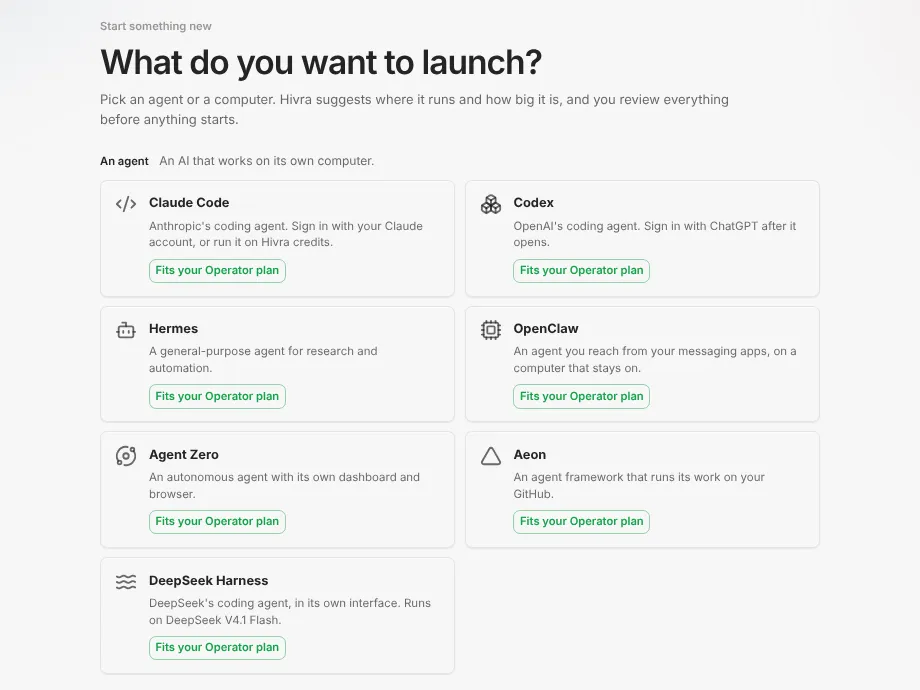
- Open Launch from your dashboard. The first step asks What do you want to launch? and shows a tile for each supported agent. Choose OpenClaw.
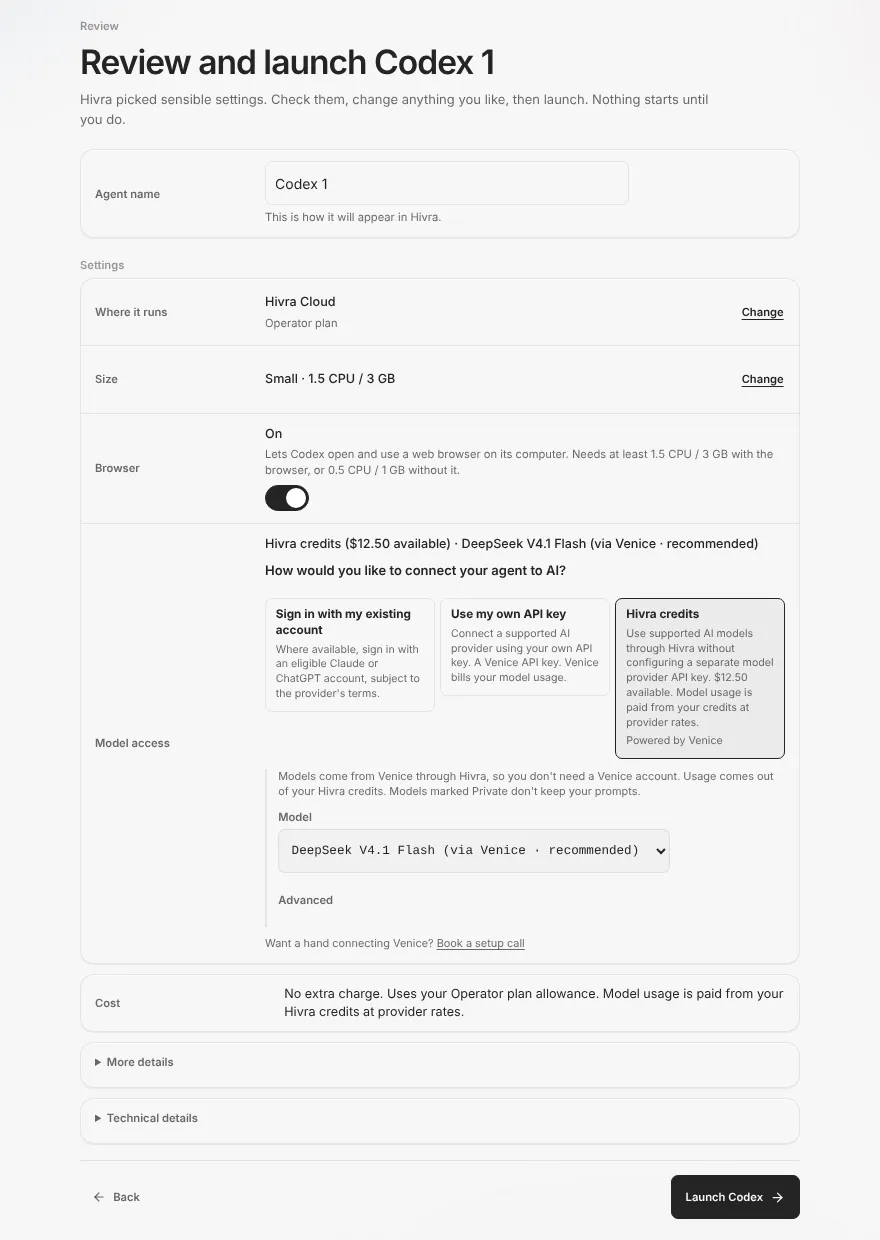
- The second step is Review, titled "Review and launch OpenClaw 1" (the number is a default name). Nothing starts until you press Launch OpenClaw.
- In Agent name, keep the default or type your own.
- Check Where it runs. Press Change to pick between Hivra Cloud and My infrastructure. My infrastructure is available once you have a connected server that is ready. Until then the panel says no self-managed host is ready and offers Add capacity.
- Check Size and the Browser switch. These are described in the sizing block below.
- Under Model access, answer "How would you like to connect your agent to AI?" OpenClaw offers two of the three choices, described in the next block.
- Read Cost, then press Launch OpenClaw. If something blocks the launch, a notice explains what is blocking it.
After you launch, Hivra shows what it has recorded and what it observes while the computer is created, then a Ready state with an Open my agent button. Hivra does not promise how long creation takes. You can close the tab and come back, because your agent is listed on Home. Launch your first agent walks through the whole flow with every status message.
How OpenClaw gets its model
OpenClaw picks and manages its own model settings, so Review does not show a model list for it. It offers two choices under Model access.
| Choice on Review | What it does | Who pays for model usage |
|---|---|---|
| Hivra credits | Hivra connects OpenClaw to Venice as a custom OpenAI-compatible provider, using a key made for this computer at launch. The settings are written into OpenClaw's configuration file on the computer. | Your Hivra credits. Choose how your agent gets its model explains how credits are priced. |
| Set up inside OpenClaw after it opens | Launch sets no model. You choose a provider in OpenClaw's Control UI. | The provider you choose |
Use my own API key is not offered at launch for OpenClaw. The Review step tells you to add your key inside the agent after it opens. That is the route for an OpenAI, Anthropic or other provider key: you enter it in the Control UI, where OpenClaw stores it on its own computer.
Hivra credits reach models through Venice, so you do not need a Venice account to use them. The screen marks the option "Powered by Venice". You are not locked in: with credits chosen at launch, you can still change the provider later in the Control UI. If you do, usage from then on is billed by whichever provider you point it at. Review shows no model list for OpenClaw, so you pick the model in the Control UI. Choose how your agent gets its model explains how credits are priced.
An agent that runs routines while you are away can use a model for as long as the schedule tells it to. If you use credits, check your balance on plans and billing. If you use a provider key, set a spending limit in that provider's own account.
Size and the optional browser
Launch offers fixed sizes for OpenClaw, shown as presets. The size you launch with is also the most the computer can grow to, so choose with some room.
| Browser switch | Small | Medium | Large |
|---|---|---|---|
| Off | 1 vCPU, 2 GB | 2 vCPU, 4 GB | 4 vCPU, 8 GB |
| On | 2 vCPU, 4 GB | 4 vCPU, 8 GB | 8 vCPU, 16 GB |
The recommended starting point is 2 vCPU and 4 GB. On Hivra Cloud, the entry plan gives 2 vCPU and 4 GB of RAM, which fits OpenClaw with the browser on. Turning the browser on reserves one more vCPU and 2 GB more than OpenClaw's floor, which is why the least size with it is 2 vCPU and 4 GB.
The browser is a live Chrome on the computer, and OpenClaw attaches to it. The Browser tab is a view-only live look at that Chrome: you watch, you do not click in it. If browser automation is off, the tab says Browser automation is off and offers Turn on browser (paid plans) or Open Manage. To sign the agent in to your own sites, use Import cookies in Settings (Manage). It brings in cookies from your own browser, so no passwords are shared, and the agent then acts in that signed-in session. That is useful for sites that need a visual interface or a login. It also widens what the agent can reach: anything that browser is signed in to is something the agent can use. Keep it signed in only to accounts you are willing to let it act in, and prefer dedicated accounts with narrow permissions.
After launch, the Browser automation control in Manage turns the browser on or off. Turning it off does not shrink the computer or lower what the provider bills. Resizing is a separate action under Resources, and it restarts the computer.
Open the Control UI and connect a channel
Open OpenClaw from Home, which is titled Where will you work? and lists your agents and computers. Open the agent from Home, then choose Dashboard in the agent page's sidebar (Open an agent has the details). The agent page is built for an agent with its own web app, so it does not have Hivra's Chat tab. Its first view is Dashboard, which is OpenClaw's Control UI. Next to it you will find Browser (when the agent has one), Computer with Terminal and Files, and Settings, which is Manage.
OpenClaw's gateway listens on the computer's own loopback address only. It cannot be reached from the internet. Hivra's authenticated gateway passes you through after you sign in to Hivra, and that sign-in is the boundary in front of it. OpenClaw's own gateway authentication is set to none on these computers, which is acceptable only because of that loopback binding. If you want a second layer, keep the sign-in on your Hivra account strong.
Everything about how OpenClaw behaves is configured in the Control UI, which is the OpenClaw project's interface. In it you can chat with the agent, edit its configuration and review execution approvals. Hivra does not document the Control UI's own labels, so follow what OpenClaw shows on screen. A sensible first session:
- Open Dashboard and confirm the Control UI loads.
- Set the model. If you chose Hivra credits, the Venice provider is already in its configuration. If you chose to set it up inside OpenClaw, add a provider and key now.
- Connect one messaging channel. Follow OpenClaw's own prompts for a channel such as Telegram, WhatsApp or Signal, where your OpenClaw version supports it. You will need to authorise the relevant account and decide which conversations and actions the agent may use.
- Send it a short message from your phone and watch it arrive in the Control UI.
- Add one small routine, such as a daily check-in, and confirm it fires before you add anything that changes external systems.
Hivra's separate Telegram tab under Manage is for Claude Code agents. It is not how OpenClaw is connected. For OpenClaw, channels live in the Control UI.
Hermes, OpenClaw and Agent Zero run on the computer itself, and Aeon's scheduled tasks run on your own GitHub Actions while the computer hosts its dashboard. None of them needs an open browser. Scheduled routines still depend on working credentials, a reachable model provider and correct schedules.
What each Hivra view is for
| View | What it is for |
|---|---|
| Dashboard | OpenClaw's Control UI, shown inside Hivra. Model, channels, routines and approvals. |
| Browser | Live, view-only look at the computer's Chrome when browser automation is on. If it is off, the tab says Browser automation is off and offers Turn on browser (paid plans) or Open Manage. |
| Terminal | A plain shell on the computer. Use it to read logs, run openclaw --version, or inspect ~/.openclaw/openclaw.json. |
| Files | A listing of the computer's home folder, with a Files and Changes switch. |
| Settings (Manage) | Sections such as Overview, Model & tools, Resources, Recovery, Private network, Updates, Run a command and Advanced. Which ones appear depends on the agent and computer. Power controls are here: Stop and Restart, and so is Import cookies. |
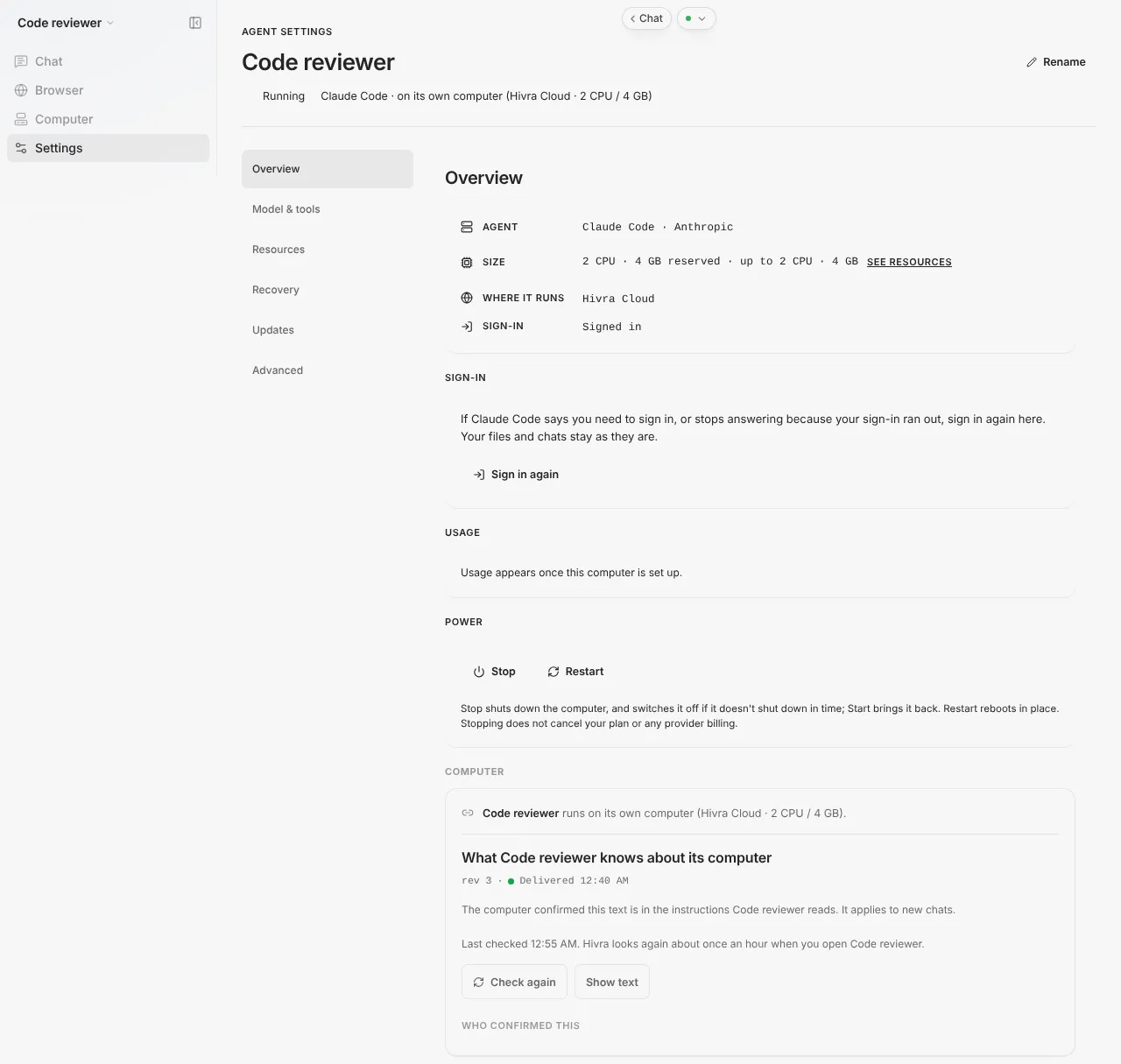
Stopping a computer ends any work running on it, including OpenClaw's gateway and its routines. Start brings it back. Stopping does not cancel your plan.
Update OpenClaw
OpenClaw releases often, and some releases change its configuration. Hivra installs a version it has tested and shows you where you stand. Open Settings, choose Updates and read the card for OpenClaw. It says one of these:
| What the card says | What it means |
|---|---|
| OpenClaw is on the version Hivra has tested | Nothing to do. |
| An update is available | Your version is behind the tested one. Press Update OpenClaw. |
| A version newer than the tested one is installed | It may not work as expected inside Hivra. Switch to the tested version if you have trouble. |
| Hivra couldn't read which version is installed | Pressing Update OpenClaw installs the tested version. |
The update happens once OpenClaw has been idle for 5 minutes, so close it in any other tab. Hivra waits up to 6 hours and then leaves OpenClaw as it is. OpenClaw restarts once when the update installs. If the new version does not start properly, Hivra puts the previous one back.
If an update leaves OpenClaw unable to open and Hivra could not put the old version back, the card says so and points you to Recovery or Advanced, where there is a restore point or a Force restart.
Updates do not edit your configuration for you beyond what OpenClaw itself does. See the next block for what to check afterwards. Update an agent covers all agents.
When something goes wrong
| Symptom | What to try |
|---|---|
| The Dashboard view is blank or will not load | Check the agent is running on Settings under Overview. If it is stopped, press Start. If the card in Updates says Hivra can't reach the computer, wait and try again, then press Restart under Power. |
| The Updates card says to start the agent first | The computer is stopped. Start it, then check again. |
| An update will not begin and says it is waiting | Someone or something is using OpenClaw. Close the Control UI in other tabs and wait. Hivra waits up to 6 hours. |
| The card says there isn't enough free disk space | Free space in Files or Terminal, or resize the computer under Resources, then try again. Nothing was changed. |
| The update rolled back | The new version did not start properly and Hivra restored the previous one. Your agent works as before. Try again later. |
| OpenClaw will not start after changing its configuration | Open Terminal and inspect ~/.openclaw/openclaw.json for a syntax error you introduced. Run openclaw --help to see what OpenClaw's own tooling offers. |
| No answer from the model | Open the Control UI and check the provider and key. For credits, check your balance on plans and billing. |
| The channel stopped receiving messages | Re-authorise the channel in the Control UI. Messaging apps expire sessions on their own schedule. |
Useful commands to run in Terminal:
openclaw --version
openclaw --help
openclaw --help lists OpenClaw's own tooling. Hivra has not tested those commands on a Hivra-installed computer, so read what any of them plans to change before relying on it. The blog's OpenClaw broken after an update guide goes deeper on config schema changes, tools profile resets and custom skills. It was written for self-hosted installs, so skip the Docker and systemd steps: on Hivra, use the Updates card and Recovery instead.
If you need to leave the page and come back, nothing is lost. OpenClaw runs on the computer, not in your browser tab.
What Hivra does and does not do
- Hivra creates the computer, installs OpenClaw on it and starts its gateway on the computer.
- Hivra puts OpenClaw's Control UI behind your Hivra sign-in. It does not replace the Control UI with its own chat.
- Hivra connects OpenClaw to Venice on credits if you choose that. It does not choose your messaging apps or authorise them for you.
- Hivra does not guarantee what OpenClaw does after you give it tools, channels and a schedule. Review approvals, keep unattended routines low risk, and give it dedicated accounts where practical.
- Credentials you give OpenClaw live on its computer. On Hivra Cloud, Hivra operates the host. On a server you connected, whoever controls that server can reach what runs on it. See Security and access.
- Hivra does not guarantee backups. Keep copies of anything you cannot lose.
- Hivra does not control OpenClaw's release schedule, features or channel support. Those belong to the OpenClaw project.
Common questions
Do I chat with OpenClaw inside Hivra?
No. OpenClaw opens into its own Control UI, shown as Dashboard on the agent's page. You configure it there, and you talk to it from the messaging apps you connect. Hivra's own Chat tab is for Claude Code and Codex.
Can OpenClaw use my own API key at launch?
The Review step does not take a key for OpenClaw. You choose Hivra credits, or you set up a provider inside OpenClaw after it opens and enter your key there.
Will my scheduled routines run when my laptop is closed?
OpenClaw runs on its own computer, so it does not need your browser or laptop. A routine still needs working credentials, a reachable model and a correct schedule. If you stop the computer in Settings, nothing runs until you start it again.
How much computer does OpenClaw need?
At least 1 vCPU and 2 GB of RAM. With the optional browser on, the smallest size Launch offers is 2 vCPU and 4 GB. The recommended starting size is 2 vCPU and 4 GB.
Can I run OpenClaw on my own server?
Yes, on a Proxmox server you connected with SSH details. A free Hivra account is enough for that. The one-command connect route is for Linux Sandbox only and cannot run OpenClaw.
Is the Control UI open to the internet?
No. It listens on the computer's own loopback address and is reached through Hivra's authenticated gateway after you sign in. That does not replace sensible permissions on the model key, the browser and your messaging accounts.
How do I update OpenClaw?
Open Settings, choose Updates and press Update OpenClaw when the card says an update is available. Hivra installs the version it has tested once OpenClaw has been idle for 5 minutes, and restores the previous version if the new one does not start.
Is this an official OpenClaw service?
No. Hivra is an independent hosting service and is not affiliated with or endorsed by the OpenClaw project.