
What Codex on Hivra is
Codex is OpenAI's coding agent. Hivra runs the Codex command line tool on a computer of its own, so your repositories, installed tools and login stay in one place between visits. You reach it from the browser, from any device, and you do not need your laptop to stay open for the computer itself to stay available.
This page is for developers and AI power users who want to launch Codex, choose how it reaches a model, find their way around its tabs and keep it healthy. The Codex page has the shorter pitch. Hivra is an independent hosting service and is not affiliated with or endorsed by OpenAI. Codex is OpenAI's product, and your use of it stays subject to OpenAI's terms.
Codex is listed as available. It runs on Hivra Cloud, or on a Proxmox VE server you connected.
Before you start
You need three things.
- A Hivra account. An account costs nothing. A Hivra Cloud computer needs a paid plan, which starts at $9.99 a month for 2 vCPU and 4 GB of RAM. A free account works with a server you connect yourself. See Plans and billing and Run agents on your own server.
- A way to reach a model. Pick one of three: sign in with your ChatGPT account, use a Venice API key, or pay with Hivra credits. The next block explains each.
- Room on your plan. Codex can start as small as 0.5 CPU and 1 GB of memory with its browser off. With the browser on it needs at least 1.5 CPU and 3 GB.
If you plan to use your own server, Codex runs on a Proxmox VE server you connected. The one-command Ubuntu route is for Linux Sandbox only.
Launch Codex step by step
- Open Launch from your Home page. Under What do you want to launch? choose Codex.
- On the Review step, check the Agent name. Hivra suggests a name such as Codex 1 and bumps the number if that name is taken. You can change it.
- Check Where it runs. It shows Hivra Cloud, or a server you connected if you have one. Press Change to open the panel, then Done to close it. Without a paid plan or a connected server, Launch shows a plan check with a Check again button and will not start.
- Check Size. Press Change to pick a different CPU and memory size.
- Decide on the Browser toggle. It lets Codex open and use a web browser on its computer. It starts on when the place it runs can hold it.
- Under Model access, answer "How would you like to connect your agent to AI?" by choosing one of the three options.
- Read the Cost row, then press Launch Codex. Nothing starts until you do.
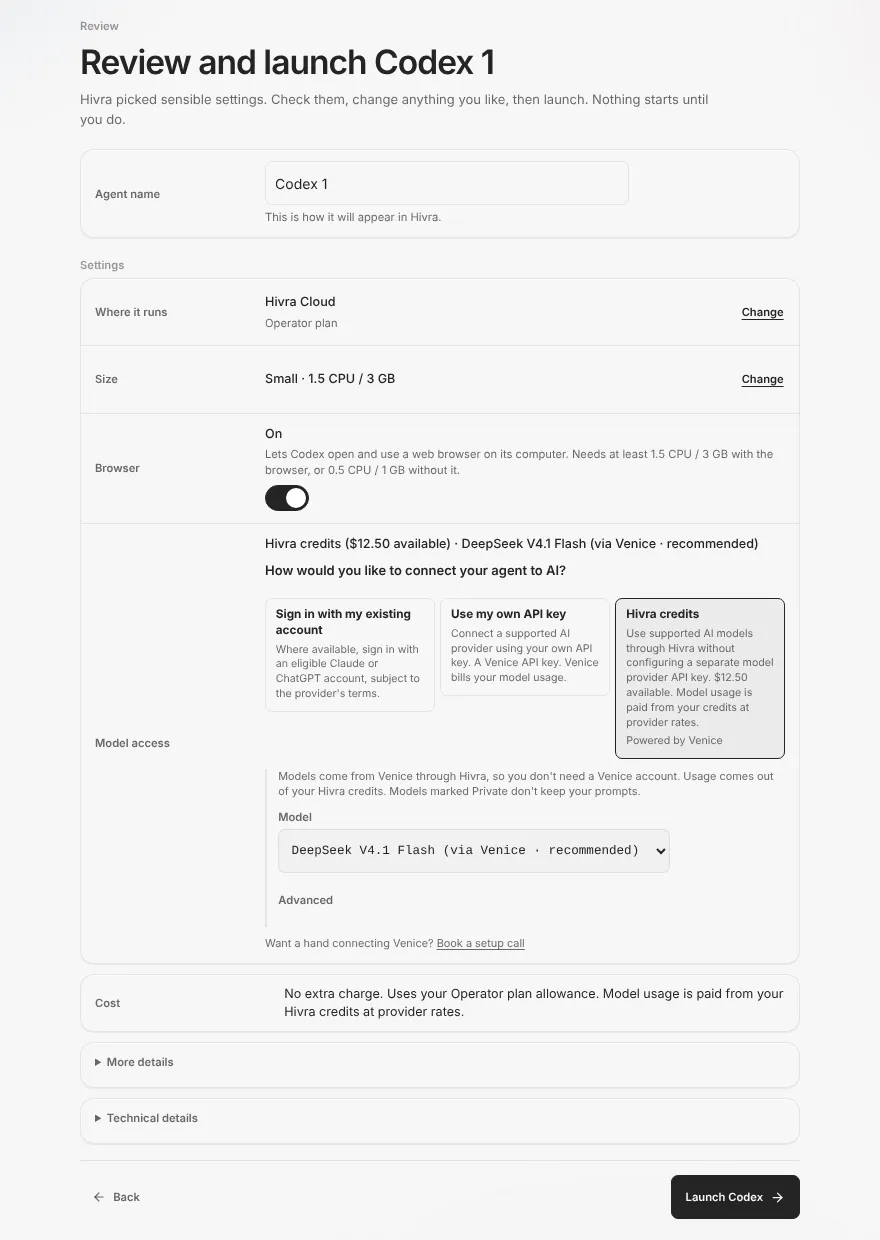
After launch, the new agent appears on your Home page. If you chose to sign in with your own account, Hivra shows a sign-in screen the first time you open it. See the next block.
How Codex gets its model
Every agent is offered the same three choices in the same order. For Codex, all three work.
| Choice | What it means for Codex | Who bills model use |
|---|---|---|
| Sign in with my existing account | You sign in to ChatGPT inside Codex after it opens. Where available, with an eligible account, subject to the provider's terms. | OpenAI, under your own plan and limits |
| Use my own API key | The key you paste at launch is a Venice API key. | Venice bills your model usage |
| Hivra credits | Hivra reaches models for you through Venice. You need no Venice account. | Your Hivra credits, at provider rates |
On credits or your Venice key, Codex starts on DeepSeek V4.1 Flash unless you pick another model from the Model list. Venice flags models marked Private as keeping no record of your prompts.
The Review row for a sign-in launch reads "Sign in to ChatGPT inside Codex after it opens." The launch itself does not ask for your ChatGPT password.
Using a Venice key
Choose Use my own API key, then paste the key into the Venice API key field. The key you paste is sent to the agent's computer, and is saved in your Vault only if you tick Save it in my Vault for next time. Hivra checks it shortly after you paste it and shows "Checking your key...", then "Key works." or "Venice doesn't accept this key. Check it and try again." If Venice cannot be reached, it says "Couldn't reach Venice to check this key. You can still launch." You can tick Save it in my Vault for next time so a later launch offers Use my saved key.
A Venice key must be one line of 8 to 256 characters. Otherwise the form says "Check the key: it should be one line of 8 to 256 characters."
Using an OpenAI API key
Launch does not take an OpenAI key. If you prefer an OpenAI key to a ChatGPT sign-in, that is something you set up inside Codex itself, where Codex allows it. Hivra's own notice for Codex says you can sign in with ChatGPT or provide your own OpenAI API key inside Codex. Hivra does not verify that path for you, so check OpenAI's current rules for your account.
Using Hivra credits
Choose Hivra credits. If your balance is empty the option reads "Add credit to start chatting." and offers an Add credit button. If you have both card credits and token credits, a Pay from list lets you choose which pays. See Models and credits for the full comparison.
Sign in with ChatGPT
When you launched with Sign in with my existing account, the first time you open the agent Hivra shows "Codex is almost ready." It runs the official Codex on your own ChatGPT account, and the session is stored on that computer.
- Press Sign in with ChatGPT.
- Hivra shows a one-time code. (In the Codex session tab or the console you may instead see a Sign in with ChatGPT dialog with a Copy code & open sign-in button; the steps are the same.) Press Copy code if you like.
- Open the ChatGPT sign-in page that Hivra links, sign in and enter the code there.
- Wait. Hivra checks the computer and detects the sign-in on its own, and the screen reads "Waiting for you to authorize..." until it does.
Hivra only opens sign-in addresses on OpenAI or ChatGPT hosts. For anything else it shows "This sign-in address isn't an OpenAI or ChatGPT page, so Hivra won't open it. Don't enter your password there."
If you wait a long time, the screen says "Hivra hasn't seen the sign-in yet." Press Check again.
Administrators of the computer's host may have infrastructure access, so think about what you sign in to. On a server you connected, that host is you.
The tabs Codex has
Open the agent from your Home page. The agent page groups its views as the agent, its browser, its computer and its settings.
| View | Where | What it is for |
|---|---|---|
| Chat | Agent | Send Codex work and read what it did, including its tool use. |
| Codex session | Agent | Codex's own command line, so you can use it as you would locally. |
| Browser | Browser | The browser Codex uses, when the Browser toggle is on. |
| Files | Computer | Browse the home folder, with a Files and Changes switch for the repository's changes. |
| Terminal | Computer | A plain shell on the computer. |
| Desktop | Computer | Explains how to give the agent a desktop. An agent never owns one by default. |
| Skills | Manage | The skills Codex has installed, with delete icons and an Add skills button. |
| Manage | Manage | Settings, labelled Settings in the side bar. |
| Telegram | Settings group | Appears on the page. Hivra documents and verifies the Telegram flow only for Claude Code, so do not rely on it for Codex. |
In Settings, the side nav has Overview, Model & tools, Resources, Recovery, Updates and Advanced.
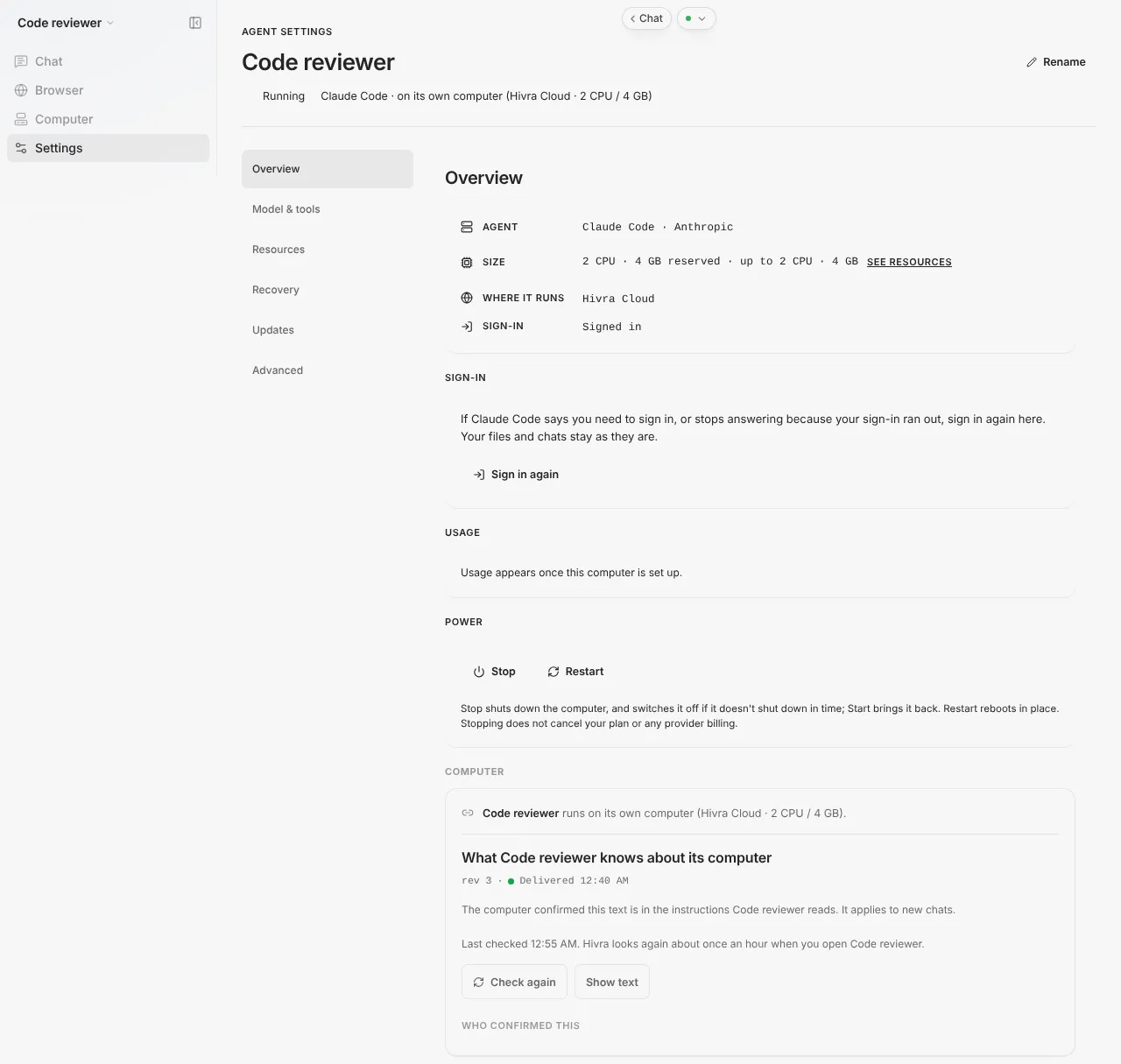
Some features belong to Claude Code only. Hivra only documents Telegram for Claude Code: a Telegram view connects your own bot to a Claude Code computer, and it also shows on a Codex agent page but is not verified for Codex. The Ask me first switch under Permissions, which makes the agent wait for your answer before each command, is also Claude Code only. Pasting an API key at launch works for Codex but not for Claude Code, which offers credits and its own sign-in.
Models and permissions after launch
Open Settings, then Model & tools.
- Model card (sign-in launches). For Codex on your own sign-in, the options are Default, GPT-5.5, Codex Max, Codex and Codex (5). Type another ID in Custom model id and press Set. It applies from the next message and running turns are not interrupted. A model your account cannot access fails on the next message with a clear error in chat, so switch back if that happens.
- Inference card (credits or a Venice key). Choose My Venice key or the Managed gateway, pick a Model, and apply it. Use Use native sign-in to go back to your own account.
- Permissions. Full access is the default and lets Codex use the shell, files and web on its own computer. Limited keeps it sandboxed to its workspace with no system-wide changes. Read-only lets it look but not touch. It applies from the next message.
- Tools. Browse tools attaches a capability, and an advanced section connects a raw MCP server by hand.
Permissions limit what Codex does on its own computer. They are not a guarantee that an agent is safe, so keep secrets you do not want it to reach off that computer. See Security and access.
What keeps running
On a paid Hivra plan the computer stays on and keeps your files, sessions and login. A Claude Code or Codex run you start inside tmux in the computer's Terminal tab keeps going after you close the laptop. On Claude Code, work you send through Telegram, connected in the agent's Telegram tab, runs on the computer, not in your browser.
In practice, that gives you a simple routine for long jobs:
Run these in the Terminal tab, not in the Codex session tab. Hivra does not promise that a run started from Chat or from the Codex session tab continues after you close the browser tab, and computers differ by runtime version, so use tmux for anything you cannot afford to lose.
Stopping the computer from Settings, under Power, shuts it down, and Restart reboots it in place. Hivra warns you first if replies are still being written. Plan and billing are separate from Power. See Plans and billing.
Update Codex
Open Settings, then Updates. For Codex the card shows the installed version beside the version Hivra has tested, and an Update Codex button when you are behind. Hivra moves Codex to its tested version, not to whatever is newest upstream. The card also has an Update automatically switch while Hivra runs that for the computer.
- If a reply is being written, Hivra waits for it to finish, for up to 6 hours. Messages you send during the install wait and then send by themselves, with "Your computer is updating Codex to a new version. Your message will send in a moment."
- Sessions already open in the Codex session tab keep the previous version until you close them.
- If an update does not install, Hivra puts the previous version back and says so. If it cannot, it points you to Recovery or Force restart under Advanced.
- If you installed a newer Codex yourself, the card says it is newer than the tested version, that Hivra chat may not work as expected with it, and that automatic updates leave it alone. Switch returns you to the tested one.
See Update an agent. Your files and login live on the computer, so an update changes Codex, not your work. Hivra does not guarantee backups, so keep copies of anything you cannot lose.
When something goes wrong
| What you see | What to do |
|---|---|
| Settings shows "Not signed in yet: open Chat to sign in" | Open Chat and finish the ChatGPT sign-in above. |
| Codex stops answering or says you need to sign in | Open Settings, Overview, press Sign in again, and sign in to the same ChatGPT account. Your files and chats stay as they are. Press "I've entered the code" after you authorize, then send a message to check. |
| The screen says "Hivra hasn't seen the sign-in yet." | Finish the code step on the ChatGPT page, then press Check again. |
| A message fails after you set a custom model | Your account may not have access to it. Choose Default in the Model card. |
| "Add credit to start chatting." | Press Add credit, or choose a sign-in or Venice key launch. |
| "Venice doesn't accept this key. Check it and try again." | Create a new key in your Venice settings and paste it again. |
| "Needs a connection service update (see Updates)" | Open Updates and update the connection service. The computer keeps running. You can still sign in with the Codex session tab in the meantime. |
| "Start this agent to check or update Codex." | The computer is stopped. Press Start under Power first. |
| On a server you connected: "This server hasn't said it can take a model key safely yet. Update it in Capacity, or choose another option." | Update the server in Capacity, or choose a sign-in launch. |
| Hivra cannot reach the computer | Restart it from Power. See Troubleshooting. |
If the agent is unreachable and a restart does not help, Force restart under Advanced is the next step. If an update left Chat broken, Recovery lists restore points where the computer keeps them.
A first long run, end to end
- Open the agent, then the Terminal tab.
- Run
tmux new -s codex, thencodex, and give it the task.
- Detach with Ctrl-b then d. Close the tab or the laptop.
- Later, open Terminal again and run
tmux attach -t codex.
For what Hivra does and does not promise, see Security and access, Plans and billing and Models and credits.
Common questions
Can I use my ChatGPT subscription with Codex on Hivra?
Where available, with an eligible account, subject to OpenAI's terms. You choose Sign in with my existing account at launch and sign in inside Codex after it opens. OpenAI bills that usage under your own plan, not Hivra credits.
Can I paste an OpenAI API key at launch?
No. The own API key option at launch takes a Venice key for Codex. An OpenAI key is something you would set up inside Codex itself, where Codex allows it.
What does Codex start on when I use credits or a Venice key?
DeepSeek V4.1 Flash, unless you pick another model from the Model list at launch. You can change it later under Settings, in Model & tools, in the Inference card.
Does Codex keep working when I close my laptop?
A run you start inside tmux in the Terminal tab keeps going on a paid Hivra computer. Hivra does not promise the same for a run started from Chat or the Codex session tab.
Which features are Claude Code only?
Hivra only documents Telegram for Claude Code, and Ask me first is Claude Code only. Codex does have the Browser, Files, Terminal and Skills views.
How do I update Codex?
Open Settings, then Updates, and press Update Codex. Hivra moves it to the version it has tested, and sessions already open keep the previous version until you close them.
Can Codex run on my own server?
Yes, on a Proxmox VE server you connected. A free Hivra account is enough for that. If you use credits there, the server needs to report that it can take a model key safely.