
What it is and who it is for
Claude Code is Anthropic's coding agent. Hivra installs the official Claude Code CLI on a computer of its own, so your repos, tools and login stay put between visits instead of living on a laptop that sleeps. This page is written for developers and AI power users who want to know exactly what they get, what each tab does and what to do when something stops.
Hivra is an independent hosting service and is not affiliated with or endorsed by Anthropic. Claude Code is Anthropic's product, and Anthropic's own terms apply to any Claude account you sign in with. The Claude Code page has the shorter pitch.
Hivra does three things around the CLI: it creates the computer, it gives you browser views of it (a chat, the agent's own session, a terminal, files, skills and settings), and it can route the model through Hivra credits. It does not change how Claude Code itself reasons or what its own commands do.
Before you start
- A Hivra account. It costs nothing. Every computer that Hivra Cloud runs needs a paid plan, and paid plans start at $9.99 a month for 2 vCPU and 4 GB of RAM. A free account works with a server you connect yourself. See What you pay for.
- A way for Claude Code to reach a model. Either a Claude account you can sign in with inside Claude Code, or Hivra credits. Pasting an API key at launch is not offered for Claude Code.
- Where it will run. Hivra Cloud, or a Proxmox server you connected. Connecting a server is covered in Run agents on your own server.
Whether your Claude plan may be used from a remote computer is Anthropic's rule, not Hivra's. Read their terms before relying on it. Hivra describes the sign-in route as available where eligible, subject to the provider's terms.
Launch Claude Code
- Open Launch from your Home page. On the first step, Choose, pick Claude Code from the agent tiles.
- On the Review step, check the agent name, Where it runs, Size and the Browser toggle. Claude Code ships with browser support, and turning it on reserves extra room, so the size floor rises while it is on.
- Find the Model access row. It asks "How would you like to connect your agent to AI?" and offers Sign in with my existing account and Hivra credits. Use my own API key is not available for Claude Code, and the screen says so: use Hivra credits, or its own sign-in with an Anthropic Console account.
- Check the Cost row, then press Launch.
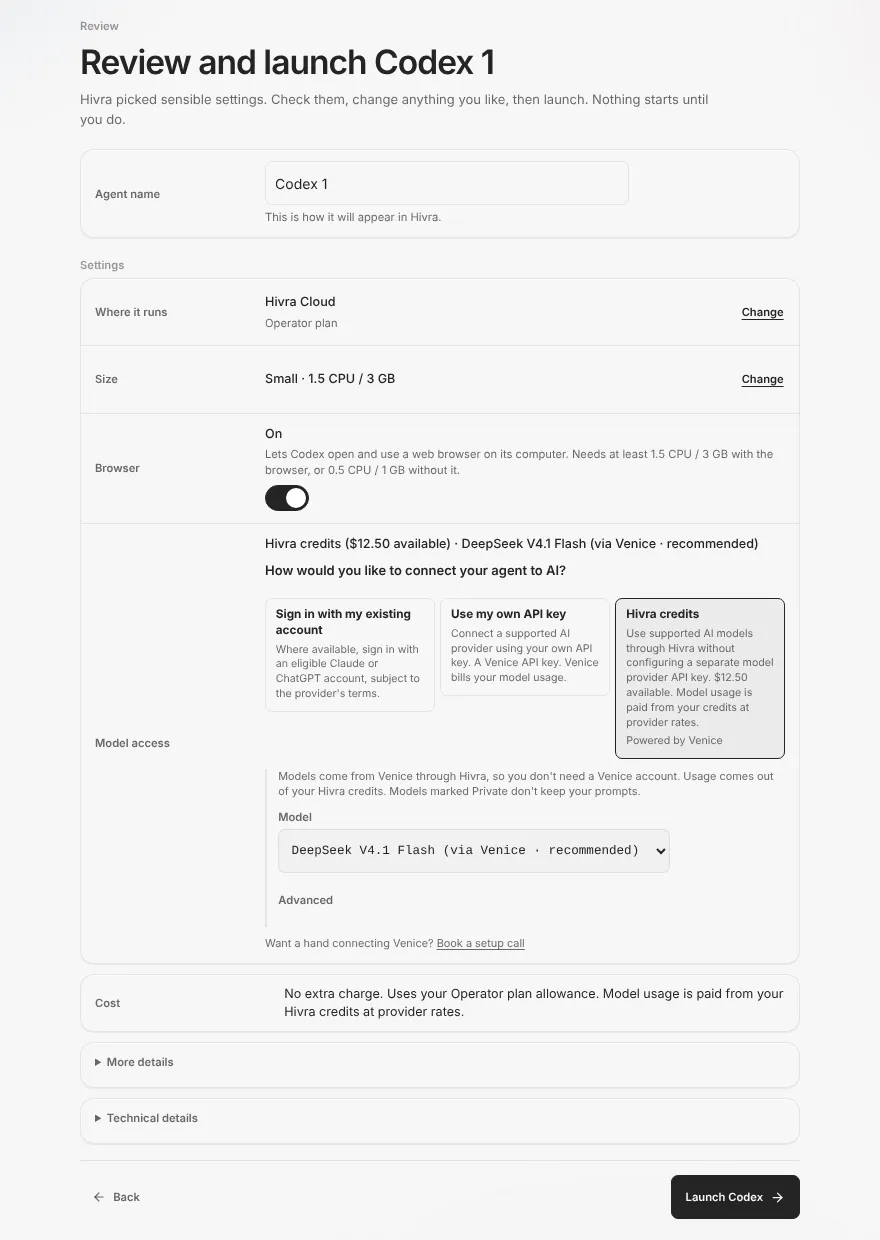
When the computer is ready, the agent appears on your Home page. Open your agent describes that page.
Sign in with your Claude account or use Hivra credits
The two routes differ in who bills the model and where the login lives.
| Sign in with my existing account | Hivra credits | |
|---|---|---|
| Who bills model usage | Anthropic, under your own plan and limits | Your Hivra credits |
| What you do | Sign in inside Claude Code after it opens | Nothing extra at launch |
| How the model is reached | Claude Code talks to Anthropic as it normally does | Hivra translates Claude Code's requests for Venice's Claude models |
| Default model | Whatever your account resolves | Claude Sonnet 4.6 |
| Where the login is stored | On the agent's computer | Not applicable |
Signing in with your Claude account
After launch, the agent shows a sign-in screen that says it runs the official Claude Code on your own Claude account and that the session is stored on the computer. It also reminds you that administrators of the host may have infrastructure access, so on a host you do not control, someone else may be able to reach that stored session.
- Press Sign in with Claude. Hivra opens the sign-in page. Sign-in is not finished until you press Connect in step 3, so the agent is not usable before that.
- Authorize it with your Claude account.
- Copy the code the page gives you and paste it into the Authorization code box, then press Connect.
- Once connected, Claude Code introduces itself and is ready for a task.
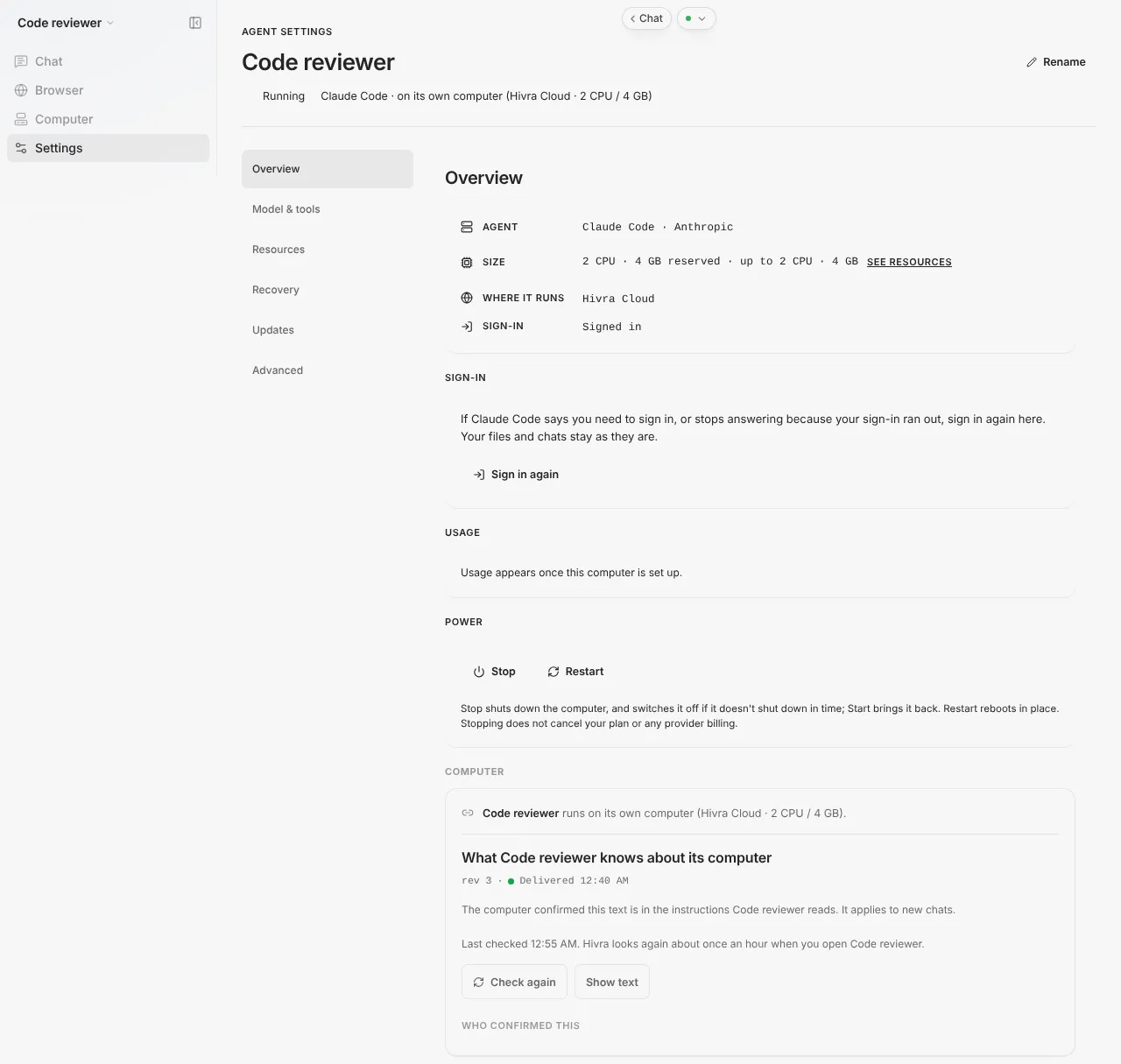
Sign-ins can run out. If Claude Code says it needs you to sign in, or stops answering because your sign-in expired, open the agent, go to Settings, then the Overview section, and press Sign in again. Sign in to the same Claude account. Your files and chats stay as they are.
Using Hivra credits
With credits, Hivra mints a managed key at launch and points Claude Code at a translation service, so Claude Code's requests reach Venice's Claude models and your credits pay for them. You do not need a Venice account. Credits need a host on provisioner release 2026.11.10.2 or later, and the Review step tells you if a destination cannot use them. Choose how your agent gets its model covers balances, top-ups and the two wallets, so this page does not repeat them.
Where to click: the tabs of a Claude Code agent
An agent page has a sidebar with four groups. Here is what each one holds for Claude Code.
| Sidebar entry | What is inside | What it is for |
|---|---|---|
| Chat | The chat, plus a list of your chats | Sending Claude Code a task from the browser |
| Claude Code session | Claude Code's own command line, in the browser | Using the CLI directly, including its slash commands |
| Browser | A live view of the browser the agent drives | Watching what the agent sees on the web (view only) |
| Computer | Desktop (explains how to give the agent a desktop), Files and Terminal | Looking at the computer itself |
| Settings | Settings, Skills and Telegram | Configuring the agent |
The Desktop entry exists because an agent never owns a desktop by itself. See Ubuntu Desktop.
Inside Settings the side navigation reads Overview, Model & tools, Resources, Recovery, Updates and Advanced. Some sections only appear when the computer supports them.
Chat
Chat is the quickest way to hand Claude Code a task. Type in the box that reads "Message" followed by the agent's name and send. Replies show the work as it happens, with rows such as "Used 3 tools" that you can expand to see what was run.
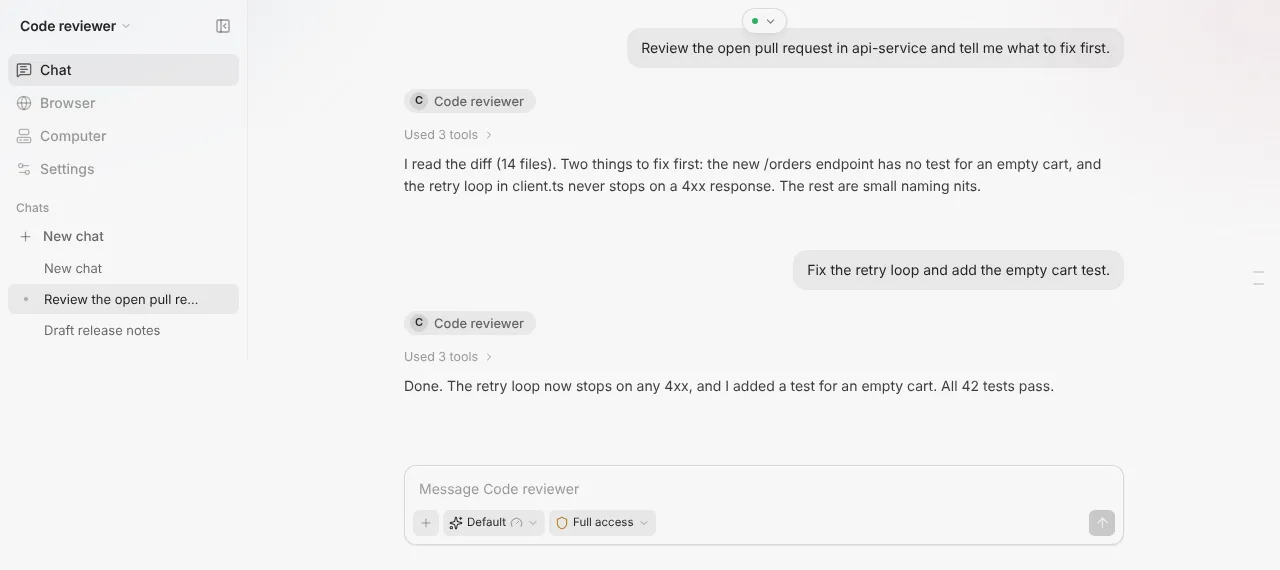
The message box has these controls:
- Attach a file takes an image or a text file, and the agent reads it on its computer.
- Model pill. Switches the model Claude Code uses, and an effort level. Claude Code accepts five levels: Low, Medium, High, Extra high and Max.
- Access pill. Shows Full access, Limited or Read-only. See the permissions block below.
- Send message, which becomes Queue message while a reply is being written. A queued message goes out when the current reply is done.
- Stop response ends the reply in progress.
Choices on the model and access pills apply from the next message. A reply already being written is not interrupted. If you pick a model your account cannot use, the next message fails with a clear error in chat, and you switch back.
The Claude Code session and Terminal
These two look similar and are different things.
- Claude Code session is the agent's own command line, open in your browser. Use it when you want Claude Code's own interface rather than Hivra's chat. You can open more than one: the New button adds another alongside, up to 8 at once, and closing one ends that session's process.
- Terminal (under Computer) is a plain shell on the computer. Use it to install tools, run git, read logs, or start long jobs inside tmux.
The Terminal also lets you install and update things the way you would on any Linux machine. For example, run tmux new -s work before starting a long Claude Code run so that it is not tied to your browser tab.
Terminals open on the page reconnect by themselves after Hivra updates the connection service.
What keeps running when you leave
On a paid Hivra plan the computer stays on and keeps your files, sessions and login. A Claude Code or Codex run you start inside tmux in the computer's Terminal tab keeps going after you close the laptop. On Claude Code, work you send through Telegram, connected in the agent's Telegram tab, runs on the computer, not in your browser.
Whether a chat or session-tab run outlives its browser tab depends on the computer's runtime version, so use tmux or Telegram for anything that must finish.
In practice that gives you three habits:
- For long jobs, start them inside tmux in the Terminal. That is the route Hivra can vouch for on every computer.
- For work you want to send from your phone, connect Telegram (next block).
- Your repos, files, login and Claude Code's session history stay on the computer either way, so you can come back to them.
Stop and Restart in Settings power the computer off, which ends any reply Claude Code is still writing. Hivra checks first and asks you to confirm with Stop anyway or Restart anyway when a reply is in progress. Stopping does not cancel your plan or any provider billing.
Files and Changes
Under Computer, Files lists the computer's home folder. Folders open when you press them, Up goes back, and a file opens in a viewer where you can read it. Press Edit (pencil icon) to change it and Save to keep the change. A switch at the top moves between Files and Changes. Changes shows the code changes (git) in the computer's projects, so you can review what Claude Code did without opening a terminal.
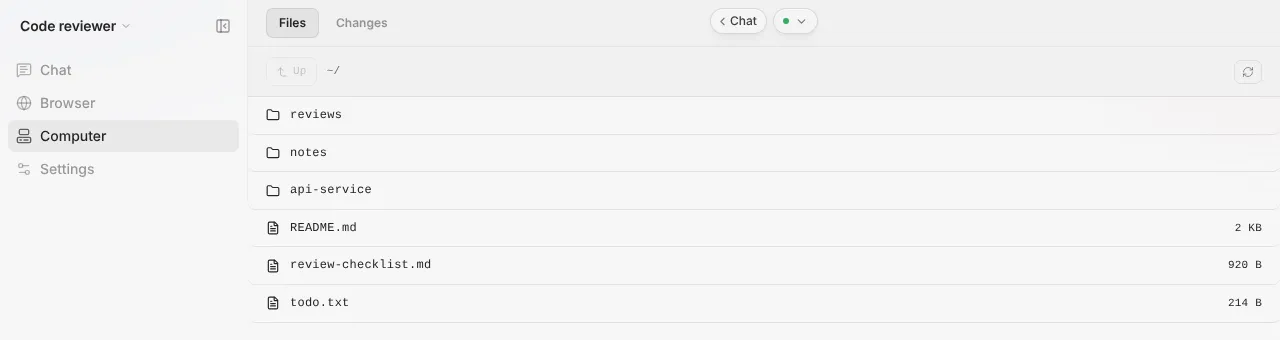
If you edit a file in the viewer and leave without saving, Hivra asks about the unsaved changes first.
Skills
Skills are capabilities Claude Code can invoke. They live on the computer in ~/.claude/skills, and the Skills view under Settings reads that folder.
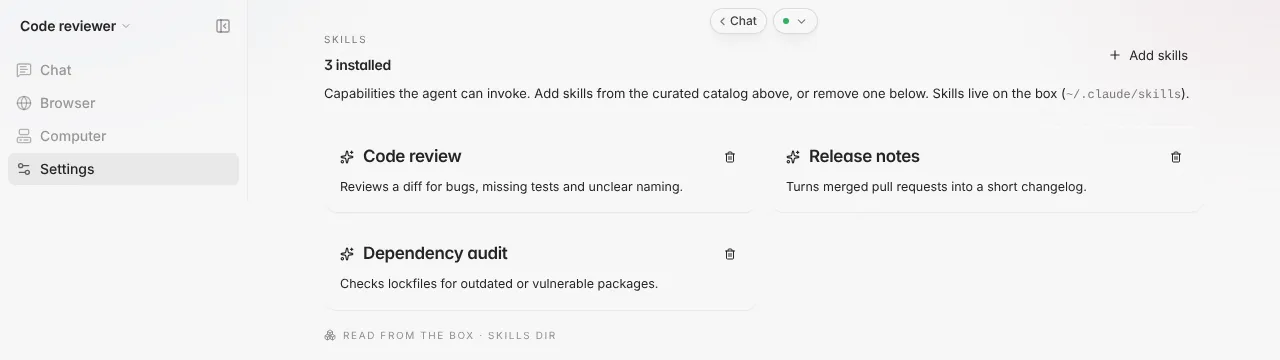
- Open the agent, then Settings, then Skills.
- Press Add skills. A catalog opens, and the installed ones are marked.
- Select the skills you want and install them. Each install writes the skill onto the computer, and the agent keeps it.
- To remove one, press the trash icon on its card and confirm. This deletes the skill's folder on the computer.
You can also add your own skill by putting a SKILL.md in a folder under ~/.claude/skills from the Terminal.
Under Settings, Model & tools there is also a Tools card with Browse tools for ready-made connectors, and a place to connect any Model Context Protocol server by command. Both load on the next message.
Telegram
A Claude Code agent has a Telegram view under Settings. It connects your own Telegram bot to the computer, so you can message your agent from your phone. Work you send this way runs on the computer, not in your browser.
- In Telegram, message BotFather, send
/newbotand follow the prompts. It gives you a token. - In Hivra, open the agent, then Settings, then Telegram. Paste the token into Bot token and press Continue. Saving your bot and restarting the connection can take up to a minute.
- Press Open @yourbot & tap Start (it shows your bot's name). The screen reads "Waiting for you to tap Start..." until you do. Only the first chat to tap Start is bound, so do it yourself right away. If nothing happens after about 5 minutes of waiting, an Advanced link for entering your Telegram id by hand appears.
- When it is done, the card reads Bot is running, with your bot's username and your Telegram id. Message the bot from Telegram and the message reaches the agent.
Open in Telegram jumps to the bot. Disconnect asks you to confirm, and Cancel takes its place so a double tap cannot confirm by accident.
If pairing does not work on an older agent, an Advanced: paste your Telegram id directly (older agents only) link lets you enter your numeric Telegram id instead and press Connect Telegram. The Telegram page covers channels in more detail.
Permissions, model and size
Under Settings, Model & tools, three cards matter for Claude Code.
| Card | Options | Notes |
|---|---|---|
| Model | Default, Fable, Opus, Sonnet, Haiku, or a Custom model id with Set | Applies from the next message. A model your account cannot use fails with a clear error in chat. |
| Permissions | Full access (the default), Limited, Read-only | Full access allows shell, files and web. Limited has no shell commands but can still read and edit files. Read-only is research and answers only. |
| Ask me first | A switch | Before each command or file change, Claude Code waits for your answer in Needs you. No answer in 9 minutes means no. It appears only where the computer supports it. |
Full access is the default and the screen says so, because the computer is yours alone. If you would rather review every action, turn on Ask me first, or pick Limited or Read-only.
Resources shows the computer's size, and Browser automation is a switch in Model & tools. Turning it on raises the minimum size by 1 CPU and 2 GB (from 0.5 CPU and 1 GB to 1.5 CPU and 3 GB), and on a Free account the switch opens an upgrade prompt because browser automation is a paid feature. Turning it off does not by itself shrink the computer or reduce provider billing.
Update Claude Code
Open Settings, then Updates. The agent software card says which Claude Code version is installed and which version Hivra has tested, and offers Update Claude Code when they differ. Other buttons you may see are Reinstall and Switch to a tested version.
The update waits until no reply is being written, up to 6 hours, then installs. If the install fails, Hivra normally restores the previous version. If it cannot, the panel offers Open Recovery (restore points) or Open Advanced (Force restart).
A separate Update connection service button refreshes Hivra's own service on the computer without restarting it. Files and local logins stay as they are. Update an agent covers other agents.
Costs
There are three separate costs and they do not overlap.
| What | Who bills it |
|---|---|
| The computer on Hivra Cloud | Your Hivra plan, from $9.99 a month for 2 vCPU and 4 GB of RAM |
| Model usage on Hivra credits | Your Hivra credits (rates are on Choose how your agent gets its model) |
| Model usage on your Claude sign-in | Anthropic, under your own plan |
A Hivra account costs nothing, but a computer that Hivra Cloud runs does. On a server you connect yourself, there is no Hivra hosting charge. Note that Stop does not cancel any of this.
When something goes wrong
| Symptom | Fix |
|---|---|
| Claude Code says it needs you to sign in, or stops answering | Settings, Overview, Sign in again. Use the same Claude account. |
| A message fails right after you changed the model | Your account cannot use that model. Switch back in the model pill or in Model & tools. |
| Hivra credits are not offered on the Review step | The destination cannot use them, for example a host older than provisioner release 2026.11.10.2. Read the reason on the row, or sign in with your own account. |
| The Telegram view still waits after you tapped Start | Tap Start again in your bot, or wait about 5 minutes for the Advanced manual id link to appear. Only the first chat binds. |
| A long run ended when you stopped or restarted the computer | Stop and Restart end running replies. Start long jobs inside tmux in the Terminal and avoid powering off mid run. |
| Update says it is waiting | Hivra waits until no reply is being written, up to 6 hours. Let the current reply finish, then try again. |
| Update did not install | Hivra normally restores the previous version, so try again from Updates. If it could not, use Open Recovery or Open Advanced on the panel. |
| The Terminal tab cannot connect | Open Settings and check the agent is running. Start it if it is stopped. |
If the agent still misbehaves, see Troubleshooting.
What Hivra does and does not do
- Hivra gives the agent a computer of its own and browser views of it. It does not run Claude Code in your browser, and it is not a Claude Code replacement.
- Hivra installs Claude Code from Anthropic and tests a version. It does not promise that every Claude Code release works.
- Hivra credits reach Venice's Claude models. Your own Claude sign-in goes to Anthropic.
- Credentials may be stored on the agent computer, and Hivra administrators retain infrastructure access on Hivra-managed hosts. On a server you connect, whoever controls the host has that access.
- Hivra does not guarantee backups. Keep copies of work you cannot lose.
- Hivra is not affiliated with Anthropic.
For access and isolation in more depth, read Security and access.
Common questions
Can I paste an Anthropic API key when I launch Claude Code?
No. For Claude Code the launch offers Hivra credits or signing in with your own account inside Claude Code. The Review step says so and points to an Anthropic Console account sign-in as the other route.
Which model does Claude Code use on Hivra credits?
Credits run through Venice's Claude models, and the default is Claude Sonnet 4.6. You can change the model afterwards in the chat model pill or under Settings, Model and tools.
My sign-in expired. Do I lose my work?
No. Open Settings, then Overview, and press Sign in again. Sign in to the same Claude account. Your files and chats stay as they are.
Does a run keep going when I close my laptop?
A run you start inside tmux in the computer's Terminal keeps going, and work you send through the agent's Telegram tab runs on the computer. The computer stays on and keeps your files, sessions and login on a paid Hivra plan.
What is the difference between the Claude Code session and the Terminal?
The Claude Code session is the agent's own command line. The Terminal is a plain shell on the computer, which is where you install tools or start work inside tmux.
Can Claude Code run commands without asking me?
Yes by default, because Full access is the default and the computer is yours alone. Choose Limited or Read-only, or turn on Ask me first, to approve each command or file change in Needs you.
Does Hivra work with my Claude subscription?
Hivra offers signing in with an eligible Claude account where available, subject to Anthropic's terms. Whether your plan may be used from a remote computer is Anthropic's rule, so check it first.
Is Hivra affiliated with Anthropic?
No. Hivra is an independent hosting service and is not affiliated with or endorsed by Anthropic.