
What Hermes is, and who this page is for
Hermes Agent is an open-source agent from Nous Research. It is built for work that continues over time: it can keep memory between sessions, build up skills for jobs you repeat, use tools, and run scheduled jobs. This page is for developers and AI power users who want that agent running on a computer that stays on, without renting and configuring a server first.
On Hivra you get the official Hermes Agent. Hivra creates a computer for it, runs Hermes's own installer on that computer, points it at a model, and opens Hermes's own web UI through Hivra's authenticated gateway. Hivra does not modify Hermes, fork it or patch it, and does not pin a version of it.
Hivra is an independent hosting service and is not affiliated with or endorsed by Nous Research. Hermes is their project. The computer, the sign-in in front of it, and the Settings views around it are Hivra's. The public Hermes page describes what people use it for.
This is the new Hermes computer. It is live on Hivra's Canary environment and reaches hivra.cloud with the next owner-approved production promotion, so on production you may not yet see every step, label and button described here. Existing Hermes agents keep running on their current setup until they are moved, as described below.
Before you start
- A Hivra account. An account costs nothing, but Hermes runs on Hivra Cloud only, and every computer Hivra Cloud runs needs a paid plan. Hermes does not run on a server you connect. A free account works with a server you connect yourself, which is the route for other supported agents, not this one.
- A paid plan. Every computer that Hivra Cloud runs for you needs a paid plan, from $9.99 a month for 2 vCPU and 4 GB of RAM. A free account works with a computer or server you connect yourself. See plans and billing for what the plan covers and what it does not.
- Enough size. Hermes needs at least 1 vCPU and 2 GB of RAM. The official installer builds Hermes's web UI on the computer, and that step is what needs the memory. Launch only offers sizes Hermes can run on: up to 8 CPU and 16 GB, limited by your plan.
- A way to pay for the model. Either Hivra credits (if you have both card credits and token credits, Review asks which to use), a Venice API key of your own, or a provider you choose inside Hermes after it opens. The plan pays for the computer. It does not pay for model usage. Choose how your agent gets its model compares the options.
- Hivra's runtime release. Hermes needs a host on a recent enough Hivra runtime. New Hivra Cloud launches use one. On an existing computer, open Settings > Updates and use Update connection service. (Settings is called Manage in some Hivra internal copy; this page says Settings, which is the label on the agent page.)
Launch Hermes, step by step
- From your dashboard, open Launch. The first step asks What do you want to launch? and shows a tile for each supported agent. Choose Hermes. If you start from the public Hermes page instead, Deploy Hermes takes you through sign-up and opens Launch with Hermes named, so you may not see the choice step.
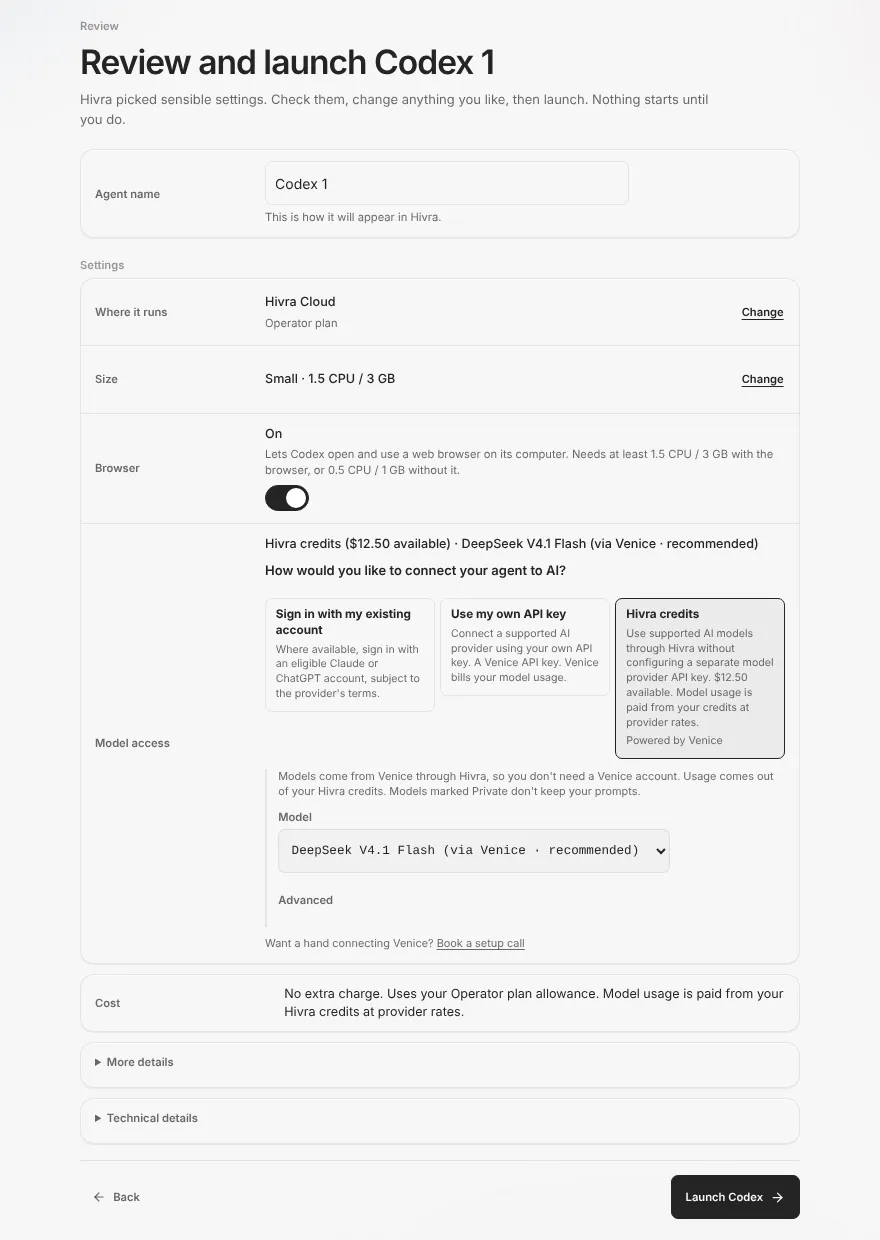
- The second step is Review, titled "Review and launch Hermes 1" (the number is a default name). Nothing starts until you press the launch button at the bottom right.
- In Agent name, keep the default or type your own. This is how it appears in Hivra.
- Check Where it runs. For Hermes this is Hivra Cloud. My infrastructure is shown as unavailable because Hermes does not run on a connected server.
- Check Size. Hermes starts at 2 CPU and 4 GB, the size Hivra recommends, and cannot go below 1 CPU and 2 GB. Options go up to 8 CPU and 16 GB, limited by your plan. There is no Browser option for Hermes.
- Under Model access, answer "How would you like to connect your agent to AI?" The three choices are described in the next block.
- Read Cost, then press Launch Hermes. If something blocks the launch, a notice above the button says what.
After you launch, Hivra shows what it has recorded and what it observes while the computer is created, then Ready with an Open my agent button. Hivra does not state how long this takes. Leave the tab open, or close it and come back later and look on Home, where your agent is listed. Launch your first agent walks through the whole flow with every status message.
How Hermes gets its model
Hermes works with a model, and Launch offers three ways to give it one. The default model for Hermes on a Hivra computer is deepseek-v4-1-flash, shown in the picker as DeepSeek V4.1 Flash.
| Choice on Review | What it does | Who pays for model usage |
|---|---|---|
| Hivra credits | Hivra credits reach models through Venice. You pick a model from the list, and the default is recommended. | Your credits, at provider rates |
| Use my own API key | You paste a Venice API key. The key is written into Hermes's settings on the computer. | Venice bills you directly |
| Set up inside Hermes after it opens | Launch sets no model. You choose a provider in Hermes's own settings. | The provider you choose |
Every model in the credits list is a plain model ID that Hermes can take. You are not locked in: after launch you can change the model in Settings, or change provider in Hermes itself.
To change the model later, open the agent, go to Settings, and look in Model & tools. The Model card lists models. Pick one and press the button that reads Use followed by the model name. The new model applies to new chats. Hermes's own model picker keeps working too. If you set up another provider inside Hermes, the card says so and the model is chosen in Hermes. If the computer is stopped, the card asks you to start it first.
With your own key, the usage and any charge belong to that provider account. Choose a key with spending limits, especially for an agent that runs jobs while you are away.
Open Hermes and find your way around
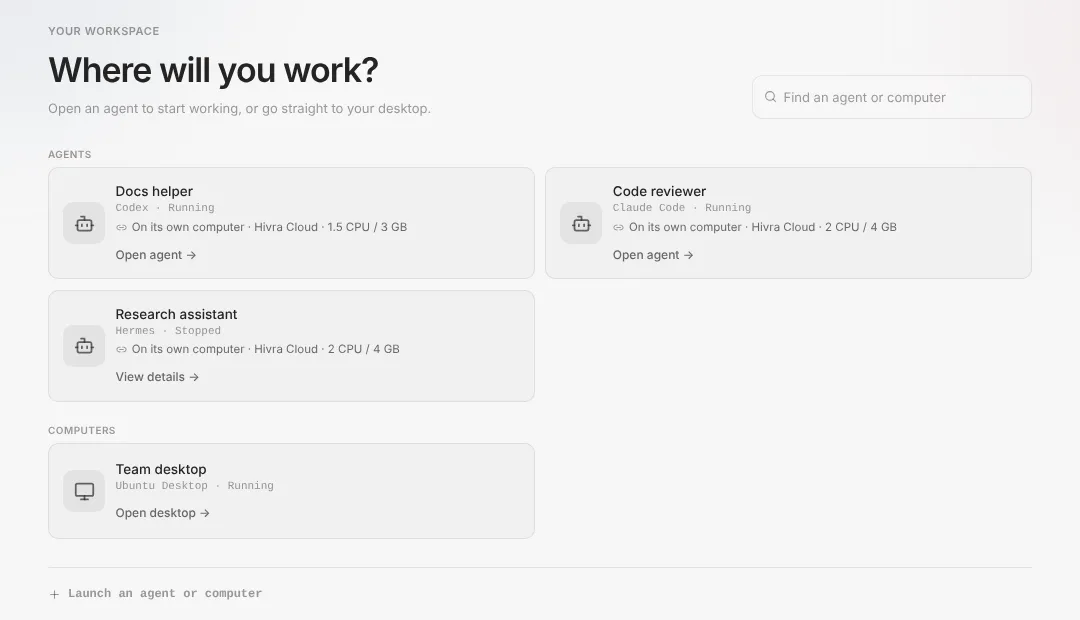
Open Hermes from Home. Home is titled Where will you work? and lists your agents and computers. A running agent shows Open agent. A stopped one shows View details.
Hermes does not use Hivra's chat. It opens into Hermes's own web UI, shown on the agent's page as Dashboard, behind your Hivra sign-in. You talk to Hermes there, the way Nous Research designed it. Around it the agent page has these views. These apply to Hermes on a Hivra computer. An older Hermes agent that has not moved yet looks different. In the sidebar, Hermes's own UI sits under the Dashboard group, Terminal and Files sit under Computer, and Settings is its own group:
| Tab | What it is |
|---|---|
| Dashboard | Hermes's own web UI. Chats, settings, skills and scheduled jobs live here. |
| Terminal | A shell on the computer Hermes lives on. Use it for hermes update or to look around. |
| Files | The computer's file browser, with a Files and Changes switch. |
| Settings | Hivra's settings for the agent: Overview, Model & tools, Resources, Updates and Advanced, and Recovery where available. Sections that do not apply to a computer are not shown. |
Behind the scenes Hivra serves Hermes's own Desktop workspace from the computer. If that workspace is not built yet, it falls back to Hermes's own dashboard. In both cases it is Hermes's interface, not one Hivra wrote.
Not every tab that exists for Claude Code or Codex exists for Hermes. There is no Hivra Chat, Skills or Tasks view on a Hermes computer, because Hermes provides those itself inside its own UI.
Memory, skills and scheduled jobs
These are Hermes's features, not Hivra's, so how they behave is decided by Hermes and the version you have installed. What Hivra adds is the place they live.
- Memory. Hermes can keep notes and context between sessions. They are stored on the agent's computer, so closing the tab does not clear them. What it recalls and when is up to Hermes, so treat memory as helpful, not perfect.
- Skills. Hermes can install and write skills for repeatable jobs. Review a skill before you give it access to anything sensitive. The blog has a skills guide.
- Scheduled jobs. Hermes can run recurring jobs with its own scheduler. See the scheduled tasks article for how that works in Hermes.
Hermes, OpenClaw and Agent Zero run on the computer itself, and Aeon's scheduled tasks run on your own GitHub Actions while the computer hosts its dashboard. None of them needs an open browser.
That means a scheduled job can run while your laptop is closed, as long as the computer is on and the model you chose answers. If Sleep when idle is on under Settings > Overview (where the sleep setting is shown), the computer can pause when it is idle, and a job due while it sleeps may not run on time. Turn it off for agents that must run jobs on a schedule. Check that this setting appears for your Hermes agent before relying on it. Provider limits, an empty credit balance or a failing job can still stop a run, so check on important jobs.
Files and Terminal
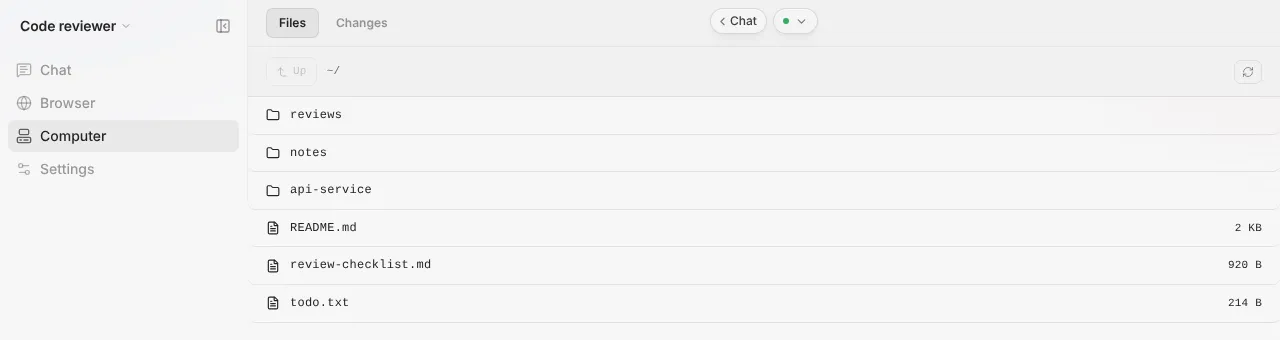
Everything Hermes creates is on its own computer, and you can look at it directly. Open the agent, then Files to browse the home folder. The Changes side of the switch shows what has changed in a project.
Terminal is a shell on the same computer, which is useful for things Hermes's UI does not do for you:
That is the update command, described below. You can also use Terminal to read a log, check disk space or install a tool. Anything you install lives on that computer only.
The computer is separate from your laptop and from your other agents. Even so, give Hermes only the accounts and credentials you are comfortable with it using. A separate computer is a boundary, not a guarantee the agent is safe. Security and access goes into this.
Update Hermes
Hermes comes from its own installer and updates with its own updater, and you decide when. There are two ways, and they do the same thing:
- In Terminal, run
hermes update. - In Settings, open Updates and press Update Hermes.
Update Hermes runs Hermes's own updater, and the card says it also refreshes Hivra's connection service without restarting the computer. Hermes restarts once, when nobody is using it, and is back in a few minutes. A separate Update connection service button in the same section also runs the Hermes update once nobody is using Hermes. While it waits, Settings says: it updates once Hermes has been idle for 5 minutes, so close Hermes in any other tab. Hivra waits up to 6 hours. If Hermes is still in use after that, the update does not run and nothing is changed. Press Try again when you are ready.
Settings shows the installed version when it can read it. Hivra does not compare it with a tested version, because it pins none: Hermes's updater decides whether anything newer exists. Your files and settings are on the computer, so an update changes the agent, not your work. Hivra does not guarantee backups, so keep your own copy of anything you cannot lose before a big update. Update an agent covers the general steps.
Moving from an older Hermes agent
Before the official setup, Hivra ran Hermes in a different way. Existing Hermes agents keep running on that older setup. They are being moved to the official one, and there is no button to press: the older agent's page shows a card titled "Moving to the official Hermes soon", or with a date once one is planned, and Hivra emails you the day before.
The card says that chats, memory, skills, settings, scheduled tasks, chat channels and files come with it. During the move the card warns that the agent is offline (it currently says about 15 minutes), and the old computer is kept for 7 days so the move can be undone. The card shows the step it is on: setting up the new computer, packing your data, copying it, then unpacking and checking it.
When it finishes, the card says "Your agent has moved." and takes you to the new agent page. The new agent's Settings page then shows "Moved from" with the old name and an Undo move link until that 7 days is up. Undo asks you to confirm and warns that anything done on the new computer since the move will be lost. If a move fails, the card says "Not moved, and nothing was lost." and the move is tried again after a check. If it says the move needs attention, the data is safe and Hivra has been told.
Limits
| Topic | What to know |
|---|---|
| Where it runs | Hivra Cloud only. It does not run on a server you connect, or on a computer in your own cloud. |
| Plan | Every Hivra Cloud computer needs a paid plan, from $9.99 a month for 2 vCPU and 4 GB of RAM. |
| Minimum size | 1 vCPU and 2 GB of RAM. |
| Browser | Hermes has no Browser tab on Hivra. |
| Model | Default deepseek-v4-1-flash. Credits reach models through Venice. |
| Updates | You choose when. Hermes's own updater, in Terminal or in Settings. |
| Version | Hivra does not pin one. |
| Hivra Skills and Tasks tabs | Not shown for Hermes. Use Hermes's own. |
Hermes's behaviour beyond this, including what its memory keeps and which tools it has, comes from Nous Research and changes between versions. Read their documentation for those details.
When something goes wrong
| What you see | What it means and what to do |
|---|---|
| "Not available for Hermes. It runs on Hivra Cloud only." beside My infrastructure | That option cannot be selected for Hermes. Use Hivra Cloud. |
| "Hermes runs on Hivra Cloud only, and that needs a paid plan. Choose a plan to launch it." | Choose a plan, then launch again. |
| The launch says it is waiting and the agent has not answered | Press Check again. Starting a second launch is not needed, and Launch keeps your draft so a retry does not start a second Hermes. |
| "Start this agent to check or update Hermes." | The computer is stopped. Start it from Settings, under Power on Overview, then update. |
| "Start this computer to choose which model Hermes uses." | Same cause, on the Model card. |
| "Hivra couldn't reach Hermes to read its model." | Refresh the page. If it persists, pick a model inside Hermes's own settings. |
| "Update Hermes to choose its model here. Until then, pick a model in Hermes's own settings." | Hivra cannot read this Hermes's model settings yet, usually because it or its connection service is out of date. Update under Settings > Updates, or pick the model inside Hermes. |
| The update says it "didn't update because its install has changes of your own" | Hermes's updater leaves your own changes alone and nothing was changed. Run hermes update in Terminal to see what it needs. |
| "There isn't enough free disk space" | Free space in Terminal or Files, then try again. |
| "wasn't updated because it was still in use after 6 hours" | Close Hermes in every other tab, then press Try again. |
| "The Hermes update didn't finish." | Hermes keeps its current version. Try again, or run hermes update in Terminal to see why. |
| Hermes answers with a model error | The model or provider you chose may not be available to your key or balance. Choose another model in Settings, or check your credits. |
Still stuck? Troubleshooting lists problems that apply to every agent.
Common questions
Is this the real Hermes Agent?
Yes. Hivra runs Hermes's own installer on the agent's computer and opens Hermes's own web UI. Hivra does not fork or modify it, and it is not affiliated with Nous Research.
Can I run Hermes on my own server?
Not through Hivra today. Hermes runs on Hivra Cloud only, which needs a paid plan. A free Hivra account works with a server you connect yourself, but Hermes is not one of the agents that runs there.
Which model does it use?
The default is deepseek-v4-1-flash, through Venice. You can pick another model in Settings, bring your own Venice key, or choose a different provider in Hermes's own settings.
Does Hermes keep working when I close my laptop?
Yes. Hermes runs on its own computer, so it does not need an open browser. Scheduled jobs can still fail if your model provider or credits run out.
How do I update Hermes?
Run hermes update in the Terminal tab, or press Update Hermes in the Updates section of Settings. Hermes restarts once, after it has been idle for 5 minutes.
Will my older Hermes agent be moved?
Older Hermes agents are moved to the official setup automatically. Your chats, memory, skills, settings, scheduled tasks, chat channels and files come with it, and the move can be undone for 7 days.
Where is Hermes's memory stored?
On the agent's own computer, so closing the tab does not clear it. What Hermes remembers and recalls is decided by Hermes itself.