
What the agent page is, and who this is for
Every supported agent on Hivra has a computer of its own: its own files, its own tools, its own login. The agent page is where you open that agent and look at both the agent and the computer under it. You open it from Home, and it is organised into a small sidebar with a few rows, each holding one or more views.
This page is for developers and AI power users who have already launched an agent and want to know where things are. If you have not launched one yet, start with Launch your first agent. For the wider screens around this one (Home, Computers, Activity, Billing, Servers) see A tour of the dashboard.
Two things decide what the page looks like. The first is the kind of agent. Claude Code and Codex open into a chat and a command line session. Hermes, OpenClaw, Agent Zero, Aeon and DeepSeek Harness open into the agent's own web app. The second is the state of the computer: a computer that is still being set up, stopped or unreachable shows a status panel in place of the working views, and tells you what to do.
Hivra is an independent hosting service. It is not affiliated with Anthropic, OpenAI, Nous Research or the makers of the other supported agents. The sign-in in front of the computer, the Chat view for Claude Code and Codex, the Files, Terminal and Settings views and the sidebar around them are Hivra's. The agent's own web app is the maker's own.
Open an agent from Home
- Select Home in the sidebar, or the Hivra mark. The page is headed Where will you work?
- Find the agent. Your agents sit under Agents and your computers under Computers. Each card shows the name, the type, and a line such as On its own computer with where it runs and its size. To narrow the list, type in Find an agent or computer.
- Select Open agent. A running agent says that. A stopped agent says View details instead, because there is nothing to work in until it is running. A card whose agent is waiting on an approval or a question from you says Open to respond.
- The agent page opens. To jump to another agent or computer without going back to Home, use Switch or search in the sidebar.
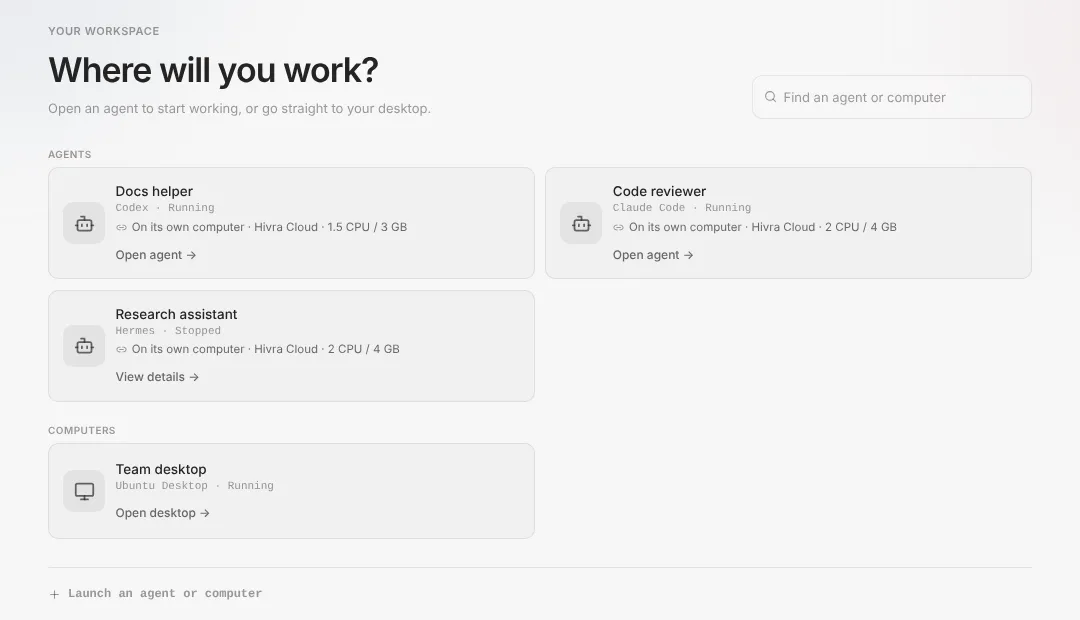
You can also reach an agent from the Agents page in the sidebar, which lists every agent in one place, or with the switcher: Switch or search in the sidebar, or Cmd K on a Mac and Ctrl K elsewhere. If you have worked in an agent recently, Home offers it first and a Continue link under Home in the sidebar takes you back to where you left it. The Need you badge in the sidebar opens Home filtered to Needs your attention.
A page can also be opened straight onto a view. The address carries a view name, and an old link to a view the agent does not have lands on the view it does have. Where a fresh agent opens depends on its kind: a Claude Code or Codex agent opens on Chat, while a computer opens on its Desktop or Files, or on Settings when it has neither.
If the agent is not found, the page says Agent not found. and offers Back to Home. That usually means it was deleted from another tab or the link is stale.
The sidebar: rows and views
The agent page groups its views into rows in the left sidebar. A row with more than one view shows those views as small tabs along the top of the page. A row with a single view has no tabs: selecting the row opens it.
Claude Code and Codex
| Row | Views inside it | What it is |
|---|---|---|
| Chat | Chat, then the agent's own session (named Claude Code session or Codex session) | Where you talk to the agent, and its own command line |
| Browser | Browser | A view-only look at the browser the agent drives |
| Computer | Desktop, Files, Terminal | The computer under the agent. Files opens first |
| Settings | Settings (its content is the Manage panel), Skills, Telegram | Controls for this agent and its computer |
Hermes, OpenClaw, Agent Zero, Aeon and DeepSeek Harness
| Row | Views inside it | What it is |
|---|---|---|
| Dashboard | The agent's own web app | Opens the maker's own interface, reached through Hivra's authenticated gateway |
| Browser | Browser | Only for OpenClaw. The others launch without one |
| Computer | Desktop, Files, Terminal | The computer under the agent. Files opens first |
| Settings | Settings | Controls for this agent and its computer. No Skills or Telegram views here |
Three notes on the labels. The row that holds the Manage panel is called Settings in the sidebar, and the view inside it is also labelled Settings. Some older text and some on-screen buttons say Open Manage, and they mean the same place. Next, the Desktop view inside the Computer row is not a desktop for the agent: an agent does not own one, so that view explains how to link the agent to one of your desktop computers or launch one beside it. Last, the Git changes view is not a tab of its own. It lives inside Files, as the Changes switch described below.
Chat: working with Claude Code and Codex
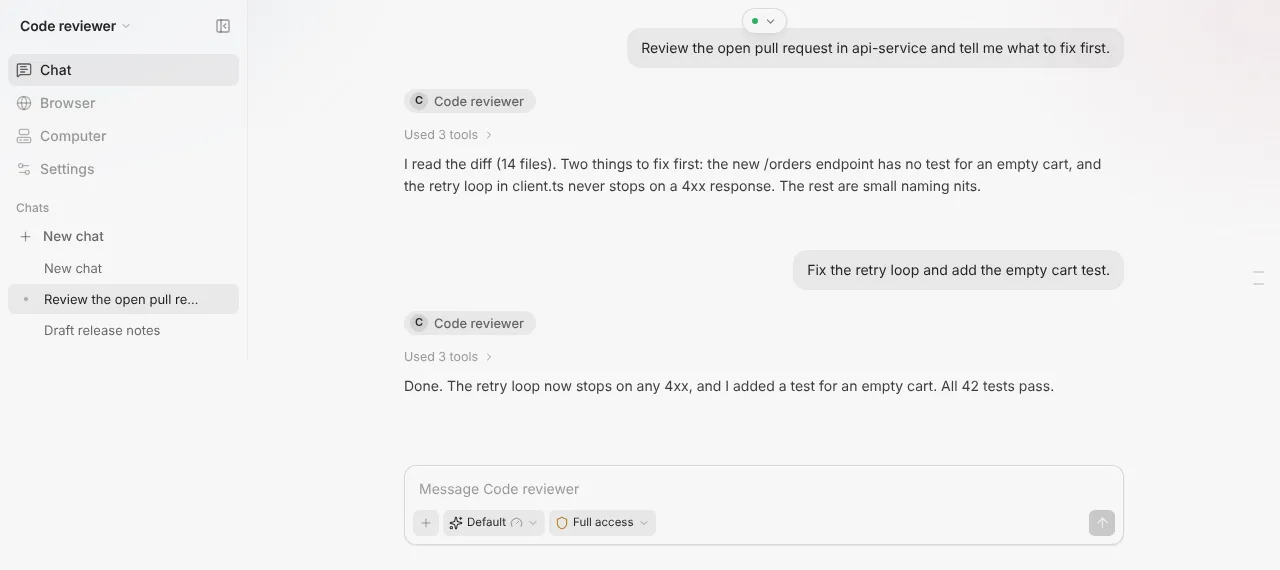
Chat is the first view for Claude Code and Codex. It is a conversation with the agent running on its own computer. Type in the box that reads Message followed by the agent's name, and send with the arrow button or the Enter key.
Chats. The list under the sidebar rows holds your conversations with this agent. New chat starts another one. Each row has a delete control, and deleting asks you to confirm. A conversation that is still running offers Stop and delete chat. You can show or hide the list with the button beside it. Inside a long conversation, a find bar (Find in conversation) searches the transcript and a Return to latest button jumps back to the newest message.
While the agent is working. You can keep typing. The send button becomes Queue message, and what you queue goes out when the current reply is finished. Queued messages show above the box, where you can edit or remove them. Pressing Stop response ends the reply and pauses the queue, so nothing you queued goes out until you resume it.
Model and access. The row of small controls under the box shows the model the agent is running and, on a computer that supports changing it, lets you pick another. An access control sets how much the agent may do:
| Access | What it means |
|---|---|
| Read-only | Look but do not touch: research and answers only |
| Limited | For Claude Code, no shell commands, though it can still read and edit files. For Codex, sandboxed to its workspace with no system-wide changes |
| Full access | Shell, files and the web. This is the default |
Claude Code also has an approval option in Settings, Ask me first. When it is on, each command or file change waits for your answer in Need you, and no answer within 9 minutes counts as no. It is not offered with Read-only. Full access is a real default. The agent can run commands and change files on its own computer without asking each time, which is what makes it useful and is also why the computer is separate from your laptop. If you want a tighter leash for a task, pick Limited or Read-only before you send it. How model access is paid for is covered in how your agent gets its model.
Signing in. If the agent is not signed in to its own account yet, Chat shows a sign-in step instead of the conversation. Complete it and the conversation appears. Later, if the agent says you need to sign in again, use Sign in again on the Overview section of Settings. Your files and chats stay as they are.
Code blocks. Code in the agent's replies has a copy control labelled Copy code.
The agent's own command line is next to Chat as Claude Code session or Codex session. It is the CLI itself, running on the computer, in a terminal in your browser. Use it when you want the tool's own interface rather than Hivra's chat.
Computer: Files, Terminal, Browser and Git changes
The Computer row is about the machine under the agent. It is the same set for every agent.
Files opens first. It lists the agent's home folder, with folders first and file sizes on the right. Select a folder to go into it, Up to go back, and the refresh button to reload the list. Select a file to read it. Small text files have an Edit button, and Save writes your change straight to the computer. Editing is offered for files up to 512 KB. Use Back to files to return to the list.
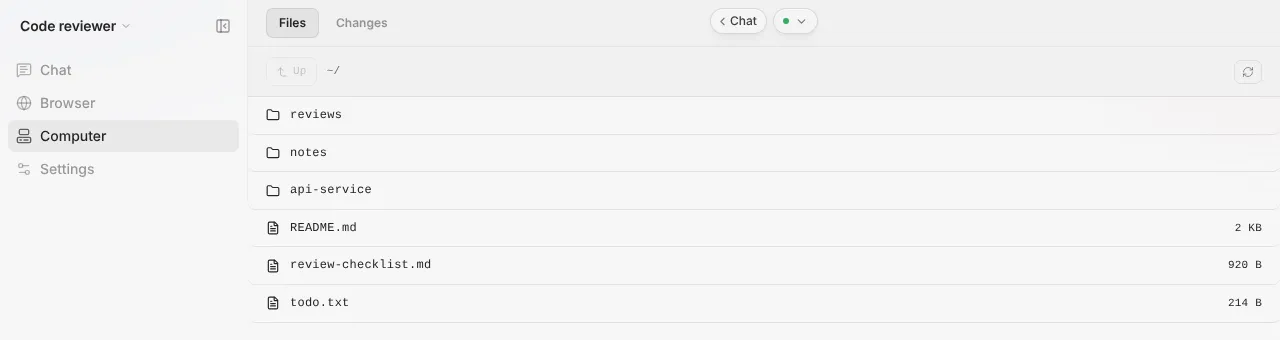
Changes is the other half of Files, reached with the Files and Changes switch at the top. It is a git view of the project folder the agent has been working in:
- A branch picker, a new branch… box and a create button, so you can look at or start a branch.
- The list of changed files. Select one to read its diff, and Close diff or Back to changes to return.
- A Commit message… box and a Commit button that commits the files you selected.
- Working tree clean. when there is nothing to commit.
- No code changes to show yet. when the agent has not worked in a project folder. Ask it to start or download a project, then refresh.
Changes lets you look and commit. It is the right place to review what the agent wrote before you rely on it. It does not push. To push, use Terminal or ask the agent.
Terminal is a plain shell on the agent's computer, in your browser. It is the place to install a tool, read a log, run a command yourself, or start long work inside tmux. You can open more than one: the New terminal button (a plus) opens another alongside, up to 8 at once. With more than one open, a strip shows them as Terminal 1, Terminal 2 and so on, each with a close control that ends that one's process. The agent's own session works the same way, with New Claude Code session or New Codex session.
Browser is a live, view-only look at the browser the agent drives, for agents that ship one: Claude Code, Codex and OpenClaw. You watch; you do not click in it. If browser automation was left off at launch, the view is headed Browser automation is off. It offers Turn on browser when it can be turned on, or See plans when the live browser needs a paid plan, and its Open Manage button takes you to the switch.
Desktop inside the Computer row on an agent page lets you link the agent to one of your desktop computers or launch an Ubuntu Desktop beside it. A computer you launched without an agent opens on its own desktop instead.
Agents with their own web app
Hermes, OpenClaw, Agent Zero, Aeon and DeepSeek Harness do not open into Hivra's chat. Their first row is Dashboard, and it embeds the agent's own web app. You use it the way its makers designed it. Hivra puts an authenticated gateway in front, so reaching it needs your Hivra sign-in.
While it connects, the page says Connecting securely…. If the computer's connection service is older than the page expects, you see Connection update needed with a Check again button. The fix is in Settings: choose Update connection service. Hivra updates it in place, without restarting the computer or deleting files or the agent's login.
Two controls sit on the embedded app:
- Open in new tab (the small arrow in the corner) opens the same app in its own browser tab, which is better for a long session or a small window.
- Connect app lets a desktop app that supports remote connections talk to the agent. It shows a URL, a username and a password, each with a Copy button, and a sign-in link. The dialog walks you through opening the agent's desktop app, then, for Agent Zero, choosing Add remote, or for the others opening its remote settings. The links stop working after 30 days or when you select Disconnect, and New link makes another. Anyone with the password or the link can open your dashboard, so keep them private.
Aeon is a little different. The computer hosts its dashboard, but its scheduled work runs on your own GitHub Actions, so it asks you to connect GitHub the first time you open it. See Aeon.
Each of these agents has its own page with its own setup, so for how Hermes, OpenClaw, Agent Zero and DeepSeek Harness get a model, what they need and what their web app contains, read Hermes, OpenClaw, Agent Zero, Aeon and DeepSeek Harness.
Settings, Skills, Telegram and Tasks
The Settings row is the control panel for this one agent and its computer.
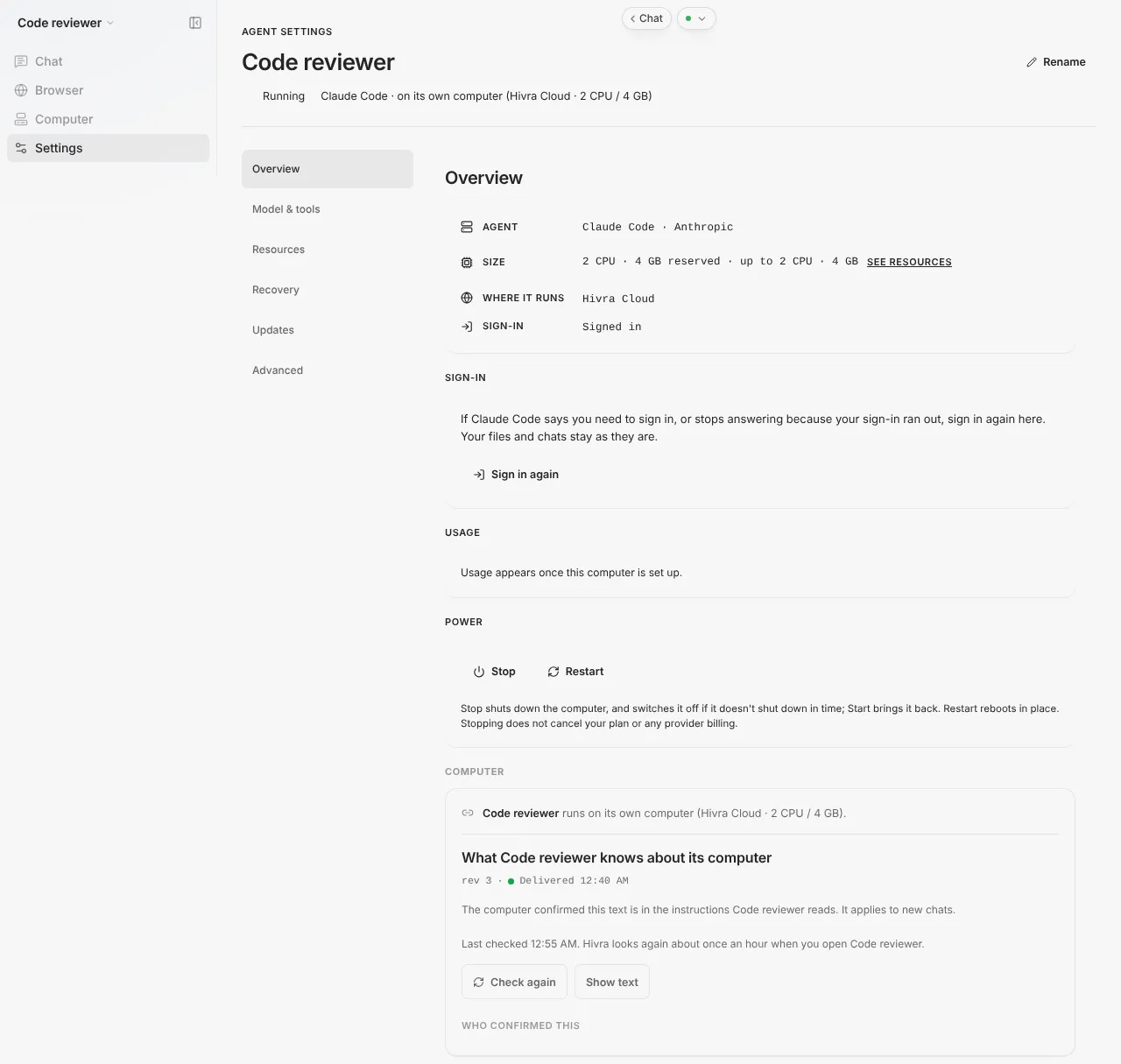
The side list inside Settings changes the section, and which sections appear depends on what the computer supports. Overview holds Sign in again, Usage and Power, where Stop, Start and Restart live. Updates is where you update the agent's software. Advanced holds the rarely needed controls. A tour of the dashboard describes every section, and Update an agent covers updating.
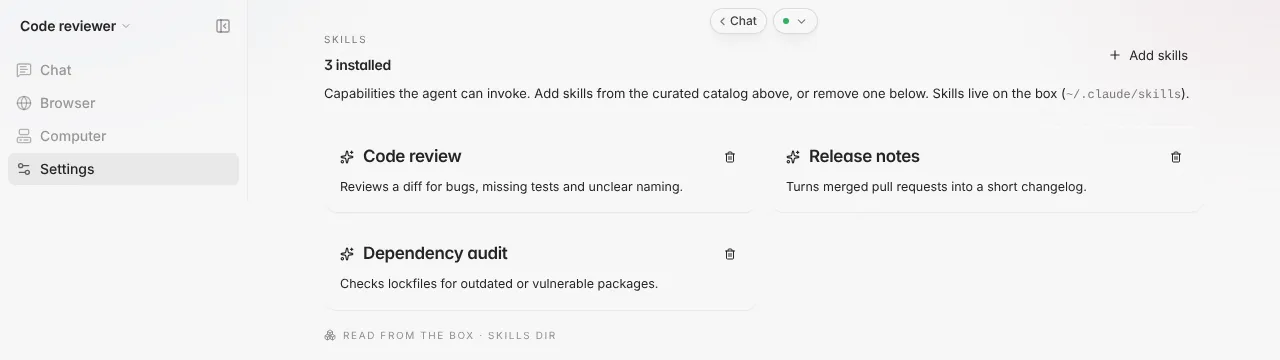
Skills is for Claude Code and Codex. It lists what is installed (for example 3 installed), each with a remove icon. Add skills opens a catalog; select the ones you want and use Install. Skills live in a folder on the computer, so removing one deletes that folder, and Hivra asks you to confirm first. An agent with none says No skills installed yet.
Telegram connects your own Telegram bot to the computer, so you can send the agent work from your phone. You make a bot with @BotFather, paste its token, then open your bot and tap Start. The first chat to tap Start is the one that binds, so do it yourself straight away. The full steps are in Telegram. Hivra documents this for Claude Code. The view appears on Codex pages too, but Hivra does not promise it there.
Tasks does not appear for any agent today. Scheduled tasks need a scheduler that Hivra computers do not have yet, so the view is hidden rather than shown empty. If you want something to run on a schedule, ask the agent to set it up on the computer, or use an agent that has its own scheduler, such as Hermes.
While the agent is running and awake, an Export data link appears in the Settings row. It downloads your chats and memory as a JSON file. Hivra describes this export for Claude Code and Codex agents.
Copy, paste and getting files in and out
There is no single transfer window, so here is what each place does.
| What you want | Where | How |
|---|---|---|
| Send the agent a file or screenshot | Chat | Select the + (Attach a file), drop files anywhere on the chat (the hint says Drop files to attach), or paste an image into the message box |
| Read a file the agent made | Computer, Files | Open it. Text files show in the browser |
| Change a small file | Computer, Files | Edit, then Save |
| Move a lot of files or a big file | Terminal | Use the tools you would use on any Linux machine, such as git, curl or scp, from the computer |
| Copy a command from a reply | Chat | Copy code on the code block |
| Copy text from the desktop | Desktop on a desktop computer | The Clipboard switch, then Paste in and Copy out |
Attachments in Chat. You can attach images and text files (.txt, .md, .csv, .json and .log). You can attach up to 5 files to a message, each up to 8 MB, and the box tells you when you are over either limit. Large images are scaled down before they go. The file is stored on the agent's computer and the agent reads it from there. Remove an attachment before you send with the small remove button on it.
Files has no upload or download button. It is a viewer and a small editor for the computer's own files. To get a file onto the computer, attach it in Chat or fetch it from Terminal. To get one off, open it in Files and copy the text, or move it with git or a command in Terminal.
The desktop clipboard belongs to the Desktop view of a desktop computer such as Ubuntu Desktop. It is off by default, and the stream never syncs your clipboard by itself. Turn on Clipboard, then use Paste in to put your clipboard onto the desktop's (then press Ctrl+V inside the desktop) or Copy out to bring the desktop's text to yours. When the browser will not hand over its clipboard, a small box takes the text instead.
Terminal text. Select and copy in the terminal as you would in any browser terminal. What your browser and operating system allow for the clipboard is up to them, and Hivra does not add anything to it.
What keeps running when you close the tab
On a paid Hivra plan the computer stays on and keeps your files, sessions and login. A Claude Code or Codex run you start inside tmux in the computer's Terminal tab keeps going after you close the laptop. On Claude Code, work you send through Telegram, connected in the agent's Telegram tab, runs on the computer, not in your browser.
Hermes, OpenClaw and Agent Zero run on the computer itself, and Aeon's scheduled tasks run on your own GitHub Actions while the computer hosts its dashboard. None of them needs an open browser.
In plain terms: the computer is not your browser. Your files, repos and logins stay on it. What differs is which work you can count on to be there when you come back.
| What | What to count on |
|---|---|
| A Claude Code or Codex run you start inside tmux in the Terminal view | Carries on after you close the laptop |
| Work you send to Claude Code through Telegram | Runs on the computer, not in your browser |
| Hermes, OpenClaw and Agent Zero | Run on the computer itself and need no open browser |
| Aeon | Its scheduled work runs on your own GitHub Actions. The computer hosts its dashboard |
| A reply in Chat, or in the agent's own session | Do not rely on it to outlive your tab. If the work matters, start it in tmux |
| Files, repos, logins and CLI session history | Stay on the computer |
Staying on depends on the plan. Every Hivra Cloud computer needs a paid plan. A paid plan is not paused for inactivity. A computer you connected yourself keeps whatever uptime the machine has. If you stop a computer from Settings, it is off until you start it, and stopping does not cancel your plan or any provider billing.
Using it from a phone
The dashboard works at phone width. The sidebar becomes a bottom bar with Home, Agents, Launch and Computers, plus a More menu, and you open an agent from Home the same way.
Chat, Files, Skills and Settings are the views that suit a phone: checking on a run, reading a file, sending the agent a quick instruction. A full shell, a live Browser view or an agent's own web app is much easier on a bigger screen, so use those from a laptop.
For sending work from your phone without opening the dashboard at all, connect Telegram on a Claude Code agent. Work sent that way runs on the computer.
When something goes wrong
| What you see | What it means and what to do |
|---|---|
| Agent not found. | The agent no longer exists or the link is stale. Select Back to Home |
| A setting-up message with Open Manage | The computer is still being created or set up. Wait, or open Settings to check progress. Settings is also where Delete lives if you want to start over |
| Provisioning failed or Computer isn't ready | Setup did not finish. The panel shows the reason. Destroy the computer and launch again, or see Troubleshooting |
| Runtime not reachable or Dashboard not reachable | The computer is up but its service is not connected yet. Give it a moment, then reload |
| Not ready, with the line that the computer isn't reachable yet | The Files, Skills or Telegram view has no connection to the computer yet. Wait, or check status in Settings |
| Couldn’t verify secure access | The computer’s connection service isn’t reachable yet. Check its status in Settings, then select Try again |
| Waking up your agent, if your account shows this panel | The computer is coming back. If it says Your agent is napping, select Wake it up. This is separate from the message in Chat saying your message will send in a moment, which only means the send is waiting on the agent |
| Connection update needed | The computer's connection service is old. In Settings, choose Update connection service, then Check again |
| Your agent could not wake up and a Try again button | Select Try again. If it repeats, check the computer in Settings |
| Chat asks you to sign in | Complete the sign-in. Later, use Sign in again on Overview in Settings |
| A Browser view headed Browser automation is off | Turn it on from the Browser view if it offers Turn on browser, or in Settings |
| Not ready, saying the computer must be running before its desktop can open | Start the computer from Settings first |
| A file attachment is refused | It is over 8 MB, or the message already has 5 files. Make it smaller, send fewer or move it with Terminal |
If a view stays stuck, try the refresh button inside that view first, then reload the page. If the whole agent looks wrong, check the Need you badge in the sidebar, which opens Home filtered to anything that needs your attention. For deeper problems, Troubleshooting has a longer list.
What Hivra does and does not do here
- Does: give each supported agent a computer of its own, put your sign-in in front of every view, show you its chat, files, terminal and browser, and let you stop, start and restart the computer.
- Does not: make the agent safe. A separate computer is a boundary, not a guarantee the agent behaves. Full access is the default, so use Limited or Read-only when you want less. See Security and access.
- Does not: change the makers' software. Hermes, OpenClaw, Agent Zero, Aeon and DeepSeek Harness open in their own interfaces, and updates to them come from Update an agent.
Common questions
Why does my agent show View details instead of Open agent?
Home only offers Open agent for an agent that is running. A stopped agent shows View details so you can see its state. Open it, go to Settings, and use Power to start it, then open it again.
Why are there no Chat or Skills views on my Hermes or OpenClaw agent?
Those agents open into their own web app, shown as the Dashboard row, with Browser (OpenClaw only), Computer and Settings beside it. Chat, the agent's own session, Skills and Telegram are views for Claude Code and Codex.
Can I upload a file to the agent's computer?
Yes, from Chat. Select the plus button, drop files on the chat, or paste an image. Images and text files are accepted, up to 5 files per message and 8 MB each. For anything bigger, use Terminal on the computer. The Files view is for reading and editing files already there, and has no upload button.
Does the agent keep working if I close my laptop?
It depends on the work. A Claude Code or Codex run started inside tmux in Terminal carries on, work sent to Claude Code through Telegram runs on the computer, and Hermes, OpenClaw and Agent Zero run on the computer itself. Do not rely on a reply in the browser chat to outlive your tab.
Why is there no Tasks view?
Scheduled tasks need a scheduler that Hivra computers do not have yet, so the view is hidden for every agent. Ask the agent to set up a schedule on the computer, or use an agent with its own scheduler.
What is the difference between Terminal and the agent's session?
Terminal is a plain shell on the computer. The Claude Code session or Codex session is the agent's own command line, running on the same computer. Both open in your browser and you can open several at once, up to eight.
Can I use an agent from my phone?
Yes. The dashboard works at phone width, with a bottom bar for Home, Agents, Launch and Computers. Chat, Files and Settings suit a phone. A full shell or the live Browser view is easier on a larger screen, and Telegram on a Claude Code agent sends work from your phone.
What does the access control in Chat do?
It limits what the agent may do on its computer. Full access, the default, allows shell, files and the web. Limited drops shell commands for Claude Code, or sandboxes Codex to its workspace. Read-only allows research and answers only.