
What it is and who it is for
This is a persistent Windows computer that runs as a virtual machine on a Proxmox VE server you already run. You pick an installation ISO, start the setup from the dashboard, and finish the Windows installer yourself in the Proxmox web console. Once Windows is installed, the Proxmox console is the way to use the VM that is always there. A browser desktop over Remote Desktop is offered only when the guest has been prepared and verified, which is not automatic on a server you connected.
It is for developers and AI power users who have their own Proxmox hardware and a legitimate Windows licence, and who want a Windows machine they can reach from any browser.
It is a computer, not an agent. There is no chat, no AI model to connect and no agent attached. If you want a Linux desktop instead, see Ubuntu Desktop.
Microsoft makes Windows. Hivra is not affiliated with Microsoft.
You supply the media, the licence, the product key and the activation yourself.
The condition: your server, your image
This computer is offered with a condition, and the condition is the whole point of this page. Windows runs only on a Proxmox VE server that you connected, and only from an ISO that you supply under your own licence.
A Windows computer that someone else hosts for you is not offered. The Where it runs choice for it shows a cloud option, and that option is disabled with the note "Not available for Windows." If you do not run a server, this computer is not for you today.
The licence is between you and Microsoft. Before the setup can start you tick a box that reads: "I accept Microsoft's applicable terms and confirm I have the rights to download, install, and use this image." The same box says Hivra does not provide the media, licence, product key, activation, or a compliance determination. The confirmation is sent with the launch request, and the launch is refused without it.
| Windows on your server | What is not offered | |
|---|---|---|
| Where it runs | A Proxmox VE server you connected | A Windows computer hosted for you |
| Install media | An ISO you choose, already on your server or downloaded to it from Microsoft | Media supplied for you |
| Licence and activation | Yours, with Microsoft | Supplied for you |
| Paid plan needed | No, a Hivra account costs nothing | Not applicable |
| Native desktop client | Not available | Not applicable |
Before you start
You need all of the following.
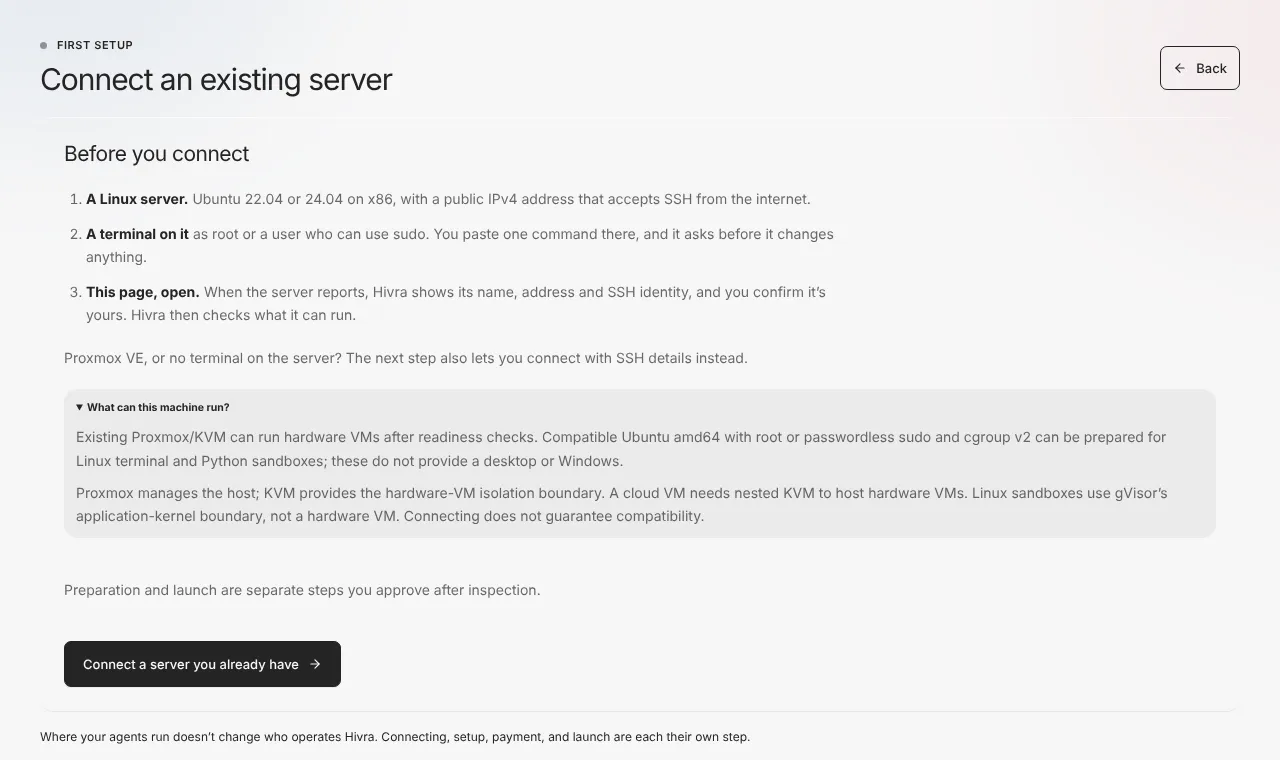
- A Proxmox VE server, connected with SSH details. Connect it first from Servers. See Run agents on your own server. The connection needs a root login on the Proxmox host.
- KVM on the host. A cloud VM that hosts Proxmox needs nested KVM.
- Room for the computer. The host needs at least 4 CPU cores, 8 GB of free memory and 64 GB of free storage, and a free VM ID.
- ISO-capable storage on the host. Proxmox needs an active storage that accepts ISO images.
- A Windows ISO and the right to use it. Either already stored on that host, or downloadable from Microsoft with a direct link.
- Guest agent, for the optional browser desktop only. The Remote Desktop preparation reaches Windows through the QEMU guest agent, so the agent must be installed and running inside Windows for the desktop to open. It is not needed for the Proxmox console.
- A current host check. The host must have recent evidence that it can run Windows. If it does not, the launch panel says so and offers to add capacity.
The one-command Ubuntu connect cannot run this computer. That route gives Linux Sandbox only, and the connect panel states that it does not provide a desktop or Windows.
| Requirement | Value |
|---|---|
| Hypervisor | Proxmox VE with KVM |
| Host architecture | x86 (amd64) |
| CPU | 4 |
| Memory | 8 GB |
| Disk | 64 GB |
| Machine type | q35 with UEFI firmware (pre-enrolled keys) and a virtio display |
| Virtual TPM | A 2.0 TPM, whose state needs a small volume on the host's storage |
| Disk and network | Disk attached as SATA, network card as an Intel e1000 on the host's configured bridge |
| Host access | Root login over SSH |
Launch it, step by step
- Open Computers from the dashboard. Press Launch computer. You can also expand Browse operating systems and press Launch Windows on its card, which says the computer needs your own server that can run Windows.
- On the Choose step, pick the tile named Windows (your ISO). Its description reads "Install Windows from your own ISO on a server you connected."
- On the Review step, set the name. Names use letters, numbers, dots, dashes and underscores and must start with a letter or number. The suggested name is Windows-1, then Windows-2 and so on. A name outside that rule is refused with "Windows names use letters, numbers, dots, dashes and underscores, and start with a letter or number."
- Under Where it runs, choose My server. If more than one host is ready, choose one in Ready Windows host.
- Choose the install media. The next block covers both ways.
- Tick the rights box.
- Check the Installation media and Rights rows in the summary, then press Start Windows setup.
- The next screen reads "Windows setup has started." Press Continue Windows setup to open the setup record and follow provisioning.
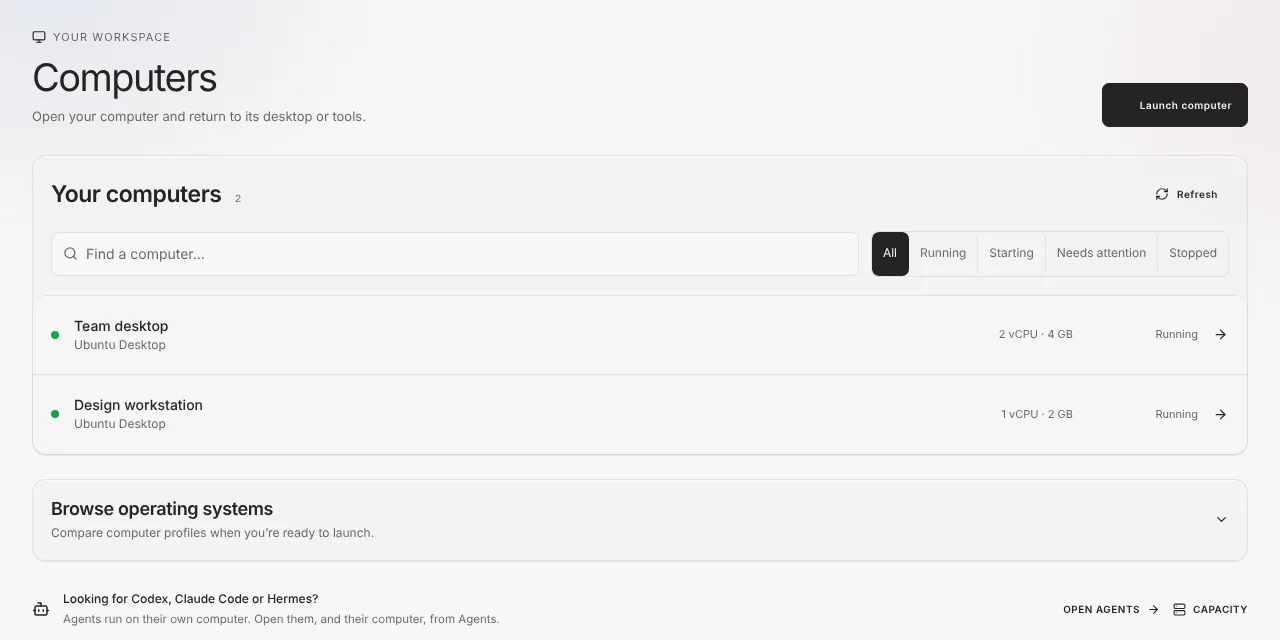
The size is fixed at 4 CPU and 8 GB. The Review step offers no other size for this computer, and the Browser toggle and the model-access choices that agents have do not apply.
If you leave before pressing the start button, your choices are saved as a draft. Coming back, you see a note about your last try. If your server was still downloading an ISO when you left, the note says so and adds that starting a new launch does not stop that download.
Choosing the installation media
The ISO is never sent through your browser. It stays on your Proxmox host, and Hivra does not upload or redistribute it. One copy on the host can be reused for several computers.
Use an ISO already on the host
Under Choose an ISO already on this host, the Host ISO library lists the ISO files on the host's ISO-capable storage. Press Refresh if you just added one. Pick one from the list, whose placeholder option reads "Choose a reusable host ISO". An ISO marked "Windows Server Evaluation (evaluation only)" is an evaluation edition, and you may not use it as a regular licensed install.
If nothing is listed you see "No Windows ISO is stored on this host yet." Either copy one onto the host's ISO storage yourself, or use the download option below.
Download from Microsoft to the host
Open Download directly from Microsoft. The steps there are:
- Follow the Windows 11 download or Windows Server Evaluation link, choose the edition and language on Microsoft's page, and copy the final direct ISO link it gives you.
- Choose the media type in Media type: Windows 11, or Windows Server Evaluation, evaluation only.
- Paste the link into Final Microsoft ISO link.
- Choose a storage in ISO storage on this host.
- Tick the rights box, then press Download to this host.
The host fetches the file itself. The status line reads "Downloading on the host" with the gigabytes received so far, then "Download complete. Refreshing the reusable host ISO library…", after which the ISO appears in the library for you to select.
Microsoft's links expire, so generate a fresh one if a download fails. The rules for a link are strict:
| Rule | What happens if it is broken |
|---|---|
| HTTPS link on an approved Microsoft download host (software.download.prss.microsoft.com or download.microsoft.com) | "Use a direct HTTPS ISO link from the approved Microsoft download service." |
| The link must end in a normal .iso filename | "The Microsoft link must end in a conventional .iso filename." |
| The filename must match the media type you chose | "The selected Windows media type does not match the Microsoft ISO filename." |
| Redirects are not followed | Use the final link, not a landing page |
| One download at a time per host | "This host is already downloading one Windows ISO. Wait for it to finish before starting another." |
| The same filename cannot be downloaded twice | "An ISO with this filename already exists on this host." Choose it from the library, or refresh the library if you just added it. |
Finish installing Windows
Pressing Start Windows setup creates the virtual machine and attaches your ISO. It does not install Windows for you. The accepted screen says to finish installation from the Proxmox console before a desktop connection can be offered.
Open the setup record with Continue Windows setup. It opens the computer's page, which names the VM ID and tells you to open that VM in the Proxmox web console and run the installer there. Walk through the installer as you would on a physical PC: choose a language, accept Microsoft's terms, pick the disk, and enter your own product key or activate later according to your licence.
Setup uses a q35 machine with UEFI firmware, a 2.0 virtual TPM and a virtio display. The disk is attached as SATA and the network card is an Intel e1000, and Windows installs both natively, so no extra storage or network drivers are needed during installation. The virtio display may need a driver inside Windows for higher resolutions.
Until the browser desktop is available for your guest, keep using the Proxmox console after installation.
Open the Windows desktop
This browser desktop is conditional. The computer's page states that automatic guest readiness and customer-host Remote Desktop enrolment are not implemented yet, and that the fast RDP button stays unavailable until that exact guest is separately prepared and verified. On a server you connected it may therefore not be available today, and the Proxmox console remains the guaranteed way in. Where it is available, open the computer from Computers and go to its desktop view. The page reads "Open Windows desktop here" and tells you to select Open to connect. Full screen is optional, and leaving it keeps your desktop on the page.
| Control | What it does |
|---|---|
| Open | When the desktop gateway is available, connects to the desktop over Remote Desktop (RDP). |
| Quality | Selects the streaming quality. Changing it asks you to reconnect: "Reconnect to apply the selected quality." |
| Reconnect | Requests a fresh session once the desktop is open. |
| Try again | Appears after a failed open. |
| Full screen | Expands the desktop. Exit full screen returns you to the page. |
The first time, you may see "Preparing Windows Remote Desktop and verifying its guest firewall boundary…". Using the QEMU guest agent, the dashboard enables Remote Desktop inside Windows and checks that the guest firewall limits who can connect, then opens the desktop. Windows must be installed and running, with the guest agent working, for this to succeed.
Where it is available, the desktop opens inline inside the page, behind your dashboard sign-in. The Linux browser desktop used by Ubuntu Desktop is a different transport and is not used here.
Running it day to day
- Size. The computer is fixed at 4 CPU and 8 GB. Manage tells you the size was set when it was created.
- Updates. Windows updates itself through Windows Update. Updates are not applied for you.
- Capacity. The computer uses your host's CPU, memory and storage, not a Hivra plan. Check the host before launching a second one.
- Unfinished launches. If a launch stopped part-way, check Proxmox for the VM and remove what is left before retrying.
- Power and size. Manage is not built to power or resize this computer, so restart the VM from Proxmox if Windows needs it.
No agent or software is installed in the guest. The only action inside the guest is the Remote Desktop preparation and firewall check when you open the desktop, and it goes through the QEMU guest agent. Your licence, activation, patches, backups and antivirus are yours to handle.
Who can reach it
Whoever controls the connected host can access its infrastructure, including the virtual machines on it, and that includes this computer. The host is yours, so that is you and anyone you give access to it. See security and access.
Where the browser desktop is available, Remote Desktop is exposed only through a private gateway that sits behind your dashboard sign-in, and the guest firewall is checked before the desktop opens.
When something goes wrong
| What you see | What it means and what to do |
|---|---|
| Where it runs shows only a disabled cloud option, "Not available for Windows." | Working as intended. Choose My server. |
| "No compatible Windows host is ready." | You have no connected server that passes the checks. Press Add capacity, connect a Proxmox VE server with SSH details, and run its check. |
| "Your ready hosts do not have current Windows compatibility evidence." | The hosts exist but their last check is old or lacks KVM, root access, a free VM ID, 4 cores, 8 GB or 64 GB. Run the check again from Servers. |
| "Checking the Windows ISOs on this server…" does not clear | The dashboard is reading the host's ISO storage. If it stays, fix the host connection and press Refresh. |
| "Windows ISO inventory could not be loaded." or "The host ISO inventory could not be confirmed." | The host did not answer. Check it is reachable and that Proxmox has an active ISO storage. |
| "Choose an ISO already on this host, or download one directly from Microsoft to this host." | No ISO is available. Add one or download one. |
| "Refresh and choose the exact host-observed Windows ISO again." | The file on the host changed after you chose it. Press Refresh and pick it again. |
| "Confirm your Windows installation and use rights before review." | Tick the rights box. Changing the media type or link clears the tick, so tick it again. |
| "The selected host does not have enough measured capacity for this size." | The host is short on CPU, memory or storage. Free capacity or choose another host. |
| "Microsoft did not provide a safe downloadable size for this link." | Generate a fresh final direct link from Microsoft. |
| "The selected ISO storage does not have enough confirmed free space plus download headroom." | Choose a storage with more free space. |
| "The host could not accept the secure one-time download link." | Retry with a fresh Microsoft link. |
| "Download failed. Generate a fresh Microsoft link and retry." | The link expired or the transfer stopped. Fetch a new link. |
| "The selected customer-owned ISO is no longer available on this host." | The ISO was moved or deleted. Refresh the library. |
| "The saved Windows setup request could not be reconciled without risking another VM." or "Windows setup could not be confirmed." | The launch was uncertain. Check Proxmox for the VM and delete what is left before retrying. |
Problems opening the desktop show one plain sentence and one action:
| Message | Action |
|---|---|
| "Windows is still starting up. Give it a minute, then try again." | Try again |
| "Windows isn't accepting remote desktop connections right now. Restarting the computer usually fixes this." | Restart in Manage, or restart the VM from Proxmox |
| "Hivra can't reach this computer right now. Try again in a moment." | Try again |
| "This computer isn't ready for the fast desktop yet. Restart it, then try again." | Restart in Manage, or restart the VM from Proxmox |
| "The Windows desktop couldn't open. Try again." | Try again |
If the installer is still running, the desktop will not open. Finish the installation in the Proxmox console first.
What this does and does not do
| It does | It does not |
|---|---|
| Create a Windows virtual machine on your Proxmox VE host | Host Windows for you |
| Attach an ISO you choose, or download one you point it to from Microsoft | Supply media, a licence, a product key or activation |
| Point you to the Proxmox console for installation, and offer a browser Remote Desktop only when the guest is prepared and verified | Offer a native desktop client |
| Send your rights confirmation with the launch request | Decide whether your licence terms are met |
| Keep the size fixed at 4 CPU and 8 GB | Resize it or install software inside Windows for you |
| Work on a server you connect with SSH details | Work on the one-command Ubuntu connect |
The computer also does not carry an agent. Attaching one is not part of this flow.
For a comparison with the other computers, see Ubuntu Desktop, Linux computer and Omarchy.
Common questions
Do I get a licence or an ISO supplied for me?
No. You supply the ISO and the licence, and you accept Microsoft's terms before setup starts. Hivra does not provide the media, a product key, activation or a compliance determination.
Can someone else host this computer for me?
No. A Windows computer that someone else hosts for you is not offered. The Where it runs choice shows the cloud option disabled with the note Not available for Windows, and the only way to run it is on a Proxmox VE server you connected.
Do I need a paid plan?
No. A Hivra account costs nothing, and this computer runs on your own server, so it uses your hardware rather than a Hivra plan. The paid plans are for computers Hivra Cloud runs.
What does the server need?
A Proxmox VE host connected with SSH details and a root login, with KVM, at least 4 CPU cores, 8 GB of free memory, 64 GB of free storage, a free VM ID and an active storage that accepts ISO images. The one-command Ubuntu connect cannot run it.
Is my ISO uploaded through the browser?
No. The ISO stays on your Proxmox host. You either choose one already there or have the host download it directly from Microsoft, and one copy can be reused for several computers.
Does Start Windows setup install Windows for me?
No. It creates the virtual machine and attaches your ISO. You finish the Windows installer yourself in the Proxmox web console. A browser desktop connection depends on the guest being prepared and verified, so it may not be available on your server.
Can I use the Windows Server Evaluation ISO?
You can select it, and it is labelled evaluation only. Treat it as an evaluation edition under Microsoft's terms, not as a regular licensed install.
Can I change its size?
Not from the dashboard today. The computer is fixed at 4 CPU and 8 GB, and Manage says the size was set when it was created.