
What it is and who it is for
Omarchy is an opinionated Arch Linux and Hyprland desktop made for development and AI work. Hivra lists it as Omarchy (prepared computer). It is an operating system, so you launch it as a computer, not as an agent. There is no chat tab and no AI model to connect.
It suits developers and AI power users who already like a tiling Hyprland desktop on Arch and want one they can open in a browser tab, without installing it on their own machine. The Launch tile describes it as "A ready-made Omarchy desktop you open in your browser."
Hivra is not affiliated with the Omarchy project or its maintainers. Hivra's catalog pins the upstream v4.0.2 release (MIT licensed) as the version the prepared computer was built from, and links the upstream repository from its launch details.
If you want a plain Ubuntu desktop that anyone with a paid plan can launch as many times as the plan has room for, read Ubuntu Desktop instead. For a headless machine, see Linux computer.
The condition, exactly
Omarchy is offered with a condition, and the condition is how a launch works. This is the wording Hivra keeps in its status record:
A prepared computer on Hivra Cloud. A launch claims the one prepared Omarchy computer the site holds, so the tile appears only where that computer is configured. Hivra does not yet build a fresh Omarchy computer per customer.
In plain terms:
- Launching is claiming. Hivra does not create a new virtual machine from an installer when you press launch. It assigns you a computer that was already set up and held ready.
- There is one. The site holds a single prepared Omarchy computer. Once it is claimed, a second person's launch is refused with "This prepared computer is already claimed."
- The tile is conditional. The Omarchy tile appears in Launch only on a site where that prepared computer is configured. The site reads the same configuration the claim uses, so the tile cannot appear where the claim would fail. A direct link to Omarchy on a site without it lands on the Choose step instead.
- It is not per customer. Hivra does not yet build a fresh Omarchy computer for each customer, and nothing on this page should be read as a promise that it will.
What you get
| Item | Value |
|---|---|
| Operating system | Arch Linux with Hyprland, upstream Omarchy |
| Pinned upstream release | v4.0.2 |
| Size | 4 CPU and 8 GB of memory, fixed |
| Where it runs | Hivra Cloud only |
| Access | Desktop view opened from Launch, plus Manage |
| Browser toggle | None. That switch belongs to agents |
The size is fixed. It is the floor and the maximum at once, so Launch offers one CPU option and one memory option and there is nothing to choose. Manage also cannot resize it: the Resources section says "This computer has a fixed size (4 CPU, 8 GB). For a different size, launch a new one." On this computer that only helps if the site can hand you another prepared one, which it holds only one of.
Hivra's catalog requires at least 40 GB of storage on the host the computer was built for, but Hivra does not show a disk size for the claimed computer, so this page does not promise one.", "Omarchy is a computer of its own. What you install, sign in to and save on it stays on it, and none of it touches your laptop.
Before you start
- A paid plan. Every computer that Hivra Cloud runs for you needs a paid plan, from $9.99 a month for 2 vCPU and 4 GB of RAM. A free account works with a computer or server you connect yourself. Omarchy runs on Hivra Cloud, so a free account is refused when it tries to claim it. The message is "A Hivra-hosted computer needs a paid plan. Your free account works with your own computer: connect one, or choose a plan." See what you pay for.
- Room in your plan. The claim also fails if your plan has no room for another computer. The message is "Your plan's agent limit is reached. Upgrade for more slots, or remove an agent first." Removing something you no longer use frees the room. Review does not check your plan for Omarchy, so a refusal arrives only after you press launch.
- A site that holds the prepared computer. If Omarchy is not in your Launch list, this site has not configured it. There is nothing to fix on your side.
- A current desktop browser. The Desktop view opens behind your Hivra sign-in.
- No agents. You cannot add an agent to an Omarchy computer from Hivra. The Agents section in Manage lists agents on the computer but does not offer adding one for this computer.
Omarchy cannot run on a server you connected. If you try to launch it with a destination other than Hivra Cloud, Review says "Omarchy runs on Hivra Cloud only." See Run agents on your own server for what a connected server can run.
Launch Omarchy
- Sign in and open Computers from the dashboard, then press Launch computer. This opens Launch with computers selected. You can also start from Launch on Home. There is a shortcut: on Computers, open Browse operating systems. If the site holds the prepared computer, an Omarchy card appears there with a Launch Omarchy button that skips Choose. Open Technical details on that card for the pinned v4.0.2 text.
- On the Choose step, look for the Omarchy tile. If it is not there, see the condition above.
- On the Review step, give the computer a name. The summary line reads "A ready-made Omarchy desktop you open in your browser, with a setup console."
- Under Where it runs, leave Hivra Cloud selected. It is the only destination that works for Omarchy.
- Read the Cost line. It says "Nothing is bought. It uses a computer Hivra already set up." That describes this launch: you are claiming an existing computer, not buying new capacity. It does not remove the paid plan requirement above.
- Press the primary button at the bottom of Review, labelled Launch followed by the computer's name. Until you do, nothing starts, and Back returns you to Choose.
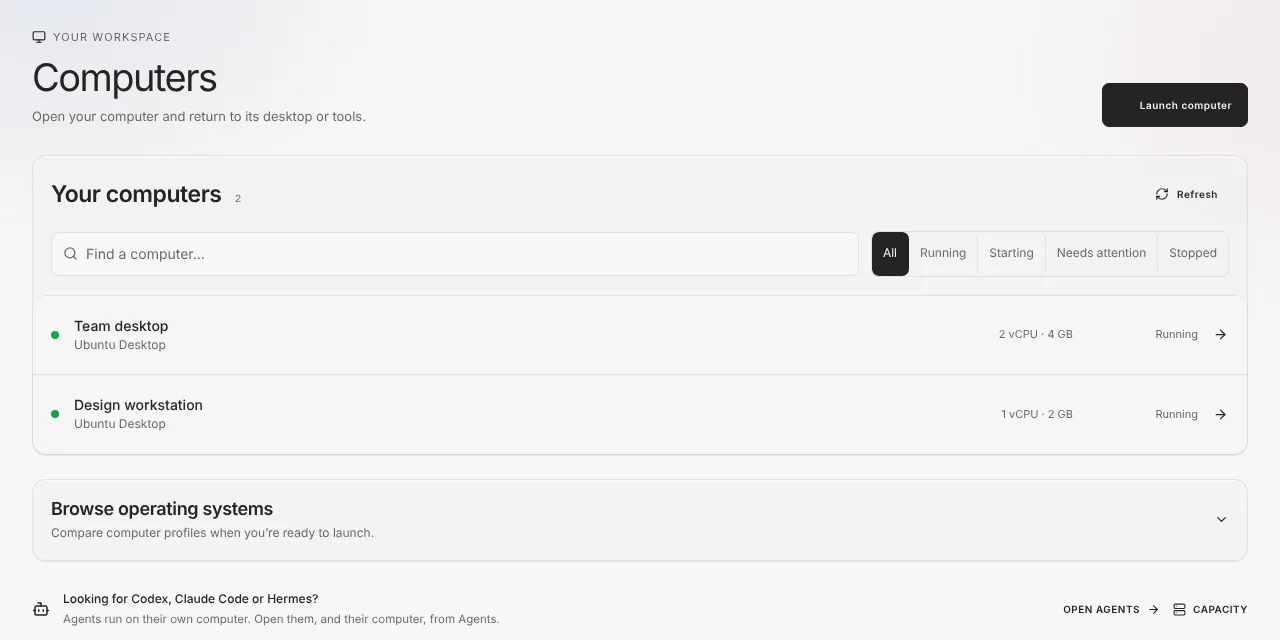
A launch can come back as a pending result while the computer is being verified, and the status reads Starting. When it is ready the status reads Running. Before it hands the computer to you, Hivra checks that the prepared computer is the exact one configured for the site. If that check fails the launch says "The prepared computer could not be verified and was not claimed." and nothing is assigned to you.
On the Computers page, inside Browse operating systems, the card for Omarchy carries a "Ready to launch" badge and the facts "4 CPU", "8 GB RAM" and "Full Linux desktop in your browser". Its technical details read "Ready-made computer. Opens the pinned v4.0.2 desktop through an interactive browser setup console. Runs on Proxmox KVM."
Open and use it
Open the computer from Computers or from Home. Omarchy always lists Desktop and Manage. When the computer is running and its workspace connection is up, Terminal and Files can also appear. The views you will use are:
| View | What it is |
|---|---|
| Desktop | The Omarchy desktop, opened in your browser |
| Manage | Power, usage, updates and removal. Labelled Settings in the sidebar |
The Desktop view only loads while the computer is running. A stopped computer does not open a desktop: open Manage and press Start.
Desktop opens behind your Hivra sign-in. If it fails, use Retry on the Desktop view. Hivra's catalog still lists in-browser streaming of Omarchy's Hyprland desktop as not fully accepted, so the Desktop view can show the messages in the troubleshooting table below. Treat this as a prepared computer with a condition, not a guaranteed smooth desktop.
Day to day, treat it like any Omarchy install. Use its own menus and terminal for your software, and keep anything you cannot recreate copied somewhere you control.
Manage: power, usage and updates
Open the computer and choose Manage. For Omarchy the Manage side nav shows Overview, Agents, Resources, Updates and Advanced. There is no Recovery section because prepared computers have no restore points yet, and no Private network section. Agents lists agents on the computer, but adding one is not offered on Omarchy.
- Power. Start, Stop and Restart live on Overview. Each is disabled with a reason when it cannot apply.
- Force off. Prepared computers are one of the kinds that offer a force off for when a computer will not shut down in time. It switches the machine off at once, so unsaved work in open apps is lost. Use it only when the computer is stuck.
- Resources. Fixed, as described above. There is no resize.
- Destroy. Removing the computer deletes what is on it. Do not remove a prepared computer you still need, because Hivra does not say that you can claim another Omarchy computer afterwards, since the site holds only one.
Omarchy has no restore points yet, and Manage has no Recovery section for it. Hivra does not promise backups of what is on the computer.
Updates and the pending refresh
There are two different things called an update here, and they are easy to mix up.
Updating Omarchy yourself. Open the Omarchy menu on the desktop and choose Update, then Omarchy. You have admin (sudo) on this computer, so it does not ask for a password. Every Omarchy 4 release works here; a new major version needs Hivra to check it first. Hivra's desktop connection updates itself and is installed the next time you open Desktop. Manage, then Updates shows this too. Opening your existing computer never triggers an upgrade.
The pending prepared refresh. A change that is waiting to be released will make new claims reserve the prepared computer while it moves to the latest supported official stable v4 release of Omarchy. As recorded in the status file:
- It applies only to a new claim of the prepared computer. It does not build a fresh computer per customer, and it does not upgrade computers that are already claimed.
- The desktop stays blocked during the refresh until the exact release, its migrations and a rebooted kernel have been verified. Do not expect to open Desktop while a refresh is running, and a pending response from a launch is not admission to the desktop.
- Live rollout is unverified. Treat it as pending. Check what Launch offers today rather than assuming a newer Omarchy release.
If a refresh fails, the computer is kept for inspection rather than retried automatically, and nothing grants you Desktop on a guess.
When something goes wrong
| What you see | What it means and what to do |
|---|---|
| No Omarchy tile in Launch | This site has not configured the prepared computer. Choose another computer, such as Ubuntu Desktop. |
| "Omarchy is not available on this site. Choose another computer." | The claim was refused before anything happened because the site holds no prepared computer. Nothing was created. |
| "This prepared computer is not configured on this site." | The same condition as seen from the server. |
| "This prepared computer is already claimed." | The one prepared computer belongs to someone else. You cannot claim it. |
| "A Hivra-hosted computer needs a paid plan..." | A free account cannot claim a Hivra Cloud computer. Choose a plan under Plan & billing. |
| "Your plan's agent limit is reached..." | Your plan has no room left. Remove something you do not use, or move to a larger plan. |
| "Plan access is required before claiming a computer." | Your account has no plan record that allows a claim. Check Plan & billing. |
| "Omarchy runs on Hivra Cloud only." | A connected server was chosen under Where it runs. Switch back to Hivra Cloud. |
| "The prepared computer could not be verified and was not claimed." | Hivra could not confirm the configured computer, so it assigned nothing. Try again later. If it keeps happening, the site's setup needs attention. |
| Too many launch attempts | The claim is rate limited to 4 attempts in 15 minutes. Wait before trying again. |
| "This prepared computer currently runs on Hivra Cloud." | The same refusal as above, raised when another destination was chosen. Switch Where it runs back to Hivra Cloud. |
| This prepared computer no longer matches the setup Hivra has on record, so its power controls are off. Contact support. | Hivra cannot confirm the computer is the configured one, so it turned the power controls off. Restart and Force off will not work. Contact support. |
| "Desktop is still opening" | The computer answered but the desktop has not finished. Wait, then retry. |
| "Desktop couldn’t open" with Retry | The desktop runtime did not start. Retry. A retry can repair the runtime. |
| "Desktop couldn’t open right now" | Preparing the desktop is paused for now. Try again later. |
| "This computer needs a current launch" | The computer's desktop setup is out of date for this site. If it is the prepared computer, contact support. |
| "Stream disconnected" | Only the stream dropped. Your desktop and its apps are still running. Reconnect. |
If the computer will not respond at all, open Manage, read the status, and use Restart. If it stays stuck, Force off under Advanced, then Start. If the power controls are off with a message about the setup on record, Restart and Force off are not available and you need to contact support. For problems that are not specific to Omarchy, see Troubleshooting.
What Hivra does and does not do
- Hivra holds one prepared Omarchy computer where it is configured, and a launch claims it for you.
- Hivra does not build a fresh Omarchy computer for each customer.
- Hivra does not run Omarchy on a server you connected. It runs on Hivra Cloud only, and every Hivra Cloud computer needs a paid plan.
- Hivra does not resize it. The size is fixed at 4 CPU and 8 GB.
- Hivra does not promise backups, and a separate computer is a boundary, not a guarantee that what runs on it is safe. See security and access.
- Hivra does not claim the pending refresh is live. It has not been verified in production.
Common questions
Why is there no Omarchy tile for me?
The tile appears only on a site where the prepared Omarchy computer is configured. If it is missing, this site does not hold one to claim. Choose another computer such as Ubuntu Desktop.
What does it mean that a launch claims the computer?
Hivra does not build a new virtual machine when you launch. It assigns you the one prepared Omarchy computer the site already holds. Once claimed, nobody else can claim it.
Does Omarchy need a paid plan?
Yes. It runs on Hivra Cloud, and every Hivra Cloud computer needs a paid plan. A free Hivra account is refused with a message saying a Hivra-hosted computer needs a paid plan. The Review step says nothing is bought because you are using a computer that is already set up, but the plan requirement still applies.
Can I run Omarchy on my own server?
No. Review says Omarchy runs on Hivra Cloud only. A server you connect can run other computers, but not this one.
Can I make the Omarchy computer bigger?
No. It has a fixed size of 4 CPU and 8 GB of memory. Manage says that for a different size you launch a new one, which here depends on the site holding another prepared computer.
Will my Omarchy computer be upgraded by the pending refresh?
No. The refresh applies only to new claims of the prepared computer. Opening an existing computer does not trigger an upgrade. You can update Omarchy yourself from its own menu.
Is the pending refresh live?
Its live rollout is unverified, so treat it as pending. Check what Launch offers today.
Is Hivra affiliated with the Omarchy project?
No. Hivra is not affiliated with Omarchy or its maintainers. Hivra offers a prepared computer built from the upstream release it pins.