
How the dashboard is laid out
The dashboard is organised around two kinds of thing you own: agents and computers. Each agent has a computer of its own, and a computer can also exist without an agent. Almost every screen is either a list of those things, a way to start a new one, or a page about one you already have.
You do not need to learn all of it. For day-to-day work you use three places: Home to open something, Launch to start something, and the agent page to work. The rest is where you go when something changes, such as a new plan, a new server or a problem.
| Screen | Use it to | Where it is |
|---|---|---|
| Home | Pick the agent or computer you want to work in | Sidebar, first item |
| Launch | Start a new agent or computer | Sidebar, button under the search box |
| Agents | See every agent and browse what you can launch | Sidebar |
| Computers | See every computer and start a computer without an agent | Sidebar |
| Activity | Read what your agents did and what needs you | Sidebar |
| Settings | Account, keys, shared memory, tools, templates, theme | Sidebar, lower section |
| Billing | Plan, payment methods, credits | Sidebar, lower section |
| Servers | Add your own machine or cloud account as capacity | Sidebar, lower section |
| Applications and Help | Install the web app, get support | Sidebar, bottom |
Everything on this page describes the hosted dashboard. A self-hosted Hivra hides Billing, because there is nothing to bill, and hides the Usage view in Activity.
The sidebar and the rail
The left sidebar is on every dashboard page. Top to bottom it holds the following.
- The Hivra mark and a collapse button. The mark always takes you to Home. The small arrow beside it collapses the sidebar to a narrow rail of icons, each with a short label under it (Applications shows as Apps). On a narrow screen the sidebar can show as a rail too.
- Switch or search. Opens a switcher where you can jump straight to any agent or computer by name. The shortcut is Cmd K on a Mac and Ctrl K elsewhere.
- Launch. The way in to starting something new.
- Home, Agents, Computers and Activity. Your daily screens. When you have used something recently, a Continue link with its name appears under Home and takes you back to where you left it.
- Need you. A badge with a count that appears only when an agent or computer needs you, for example a launch that failed or an agent waiting on an approval. It opens Home filtered to just those items.
- Settings, Billing and Servers, then Applications and Help.
- Your account. Your avatar menu, your name and email, your account code, and a light or dark theme toggle.
On a phone the sidebar becomes a bottom bar with Home, Agents, Launch and Computers, plus a More menu. More holds Activity, Settings, Billing and Servers under Manage, and Applications and Help under Help, along with your account and the theme switch.
Your account code is a short code shown in the sidebar and in Settings. Hivra's server setup command shows the same code before it connects a server to your account, so you can check the two match. If they differ, stop and do not continue.
Home: pick where you work
Home is the page you land on. It is headed Where will you work? and lists your agents and computers as cards. Each card shows the name, the type, whether it is running, and for an agent the computer it runs on and that computer's size.
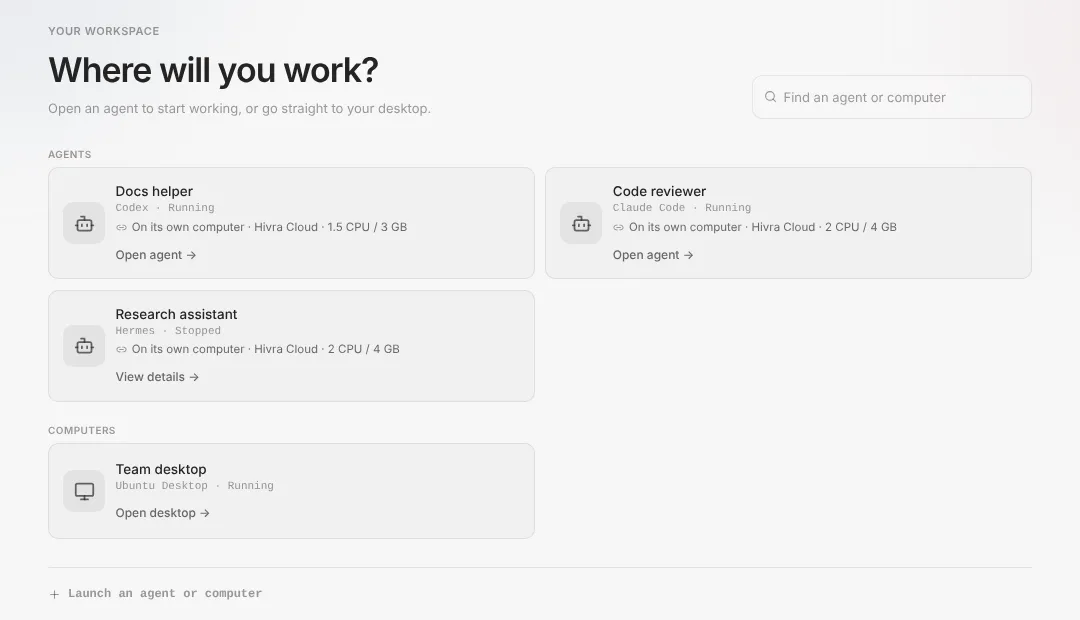
What you can do here:
- Open something. Select a card. A running agent says Open agent. A running computer says Open desktop, or Open computer if it has no desktop, and a sandbox says Open sandbox. An item that needs you says Open to respond. A stopped one says View details, because there is nothing to work in until you start it.
- Search. Type in Find an agent or computer. Matching narrows both lists at once. The day-one checklist is hidden while you search or view items that need you.
- Pick up where you left off. If you have been working in something, it is offered first, with a Recent row of the others you used lately.
- See what needs you. When any item needs attention, a button reads, for example, 1 needs attention. It switches the page to Needs your attention, where each item says what is wrong and what to do about it. Retry buttons such as Try again and Launch again are on the card, and an approval an agent is waiting on can be answered on its card. A question opens the agent's chat instead, with an Open to respond button. Show all agents and computers takes you back.
- Launch an agent or computer. The link at the bottom of the list.
If you have nothing yet, Home shows a short first-run card in place of the list instead of an empty page. After your first launch, a small day-one checklist may appear above the list for a while.
When you reopen the app itself on Home, Hivra can take you straight back into the agent you were last in, if it is running. You will see Opening and its name, with a link to Choose another agent or computer. Choosing Home from the sidebar, or the Hivra mark, always shows the list instead.
Launch: start an agent or a computer
Launch is the one place to start anything. It has two steps, shown as Choose and Review.
- Open Launch from the sidebar. The first step is headed What do you want to launch? and has two groups: An agent and A computer.
- Select a tile. Each supported agent has one, and each tile says briefly what it is for and whether it suits your current setup.
- On Review and launch you name it, see where it runs, choose its size, decide how it gets its AI model, and see the Cost before anything starts.
- Select the Launch button at the bottom. It names what you are about to start.
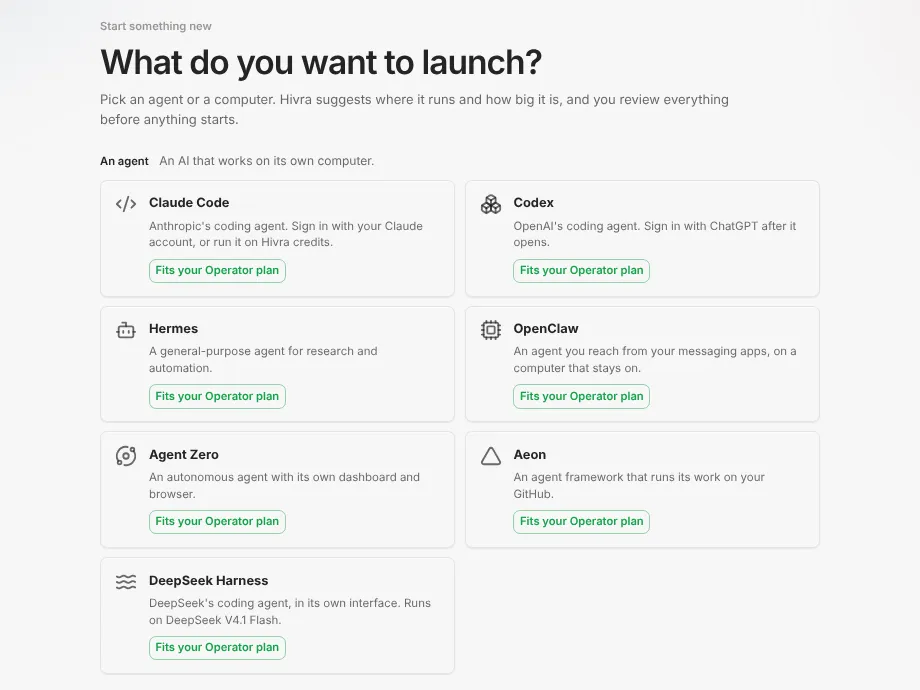
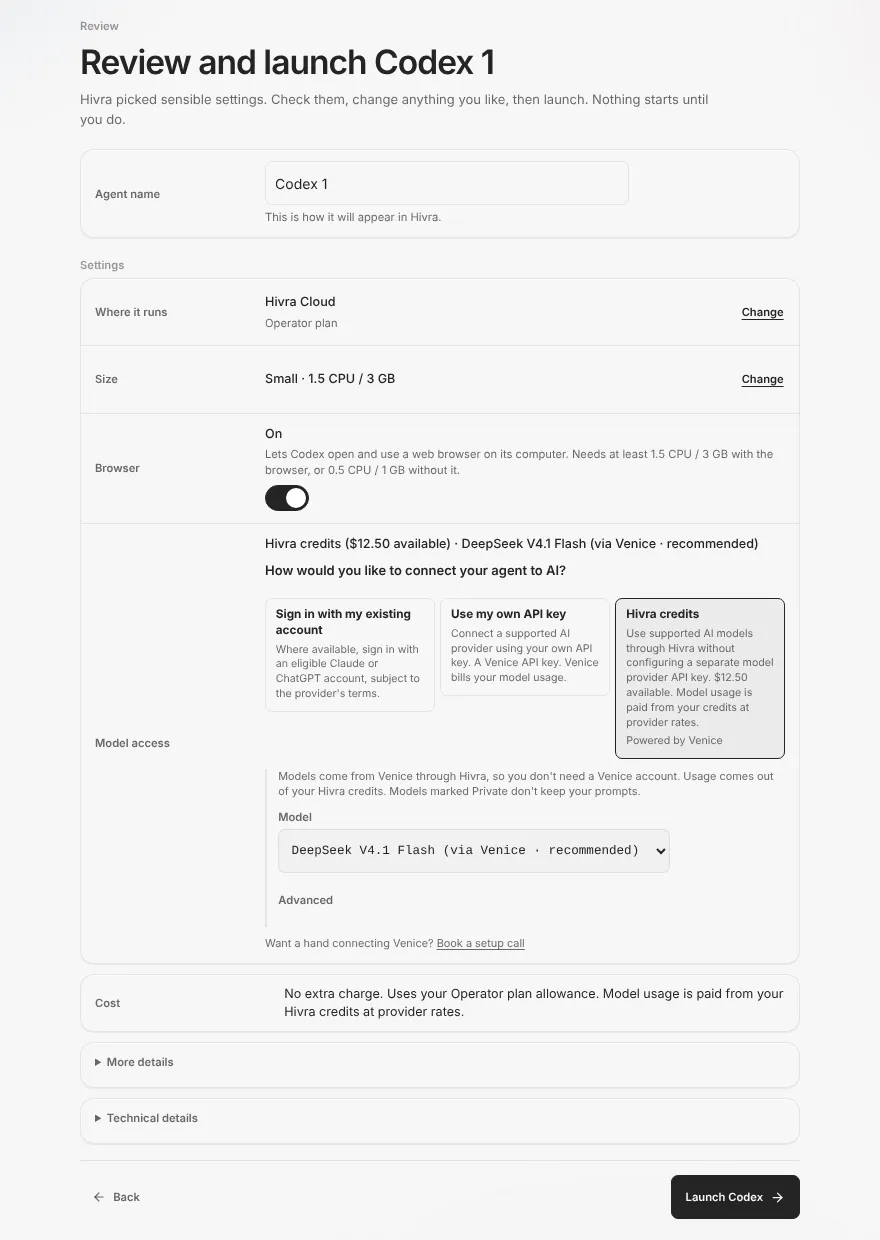
After you confirm, the page tells you what is happening: that your agent's computer is being created, that it is setting up, or, if something failed, that it could not start, with a way back to Review. If you leave and come back to Launch partway through, it asks whether to continue the launch you started or start a new one.
Every computer that Hivra Cloud runs for you needs a paid plan, from $9.99 a month for 2 vCPU and 4 GB of RAM. A free account works with a computer or server you connect yourself.
The full walk through, including the model choices and what to do when a launch fails, is in Launch your first agent. How the model is paid for is in how your agent gets its model.
Agents: your list, and what you could launch
Agents is the inventory page. Its subtitle is Find your agent and return to its work. It lists every agent you have, including agents that were added to an existing computer, and it carries a Launch agent button.
Below your agents is a collapsed section, Browse agents you can launch. Open it to see each supported agent with a one-line description. Selecting one takes you to Launch with that agent already chosen, where Review shows where it would run, its size and its cost.
Use Agents rather than Home when you want the whole list in one place, or when you are looking for an agent that is stopped and want to check its state before opening it.
The agent page: where the work happens
Opening an agent takes you to its own page. This is where you will spend most of your time. It has its own sidebar, with the agent's name at the top. Select the name to switch to another agent or computer without going back to Home.
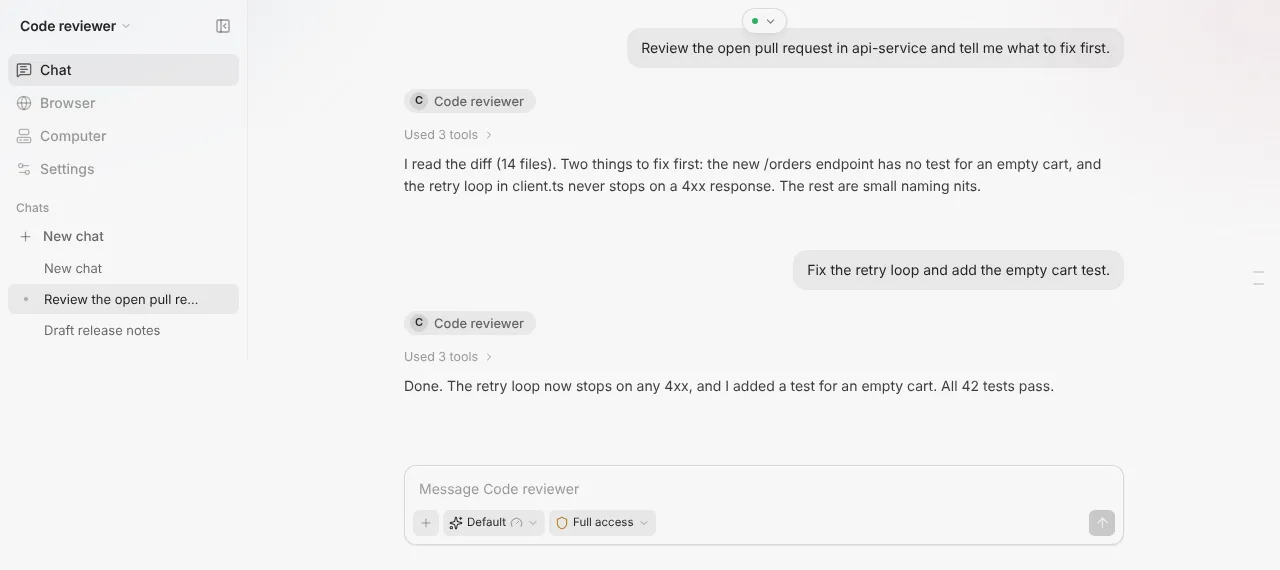
For Claude Code and Codex, the sidebar has four rows:
| Row | What is inside |
|---|---|
| Chat | A message box and your chats with the agent. New chat starts another. Beside Chat there is also a view of the agent's own command line session. |
| Browser | A view-only look at the browser the agent drives, where the agent has one. |
| Computer | Desktop, which explains how to give the agent a desktop, plus Files and Terminal. Files opens first. |
| Settings | The agent's settings, and Skills. Claude Code also has a Telegram view. |
Other agents are organised the same way, but their first row opens the agent's own web app. For OpenClaw, Agent Zero, Aeon, Hermes and DeepSeek Harness that row is labelled Dashboard, with Files, Terminal and Settings beside it. OpenClaw also has a Browser row, and a Desktop entry may appear where the computer has one. Open your agent goes through which agent opens into what.
A few things worth knowing about the parts you will use most:
- Files lists the agent's home folder. Where the agent works in repositories, a Files and Changes switch appears at the top and lets you flip between browsing and the changes the agent has made. Use it to look over what the agent wrote before you rely on it.
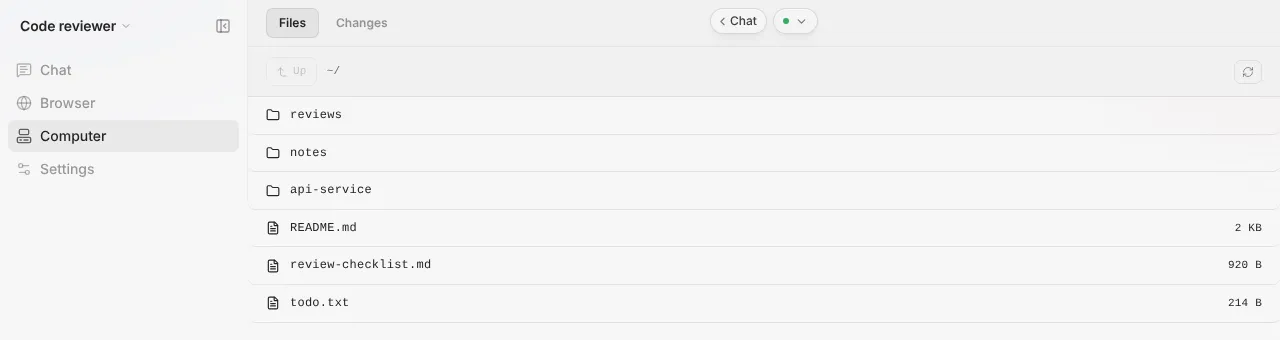
Computer, Files, with a sample home folder listing. The Files and Changes switch is at the top where it is offered. Sample data. - Terminal is a plain shell on the agent's computer. It is the right place to start long-running work inside tmux.
- Skills lists the skills installed on the agent, lets you add more with Add skills, and has a delete icon on each one.
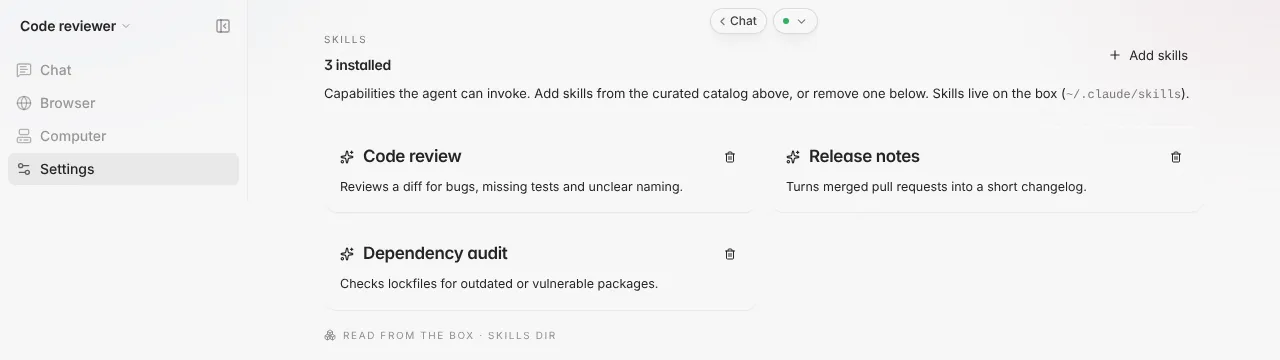
The Skills view with sample data: three sample skills, Add skills at the top right and a delete icon on each card. - Settings is described in the next section.
On a paid Hivra plan the computer stays on and keeps your files, sessions and login. A Claude Code or Codex run you start inside tmux in the computer's Terminal tab keeps going after you close the laptop. On Claude Code, work you send through Telegram, connected in the agent's Telegram tab, runs on the computer, not in your browser.
Agent settings: power, sign-in, size and updates
Settings on the agent page is the control panel for that one agent and its computer. A side list switches between sections, and which sections appear depends on what the computer supports.
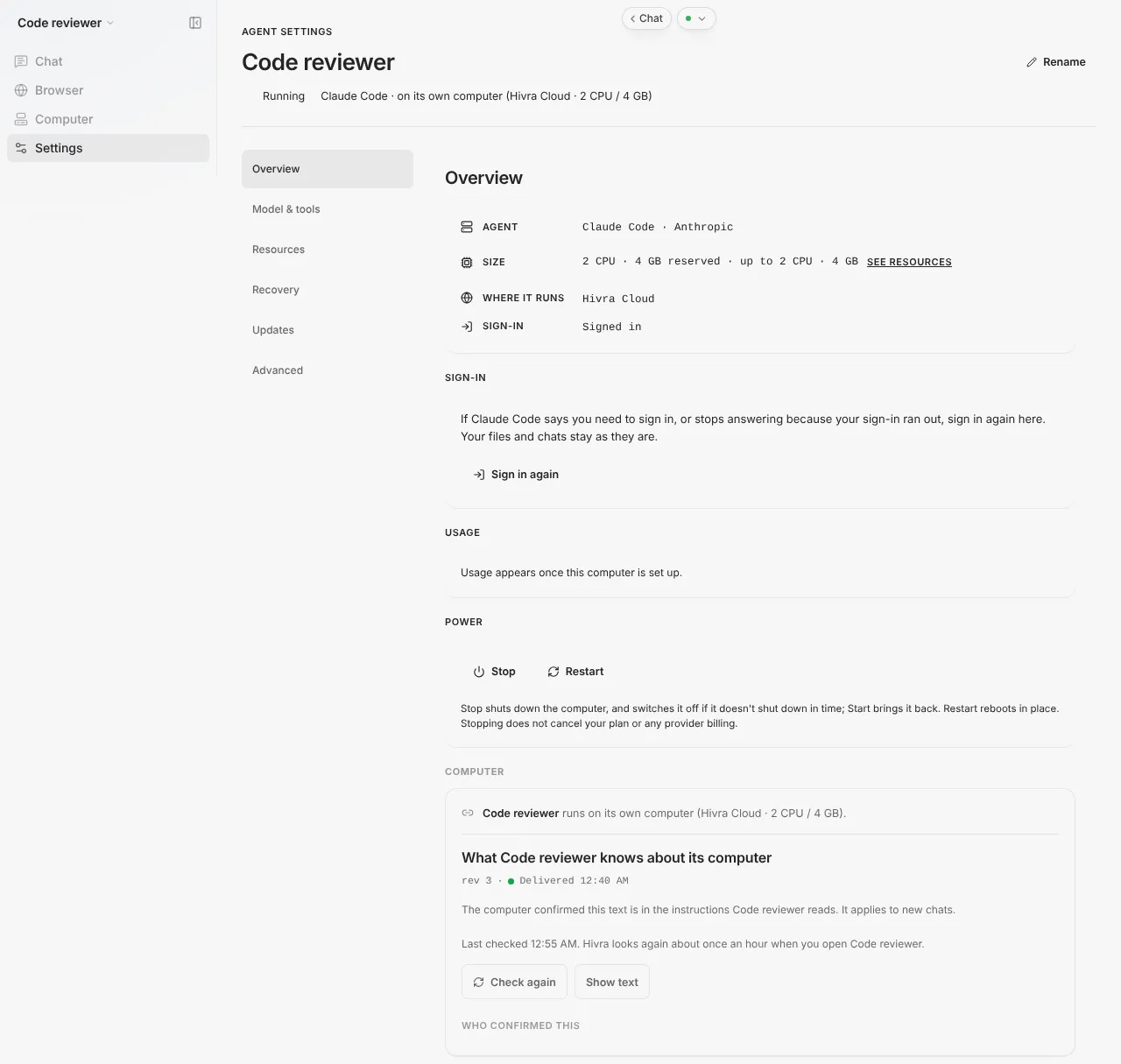
| Section | What it holds |
|---|---|
| Overview | The agent, its size, where it runs and whether it is signed in. Sign in again (Claude Code and Codex) or Change GitHub token (Aeon), Usage, and Power with Stop, Start and Restart. Rename is at the top. |
| Agents | Agents added to a computer, where the computer supports that. |
| Model & tools | The model connection, tools and the browser setting. |
| Resources | The computer's size. |
| Recovery | Restore points and folder recovery, where the computer offers them. |
| Private network | Private access to the computer, where it is offered. |
| Updates | Updating the agent software and the connection service. |
| Run a command | A place to run a command on the computer, where it is offered. |
| Advanced | On computers that offer it, Force off and Force restart, and other rarely needed controls. |
Two controls on Overview are worth understanding before you need them.
- Sign in again. (Aeon shows Change GitHub token here instead.) If Claude Code says you need to sign in, or stops answering because your sign-in ran out, sign in again here. Your files and chats stay as they are.
- Power. Stop shuts the computer down and Start brings it back and Restart reboots in place. On computers that offer Force off, Stop also switches the computer off if it does not shut down in time. Stopping does not cancel your plan or any provider billing, so a stopped computer on a paid plan is still billed as that plan.
To keep an agent current, see Update an agent. To change which model it uses, see models and credits.
Computers: the machines under your agents
Computers lists every computer you own, whether it runs an agent or not. Its subtitle is Open your computer and return to its desktop or tools. It is the right place to start a computer with no agent on it, for example an Ubuntu Desktop you want to use yourself.
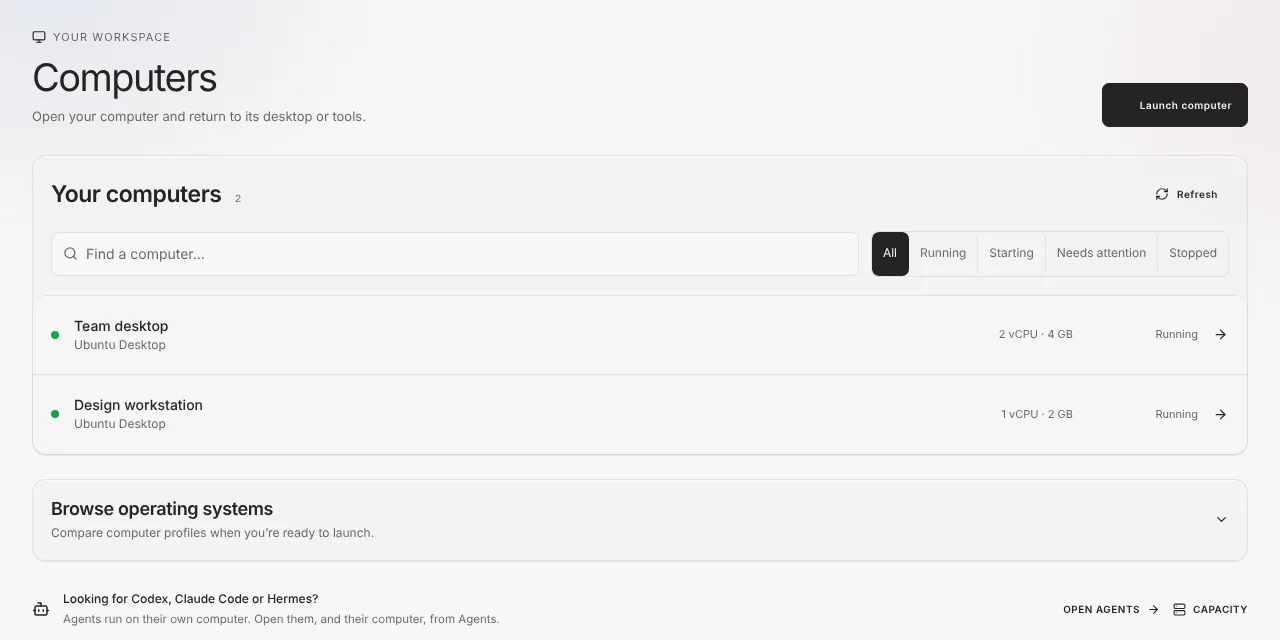
- Launch computer opens Launch on the computer group.
- Your computers shows each one with its type, size and status. A filter row narrows it to All, Running, Starting, Needs attention or Stopped, and Find a computer... searches by name. Refresh reloads the list.
- Browse operating systems is a collapsed section for comparing computer types before you launch one. See Ubuntu Desktop and a Linux computer.
- A line at the bottom points you to Open Agents if what you want is Codex, Claude Code or Hermes, because agents run on a computer of their own and are opened from Agents. A Capacity link next to it opens Servers.
A computer you open has a shorter list than an agent: Desktop, Terminal and Files where it has them, and Settings. A computer with no desktop has no Desktop row.
Activity: what your agents did
Activity answers two questions: what did my agents do, and does anything need me. It opens on a set of tabs.
| Tab | What it shows |
|---|---|
| Needs you | Only present when something needs you. Each item says what happened and what to do. |
| History | Your saved record for roughly the last 30 days. Routine changes are not alerts. Search with Search activity... and filter by agent or by kind of activity. Load older events goes further back. |
| Runs | The steps an agent reported, in order. Select a step to inspect what was reported. A quiet run does not mean it finished. |
| Usage | Hosted dashboards only. Sessions, total tokens, an estimated cost, active days, which models and skills were used, and a daily token chart. |
Selecting an event opens an inspector with What happened, then either What to do or Why this is here, and a Technical details disclosure for IDs and timings you can copy into a support message. A Sources disclosure lists what Hivra keeps a record of and when each computer last reported.
Treat Activity as a record of what was reported, not a guarantee of what happened. If a computer has not reported yet it says so, and Refresh at the top of the page reloads everything. If some records could not be loaded, a notice says the history may be incomplete and offers Try again.
Usage figures are estimates built from what was recorded. Your real model bill comes from whoever supplies the model, which is covered in what you pay for.
Billing, Servers and the other pages under Manage
Billing is titled Plan & billing and has tabs for Overview, Plans, Payment methods, Credits and History. Overview shows your current plan and how much of its processor and memory is in use, with Change plan, Manage payment method and Cancel subscription. Credits and History appear only where those features are switched on for your account. Agent wallets are opened from the Wallets row in Settings. Plans, prices and the money-back terms are in what you pay for.
Servers is where you add capacity: Hivra-hosted, your own cloud account, or your own machine. The page is titled Your servers, and a first visit asks How would you like to add capacity? with three choices: Let Hivra host it, Use my cloud account and Connect my own machine.
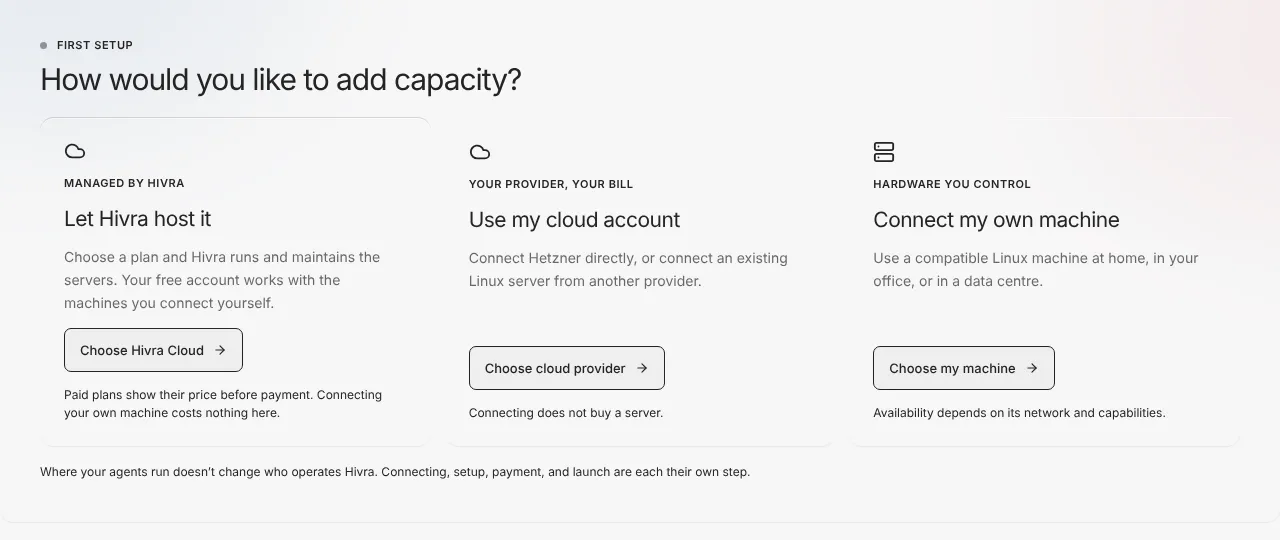
Connecting a machine costs nothing in Hivra, and connecting does not buy a server. Once connected, servers are listed under Connected servers, and a launch can target one. Run agents on your own server covers requirements and both ways to connect.
Disconnecting a server deletes Hivra's key for it, so Hivra can no longer sign in. The page shows the command to remove the hivra user from the server itself if you want that too.
Applications says you can keep using Hivra in the browser with nothing to install, offers to add the Hivra web app to your Dock, desktop or Home Screen where your browser supports it, and links to your computers. Help has an email link for support, the community Discord, and the Terms and Privacy pages. When you write to support, include what you were trying to do and any error message, and leave out passwords and API keys.
Settings: account, keys and toolkit
Settings is a hub of short rows, grouped by purpose. Most rows open their own page.
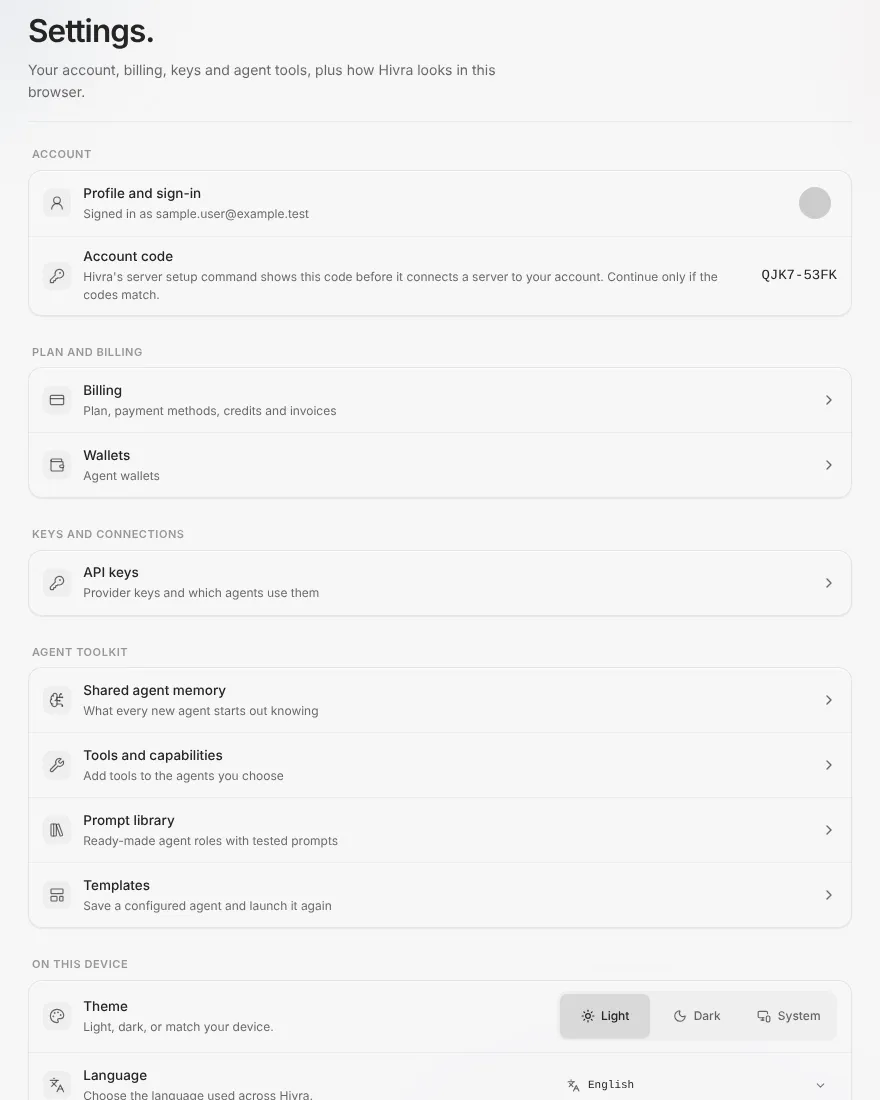
| Group | Rows |
|---|---|
| Account | Profile and sign-in for your name, email, security and sign-out, and your Account code. |
| Plan and billing | Billing and Wallets. |
| Keys and connections | API keys: your provider keys in one place, and which agents use them. |
| Agent toolkit | Shared agent memory, Tools and capabilities, Prompt library and Templates. |
| On this device | Theme (Light, Dark or System) and Language. |
| Apps and help | Applications and Help. |
| Reset this browser | Clear the local cache. |
The toolkit rows are the ones people tend to miss:
- Shared agent memory is text that is given to every new agent you deploy, so they start out knowing the basics about you. Each agent still keeps its own notes as it works. It applies to agents you launch after you write it.
- Tools and capabilities is a catalog of tools you can add to the agents you choose. They load on the agent's next message.
- Prompt library holds ready-made agent roles with tested prompts.
- Templates lets you save a configured agent and launch it again later. Each saved template has actions to copy a share link, launch from it and delete it.
Clear cache clears dashboard data cached in this browser and layout choices saved here, such as terminal tabs, then reloads the page. Your account, agents and computers are not affected. The first press arms it and the button then reads Press again to clear and reload. It disarms itself after about four seconds if you do nothing.
When something goes wrong
| What you see | What it means and what to do |
|---|---|
| A 1 needs attention button on Home, or a count next to Need you in the sidebar | Select it. The filtered list says what is wrong on each card. Use Try again or Launch again where the card offers it. |
| A card says Last known: and a state, with View details | Hivra could not check that item just now, so it is showing the last state it knew. Open it for details, or use Refresh on the Computers page. |
| Some agents and computers couldn't be loaded. The rest are listed. | One source of your list failed. Use the retry button beside the message. |
| Home shows Nothing matches that search. | The search box still has text in it. Clear it. |
| An agent card says View details instead of Open agent | It is stopped. Open it, go to Settings, Overview, and use Start under Power. |
| The agent says you need to sign in | Open Settings and use Sign in again on Overview. Your files and chats are kept. |
| Activity could not be loaded. Refresh to try again. or Your session expired. Sign in again to load activity. | Refresh, or sign in again. If it keeps happening, the rest of the dashboard may be affected too. |
| Some records could not be loaded. This history may be incomplete. | Select Try again in the notice. Until it works, do not read a missing event as proof something did not happen. |
| Billing is missing from the sidebar | You are on a self-hosted Hivra, which has no billing. |
| Servers shows Connections could not be loaded. | Reload the page. If a server you connected is not listed after that, check it is still reachable. |
If an agent or computer is still stuck, Troubleshooting has fixes for the common causes.
What Hivra does and does not do
- Hivra shows you the state it has recorded. When it cannot check, it says Last known instead of guessing.
- Hivra does not guarantee that anything on a computer is backed up. Keep your own copies of anything you cannot lose.
- Stopping a computer does not stop billing for your plan or for your own server provider.
- Activity and Usage are records and estimates, not an invoice.
- A separate computer is a boundary around your agent, not a guarantee that the agent is safe. Read security and access before you give an agent credentials.
Common questions
Where do I start a new agent?
Select Launch in the sidebar, or the Launch an agent or computer link at the bottom of Home. Launch has two steps, Choose and Review, and nothing starts until you confirm on Review.
What is the difference between Home, Agents and Computers?
Home lists both agents and computers and leads with what you used recently. Agents lists only agents and lets you browse what you can launch. Computers lists only computers, including ones with no agent, and is where you start a computer on its own.
Why does my agent say View details instead of Open agent?
That agent is not running, so there is nothing to work in yet. Open it, go to Settings, then Overview, and use Start under Power. If it needs attention, the card says what is wrong.
Where do I stop or restart an agent's computer?
Open the agent, choose Settings in its sidebar, and use Stop, Start or Restart under Power on the Overview section. Stopping does not cancel your plan.
Where is Billing?
Billing is in the lower part of the sidebar, and on a phone under More. It is also linked from Settings. A self-hosted Hivra does not show Billing.
What is the account code for?
It is a short code shown in the sidebar and in Settings. Hivra's server setup command shows the same code before it connects a server to your account. Continue only if the two codes match.
Can I use the dashboard on my phone?
Yes. On a phone the sidebar becomes a bottom bar with Home, Agents, Launch and Computers, and a More menu for Activity, Settings, Billing, Servers, Applications and Help.