
What Agent Zero is, and what Hivra adds
Agent Zero is an open-source agent from the Agent Zero project. You give it a goal and it plans the steps, uses tools, browses the web and runs code in its own working environment. It ships its own web dashboard, with a chat, a browser and a computer view, so you use it the way its makers designed it.
Hivra hosts that stack for you. Each Agent Zero gets a computer of its own, and Agent Zero runs inside a container on that computer. Its dashboard is bound to the computer's localhost, so it is never exposed to the public internet. Hivra's authenticated gateway sits in front of it and passes you through once you are signed in to Hivra.
This page is for developers and AI power users who want to know exactly what runs where, how the model gets connected, how big the computer needs to be and what to do when something looks wrong. For the short pitch, see the Agent Zero page.
Hivra is an independent hosting service and is not affiliated with or endorsed by the Agent Zero project. Agent Zero is their software, and its own documentation is the place to learn how its tools and settings work.
What runs where
| Piece | Where it lives |
|---|---|
| Agent loop, tools and Agent Zero's own browser | In the Agent Zero container, on the agent's computer |
| Agent Zero's dashboard | Inside that container, reachable only on the computer's localhost |
| Hivra gateway | On the same computer. It checks your Hivra sign-in, then proxies the dashboard to you |
| Agent Zero's own login | Seeded by Hivra when the computer is provisioned. The gateway uses it for you |
| Terminal and Files | The computer itself, not the container's inner tools |
| Model | Hivra credits through Venice, or whichever provider you set in Agent Zero's Settings |
Because the agent loop and its tools run on the computer, none of it needs your browser to stay open. Hermes, OpenClaw and Agent Zero run on the computer itself, and Aeon's scheduled tasks run on your own GitHub Actions while the computer hosts its dashboard. None of them needs an open browser.
Agent Zero brings its own browser and computer inside the container. Hivra does not wire its own browser stack to it, so the launch screen has no Browser toggle for Agent Zero and its page has no Browser area. You watch the agent's browser inside Agent Zero's dashboard.
Before you start
- A Hivra account. A Hivra account costs nothing. Every computer Hivra Cloud runs for you needs a paid plan, see pricing and Plans and billing. A free account works with a server you connect yourself.
- Somewhere to run it. Hivra Cloud, or a Proxmox server you connected. See Run agents on your own server.
- A computer of at least 1 vCPU and 2 GB of RAM. That is the floor Hivra enforces for Agent Zero. Hivra suggests 2 vCPU and 4 GB for ordinary use.
- A way to pay for model use. Either Hivra credits, which reach models through Venice, or a provider you set up inside Agent Zero. Model charges are separate from hosting. Hivra credits are not offered on a self-hosted installation or for a computer in your own cloud, so there you set the provider inside Agent Zero.
Agent Zero runs real code and a real browser, so give it work you can review before you hand it access to anything important. See Security and access for how Hivra treats a computer as a boundary, and what that boundary does not promise.
Launch Agent Zero
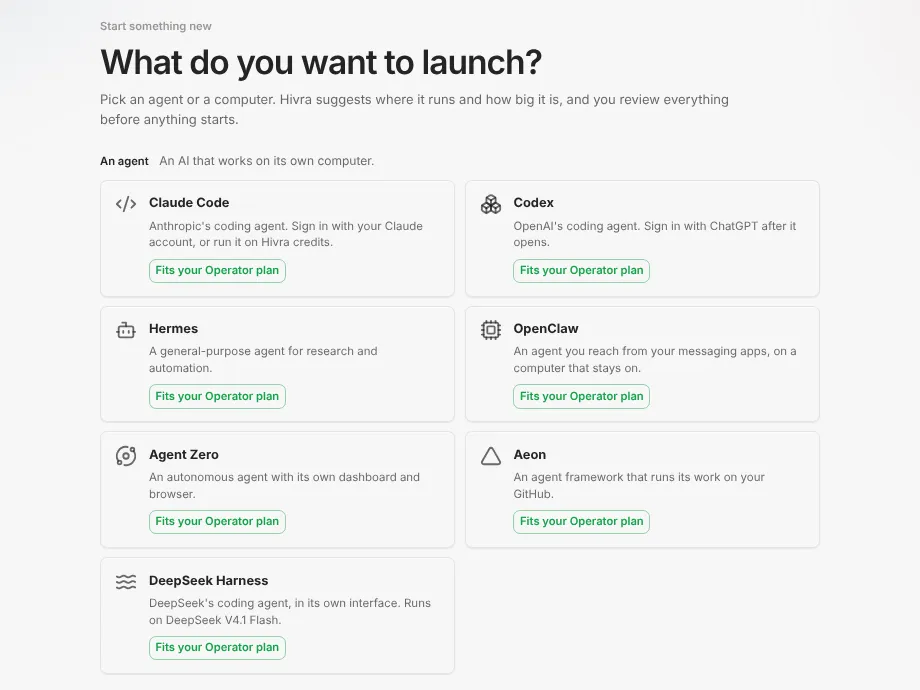
- In your dashboard choose Launch. Step 1 asks What do you want to launch? and lists the supported agents. Pick Agent Zero.
- Step 2 is the Review screen. It opens with Hivra's suggested settings and says nothing starts until you press the launch button. Check each row:
- Agent name is how it appears in Hivra.
- Where it runs is Hivra Cloud, or your own connected server if one is ready. Use Change to switch.
- Size is a pinned size. Hivra proposes Medium (2 vCPU and 4 GB), or Small (1 vCPU and 2 GB) when Medium does not fit where you are launching. Large is 4 vCPU and 8 GB. Presets that do not fit your destination are not offered, so not every size is always selectable, and Change appears only when there is a preset to change to. Small is Agent Zero's minimum.
- Model access shows three choices for Agent Zero, covered in the next section.
- Cost says what the launch adds to your plan and how model use is paid.
- Press Launch Agent Zero. Hivra provisions the computer, starts the container and seeds its login. Wait on the progress screen until the Ready screen appears, then press Open my agent. The agent also appears on your Home page. See Getting started for the whole flow.
- The agent page has a Dashboard area, a Computer area (which holds Files and Terminal, plus a Desktop view) and Settings.
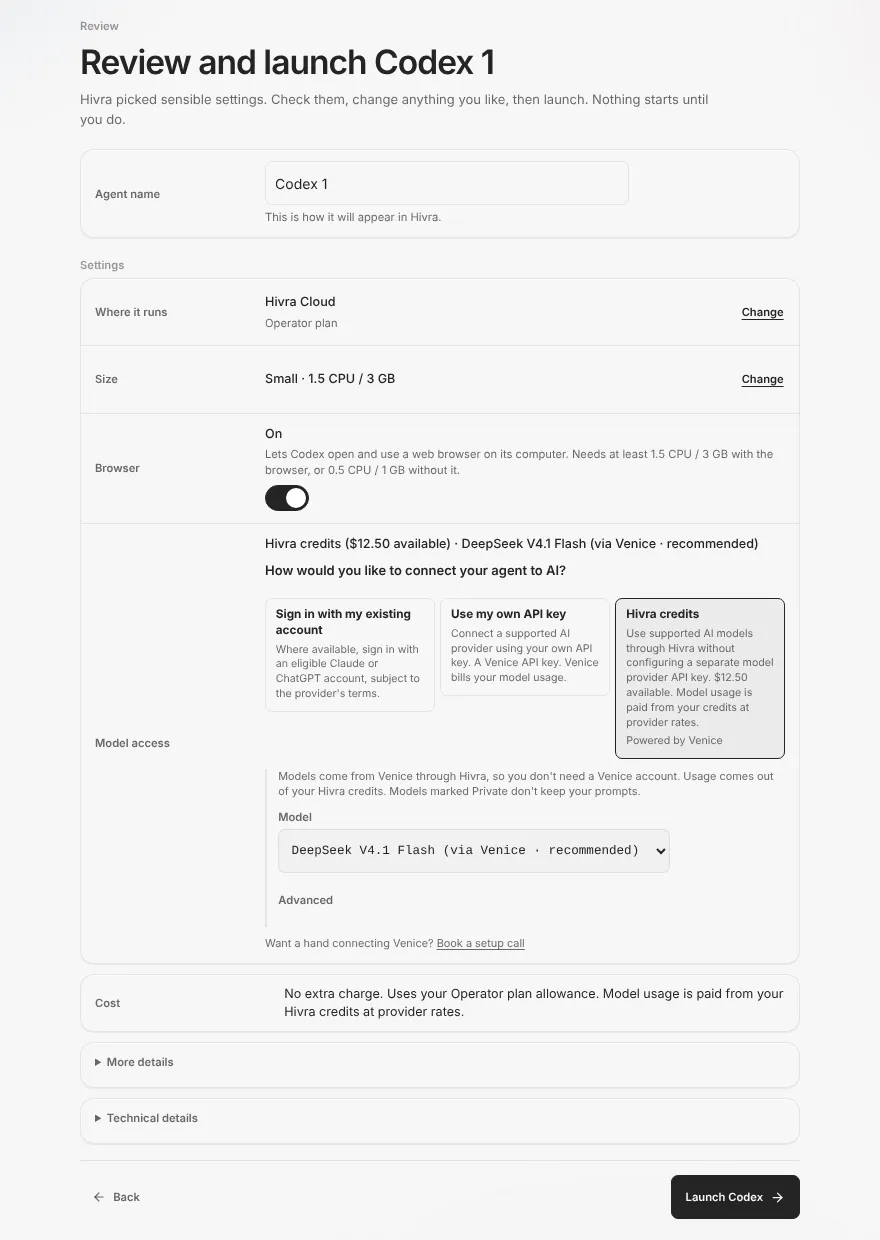
The size you launch with is Agent Zero's pinned size, so choose the size you want to work in. You can resize it later from Settings, but resizing restarts the computer and ends whatever it is running. See the Sizing section below.
How Agent Zero gets its model
On the Review screen, Model access lists three choices for every agent. Choices an agent cannot use are shown with an explanation, not hidden. For Agent Zero, Use my own API key is marked as not available, with the note to add your key inside Agent Zero after it opens instead.
| Choice | What happens |
|---|---|
| Hivra credits | Hivra mints a key for your credits wallet at launch and writes an OpenAI-compatible provider pointing at Venice into Agent Zero's configuration. Agent Zero works as soon as it opens. You pick a Venice model on the Review screen, and usage is paid from your credits at provider rates. |
| Set up inside Agent Zero after it opens | Hivra sends no model. You open the dashboard, go to Agent Zero's own Settings and choose a provider there. |
| Use my own API key | Not available for Agent Zero. Add your key in Agent Zero's own Settings instead. |
Hivra credits are the default wherever they are offered, except where credits are not offered: on a computer in your own cloud and on a self-hosted installation, where you set the provider inside Agent Zero. Credits need a balance above $0. At a $0 balance the choice reads Add credit to start chatting and offers a way to add credit. Whichever you pick, you are not locked in: you can change the provider later in Agent Zero's own Settings. Hivra credits reach models through Venice, so you do not need a Venice account for that route. Models marked Private on the Review screen do not keep your prompts.
If you set a provider yourself, you pay that provider directly and Hivra adds no markup on your own key. Check that provider's costs and usage limits separately from Hivra hosting. See Models and credits for the full picture, including how to add credits.
To change the model later, open the Dashboard area, open Agent Zero's own Settings (inside its dashboard, not Hivra's Settings) and change the model or provider there. Agent Zero keeps its own configuration. The model section in Hivra's Settings connects Hivra Chat and says the native interface keeps its own sign-in and configuration, so it does not change Agent Zero's provider.
Open the dashboard and the seeded login
Agent Zero protects its own web interface with a username and password. Hivra seeds that login when it provisions the computer, so you never choose one. It is stored on the computer, and Hivra's gateway signs in on your behalf, so you should not normally see Agent Zero's own login screen. Because it is stored on the computer, anyone with Terminal access to that computer can read it. That is the same person who owns the agent, so treat Terminal access like access to the agent.
Hivra does not display this seeded login anywhere in the dashboard. You reach the dashboard through your Hivra sign-in, and the gateway handles the rest. That is also why the dashboard has nothing to expose: it listens only on the computer's localhost, and the gateway is the only way in.
While you work, the title bar of the Dashboard pane has two actions. They become available once the dashboard has loaded:
- Open in new tab opens the dashboard in its own browser tab, which is easier for long sessions.
- Connect app is for using the Agent Zero desktop app against this computer. It opens a Connect the Agent Zero app window. In the app choose Add remote, then paste the URL, username and password it shows. The username is
hivraand the password is generated for this connection. It also gives a link that signs you in from a browser. The password is shown only in this window, and Hivra keeps only a digest of it on the computer.
The Connect app pair is separate from the seeded login. It stops working after 30 days, or when you press Disconnect, and New link makes a fresh one. The window's buttons are New link, Disconnect and Close. If the computer's connection service is too old, Connect app shows an error telling you to choose Update connection service in Settings. Anyone with that password or link can open your dashboard, so treat it like a key.
Sizing and limits
| Setting | Value |
|---|---|
| Floor | 1 vCPU and 2 GB of RAM |
| Suggested size | 2 vCPU and 4 GB of RAM |
| Launch presets | Small 1 vCPU and 2 GB, Medium 2 vCPU and 4 GB, Large 4 vCPU and 8 GB |
| Hivra browser | None. Agent Zero uses its own browser inside the container |
| Size behaviour | Pinned at launch: the size you launch with is its starting limit, and you can change it later in Settings under Resources |
Agent Zero's footprint is real. The agent loop, its tools and its browser all run on the computer, so heavy tasks, long browser sessions and large downloads push against the size you chose. The floor is enough to run it. If a task is slow or a tool is killed, move up a size. On Hivra Cloud the sizes you can pick are bounded by your plan. Options below 1 vCPU and 2 GB, or above what your plan allows, are disabled. On a server you connected, the Hivra Cloud plan does not limit the computer, though the host's capacity is checked before the change is applied.
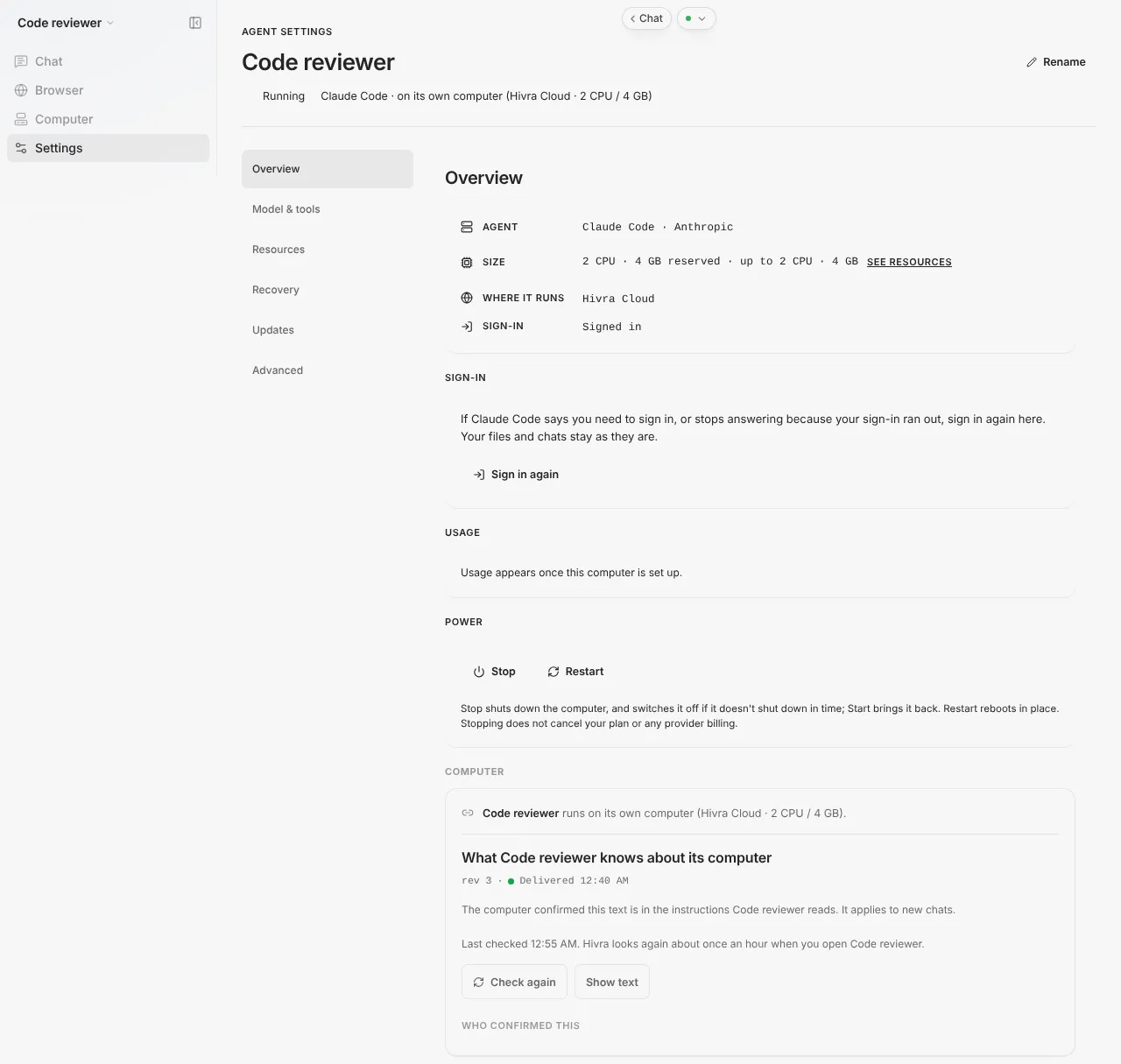
To resize, open Settings, go to Resources and choose Reserved CPU and Reserved memory. Maximum CPU and Maximum memory pickers sit beside them. Then press Apply. A line under the button reads like "Min 1 CPU / 2 GB, up to X CPU / Y GB for this computer on your plan". Resizing restarts the computer, which ends what Agent Zero is doing, so Hivra asks you to confirm and offers Resize anyway if work is running. Plan prices and sizes are in Plans and billing.
Some things Hivra does not do for Agent Zero. You use Agent Zero's own dashboard for its conversation. It does not add a Hivra-managed browser. It does not change how Agent Zero decides what to do, so what it runs is up to the model you chose and the instructions you give it.
Update Agent Zero
Agent Zero is updated from Settings, in the Updates section. The card for Agent Zero compares the version installed on the computer with the version Hivra has tested. You can move when you choose, or switch on Update automatically: when Hivra has tested a new version, it installs it while the agent is idle. That switch is on by default for agents on Hivra Cloud and off by default for agents on My server.
| What the card says | What it means |
|---|---|
| Agent Zero is on the version Hivra has tested | Nothing to do |
| An update is available | Press Update Agent Zero to move to the tested version |
| Hivra has not recorded which version is installed | Press Update Agent Zero to install the tested version |
| The installed version is not one Hivra has tested | Press Update Agent Zero to move to the tested version |
| Installed version is newer than the tested one | It may not work as expected inside Hivra. You can press Switch to the tested version |
| Waiting until nobody is using Agent Zero | The update starts once Agent Zero has been idle for 5 minutes with no task running. Hivra waits up to 6 hours |
| Downloading, then Installing | Agent Zero keeps working while it downloads, then restarts to install and is back in about a minute |
| Checking the new version | Hivra confirms the new version started |
If the new version does not start properly, Hivra puts the previous version back and says so, and you can press Try again. If Agent Zero was still in use after 6 hours, nothing was changed and the card says so. If the computer is out of disk space the card says there is not enough free space to update, and nothing is changed.
If the card says the connection service is older, press Update connection service in the same section first. It brings Hivra's service on the computer up to date without restarting the computer, and it also moves Agent Zero to the version Hivra has tested. See Update an agent for how this compares with other agents.
If an update fails and cannot be undone, the card offers Try again first. If that does not work, press Open Recovery to restore from a restore point made before the update, or Open Advanced for Force restart. Contact support only if those do not help.
When something goes wrong
| What you see | What to do |
|---|---|
| Dashboard shows Connecting securely… and stays there | The page is checking the computer's connection service and shows no buttons while it does. Wait a moment. If it changes to Couldn't verify secure access, use Try again or Open Manage. If it never changes, reload the page and check the computer is Running in Settings |
| Couldn't verify secure access and a note that the connection service is not reachable yet | Press Open Manage (it opens Settings) and check the computer is Running. If it is stopped, start it from Power, then try again |
| Connection update needed, saying the computer uses an older connection service | Press Open Manage, choose Update connection service, then press Check again. Your files and logins are unchanged |
| A message that secure access credentials are not available in the dashboard | Your computer and files are unchanged. Contact support to restore access |
| Dashboard loads but Agent Zero cannot answer | No model is set. Open Agent Zero's own Settings and choose a provider, or check your credits balance if you launched on credits |
| The update card says it is waiting | Close Agent Zero in other tabs and let any task finish. It starts after 5 idle minutes with no task running |
| An update was rolled back | The previous version is back and works as before. Press Try again later |
| Tools get killed or the browser crashes | The computer is too small for the work. Resize it from Settings under Resources |
If Agent Zero will not open after an update that could not restore the old version, the Updates card says so and points to recovery steps in Settings. See Troubleshooting for symptoms that are not specific to Agent Zero.
Stop and Restart are in Settings under Power. Stop shuts the computer down, and Start brings it back. Both end whatever Agent Zero is running, so Hivra asks before it proceeds, and you confirm with Stop anyway or Restart anyway. For what stopping means for your plan, see Plans and billing.
What Hivra does and does not do
- Hivra runs the open-source Agent Zero stack in a container on a private computer, and puts its dashboard behind an authenticated gateway.
- Hivra seeds Agent Zero's login and signs in for you. It does not show you that login in the dashboard.
- Hivra can set Agent Zero up with Hivra credits at launch, and you can change provider in Agent Zero's Settings afterwards.
- Hivra does not make Agent Zero safe. A separate computer is a boundary, not a guarantee. Agent mistakes, hostile web pages and over-broad credentials are still your risk, so use tightly scoped accounts and review sensitive actions.
- Hivra does not choose what Agent Zero does. It also does not promise that any task will finish: that depends on the model, the tools and the size of the computer.
- Hivra is not affiliated with or endorsed by the Agent Zero project.
Common questions
Does Agent Zero need a paid plan on Hivra?
On Hivra Cloud, yes. Every computer Hivra Cloud runs for you needs a paid plan, because the agent and its browser run on that computer. A Hivra account itself costs nothing, and a free account works with a server you connect yourself.
How big does the computer need to be?
At least 1 vCPU and 2 GB of RAM, which is the floor Hivra enforces. Hivra suggests 2 vCPU and 4 GB, and heavier browsing or code tasks can use more.
Where do I find the Agent Zero login?
You do not need it. Hivra seeds the login when the computer is provisioned and its gateway signs in for you, so you open the Dashboard and are in. Hivra does not show that login in the dashboard, though anyone with Terminal access to the computer can read it. If you want to use the Agent Zero desktop app, use Connect app in the Dashboard pane's title bar, which makes a separate username and password.
Do I need an API key?
No. You can launch on Hivra credits, which reach models through Venice, or choose to set up a provider inside Agent Zero after it opens. If you use your own key, the provider bills you directly.
Can I change the model after launch?
Yes. Open the Dashboard and change the provider or model in Agent Zero's own Settings, inside its dashboard. The choice you made at launch is only the starting point.
Does it keep working when I close my laptop?
Agent Zero runs on its computer, not in your browser, so closing the tab or the laptop does not stop it. Whether a particular task finishes still depends on the model, its tools and any errors or timeouts.
Why is there no Browser area?
Agent Zero ships its own browser and computer inside its container, and Hivra does not wire its own browser to it. You watch that browser inside Agent Zero's dashboard.
Is this the official Agent Zero hosting?
No. Hivra is an independent hosting service and is not affiliated with or endorsed by the Agent Zero project.