
Hivra
Free tool. No signup.

tmux cheat sheet

Sessions, windows, panes, detach and attach, copy mode and logging, plus the few commands that keep an AI coding agent in a session you can leave and come back to.

tmux is a terminal multiplexer. It runs your shells inside sessions that keep going when your terminal closes or your SSH connection drops. You attach to a session to look at it and detach to leave it running.

Each command below has a copy button and was checked against the tmux manual. The last section is for AI coding agents: one named session per agent, re-attaching from another device, and keeping a log. tmux survives disconnects. It doesn't survive a sleeping laptop.

Keys written Ctrl-b d mean: press Ctrl and b together, let go, then press d. Ctrl-b is tmux's default prefix key.

How the parts fit together

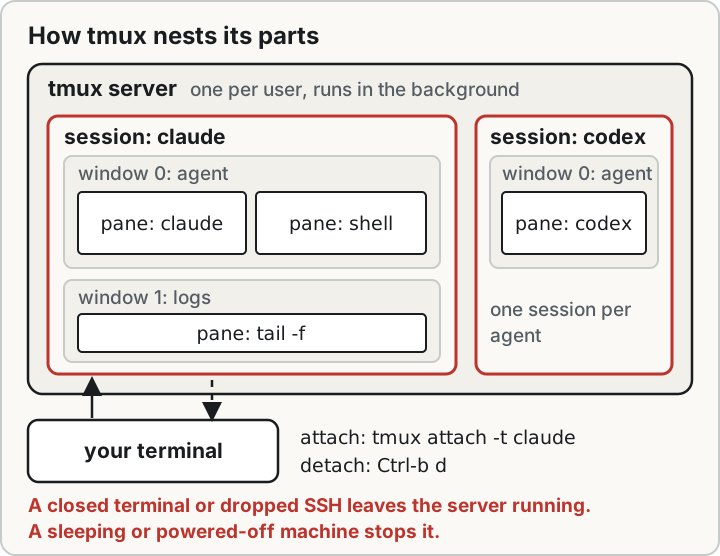
The tmux server holds sessions. A session holds windows. A window holds panes. Your terminal is a client: it attaches to one session and detaches without stopping it.

Diagram of how tmux nests its parts. One tmux server holds sessions, each session holds windows, and each window is split into panes. Your terminal is a client that attaches to a session and can detach from it without stopping it.
Open the diagram on its own to print it or save it as an SVG.

Sessions

A session is one named workspace. It keeps running in the background until you kill it or the machine restarts.

  • tmux new -s NAME

    Start a named session and attach to it.

  • tmux new -d -s NAME

    Start a session in the background without attaching.

  • tmux new -A -s NAME

    Attach to NAME if it exists, otherwise create it.

  • tmux ls

    List sessions.

  • Ctrl-b $tmux rename-session -t OLD NEW

    Rename the current session.

  • Ctrl-b s

    Pick a session from a list.

  • Ctrl-b ( or Ctrl-b )

    Switch to the previous or next session.

  • tmux kill-session -t NAME

    Destroy a session and everything running in it.

Tabs inside a session (windows)

A window fills the screen, like a browser tab. A session can hold many.

  • Ctrl-b ctmux new-window -n NAME

    Create a window.

  • Ctrl-b n

    Go to the next window.

  • Ctrl-b p

    Go to the previous window.

  • Ctrl-b 0 to 9

    Jump to a window by its number.

  • Ctrl-b w

    Pick a window from a list.

  • Ctrl-b ,

    Rename the current window.

  • Ctrl-b &

    Kill the current window. tmux asks you to confirm.

Panes (splits inside a window)

A pane is one terminal. Split a window to watch several things at once.

  • Ctrl-b %tmux split-window -h

    Split into left and right panes.

  • Ctrl-b "tmux split-window -v

    Split into top and bottom panes.

  • Ctrl-b then an arrow key

    Move to the pane above, below, left or right.

  • Ctrl-b o

    Move to the next pane.

  • Ctrl-b z

    Zoom the current pane to fill the window. Press again to restore.

  • Ctrl-b, then hold Ctrl and press an arrow key

    Resize the current pane one cell at a time.

  • Ctrl-b Space

    Cycle through the preset layouts.

  • Ctrl-b !

    Break the current pane out into its own window.

  • Ctrl-b x

    Kill the current pane. tmux asks you to confirm.

Detach and attach

Detaching leaves the session running. Attaching brings it back, from the same terminal or another device.

  • Ctrl-b dtmux detach

    Detach. Everything in the session keeps running.

  • tmux attach -t NAME

    Attach to a session that's already running.

  • tmux attach

    Attach to the most recently used session.

  • tmux attach -d -t NAME

    Attach and detach any other client still attached, for example your laptop.

Copy mode and scrollback

Copy mode is how you scroll back and copy text inside tmux. The keys depend on the mode-keys option: emacs keys by default, vi keys if your VISUAL or EDITOR contains vi.

  • Ctrl-b [

    Enter copy mode. Scroll with the arrow keys or Page Up and Page Down.

  • Ctrl-b Page Up

    Enter copy mode and scroll one page up.

  • Ctrl-Space, then Alt-w

    Emacs keys: start a selection, then copy it and leave copy mode.

  • Space, then Enter

    Vi keys: start a selection, then copy it and leave copy mode.

  • Ctrl-s or Ctrl-r (emacs), / or ? (vi)

    Search forwards or backwards through the history.

  • Escape (emacs) or q (vi)

    Leave copy mode without copying.

  • Ctrl-b ]

    Paste the most recently copied text.

  • tmux set -g mode-keys vi

    Use vi keys in copy mode.

  • tmux set -g history-limit 50000

    Hold up to 50,000 lines of history per pane.

  • tmux set -g mouse on

    Let the mouse scroll, select and switch panes.

Log a pane to a file

pipe-pane sends everything a pane prints to a command. It starts from the moment you run it and doesn't include earlier output. The file holds raw terminal output, so it includes anything the pane showed, secrets included. Keep it private.

  • tmux pipe-pane -o -t NAME: 'cat >> ~/NAME.log'

    Start appending the pane's output to a file. The -o flag only opens a pipe if none is open, and closes an open one, so running it again turns logging off.

  • tmux pipe-pane -t NAME:

    Stop logging. With no command, pipe-pane closes the current pipe.

  • tmux capture-pane -p -S - -t NAME: > ~/NAME-scrollback.txt

    Save the pane's whole history and screen to a file once. The - after -S means the start of the history.

tmux for AI coding agents

A coding agent is a long-running process, so give it a session you can leave and come back to. Use one named session per agent, re-attach from any device, and keep a log.

  • tmux new -d -s claude

    One named session per agent, started in the background, so tmux ls tells you what's running.

  • tmux send-keys -t claude: 'claude' Enter

    Type the agent's command into the session. The shell stays open after the agent exits, so you can read the last output.

  • tmux attach -t claude

    Watch it work. Ctrl-b d leaves it running.

  • tmux ls

    See every agent session at a glance.

  • tmux attach -d -t claude

    Pick it up from another device: connect to the machine over SSH, then run this. The -d detaches the device that was still attached.

  • tmux pipe-pane -o -t claude: 'cat >> ~/claude.log'

    Keep a log of everything the agent prints from now on.

  • tmux capture-pane -p -S -40 -t claude:

    Peek at the current screen plus 40 lines of history without attaching.

  • tmux kill-session -t claude

    Stop the session, and the agent with it.

tmux keeps a session alive through disconnects: a closed terminal, a dropped SSH connection, a different device. It doesn't keep anything going through a sleeping laptop, because the whole machine suspends, tmux included.

To keep the laptop awake while a session runs, see the keep-awake command builder. To check your whole setup, use the agent survival check.

A trailing colon, as in claude:, points a command at that session's current window and active pane. tmux's manual says scripts should fully qualify a target, so the pane commands here do. Keys and commands last checked September 2026 against the tmux manual. The method section below links it.

Build the commands for your agent

Agent

Letters, digits, dash and underscore. Anything else is dropped.

Log the pane to a file
Your commands
# Start the session in the background
tmux new -d -s claude
# Run the agent inside it
tmux send-keys -t claude: 'claude' Enter
# Watch it. Ctrl-b then d leaves it running
tmux attach -t claude
  • Come back to it, from any device you can SSH fromtmux attach -d -t claude
  • Peek without attachingtmux capture-pane -p -S -40 -t claude:
  • Stop the session and the agenttmux kill-session -t claude

tmux keeps a session alive through disconnects, not through sleep. For a run that has to outlast your laptop, start it in tmux on a computer that stays on. Start it inside tmux in a Hivra computer's Terminal tab, or send it from Telegram, and it keeps going after you close the laptop. Plans start at $9.99 a month for 2 vCPU and 4 GB of RAM, and paid plans are not paused for inactivity.

Run Claude Code on Hivra

How this cheat sheet was checked

Every key and command comes from the tmux manual: the default key bindings table, the new-session, attach-session, pipe-pane, capture-pane and send-keys entries, and the copy-mode tables for emacs and vi keys. Sources: tmux(1) manual.

Commands that act on a pane end the target with a colon, as in claude:. The manual says a target that isn't fully qualified is a best guess, and that scripts should qualify it. NAME: means that session's current window and active pane. Sources: tmux(1) manual.

The logging commands use pipe-pane. It sends a pane's output to a command from the moment it runs, and it doesn't include earlier output. The -o flag opens a pipe only if none is open, and it closes one that's already open. With no command, pipe-pane closes the current pipe. Sources: tmux(1) manual.

tmux keeps its sessions in a server process on the machine it runs on. A disconnect leaves that server running. A machine that sleeps or powers off stops it. That's why the sheet says tmux survives disconnects but not a sleeping laptop.

How this was checked: we read the commands from the manual and haven't run them on every tmux version. If a command is refused, check tmux -V and the manual for your version.

Last checked September 2026.

Worked examples

Claude Code in a named session

Inputs: Claude Code, session name claude, logging off.

# Start the session in the background
tmux new -d -s claude
# Run the agent inside it
tmux send-keys -t claude: 'claude' Enter
# Watch it. Ctrl-b then d leaves it running
tmux attach -t claude

The session exists before the agent starts, so closing the terminal later leaves both running. Ctrl-b then d detaches on purpose.

A logged Codex run

Inputs: Codex, session name codex, logging on.

# Start the session in the background
tmux new -d -s codex
# Log everything the pane prints, from now on
tmux pipe-pane -o -t codex: 'cat >> ~/codex.log'
# Run the agent inside it
tmux send-keys -t codex: 'codex' Enter
# Watch it. Ctrl-b then d leaves it running
tmux attach -t codex

Logging starts before the agent does, so the file holds the whole run. It's raw terminal output and includes anything the pane shows, so keep it private.

Picking a session up from another device

Inputs: Claude Code, session name claude, attached on a laptop, now on a phone over SSH.

tmux attach -d -t claude

Attaches the phone and detaches the laptop. The session and the agent in it are unaffected by the switch, as long as the machine they run on stayed awake.

Cite this page

Hivra, "tmux Cheat Sheet for AI Coding Agents", https://hivra.cloud/tools/tmux-cheat-sheet, facts last checked September 2026.

Source: <a href="https://hivra.cloud/tools/tmux-cheat-sheet">Hivra</a>, tmux Cheat Sheet for AI Coding Agents, facts last checked September 2026.

Common questions

What is the tmux prefix key?

Ctrl-b by default. Press Ctrl and b together, let go, then press the command key. Ctrl-b d detaches from the session, Ctrl-b c creates a window and Ctrl-b % splits the pane into left and right.

How do I detach from and reattach to a tmux session?

Press Ctrl-b then d to detach. The session keeps running. Run tmux ls to list sessions and tmux attach -t NAME to attach to one. If another device is still attached, tmux attach -d -t NAME detaches it as it attaches you.

How do I scroll in tmux?

Press Ctrl-b then [ to enter copy mode, then scroll with the arrow keys or Page Up and Page Down. Leave with Escape, or q if you use vi keys. Ctrl-b Page Up enters copy mode and scrolls one page up. To scroll with the mouse, run tmux set -g mouse on.

What is the difference between a tmux session, window and pane?

A session is a named workspace that keeps running in the background. A window is one full-screen view inside a session, like a browser tab. A pane is one terminal inside a window, made by splitting it.

How do I keep Claude Code running in tmux?

Start a session with tmux new -s claude, run claude inside it, and press Ctrl-b then d to detach. Claude Code keeps running in the session until the machine sleeps, restarts or you kill the session. Reattach with tmux attach -t claude. If the CLI itself exited and you need the chat history, see the resume guide for Codex and Claude Code.

Does tmux keep a process running when my laptop sleeps?

No. tmux keeps a session alive through a closed terminal or a dropped SSH connection, but a sleeping laptop suspends everything on it, tmux included. To keep a run going, use a computer that stays on. On a paid Hivra plan the computer stays on and keeps your files, sessions and login. A Claude Code or Codex run you start inside tmux in the computer's Terminal tab keeps going after you close the laptop. On Claude Code, work you send through Telegram, connected in the agent's Telegram tab, runs on the computer, not in your browser.

How do I log tmux output to a file?

Run tmux pipe-pane -o -t NAME: 'cat >> ~/NAME.log' to append everything the pane prints from that moment. Run it again, or tmux pipe-pane -t NAME:, to stop. To save the existing history once, run tmux capture-pane -p -S - -t NAME: > file.

Put your agent on a computer that stays on.

From $9.99/mo for 2 vCPU and 4 GB, not paused for inactivity. Your own Claude or ChatGPT login, or your own AI key. 7-day money-back guarantee on card payments.

Hivra is independent and is not affiliated with Anthropic or OpenAI.